
If your internet cuts out every time you heat up lunch, you're not imagining things—and you're definitely not alone. A surprising number of households experience temporary Wi-Fi disconnections or severe slowdowns when the microwave is in use. While it might seem like a minor annoyance, this issue can disrupt video calls, gaming sessions, or streaming. The root cause lies in the invisible battle between two common household devices operating on the same frequency band. Understanding the science behind this interference and applying targeted fixes can restore stability to your network.
The Science Behind Microwave and Wi-Fi Interference
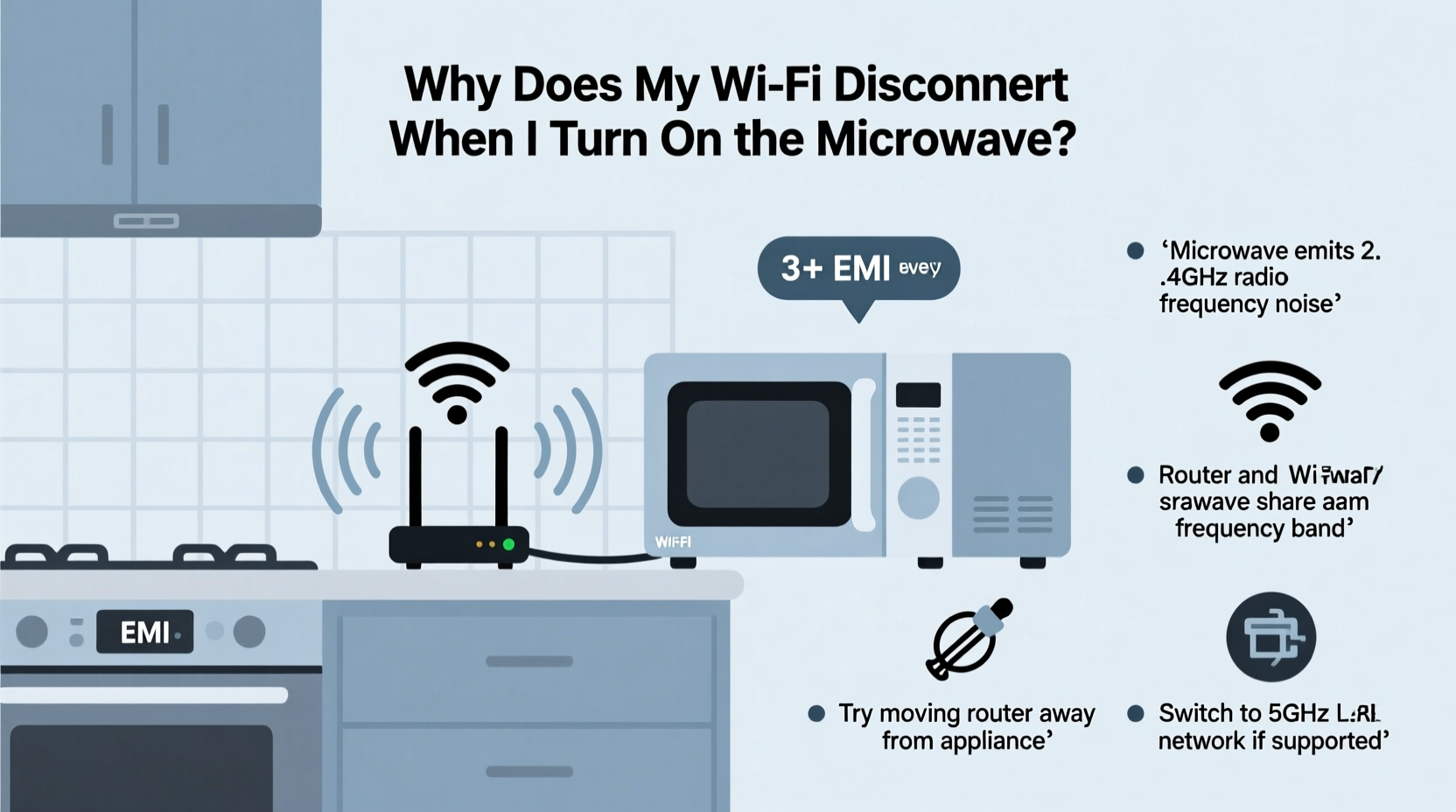
Both microwaves and most Wi-Fi routers operate in the 2.4 GHz frequency band. This isn’t a coincidence—it’s a globally available unlicensed spectrum used by many wireless technologies. However, this shared space creates potential for conflict. Microwaves generate electromagnetic radiation at around 2.45 GHz to agitate water molecules in food, effectively cooking it. While modern microwaves are designed with shielding to contain this radiation, small leaks—especially in older or damaged units—can emit enough energy to interfere with nearby Wi-Fi signals.
This interference doesn’t mean your microwave is unsafe. Even minimal leakage within legal limits can still disrupt sensitive wireless communications. The result? Your router may struggle to maintain a stable connection with devices, leading to packet loss, latency spikes, or complete disconnections during microwave operation.
“Microwave ovens are powerful transmitters operating near Wi-Fi frequencies. Even well-shielded models can cause localized RF noise that degrades wireless performance.” — Dr. Alan Reyes, RF Engineering Consultant
How to Diagnose Microwave-Induced Wi-Fi Disruptions
Before jumping into solutions, confirm that your microwave is indeed the culprit. Other appliances or environmental factors could mimic similar symptoms. Follow this diagnostic process:
- Observe the pattern: Does the disconnection happen consistently only when the microwave runs?
- Test duration: Does the problem start immediately upon activation and resolve shortly after turning off?
- Check proximity: Are your router and microwave located close to each other (within 6–10 feet)?
- Run a speed test: Perform a baseline internet speed test, then repeat it while the microwave is running. A significant drop confirms interference.
- Try different devices: See if wired devices remain connected while wireless ones drop offline.
Effective Troubleshooting Steps to Stop the Disconnection
Once confirmed, several practical steps can mitigate or eliminate the interference. Start with the simplest and least expensive solutions before moving to more involved upgrades.
1. Reposition Your Router and Microwave
Distance is one of the most effective tools against interference. Electromagnetic field strength diminishes rapidly with distance. Moving either device even a few feet apart can yield noticeable improvements.
- Place the router higher up—on a shelf or wall mount—to avoid direct line-of-sight with the microwave.
- Avoid placing the router directly above, below, or beside the microwave.
- Use central locations for routers to improve overall coverage and reduce reliance on weak signals vulnerable to disruption.
2. Switch to the 5 GHz Wi-Fi Band
Modern dual-band routers broadcast on both 2.4 GHz and 5 GHz frequencies. The 5 GHz band is immune to microwave interference because it operates on a completely different spectrum. Devices connected to 5 GHz will not be affected when the microwave runs.
To take advantage:
- Access your router settings via a web browser (usually http://192.168.1.1 or http://192.168.0.1).
- Ensure dual-band mode is enabled.
- Connect compatible devices (smartphones, laptops, tablets) to the 5 GHz network, often labeled with “_5G” at the end of the SSID.
Note: 5 GHz has shorter range and less wall penetration than 2.4 GHz, so ensure your devices are within reasonable distance of the router.
3. Change Your 2.4 GHz Wi-Fi Channel
The 2.4 GHz band has 11–13 channels, but only channels 1, 6, and 11 are non-overlapping. Microwaves typically emit noise across a wide swath of this band, but some channels may be less affected depending on your environment.
In your router settings:
- Navigate to Wireless Settings > 2.4 GHz > Channel Selection.
- Manually switch from \"Auto\" to a fixed channel (try 1, then 11).
- Test microwave usage after each change to see which offers the best stability.
4. Upgrade to a Mesh Network System
If repositioning isn't feasible and signal strength remains poor in key areas, consider a mesh Wi-Fi system. These systems use multiple nodes to blanket your home in seamless coverage. More importantly, they intelligently route traffic and allow per-node band steering, so even if one node experiences interference, others can maintain connectivity.
Do’s and Don’ts When Dealing With Microwave-WiFi Conflict
| Do’s | Don’ts |
|---|---|
| Use the 5 GHz band for high-bandwidth activities | Place your router next to the microwave |
| Keep microwave door seals clean and undamaged | Ignore flickering lights or unusual sounds from the microwave |
| Update router firmware regularly | Assume all interference is due to the microwave—test first |
| Use Ethernet for stationary devices (TVs, desktops) | Overload circuits with multiple high-power appliances |
| Test with a Wi-Fi analyzer app | Use aluminum foil or makeshift shields near the router |
Real-World Example: A Home Office Case Study
Sarah, a freelance graphic designer in Austin, began experiencing frequent Zoom call drops every afternoon. She initially blamed her ISP until she noticed the pattern coincided with her lunch break—specifically, when she used the kitchen microwave. Her router was mounted on a cabinet just two feet above the appliance.
She tested the theory by heating water while monitoring her laptop’s Wi-Fi signal. The connection dropped within seconds. Using a Wi-Fi scanner, she observed channel 6 saturated with noise during microwave use. Sarah moved her router to a hallway shelf 15 feet away and switched her work devices to the 5 GHz network. The disconnections stopped entirely. She also replaced her five-year-old microwave, which had visible wear on the door seal—a likely contributor to increased leakage.
This case illustrates how combining observation, testing, and simple changes can resolve what seems like a complex technical issue.
When to Consider Replacing Your Microwave
While all microwaves emit some level of RF noise, excessive leakage suggests aging components or compromised shielding. Signs that your microwave may need replacement include:
- Frequent Wi-Fi disruptions even after router repositioning
- Visible damage to the door, hinges, or rubber seal
- Unusual humming, arcing, or sparking inside the unit
- Older than 7–10 years, especially if efficiency has declined
You can test for leakage using an RF meter (available online), though professional inspection is more reliable. If readings exceed 5 mW/cm² at 2 inches from the surface, the microwave should be retired.
Troubleshooting Checklist
Follow this step-by-step checklist to systematically address and resolve microwave-related Wi-Fi issues:
- ✅ Confirm the disconnection occurs only when the microwave is on
- ✅ Run a speed test before and during microwave operation
- ✅ Move the router at least 6–10 feet away from the microwave
- ✅ Connect devices to the 5 GHz Wi-Fi network instead of 2.4 GHz
- ✅ Manually set your 2.4 GHz channel to 1 or 11 in router settings
- ✅ Clean the microwave door seal and check for physical damage
- ✅ Update your router’s firmware to the latest version
- ✅ Consider upgrading to a mesh Wi-Fi system for better coverage
- ✅ Replace the microwave if over 7 years old or showing signs of wear
- ✅ Use wired connections (Ethernet) for critical devices like smart TVs or workstations
Frequently Asked Questions
Can a microwave permanently damage my router?
No, typical microwave interference does not cause permanent hardware damage to your router. The effect is temporary signal disruption due to radio frequency noise. However, prolonged exposure to electrical surges (e.g., from shared outlets) could harm electronics over time.
Why does only my phone disconnect, but not my laptop?
This usually indicates that your phone is connected to the 2.4 GHz network, while your laptop is on 5 GHz. Check each device’s Wi-Fi settings. Also, some older or budget phones have less sensitive antennas and weaker interference filtering.
Will using a microwave affect my neighbor’s Wi-Fi?
Possibly, especially in apartments or dense housing. If neighbors share the same 2.4 GHz channels and live in close proximity, your microwave could contribute to local congestion. Encourage shared use of 5 GHz networks where possible.
Final Thoughts and Action Plan
Microwave-induced Wi-Fi disconnections are a common yet solvable problem rooted in physics, not faulty equipment. By understanding how these two essential appliances interact, you gain control over your home network’s reliability. The solution often lies in simple adjustments: relocating devices, switching bands, or updating aging hardware.
Start today by observing when disconnections occur and verifying the microwave’s role. Then apply the checklist above—most fixes require no special tools or technical expertise. Over time, these small changes create a more resilient, efficient network that supports your lifestyle without interruption.




 浙公网安备
33010002000092号
浙公网安备
33010002000092号 浙B2-20120091-4
Comments
No comments yet. Why don't you start the discussion?