
If your Wi-Fi connection keeps dropping on your phone while other devices stay connected, you're not imagining things—and you're certainly not alone. This issue is more common than most users realize, especially as homes become saturated with smart devices and mobile networks grow more complex. The problem often lies at the intersection of device-specific settings, router behavior, and environmental interference. While it’s tempting to blame your phone or your internet service provider, the root cause frequently traces back to how your router manages wireless signals and interacts with mobile hardware.
The good news? Most of these issues are fixable without replacing equipment. By understanding the underlying causes and applying targeted router adjustments, you can restore consistent connectivity and eliminate frustrating disconnections. This guide walks through the technical reasons behind selective Wi-Fi instability and provides practical, step-by-step solutions that prioritize long-term reliability over temporary patches.
Understanding Why Only Your Phone Loses Connection
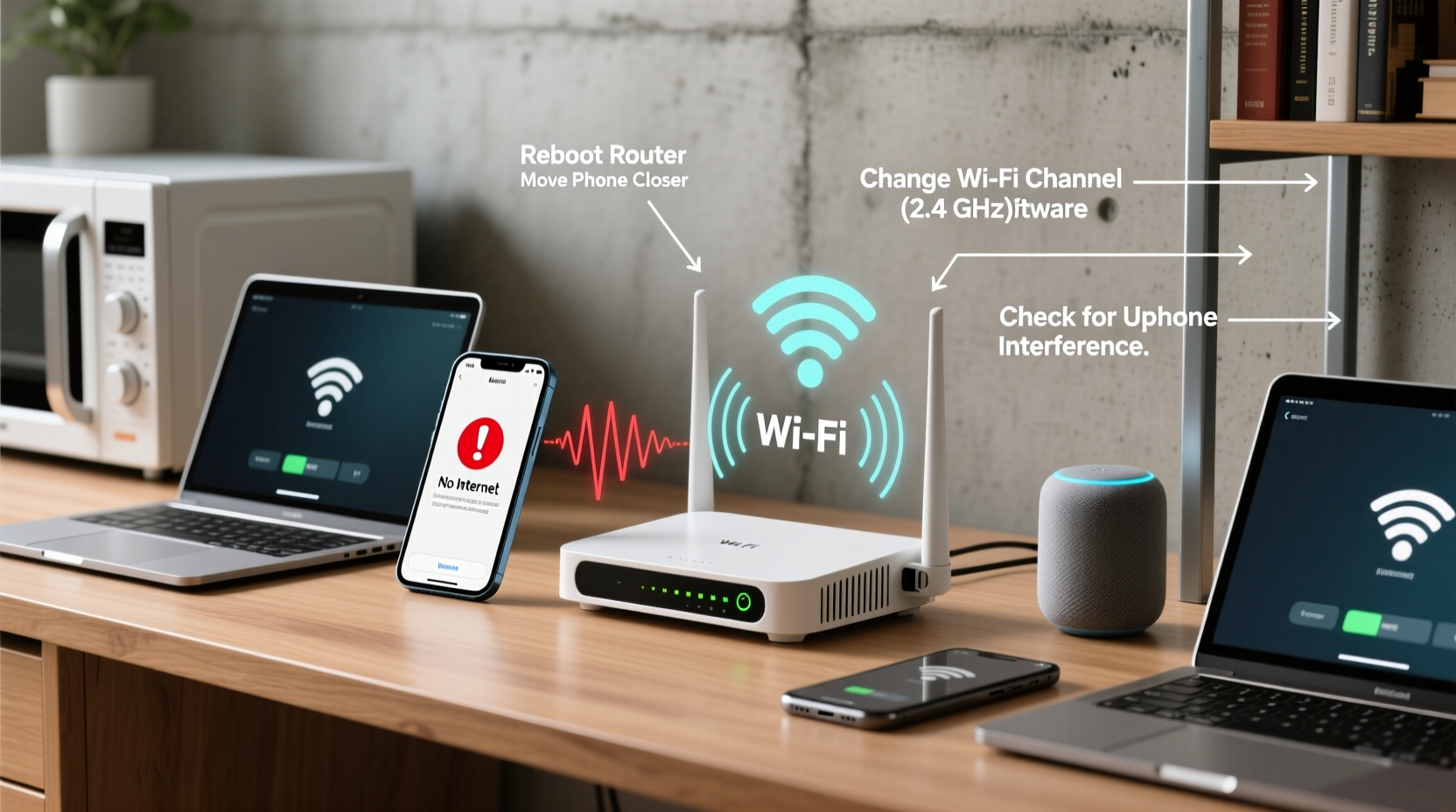
When only one device—especially a smartphone—experiences frequent Wi-Fi disconnections, it indicates a compatibility or configuration mismatch rather than a broad network failure. Unlike laptops or smart TVs, phones are designed for mobility and power efficiency, which means they aggressively manage wireless connections to conserve battery. This behavior can clash with certain router settings, particularly around frequency bands, signal handoff, and power-saving modes.
Modern routers operate on dual or tri-band frequencies: 2.4 GHz, 5 GHz, and sometimes 6 GHz. The 2.4 GHz band has longer range but slower speeds and more interference from household appliances. The 5 GHz band offers faster performance but shorter reach and weaker wall penetration. Smartphones automatically switch between these bands based on signal strength and load, but if the router isn’t optimized for seamless transitions, the phone may fail to reconnect properly or drop entirely.
Additionally, many phones use Wi-Fi power-saving features that temporarily disable the radio when idle. If the router's beacon interval (the frequency at which it announces its presence) doesn't align with the phone’s wake cycle, the device may think the network is gone and disconnect. These subtle timing mismatches are often invisible to users but cause persistent instability.
“Wi-Fi issues isolated to a single device usually stem from firmware-level incompatibilities or misconfigured router policies.” — David Lin, Senior Network Engineer at NetSignal Labs
Common Router Settings That Cause Phone-Specific Drops
Many modern routers come with default configurations that favor speed over stability, especially in mixed-device environments. Below are key settings that disproportionately affect smartphones:
- Band Steering: Automatically pushes devices to the 5 GHz band for higher throughput, but phones with weaker antennas may struggle to maintain the link, leading to repeated drops.
- Beacon Interval Mismatch: Routers typically broadcast beacons every 100 milliseconds. Some phones expect updates within tighter windows; deviations can trigger disconnection.
- DTIM Interval (Delivery Traffic Indication Message): Controls how often the router checks for queued data for sleeping devices. A high DTIM value saves power but increases the chance that phones miss packets and assume the network is dead.
- Client Isolation: Prevents devices on the same network from communicating—a security feature that can interfere with background sync processes on phones.
- AP Isolation or Access Point Mode Conflicts: In multi-router setups, overlapping SSIDs with poor coordination can confuse mobile clients during roaming.
Step-by-Step Router Fixes to Stabilize Phone Connectivity
Before assuming hardware failure, methodically test and adjust your router settings using the following sequence. Each step isolates a potential cause and verifies improvement.
- Reboot the Router and Phone: Start with a clean slate. Power cycle both devices to clear cached states and re-establish fresh connections.
- Check for Firmware Updates: Log into your router’s admin panel (usually via 192.168.1.1 or 192.168.0.1). Navigate to the firmware section and install any available updates. Outdated firmware is a top cause of device-specific bugs.
- Separate 2.4 GHz and 5 GHz Networks: Instead of broadcasting a single SSID for both bands, create two distinct network names (e.g., “Home-WiFi-2G” and “Home-WiFi-5G”). Connect your phone to the 2.4 GHz version for better range and stability, especially in larger homes.
- Adjust DTIM Interval: In advanced wireless settings, set the DTIM interval to 1 or 2 (default is often 3). Lower values ensure the router wakes sleeping phones more frequently, reducing missed communications.
- Reduce Beacon Interval: Change from 100ms to 50ms if supported. This increases overhead slightly but improves detection for power-saving devices like phones.
- Disable Airtime Fairness: This feature aims to balance bandwidth among devices but can deprioritize older or lower-performing clients like smartphones. Turn it off to test stability improvements.
- Enable Legacy Wi-Fi Modes: Ensure 802.11b/g/n support is active on the 2.4 GHz band. Some phones perform poorly on pure N/AC mode networks.
- Limit Channel Width on 2.4 GHz: Set channel width to 20 MHz instead of 40 MHz. Wider channels increase speed but reduce reliability in congested RF environments.
After each change, reconnect your phone and monitor signal strength and consistency over several hours. Use a Wi-Fi analyzer app to observe signal-to-noise ratio and channel congestion.
Do’s and Don’ts: Managing Wi-Fi for Mobile Devices
| Do | Don’t |
|---|---|
| Use separate SSIDs for 2.4 GHz and 5 GHz bands | Merge bands under one name if experiencing phone drops |
| Set DTIM interval to 1 or 2 for better phone responsiveness | Leave DTIM at default if phones disconnect when idle |
| Update router firmware quarterly | Ignore firmware notifications for months |
| Place router centrally, away from metal objects and microwaves | Install router inside a cabinet or next to a cordless phone base |
| Test with one phone first before rolling out changes | Apply all settings at once without isolating variables |
Real-World Example: Fixing Persistent Drops in a Multi-Floor Home
Consider Sarah, a remote worker living in a three-story townhouse. She noticed her Android phone would lose Wi-Fi every time she moved from her office upstairs to the kitchen downstairs, while her laptop and tablet stayed connected. Her router was located on the second floor, and she had recently upgraded to a mesh system for broader coverage.
Initial troubleshooting ruled out phone software issues—reboots, forgetting and rejoining the network, and disabling battery optimization didn’t help. However, upon checking her mesh router’s admin interface, she discovered that band steering was enabled and both 2.4 GHz and 5 GHz shared the same SSID. Her phone was being pushed to the 5 GHz band, which couldn’t reliably penetrate the floorboards.
She separated the network names, disabled band steering, and connected her phone exclusively to the 2.4 GHz network. She also reduced the DTIM interval from 3 to 1. Within minutes, the disconnections stopped. Even when moving between floors, her phone maintained a stable handshake with the access point. The fix didn’t impact her overall speed significantly but dramatically improved reliability where it mattered most.
Comprehensive Checklist for Stable Phone Wi-Fi
Use this checklist to systematically eliminate causes of Wi-Fi drops on your phone:
- ✅ Reboot router and phone
- ✅ Confirm router firmware is up to date
- ✅ Separate 2.4 GHz and 5 GHz SSIDs
- ✅ Connect phone to 2.4 GHz network for better range
- ✅ Adjust DTIM interval to 1 or 2
- ✅ Reduce beacon interval to 50ms if supported
- ✅ Disable airtime fairness and band steering
- ✅ Ensure 802.11b/g/n modes are enabled on 2.4 GHz
- ✅ Set 2.4 GHz channel width to 20 MHz
- ✅ Position router centrally, away from interference sources
- ✅ Test with Wi-Fi analyzer app for signal quality
- ✅ Reset network settings on phone if all else fails
Frequently Asked Questions
Why does my phone disconnect from Wi-Fi when idle?
Phones use aggressive power-saving modes that turn off the Wi-Fi radio when the screen is off. If the router’s DTIM interval is too long, the phone may miss data packets and assume the network is unreachable. Reducing the DTIM value ensures timely wake-ups and prevents false disconnections.
Can a factory reset on the router solve phone-specific Wi-Fi drops?
Yes, in some cases. A factory reset clears corrupted configurations and restores default settings, which can resolve hidden conflicts. However, after resetting, reconfigure only the essential fixes—like separating bands and adjusting DTIM—to avoid reintroducing the issue.
Does iPhone have different Wi-Fi behavior than Android?
Yes. iPhones tend to hold onto weak signals longer before switching networks, while Android devices may roam more aggressively. Additionally, iOS has stricter requirements for DHCP lease renewal and DNS response times. Slower routers may struggle to meet these expectations, causing perceived drops even when the connection is technically active.
Final Steps: When Router Fixes Aren’t Enough
If you’ve applied all recommended settings and still experience instability, consider deeper factors. Older phones may have failing Wi-Fi antennas or outdated chipsets incompatible with modern encryption standards like WPA3. Try connecting to another Wi-Fi network—if the problem persists, the issue is likely device-related.
In dense urban environments, RF interference from neighboring networks can overwhelm weaker receivers. Using a Wi-Fi analyzer app, check for channel congestion on 2.4 GHz. Switching to channel 1, 6, or 11 (non-overlapping channels) can reduce interference. For future upgrades, consider Wi-Fi 6 routers, which offer better MU-MIMO and OFDMA support for handling multiple mobile devices efficiently.
“Stability matters more than speed for mobile users. Optimize for consistent signal retention, not peak throughput.” — Raj Patel, Wireless Systems Architect
Conclusion
Wi-Fi drops affecting only your phone are rarely random—they’re symptoms of specific mismatches between your device’s behavior and your router’s configuration. By addressing band management, timing intervals, and power-saving protocols, you can transform an unstable connection into a reliable one. These fixes require no additional cost, just attention to detail and a willingness to explore your router’s advanced settings.




 浙公网安备
33010002000092号
浙公网安备
33010002000092号 浙B2-20120091-4
Comments
No comments yet. Why don't you start the discussion?