
If your internet works fine most of the time but suddenly slows to a crawl or disconnects entirely every time you launch Zoom, you're not alone. This frustrating issue affects remote workers, students, and professionals across home networks worldwide. The root cause isn’t always faulty equipment or an unreliable ISP—it’s often a combination of network demands, device settings, and environmental interference that only becomes apparent under the strain of real-time video conferencing.
Zoom requires consistent upload and download bandwidth, low latency, and minimal packet loss. Unlike browsing or streaming, where buffering can mask minor hiccups, video calls are sensitive to even momentary disruptions. When your WiFi drops specifically during Zoom sessions, it's a signal that your network is struggling under specific conditions—not failing completely. Understanding why this happens is the first step toward fixing it permanently.
Why Zoom Triggers WiFi Instability
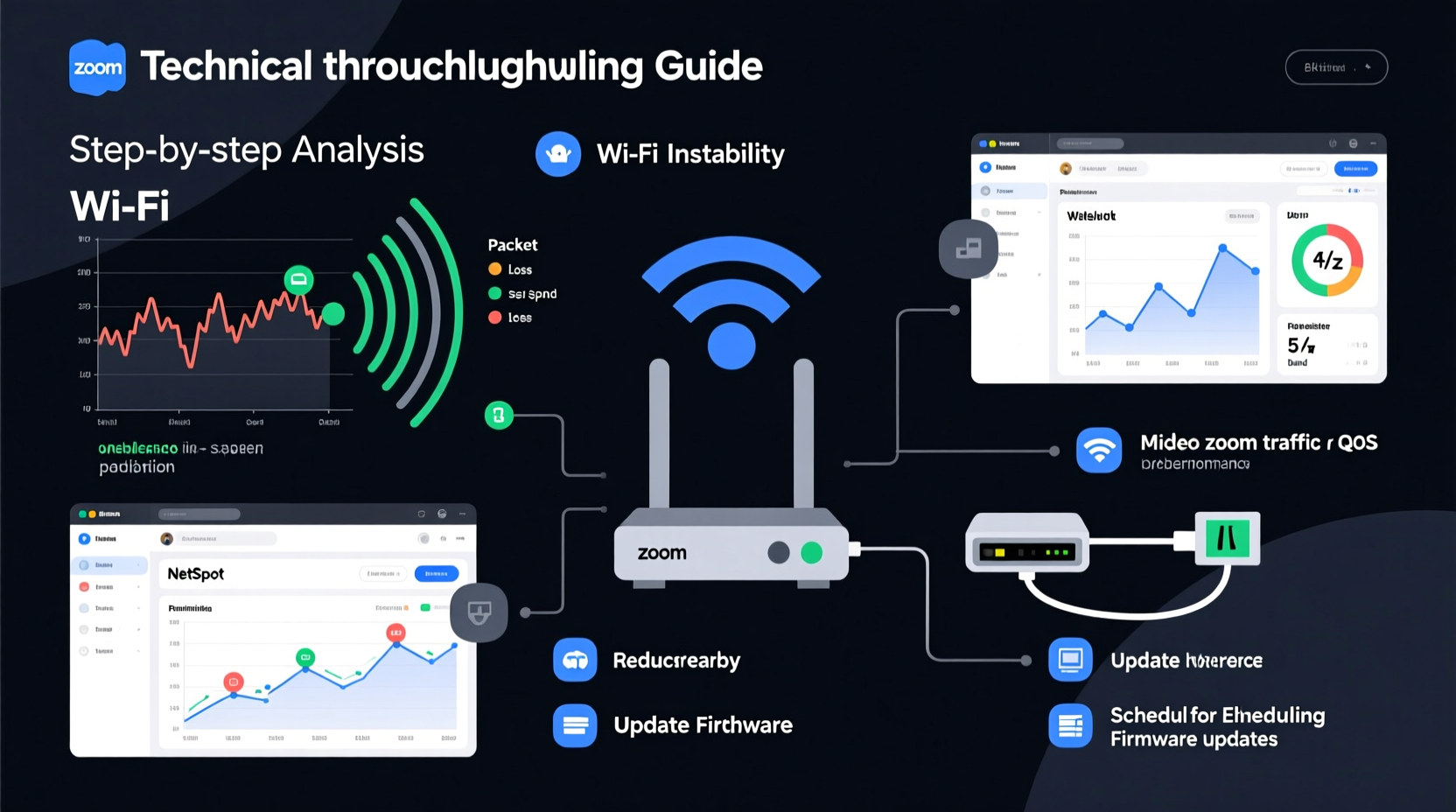
Zoom doesn't inherently break your internet, but it exposes weaknesses in your network setup. While loading a webpage might require just 1–5 Mbps, a standard Zoom meeting uses 1.5–3 Mbps per participant for HD video. Add screen sharing, multiple attendees, or background applications, and demand spikes sharply. Your router may handle light traffic easily but buckle under sustained high-bandwidth usage.
One key factor is **upload bandwidth**. Most home internet plans are optimized for downloads—streaming videos, downloading files—not for uploading. Yet Zoom relies heavily on upload speed to transmit your video and audio. If your upload speed is below 1.5 Mbps, quality degrades quickly, leading to freezing, audio glitches, or disconnections.
Another culprit is **network congestion**. Even if your total bandwidth seems sufficient, other devices running in the background—smart TVs updating, phones syncing photos, smart appliances checking for updates—can consume critical resources when Zoom needs them most. These activities compete for bandwidth and increase latency, causing Zoom to time out or drop.
Common Causes of Zoom-Specific WiFi Drops
- Insufficient upload speed: Uploads below 1.5 Mbps lead to poor video transmission and disconnections.
- Wi-Fi interference: Neighboring networks, microwaves, or Bluetooth devices disrupt 2.4 GHz bands commonly used by older routers.
- Router overload: Older or low-end routers struggle with multiple high-demand connections simultaneously.
- Device limitations: Laptops with weak Wi-Fi antennas or outdated drivers fail to maintain stable signals under stress.
- Background processes: Cloud backups, OS updates, or streaming apps drain bandwidth without your awareness.
- Signal distance and obstacles: Thick walls, metal structures, or long distances between device and router weaken connectivity.
Unlike passive internet use, Zoom maintains an active, bidirectional data stream. Any disruption—even brief—results in noticeable lag, pixelation, or disconnection. This sensitivity makes it a reliable “stress test” for your network health.
Step-by-Step Guide to Stabilize Your Zoom Connection
Fixing Zoom-related WiFi issues requires both immediate fixes and long-term improvements. Follow this structured approach to identify and resolve the core problems.
- Test your internet speed under load. Open Zoom, start a test meeting, and run a speed test simultaneously. Note your upload and download speeds. If either drops significantly during the call, bandwidth is likely the issue.
- Restart your router and modem. Power cycle both devices by unplugging for 30 seconds. This clears memory leaks and resets connections.
- Move closer to your router. Reduce physical barriers and distance. If possible, sit within one room of the router during calls.
- Switch from 2.4 GHz to 5 GHz Wi-Fi. The 5 GHz band offers faster speeds and less interference, though with shorter range. Connect to the 5 GHz network if your device supports it.
- Close unnecessary apps and tabs. Stop cloud sync services (Dropbox, Google Drive), pause downloads, and disable video autoplay on browsers.
- Limit connected devices. Ask household members to avoid streaming or large downloads during your meetings.
- Update your router firmware. Log into your router’s admin panel (usually via 192.168.1.1) and check for updates under the maintenance or administration tab.
- Upgrade your hardware if needed. Routers over three years old may lack modern QoS (Quality of Service) features or support for current Wi-Fi standards.
Do’s and Don’ts: Optimizing Your Network for Video Calls
| Do | Don’t |
|---|---|
| Use wired Ethernet whenever possible for maximum stability | Rely solely on Wi-Fi in high-interference environments |
| Enable Quality of Service (QoS) on your router to prioritize Zoom traffic | Run automatic backups or updates during important meetings |
| Position your router centrally, elevated, and away from obstructions | Place your router near microwaves, cordless phones, or metal cabinets |
| Use Zoom’s “Turn off my video when I’m not speaking” setting to reduce bandwidth | Use HD video if your upload speed is below 2 Mbps |
| Regularly reboot your router (once a week) | Ignore firmware update notifications |
Expert Insight: What Network Engineers Say
“Video conferencing doesn’t just use more bandwidth—it demands consistency. A single spike in latency or packet loss can knock someone offline. That’s why basic speed tests often miss the real problem. You need to assess network stability, not just peak throughput.” — Raj Patel, Senior Network Engineer at NetFlow Dynamics
Patel emphasizes that jitter (variation in packet arrival time) and packet loss are silent killers of Zoom performance. Even with strong speeds, if data packets arrive unevenly or get dropped, Zoom interprets this as a failed connection and disconnects. He recommends using tools like PingPlotter or MTR to monitor these metrics over time.
Mini Case Study: Remote Worker Solves Daily Zoom Crashes
Sarah, a project manager in Austin, experienced daily disconnections during client calls. Her internet tested at 100 Mbps down and 10 Mbps up—more than enough on paper. But Zoom would freeze or kick her out after 10–15 minutes.
After testing, she discovered her smart TV was downloading a 4K software update in the background every evening. Though not actively streaming, the update consumed 70% of her upload capacity. By scheduling updates for off-hours and switching her laptop to the 5 GHz Wi-Fi band, Sarah eliminated all dropouts. She also enabled QoS on her router to prioritize Zoom traffic, ensuring no future conflicts.
This case illustrates how hidden bandwidth consumers and suboptimal router settings can sabotage performance—even with fast internet.
Checklist: How to Prevent Zoom WiFi Drops
Use this checklist before your next meeting to ensure a stable connection:
- ✅ Test internet speed while on a Zoom test call
- ✅ Switch to 5 GHz Wi-Fi or use an Ethernet cable
- ✅ Close all non-essential apps and browser tabs
- ✅ Pause cloud backups, downloads, and updates
- ✅ Restart your router and modem
- ✅ Position yourself closer to the router
- ✅ Enable QoS in router settings (if available)
- ✅ Disable HD video in Zoom settings if upload is under 2 Mbps
- ✅ Update Zoom app, device OS, and router firmware
- ✅ Ask others in the household to limit bandwidth use during your call
Advanced Fixes for Persistent Issues
If basic troubleshooting fails, consider deeper technical solutions:
Enable Quality of Service (QoS)
QoS allows your router to prioritize certain types of traffic. In your router settings, look for QoS or Application Prioritization. Add Zoom (or ports 8801, 8802, and UDP 3478–3481) as a high-priority application. This ensures Zoom gets bandwidth first, even when the network is busy.
Upgrade to a Mesh Wi-Fi System
If you frequently work from rooms far from your router, a mesh system (like Google Nest Wifi or Eero) can eliminate dead zones. These systems use multiple nodes to provide seamless coverage throughout your home, reducing signal drops.
Use a Wi-Fi Range Extender (With Caution)
While extenders can boost signal, they often halve bandwidth due to signal rebroadcasting. If used, place the extender halfway between your router and device—not at the edge of the signal range.
Switch DNS Servers
Default ISP DNS servers can be slow or unreliable. Try switching to Google DNS (8.8.8.8 and 8.8.4.4) or Cloudflare (1.1.1.1). This won’t fix bandwidth issues but can improve connection reliability and reduce latency.
FAQ: Common Questions About Zoom and WiFi Stability
Why does Zoom disconnect but other apps work fine?
Zoom requires continuous two-way data flow with low latency. Other apps like email or social media send small bursts of data and can tolerate delays. Zoom cannot buffer in real time, so any network hiccup causes a visible disruption or disconnect.
Can my computer cause Zoom to drop even if WiFi is strong?
Yes. Outdated Wi-Fi drivers, overheating laptops, or insufficient RAM can cause your device to struggle during calls. Ensure your operating system and network drivers are up to date. Also, restart your device regularly to clear memory congestion.
Is it better to use mobile hotspot for Zoom?
Sometimes. If your home Wi-Fi is unstable but you have a strong 4G/5G signal, a mobile hotspot can offer a cleaner, less congested connection. However, monitor data usage—Zoom can consume 0.5–1.5 GB per hour. Avoid unlimited plans with throttling after a certain threshold.
Conclusion
WiFi dropping only during Zoom calls is a symptom of underlying network strain, not random failure. By diagnosing upload limits, eliminating interference, managing bandwidth usage, and optimizing your hardware settings, you can achieve consistent, professional-grade call quality. Stability doesn’t require the fastest internet plan—it requires smart configuration and awareness of what real-time communication demands.
Start with the checklist, implement one change at a time, and test the results. Small adjustments often yield dramatic improvements. Once you’ve stabilized your connection, you’ll spend less time reconnecting and more time being heard.




 浙公网安备
33010002000092号
浙公网安备
33010002000092号 浙B2-20120091-4
Comments
No comments yet. Why don't you start the discussion?