
Wi-Fi disconnections are one of the most frustrating modern tech issues. Whether you're in the middle of a video call, streaming your favorite show, or downloading important files, a sudden loss of connection can derail your productivity and peace of mind. While many guides suggest factory resetting your router as a go-to solution, that’s often unnecessary—and disruptive. Resetting erases custom settings, including passwords and port configurations, and forces you to reconfigure everything.
The good news is that most Wi-Fi dropouts can be resolved with targeted troubleshooting that preserves your network setup. From interference and outdated firmware to device-specific bugs and signal congestion, the root causes vary widely. Understanding them empowers you to fix the issue efficiently—without starting from scratch.
Common Causes of Wi-Fi Disconnections
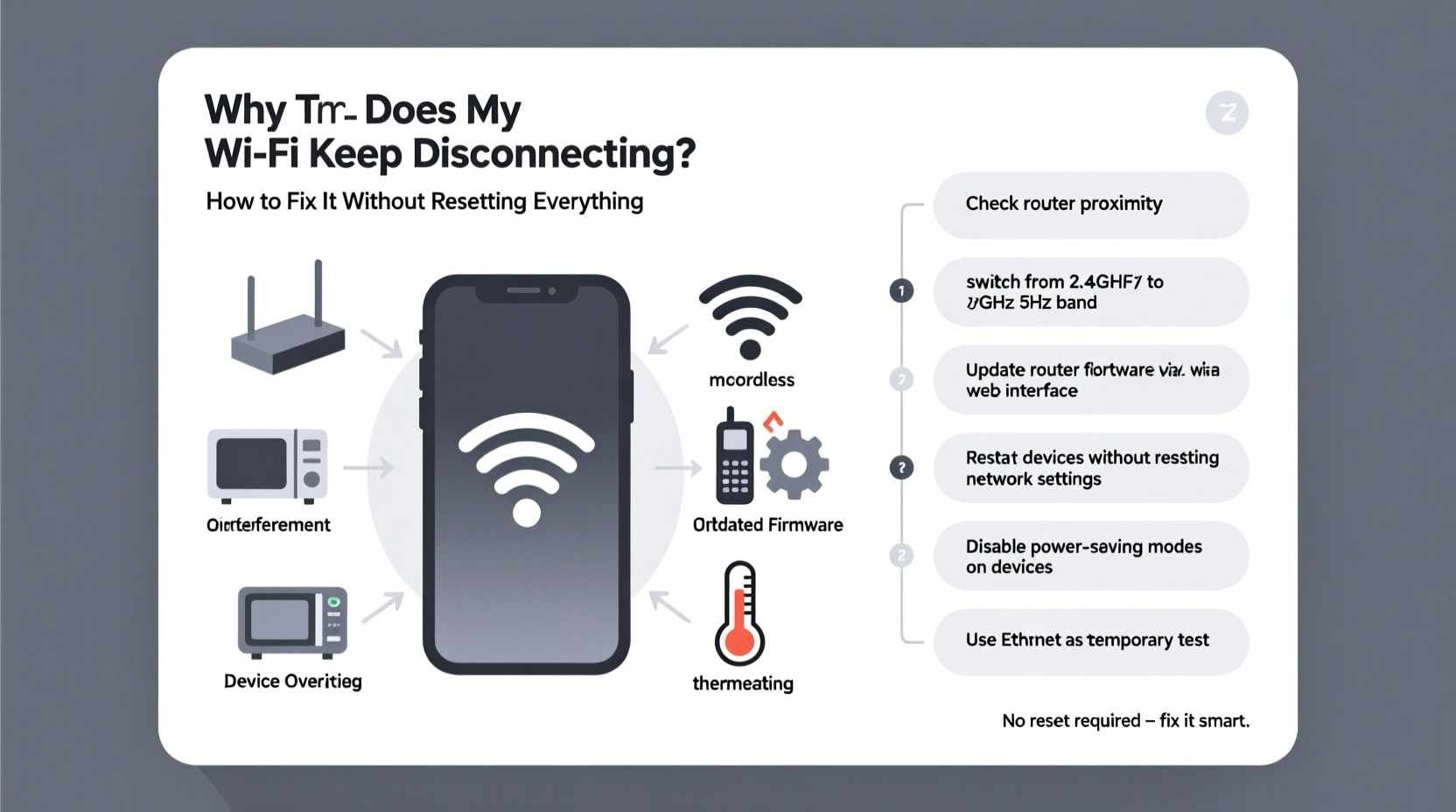
Before jumping into fixes, it’s essential to identify what might be causing your Wi-Fi instability. Many users assume their internet service provider (ISP) is at fault, but more often than not, the problem lies within the local network environment.
- Signal Interference: Walls, appliances, and even neighboring Wi-Fi networks can interfere with your signal, especially on crowded 2.4 GHz bands.
- Outdated Router Firmware: Like any device, routers require software updates to maintain stability and security. An outdated version may cause intermittent connectivity.
- Device-Specific Issues: Sometimes the problem isn’t the router—it’s your phone, laptop, or tablet. Power-saving modes, outdated drivers, or OS bugs can disrupt connections.
- Overloaded Network: Too many devices streaming, gaming, or downloading simultaneously can overwhelm your router’s capacity.
- Channel Congestion: In dense urban areas, multiple nearby networks using the same Wi-Fi channel create interference, leading to drops.
- Router Overheating: Poor ventilation or prolonged use can cause overheating, forcing the router to throttle performance or reboot intermittently.
Step-by-Step Guide to Fix Wi-Fi Without Resetting
You don’t need to wipe your router’s memory to restore stable Wi-Fi. Follow this logical sequence to diagnose and resolve the issue efficiently.
- Restart Your Devices: Begin by restarting both your router and the affected device. A soft reboot clears temporary glitches and refreshes network handshakes.
- Check for Physical Obstacles: Move closer to the router or eliminate large metal objects, mirrors, or thick walls between you and the signal source.
- Switch Wi-Fi Bands: If your router supports dual-band (2.4 GHz and 5 GHz), try switching. The 5 GHz band is faster and less congested but has shorter range. Use 2.4 GHz for better wall penetration.
- Update Device Drivers or OS: On laptops, ensure your Wi-Fi adapter drivers are up to date. For phones and tablets, install pending OS updates—they often include network fixes.
- Log Into Your Router Interface: Access your router’s dashboard via its IP address (usually 192.168.1.1 or 192.168.0.1). Check for firmware updates under the administration or maintenance tab.
- Change Wi-Fi Channel: In the router settings, navigate to wireless settings and manually switch to a less crowded channel. Use apps like Wi-Fi Analyzer (Android) or NetSpot (Windows/Mac) to find optimal channels.
- Reduce Connected Devices: Temporarily disconnect unused devices to reduce bandwidth strain and test if stability improves.
- Adjust Power Settings on Laptops: Windows and macOS sometimes disable Wi-Fi to save power. Disable “Allow the computer to turn off this device to save power” in Device Manager (Windows) or set Energy Saver to “High Performance.”
Do’s and Don’ts When Troubleshooting Wi-Fi
| Do | Don't |
|---|---|
| Restart your router and modem regularly | Assume the ISP is always at fault |
| Update firmware and device software | Ignore overheating signs (warm casing, erratic lights) |
| Use Wi-Fi analyzer tools to check congestion | Place the router near microwaves or cordless phones |
| Position the router centrally and elevated | Block antennas with books or metal objects |
| Limit high-bandwidth activities during critical use | Reset the router unless absolutely necessary |
Real-World Example: Office Worker Solves Daily Dropouts
Sarah, a freelance graphic designer working from her Brooklyn apartment, experienced daily Wi-Fi disconnections around 7 PM. Her video calls would freeze, and file uploads failed repeatedly. She initially blamed her ISP but noticed her roommate’s phone stayed connected.
Using a Wi-Fi analyzer app, she discovered her router was on channel 6—the same as three neighboring networks. During evening hours, when everyone returned home and started streaming, congestion spiked. She logged into her router, switched to channel 11 on the 2.4 GHz band, and moved her router from a closet shelf to an open desk near the center of the apartment. The disconnections stopped immediately.
No reset. No new equipment. Just informed adjustments based on real data.
Expert Insight: What Network Engineers Recommend
Industry professionals emphasize prevention and monitoring over reactive resets. According to Raj Patel, senior network engineer at a major telecom firm:
“Most Wi-Fi issues aren’t hardware failures. They’re configuration or environmental problems. Regular maintenance—like checking for updates and optimizing placement—can prevent 80% of disconnections.” — Raj Patel, Senior Network Engineer
Patel also warns against ignoring firmware updates: “Manufacturers release patches for known bugs and security flaws. Skipping them is like leaving your front door unlocked.”
Troubleshooting Checklist
Use this checklist to systematically eliminate potential causes without resetting your router:
- ✅ Restart the router and affected device
- ✅ Confirm other devices have stable connections
- ✅ Move closer to the router or remove physical obstructions
- ✅ Switch between 2.4 GHz and 5 GHz bands
- ✅ Run a speed test to confirm internet is actually down
- ✅ Check for pending OS or driver updates on the disconnecting device
- ✅ Log into router settings and check for firmware updates
- ✅ Change Wi-Fi channel to a less congested option
- ✅ Disable power-saving mode on laptops and mobile devices
- ✅ Monitor router temperature—ensure it’s well-ventilated
Frequently Asked Questions
Why does my phone lose Wi-Fi but my laptop stays connected?
This usually indicates a device-specific issue. Check your phone’s Wi-Fi settings: disable “Auto-switch to mobile data,” forget and rejoin the network, and ensure the OS is updated. Some phones aggressively kill background connections to save battery.
Can too many devices crash my Wi-Fi?
Yes. Routers have limits on how many devices they can handle simultaneously—typically 20–30 for consumer models. Each connected device uses a small amount of overhead. When bandwidth-intensive tasks (like 4K streaming or cloud backups) run across multiple devices, the router can become overwhelmed, leading to timeouts and disconnections.
Is it safe to leave my router on all the time?
Yes, routers are designed for continuous operation. However, restarting once every few weeks can clear memory leaks and apply pending updates. If your router frequently overheats or freezes, consider upgrading to a model with better heat dissipation or built-in scheduling for automatic reboots.
Advanced Tips for Persistent Issues
If basic steps don’t resolve the issue, consider these advanced—but still non-destructive—options:
- Enable Quality of Service (QoS): Found in most router dashboards, QoS prioritizes traffic for video calls or gaming over background downloads. This prevents lag during critical tasks.
- Assign Static IP Addresses: For devices that frequently disconnect, assigning a static IP can stabilize the connection handshake process.
- Disable WMM or MU-MIMO if unstable: While these features improve performance, buggy implementations in older firmware can cause drops. Try toggling them off temporarily to test stability.
- Use DNS Optimization: Switch to public DNS servers like Google (8.8.8.8) or Cloudflare (1.1.1.1). Some ISPs’ DNS systems are slow or unreliable, causing perceived disconnections.
Note: Always document your current settings before making changes. That way, you can revert if needed—without resorting to a reset.
Conclusion: Take Control Without Starting Over
Wi-Fi disconnections are rarely a reason to panic—or reset. With methodical troubleshooting, you can identify whether the issue stems from interference, outdated software, device settings, or environmental factors. Most solutions require only a few minutes and preserve your existing network configuration.
Instead of reaching for the reset button, start with observation: which devices are affected? When do drops occur? Is there a pattern tied to time, location, or usage? Use that data to guide your actions. Small adjustments—like changing a channel, updating firmware, or repositioning the router—often yield dramatic improvements.




 浙公网安备
33010002000092号
浙公网安备
33010002000092号 浙B2-20120091-4
Comments
No comments yet. Why don't you start the discussion?