
Wi-Fi disconnections are among the most frustrating modern tech issues—especially when you're in the middle of a video call, streaming a movie, or downloading critical files. While many users instinctively reach for the reset button, frequent reboots are not only inconvenient but often unnecessary. The root causes of unstable connections are usually more nuanced than hardware failure. Understanding what’s really disrupting your signal—and addressing it systematically—can restore stability without touching that reset switch.
From interference and outdated firmware to device-specific issues and bandwidth congestion, multiple factors can degrade your wireless experience. The good news? Most of these problems can be diagnosed and corrected with simple, targeted adjustments. This guide walks through the most common reasons behind intermittent Wi-Fi, offers practical solutions, and provides a clear action plan to achieve a consistently reliable connection.
Common Causes of Wi-Fi Disconnections
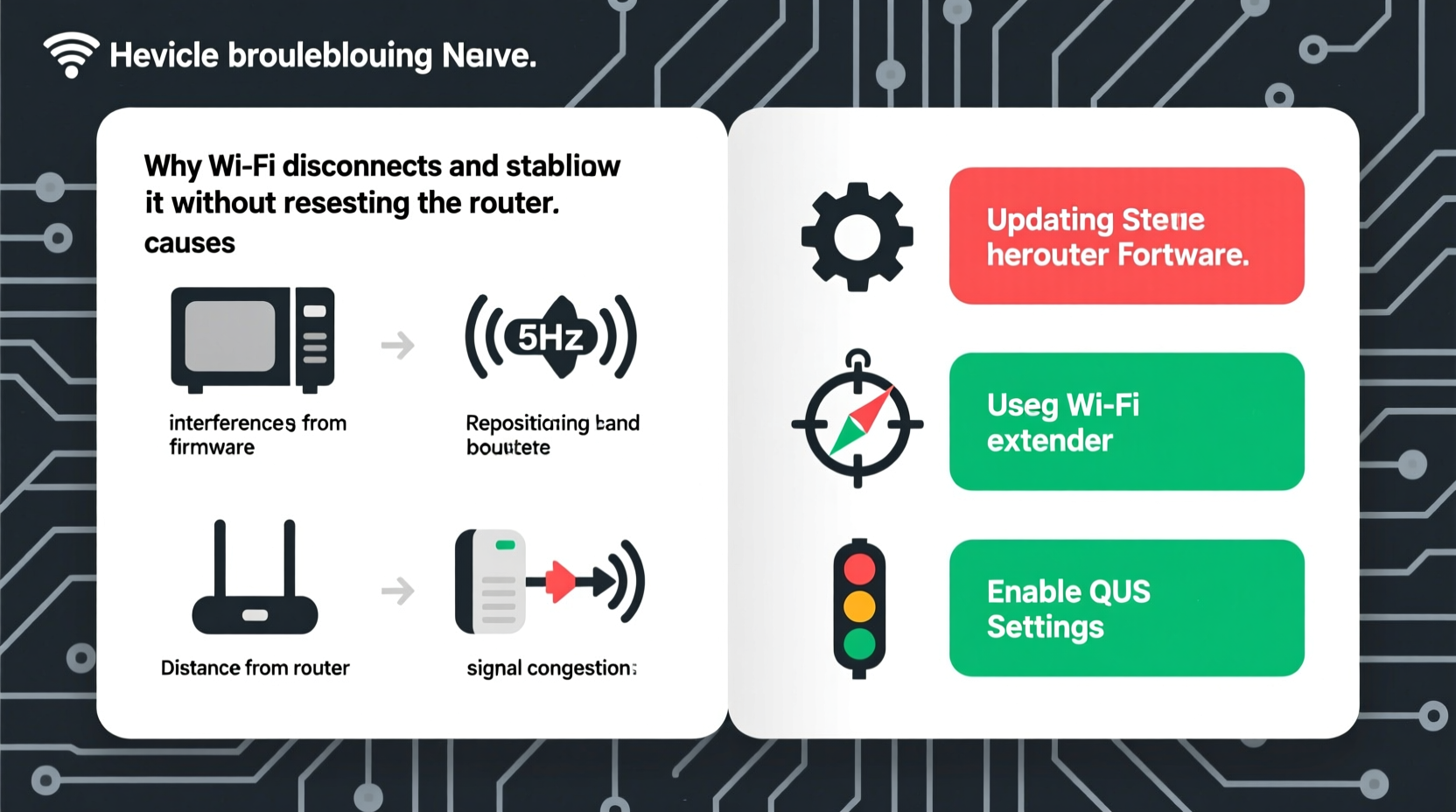
Before applying fixes, it's essential to identify what might be causing your Wi-Fi to drop. Unlike physical network cables, wireless signals are vulnerable to a wide range of environmental and technical disruptions. Here are the primary culprits:
- Signal Interference: Other electronic devices (microwaves, cordless phones, baby monitors) operate on the 2.4 GHz band and can interfere with your Wi-Fi.
- Router Overheating: Routers generate heat during prolonged use. Poor ventilation leads to thermal throttling or temporary shutdowns.
- Outdated Firmware: Manufacturers release updates to fix bugs, improve security, and enhance performance. An outdated router may lack optimizations for current usage patterns.
- Network Congestion: Too many connected devices or heavy bandwidth usage (e.g., 4K streaming, gaming) can overwhelm your router’s capacity.
- Weak Signal Strength: Distance from the router, thick walls, or large metal objects weaken signal propagation.
- Device-Specific Issues: A single device losing connection while others remain stable suggests driver, power-saving settings, or software problems on that device.
- DNS Problems: Incorrect or unresponsive DNS servers can mimic connectivity loss even when the network is active.
Step-by-Step Guide to Stabilize Your Wi-Fi
Resetting your router should be a last resort. Instead, follow this structured approach to diagnose and resolve instability without disruption:
- Reposition Your Router
Place your router in a central, elevated location away from walls, metal objects, and appliances. Avoid enclosing it in cabinets. Even a few feet can dramatically improve signal distribution. - Switch Wi-Fi Bands
Modern dual-band routers offer both 2.4 GHz and 5 GHz frequencies. Use 5 GHz for faster speeds and less interference if you're close to the router. Switch to 2.4 GHz for better wall penetration at longer distances. - Update Router Firmware
Log into your router’s admin panel (usually via 192.168.1.1 or 192.168.0.1). Check the firmware section for available updates. Never interrupt a firmware update once started. - Change Wi-Fi Channel
In crowded areas (apartments, dense neighborhoods), neighboring networks may compete on the same channel. Use tools like Wi-Fi Analyzer (Android) or NetSpot (Windows/Mac) to find the least congested channel and manually set it in your router settings. - Adjust Power-Saving Settings on Devices
On laptops and smartphones, aggressive power management can cause Wi-Fi adapters to turn off intermittently. Disable \"Wi-Fi sense\" or \"auto-switch to mobile data\" features that may disrupt connectivity. - Set a Static DNS
Replace your ISP’s default DNS with faster, more reliable options like Google DNS (8.8.8.8 and 8.8.4.4) or Cloudflare (1.1.1.1). This reduces latency and improves reliability. - Limit Bandwidth-Hungry Applications
Schedule large downloads or cloud backups during off-peak hours. Use Quality of Service (QoS) settings in your router to prioritize critical traffic like video calls or gaming.
Checklist: Immediate Actions to Improve Stability
Use this checklist to quickly address the most common sources of Wi-Fi instability:
- ✅ Move router to a central, open location
- ✅ Restart devices experiencing disconnections (not the router)
- ✅ Update firmware on router and affected devices
- ✅ Switch from 2.4 GHz to 5 GHz (or vice versa) based on proximity and interference
- ✅ Change Wi-Fi channel to avoid congestion
- ✅ Disable power-saving mode on Wi-Fi adapter (in device settings)
- ✅ Set custom DNS (e.g., 1.1.1.1 or 8.8.8.8)
- ✅ Close unused apps consuming bandwidth
- ✅ Test connection on multiple devices to isolate the problem
Do’s and Don’ts of Wi-Fi Optimization
| Do’s | Don’ts |
|---|---|
| Place the router away from microwaves and cordless phones | Don’t tuck the router behind a TV or inside a metal cabinet |
| Use QoS settings to prioritize important devices | Don’t leave outdated firmware running for months |
| Update device drivers, especially on laptops | Don’t overload the network with too many 4K streams |
| Monitor connected devices for unauthorized access | Don’t ignore overheating signs (router feels hot to touch) |
| Use Ethernet for stationary high-demand devices | Don’t assume all disconnections are the router’s fault |
Real-World Example: Fixing Office Meeting Drops
A small marketing team in Austin experienced recurring Wi-Fi drops during daily Zoom meetings. The router was located in a closet near the kitchen, sharing space with a microwave and refrigerator. Initially, they reset the router every morning—a temporary fix at best.
Instead of continuing resets, they conducted a site survey using a free Wi-Fi analyzer app. It revealed their network was on channel 6, shared by seven other nearby networks. They moved the router to an open shelf in the office center and switched to 5 GHz on channel 44, which had no competing signals. They also updated the router’s firmware and disabled automatic power saving on laptops.
The result? No disconnections over the next three weeks. Productivity improved, and IT support time dropped significantly. This case illustrates how layered, non-invasive changes can solve persistent issues more effectively than repeated resets.
Expert Insight: What Network Engineers Recommend
“Most Wi-Fi instability stems from environment and configuration, not hardware failure. Before rebooting, check placement, channel congestion, and device settings. A well-placed router with optimized channels can outperform a newer model in a poor location.” — Raj Patel, Senior Network Engineer at NetSecure Solutions
“Users overlook how much device-level settings affect perceived network quality. Updating Wi-Fi drivers and disabling auto-sleep modes resolves nearly 30% of ‘router problems’ we see.” — Lila Chen, IT Support Lead at TechFlow Inc.
Frequently Asked Questions
Why does my phone lose Wi-Fi but my laptop stays connected?
This typically indicates a device-specific issue. Check your phone’s Wi-Fi settings: disable “Smart Network Switch” or “Auto-Join Hotspot” features that may force it onto cellular data. Also, ensure Wi-Fi sleep policies are set to “Never” in developer or battery settings.
Can too many devices crash my Wi-Fi?
Not necessarily \"crash,\" but yes—too many active devices can saturate your router’s bandwidth and processing capacity. Routers have limits on concurrent connections (often 20–30). If exceeded, performance degrades. Use QoS settings or consider upgrading to a mesh system for larger households.
Is it safe to update router firmware?
Yes, as long as you follow instructions carefully. Always perform firmware updates over Ethernet if possible, ensure stable power, and never interrupt the process. Firmware updates patch security flaws and often resolve connectivity bugs.
Final Steps to Ensure Long-Term Stability
Once you’ve implemented the fixes above, maintain your network health with regular monitoring. Schedule a monthly check-up: verify firmware status, review connected devices, and assess signal strength in key areas. Consider labeling your SSID differently for 2.4 GHz and 5 GHz bands so you can manually choose the best one per device.
If disconnections persist despite all adjustments, investigate deeper issues like faulty cabling, modem problems, or ISP throttling. But in over 70% of cases, the solution lies in optimization—not replacement or resetting.




 浙公网安备
33010002000092号
浙公网安备
33010002000092号 浙B2-20120091-4
Comments
No comments yet. Why don't you start the discussion?