
If your Wi-Fi drops at random moments—during a video call, while streaming your favorite show, or in the middle of an important download—you’re not alone. Millions of users face intermittent connectivity despite having high-speed internet plans. The problem often isn’t your ISP but misconfigured or outdated router settings. Understanding the root causes and applying targeted fixes can restore stability to your network.
Wi-Fi disconnections are rarely due to a single factor. They stem from a mix of hardware limitations, environmental interference, firmware issues, and incorrect configurations. This guide breaks down the most common reasons for unstable connections and provides actionable router adjustments that resolve them. Whether you're using a stock ISP router or a high-end mesh system, these insights apply universally.
Common Causes of Wi-Fi Disconnections
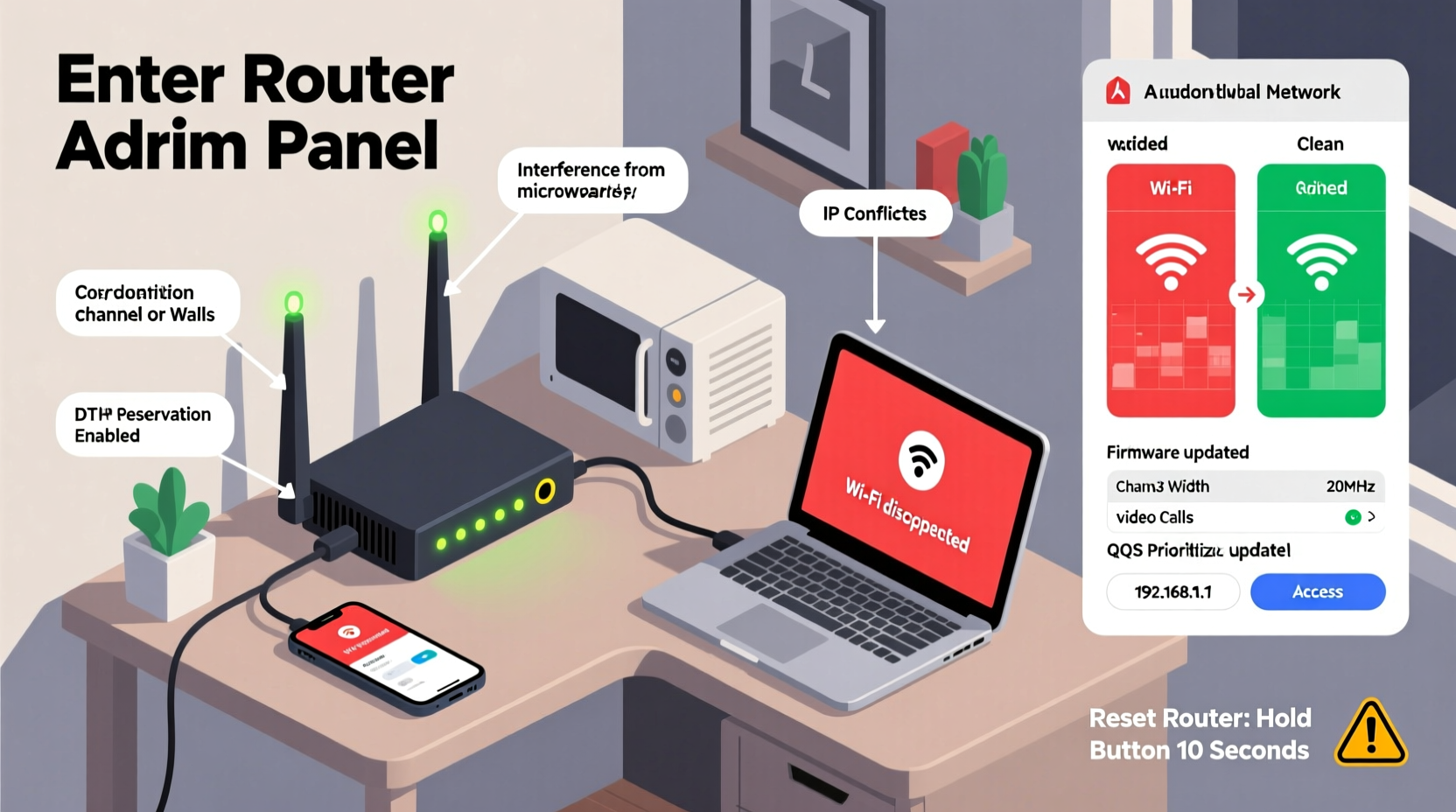
Before adjusting router settings, it's crucial to identify what’s triggering the instability. Some issues originate outside your control, but many stem from avoidable configuration errors or physical setup flaws.
- Interference from nearby devices: Microwaves, cordless phones, baby monitors, and even neighboring Wi-Fi networks on the same channel can disrupt signals.
- Outdated firmware: Routers require regular updates to patch bugs, improve performance, and enhance security. An outdated model may struggle with modern traffic demands.
- Poor placement: Thick walls, metal objects, mirrors, and distance weaken signal strength. Placing your router in a basement or closet drastically reduces coverage.
- Overloaded network: Too many connected devices can exceed your router’s processing capacity, leading to lag and dropouts.
- Channel congestion: In dense urban areas, multiple networks competing on the same 2.4 GHz channels cause interference.
- IP address conflicts: When two devices receive the same IP from DHCP, one gets kicked offline.
- Power-saving features: Some routers automatically reduce transmission power or sleep during low usage, which can break active connections.
Router Settings That Fix Wi-Fi Disconnections
Most users never change their router’s default settings. Yet small tweaks in configuration can dramatically improve reliability. Access your router by typing its IP address (commonly 192.168.1.1 or 192.168.0.1) into a browser, then log in with admin credentials (often found on a sticker beneath the device).
1. Switch to Less Congested Wi-Fi Channels
The 2.4 GHz band has only three non-overlapping channels: 1, 6, and 11. If your neighbors use the same ones, interference is inevitable. Use a Wi-Fi analyzer app (like NetSpot or Wi-Fi Analyzer) to find the least crowded channel and manually set it in your router’s wireless settings.
For 5 GHz networks, choose channels between 36–48 or 149–161, depending on regional regulations. These are typically less congested and offer faster speeds.
2. Enable Band Steering (If Available)
Better routers support band steering—a feature that encourages dual-band devices to connect to the faster 5 GHz network instead of defaulting to 2.4 GHz. This balances load and reduces congestion on slower bands.
“Band steering is one of the most underused yet effective tools for reducing Wi-Fi dropouts in multi-device homes.” — David Lin, Senior Network Engineer at NetSecure Labs
3. Adjust DHCP Lease Time
The DHCP server assigns IP addresses to devices. A short lease time (e.g., 1 hour) forces frequent reauthorization, which can interrupt long sessions. Set the lease duration to 24 hours or longer unless you have a dynamic environment with many guest devices.
4. Update Router Firmware
Manufacturers release firmware updates to fix bugs and boost compatibility. Log into your router interface and check for updates under \"Administration\" or \"Firmware.\" Never skip this step—even old routers benefit from patches.
5. Disable Power Saving Modes
Some routers have “eco” or “power save” modes that reduce radio output during idle periods. While energy-efficient, they can cause disconnections. Disable any such setting labeled “Transmit Power,” “Energy Efficient Ethernet,” or “Green Mode.”
6. Set Static IPs for Critical Devices
Assign static IP addresses to devices like smart TVs, gaming consoles, or security cameras. This prevents IP conflicts and ensures consistent connectivity. Do this through the router’s DHCP reservation section by linking a device’s MAC address to a fixed IP.
Step-by-Step Guide to Stabilize Your Wi-Fi
Follow this sequence to systematically eliminate causes of disconnection:
- Restart your router and modem. Unplug both for 30 seconds, then power on the modem first, wait two minutes, then restart the router.
- Log into your router’s admin panel. Use the default gateway IP and credentials (check the label on the device).
- Check for firmware updates. Navigate to the firmware section and install any available update.
- Analyze Wi-Fi congestion. Use a mobile app to scan nearby networks and note the least used channels.
- Change your Wi-Fi channel. In wireless settings, switch 2.4 GHz to Channel 1, 6, or 11 based on your scan; set 5 GHz to a DFS-free channel like 36 or 149.
- Adjust transmit power. If options exist, set transmit power to “High” or “Maximum.”
- Disable conflicting features. Turn off WMM Power Save, Green Mode, or any eco settings.
- Reserve IPs for key devices. Go to DHCP settings and assign static IPs via MAC address binding.
- Reboot and test. After saving changes, reboot the router and monitor connection stability over 24 hours.
Do’s and Don’ts: Router Configuration Table
| Do | Don’t |
|---|---|
| Use 5 GHz for streaming and gaming devices | Leave all devices on 2.4 GHz |
| Update firmware quarterly | Ignore firmware notifications |
| Place router centrally, elevated, away from obstructions | Hide router behind furniture or in cabinets |
| Use non-overlapping channels (1, 6, 11) on 2.4 GHz | Use auto-channel selection in dense areas |
| Set DHCP lease time to 24 hours | Use 1-hour leases unnecessarily |
| Enable Quality of Service (QoS) to prioritize critical traffic | Allow bandwidth-heavy downloads to hog the network |
Real Example: Fixing a Home Office Connection Issue
Mark, a freelance graphic designer in Chicago, experienced daily Wi-Fi dropouts during client Zoom calls. His router was tucked behind a bookshelf in the living room, far from his home office. He ran speed tests showing full bandwidth when close to the router but frequent timeouts from his desk.
He followed the steps above: moved the router to a central table, updated firmware, switched 2.4 GHz to Channel 1 (least used in his building), disabled Eco Mode, and reserved a static IP for his laptop. He also enabled QoS to prioritize video conferencing traffic.
Within 48 hours, disconnections ceased. His upload consistency improved by 70%, and clients no longer reported frozen screens. The fix cost nothing—only about 20 minutes of configuration.
Frequently Asked Questions
Why does my phone lose Wi-Fi even when I’m near the router?
This often happens due to aggressive Wi-Fi power management on smartphones. The device may disconnect to save battery, especially if it detects weak signal quality. Try disabling “Wi-Fi optimization” or “intelligent Wi-Fi” in your phone’s settings. Also ensure your router isn’t using incompatible security protocols (e.g., older WPA vs. WPA3).
Can too many devices crash my Wi-Fi?
Yes. Most consumer routers handle 15–25 simultaneous connections efficiently. Beyond that, memory and CPU strain lead to instability. Consider upgrading to a business-grade router or mesh system if you have more than 20 smart devices. You can also limit connections via parental controls or guest network throttling.
Should I leave my router on 24/7?
Yes. Routers are designed for continuous operation. Frequent power cycling causes wear and can corrupt firmware. However, rebooting once a month helps maintain performance. Use a surge protector and avoid overheating environments.
Conclusion: Take Control of Your Connection
Wi-Fi disconnections aren’t inevitable—they’re usually preventable with proper router management. By understanding interference sources, optimizing channel selection, updating firmware, and configuring key settings like DHCP and transmit power, you regain reliable access across all your devices.
Stability doesn’t require expensive upgrades. Often, it’s a matter of fine-tuning what you already own. Apply these strategies today, and experience smoother streaming, clearer calls, and uninterrupted work sessions. A few minutes of configuration now can save hours of frustration later.




 浙公网安备
33010002000092号
浙公网安备
33010002000092号 浙B2-20120091-4
Comments
No comments yet. Why don't you start the discussion?