
If your Wi-Fi works perfectly during the day but starts dropping connections every evening, you're not imagining things — and you're far from alone. This pattern is surprisingly common and often points to specific environmental or technical factors that emerge after dark. Unlike random outages, nighttime disconnections are usually symptoms of increased network congestion, interference from household devices, or external signals overwhelming your router. Understanding the root causes allows you to take targeted action instead of endlessly restarting your modem.
This article breaks down the most likely reasons behind nightly Wi-Fi instability, explains how various sources of interference operate, and provides a structured approach to diagnosing and resolving the issue for good.
Why Nighttime Is Different: The Hidden Surge in Network Activity
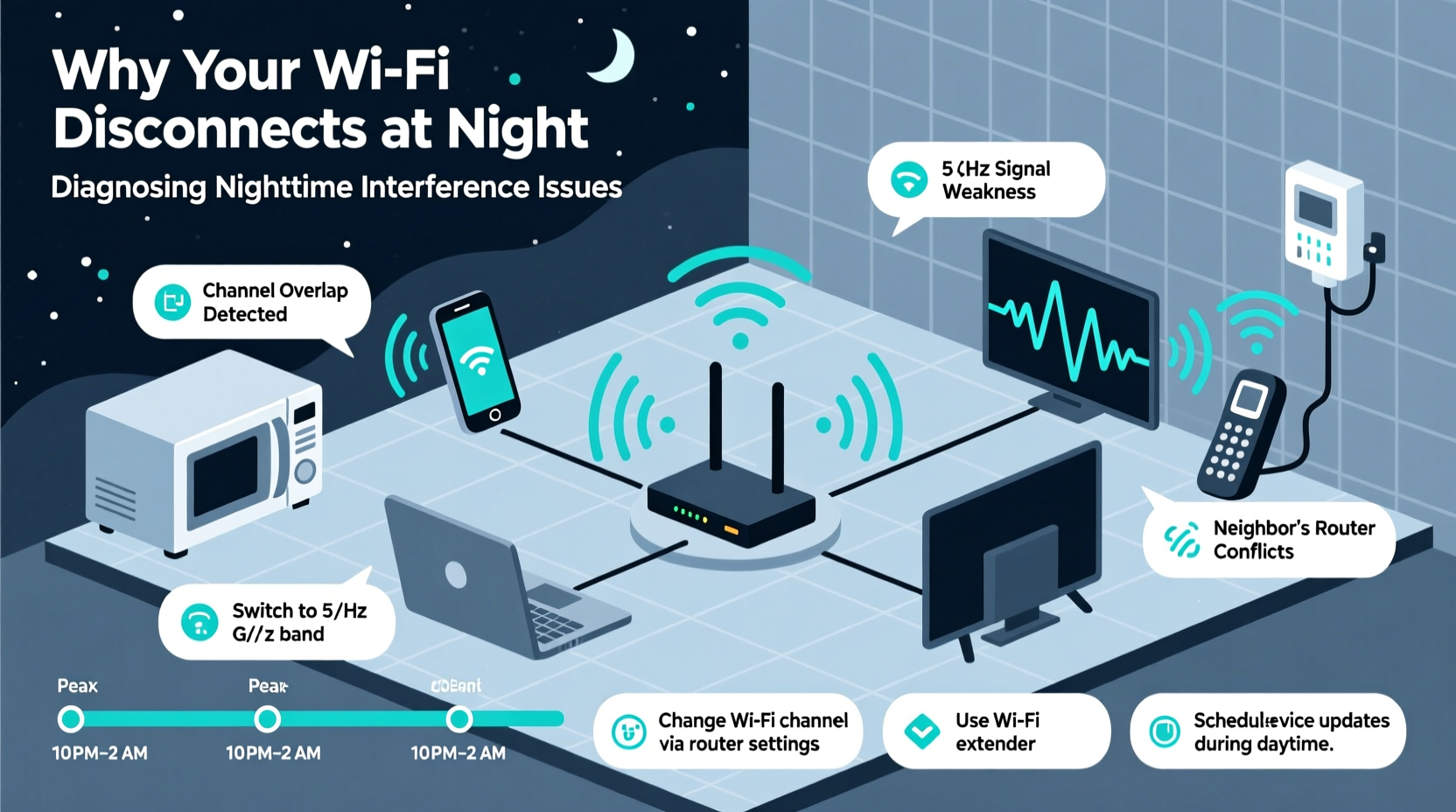
During daylight hours, many households have fewer people connected to the internet. Kids are at school, adults are at work, and smart home devices may be idle. But when everyone returns home around 5–7 PM, usage spikes dramatically. Multiple users begin streaming video, gaming online, making video calls, or downloading large files. Even if your own household isn't bandwidth-heavy, nearby networks experience the same surge, increasing overall congestion in the 2.4 GHz frequency band — especially in apartments or densely populated neighborhoods.
The 2.4 GHz band supports longer range but has limited channels (only three non-overlapping ones: 1, 6, and 11). When dozens of routers within range use overlapping channels, interference occurs, degrading signal quality. At night, this \"neighborhood noise\" peaks, leading to packet loss, latency spikes, and dropped connections — even if your router appears operational.
Common Sources of Nighttime Interference
Interference doesn’t always come from other Wi-Fi networks. Many everyday household devices emit radio frequency (RF) energy that can disrupt your wireless signal — particularly on the 2.4 GHz band. These devices are often used more frequently at night, explaining the timing of your connectivity issues.
- Cordless phones: Older DECT 6.0 models typically don’t interfere, but analog cordless phones operating near 2.4 GHz can cause significant disruption.
- Microwave ovens: Emit strong bursts of RF noise while in use, which overlaps with Wi-Fi frequencies. A few minutes of microwave use can temporarily knock devices offline.
- Bluetooth devices: Headphones, speakers, and keyboards use the same spectrum as Wi-Fi and can create localized interference when multiple are active.
- Baby monitors and wireless cameras: Many older models transmit unencrypted video over 2.4 GHz, creating constant background noise.
- Smart home hubs and Zigbee devices: While designed to coexist, poor placement or outdated firmware can lead to signal clashes.
Additionally, LED lighting — particularly cheaper brands — has been found to emit electromagnetic interference (EMI) when dimmed, affecting nearby electronics including Wi-Fi routers.
“Wi-Fi performance degradation at night is rarely due to the ISP. It’s almost always local interference or spectrum crowding.” — Dr. Alan Reyes, RF Engineer & Wireless Systems Consultant
Step-by-Step Guide: Diagnosing and Fixing Nightly Disconnections
Follow this structured process to identify and eliminate the source of your nighttime Wi-Fi problems.
- Observe the exact time and duration of disconnections. Note whether they coincide with appliance use (e.g., microwave, dishwasher), device activation (smart lights, baby monitor), or household activity spikes.
- Restart your router and modem. Do this at night when the issue occurs, then monitor if stability improves temporarily. If yes, overheating or memory leaks could be contributing.
- Switch to the 5 GHz band. Connect compatible devices (laptops, phones, tablets) to the 5 GHz network, which offers faster speeds and less interference, though shorter range.
- Use a Wi-Fi scanning tool. Apps like NetSpot (desktop), Wi-Fi Analyzer (Android), or AirPort Utility (iOS) show nearby networks, their signal strength, and channel usage. Look for heavy congestion on channels 1–11.
- Change your router’s Wi-Fi channel manually. Log into your router settings (usually via 192.168.1.1 or similar) and switch from Auto to a less crowded channel (preferably 1, 6, or 11 on 2.4 GHz; any available on 5 GHz).
- Test wired connectivity. Plug a computer directly into the router using Ethernet. If the wired connection remains stable at night, the problem is wireless-specific.
- Turn off potential interfering devices one by one. During an outage, disable Bluetooth, unplug smart bulbs, or avoid using the microwave to see if stability returns.
- Update router firmware. Manufacturers release updates to improve stability, security, and interference handling. Check your admin panel for updates.
When Your Router Is the Problem
Some older or low-end routers struggle under sustained load. They may overheat in enclosed spaces, causing thermal throttling or automatic resets. Others lack adequate memory management, leading to crashes after several hours of high traffic. If your router is more than 3–4 years old, consider upgrading to a dual-band or tri-band model with beamforming and MU-MIMO support for better multi-device handling.
Do’s and Don’ts of Managing Wi-Fi Interference
| Do | Don’t |
|---|---|
| Use 5 GHz for high-bandwidth activities like streaming and gaming | Rely solely on 2.4 GHz in dense urban areas |
| Position your router centrally and elevated | Place it near microwaves, cordless phone bases, or refrigerators |
| Enable Quality of Service (QoS) settings to prioritize critical devices | Leave QoS disabled if you stream or game regularly |
| Regularly update router firmware | Ignore firmware notifications or assume “if it works, don’t touch it” |
| Limit the number of active smart devices during peak hours | Connect every gadget to Wi-Fi without considering bandwidth needs |
Mini Case Study: Solving Persistent Evening Outages in an Apartment Building
Mark, a software developer living in a downtown high-rise, experienced daily Wi-Fi dropouts between 7:30 PM and 10:00 PM. His Zoom meetings would freeze, and his partner’s Netflix streams would buffer repeatedly. The rest of the day, service was flawless.
After testing wired connections (which remained stable), he downloaded a Wi-Fi analyzer app and discovered 38 nearby networks, all clustered on channels 6 and 11. His own router was set to “Auto,” which had chosen channel 9 — an overlapping, noisy frequency. He manually switched to channel 1, the least congested option. He also moved his router from a closet shelf to a bookshelf in the living room, improving line-of-sight coverage.
Next, he noticed that disconnections worsened whenever the upstairs neighbor used their microwave. To reduce vulnerability, he shifted all primary devices to the 5 GHz network. Finally, he enabled QoS to prioritize his laptop and video conferencing traffic.
Result: Within two days, nightly disconnections ceased entirely. Mark regained reliable connectivity for remote work and entertainment without spending money on new hardware.
Troubleshooting Checklist: Resolve Nighttime Wi-Fi Drops
Use this checklist to systematically address your issue:
- ✅ Confirm disconnections occur only at night and correlate with usage patterns
- ✅ Test a wired Ethernet connection to rule out ISP or modem issues
- ✅ Switch key devices to the 5 GHz Wi-Fi band
- ✅ Run a Wi-Fi scan to assess channel congestion
- ✅ Manually set your 2.4 GHz channel to 1, 6, or 11 based on least competition
- ✅ Relocate your router to a central, unobstructed position
- ✅ Turn off or relocate known interference sources (microwave, Bluetooth speakers)
- ✅ Update router firmware to the latest version
- ✅ Enable QoS and prioritize important devices
- ✅ Consider upgrading to a mesh system or modern router if problems persist
Frequently Asked Questions
Can my neighbors really affect my Wi-Fi?
Yes. In apartment complexes or suburban neighborhoods, nearby Wi-Fi networks using the same or overlapping channels can cause interference, especially on the 2.4 GHz band. This effect intensifies at night when more people are home using their networks.
Why doesn’t my ISP fix this?
Your ISP delivers the internet signal to your modem, but Wi-Fi is managed locally by your router. Unless there’s an outage or line issue, intermittent disconnections within your home fall outside their responsibility. Improving internal wireless performance is typically your responsibility.
Should I buy a Wi-Fi extender or a mesh system?
A single extender can worsen interference by rebroadcasting a degraded signal. Mesh systems are generally better because they use dedicated backhaul channels and coordinate seamlessly across nodes. For homes with persistent dead zones or interference, a mesh setup (like Google Nest Wi-Fi or Eero) offers more reliable coverage and easier management.
Conclusion: Take Control of Your Home Network
Nightly Wi-Fi disconnections aren’t inevitable — they’re solvable. By understanding how interference builds up after dark and taking deliberate steps to mitigate it, you can enjoy consistent, high-performance connectivity regardless of the time. Most fixes require no additional spending, just careful observation and configuration. Start with simple changes like switching to 5 GHz or repositioning your router, then progress to channel optimization and device management.




 浙公网安备
33010002000092号
浙公网安备
33010002000092号 浙B2-20120091-4
Comments
No comments yet. Why don't you start the discussion?