
Smart TVs are designed to bring streaming, apps, and online content directly into your living room—but nothing disrupts the experience like a Wi-Fi connection that drops repeatedly. Unlike other devices in your home, your smart TV may be the only one struggling to stay connected, leaving you frustrated and searching for answers. The good news is that this issue is both common and solvable. Most disconnections stem from router settings, network congestion, outdated firmware, or hardware limitations specific to smart TVs. By understanding the root causes and following systematic troubleshooting steps, you can restore stable connectivity and enjoy uninterrupted streaming.
Why Smart TVs Are More Prone to Wi-Fi Disconnections
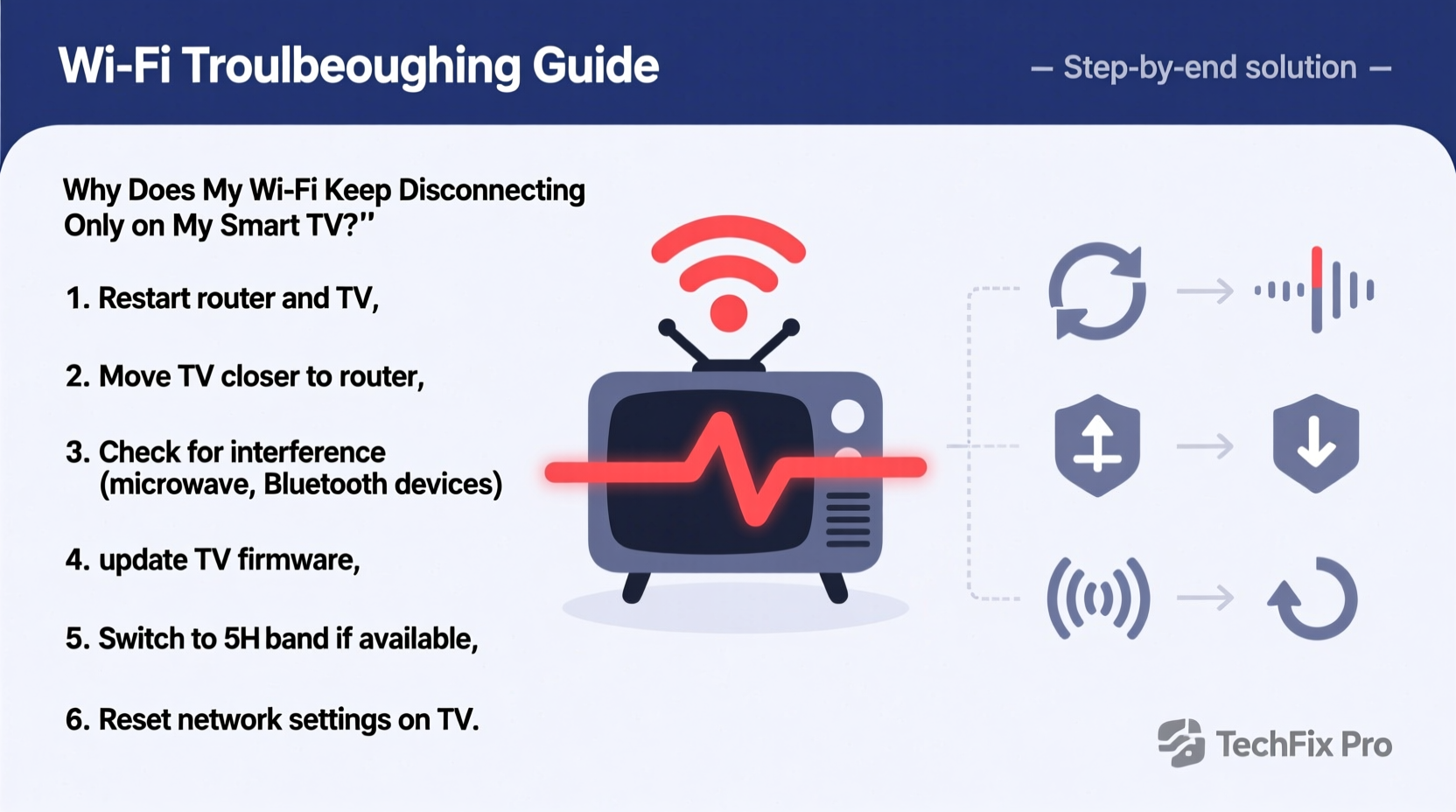
Unlike smartphones or laptops, smart TVs often use older or less powerful Wi-Fi chipsets. Many models rely solely on 2.4 GHz bands, which are slower and more congested than 5 GHz networks. Additionally, smart TVs typically remain idle for long periods, prompting routers to de-prioritize their connection during traffic management. Because TVs are usually placed in fixed locations—often far from the router or behind walls—signal strength can degrade significantly.
Manufacturers also prioritize cost and design over robust networking components. This means even high-end TVs may lack advanced antenna systems or modern Wi-Fi standards like Wi-Fi 6. As a result, when interference increases or network load spikes, your smart TV is often the first device to lose its connection.
“Smart TVs are built for visual performance, not network resilience. Their Wi-Fi modules are frequently underpowered compared to mobile devices.” — David Lin, Network Engineer at HomeTech Labs
Step-by-Step Troubleshooting Guide
Follow this structured approach to diagnose and resolve Wi-Fi disconnections on your smart TV. Each step builds on the previous one, helping you isolate the cause and apply targeted fixes.
- Reboot Your Devices: Power cycle your smart TV, router, and modem. Unplug them for 30 seconds, then plug them back in. This clears temporary glitches and resets network handshakes.
- Check Other Devices: Confirm whether other devices (phone, tablet, laptop) maintain stable connections. If they do, the issue is isolated to the TV.
- Move Closer to the Router: Temporarily move your TV closer to the router or eliminate physical obstructions. If the connection stabilizes, signal range is likely the culprit.
- Switch Wi-Fi Bands: In your TV’s network settings, disconnect from the current network and manually select the 5 GHz option if available. Avoid auto-selection, as some TVs default to 2.4 GHz.
- Forget and Reconnect to Wi-Fi: Go to your TV’s network settings, “Forget” the current network, then reconnect by entering the password again. This forces a fresh handshake with the router.
- Update Firmware: Check for system updates in your TV’s settings menu. Outdated firmware can contain bugs that affect network stability.
- Change DNS Settings: Replace your default DNS with a public one like Google DNS (8.8.8.8 and 8.8.4.4) or Cloudflare (1.1.1.1). This can improve reliability and reduce timeouts.
- Reduce Network Load: Disconnect unused devices or pause large downloads/streaming on other gadgets while using the TV.
- Enable Quality of Service (QoS): In your router settings, assign higher priority to your smart TV’s MAC address to prevent bandwidth throttling.
- Test with an Ethernet Cable: Connect your TV directly to the router via Ethernet. If the connection holds, the problem is wireless—not the TV or internet service.
Common Causes and How to Fix Them
Understanding the underlying reasons behind Wi-Fi instability allows you to apply precise solutions. Here are the most frequent culprits and how to address them:
| Cause | Symptoms | Solution |
|---|---|---|
| Weak Signal Strength | Random drops, buffering, low signal bars | Move router closer, use Wi-Fi extender, or switch to wired connection |
| Network Congestion | Drops during peak usage hours (evening) | Use 5 GHz band, limit connected devices, enable QoS |
| Outdated Firmware | TV freezes before disconnecting, app crashes | Check for updates in Settings > Support > Software Update |
| Router Compatibility | TV fails to reconnect automatically | Update router firmware or disable WPA3 temporarily |
| Interference from Appliances | Drops when microwave, cordless phone, or Bluetooth devices are active | Relocate router or switch to 5 GHz, which is less prone to interference |
Real Example: Fixing Persistent Drops on a Samsung QLED TV
A homeowner in Austin reported that their Samsung QN90A would disconnect every 10–15 minutes during Netflix playback, while phones and laptops stayed connected without issue. After trying multiple restarts, they discovered the TV was locked to the 2.4 GHz band due to a hidden setting. They manually switched to the 5 GHz network, updated the TV’s firmware, and changed the DNS to 1.1.1.1. The disconnections stopped immediately. Further investigation revealed that their mesh router had a feature called “band steering” disabled, which caused inconsistent client distribution. Enabling it ensured all compatible devices used optimal frequencies.
Advanced Fixes When Basic Steps Fail
If standard troubleshooting doesn’t resolve the issue, consider these deeper interventions:
- Reset Network Settings on the TV: Navigate to Settings > General > Reset > Network Settings. This erases saved networks and restores defaults, forcing a clean reconfiguration.
- Assign a Static IP Address: Prevent IP conflicts by reserving a unique IP for your TV in the router’s DHCP settings. Then configure the TV to use that IP manually.
- Disable Power-Saving Modes: Some TVs enter low-power states that throttle Wi-Fi. Look for options like “Fast Startup” or “Quick Boot” and disable them.
- Upgrade Your Router: If your router is more than three years old, it may not support modern protocols efficiently. Consider upgrading to a Wi-Fi 6 model with strong beamforming for better coverage.
- Use a Streaming Device Instead: If the TV’s built-in Wi-Fi remains unreliable, connect a Roku, Apple TV, or Fire Stick via Ethernet adapter (with USB power) for a more stable experience.
Checklist: Quick Actions to Stabilize Your Smart TV Connection
Keep this checklist handy when troubleshooting:
- ✅ Reboot TV, router, and modem
- ✅ Confirm other devices have stable Wi-Fi
- ✅ Manually connect to 5 GHz network
- ✅ Forget and re-enter Wi-Fi password
- ✅ Install latest firmware update on TV
- ✅ Change DNS to 8.8.8.8 / 8.8.4.4
- ✅ Test with Ethernet cable
- ✅ Enable QoS and prioritize TV traffic
- ✅ Disable energy-saving network features
- ✅ Consider external streaming box if issues persist
Frequently Asked Questions
Why does only my smart TV lose Wi-Fi when everything else works?
Your smart TV likely uses older Wi-Fi hardware limited to 2.4 GHz, has weaker antennas, or lacks support for newer security protocols. It may also be farther from the router or affected by interference that doesn’t impact smaller, more agile devices.
Should I buy a Wi-Fi extender for my smart TV?
Only if the TV is far from the router and walls block the signal. However, avoid basic repeaters—they cut bandwidth in half. Instead, use a mesh node or a powerline adapter with Wi-Fi to extend coverage effectively.
Can too many devices on my network cause my TV to disconnect?
Yes. Routers have limits on simultaneous connections and bandwidth allocation. When overloaded, lower-priority devices like smart TVs may get dropped. Enable QoS or upgrade to a router with higher capacity (e.g., AX3000 or above).
Conclusion: Take Control of Your Streaming Experience
Wi-Fi disconnections on your smart TV aren’t inevitable. With the right knowledge and tools, you can identify the root cause and implement lasting solutions. Start with simple fixes like rebooting and switching to 5 GHz, then progress to advanced adjustments like DNS changes and QoS settings. Most importantly, don’t accept poor performance as normal—your TV deserves a reliable connection. Whether you’re watching the latest series or hosting a movie night, a stable network ensures seamless enjoyment. Apply these steps today, and reclaim uninterrupted access to your favorite content.




 浙公网安备
33010002000092号
浙公网安备
33010002000092号 浙B2-20120091-4
Comments
No comments yet. Why don't you start the discussion?