
If your Wi-Fi cuts out at the worst possible moments—during a video call, while streaming a movie, or in the middle of an online game—you're not alone. Millions of households face intermittent connectivity issues, and while many assume the problem lies with their internet provider or device, the real culprit is often something far simpler: router placement. A poorly positioned router can cripple performance, even if you have a high-speed plan. The good news? Small adjustments can dramatically improve stability and eliminate frustrating dropouts.
Wi-Fi signals are radio waves, much like those used by radios or cell phones. These waves travel outward from your router but weaken over distance and struggle to penetrate solid materials. Interference from appliances, walls, and even neighboring networks can disrupt the signal. Understanding how these invisible forces interact with your home environment is the first step toward solving disconnections.
The Hidden Causes Behind Frequent Wi-Fi Disconnections
Before adjusting your router’s location, it’s important to rule out other common causes of instability. While placement plays a major role, several factors can contribute to inconsistent connections:
- Network congestion: Too many devices connected simultaneously can overwhelm your router’s processing capacity.
- Firmware issues: Outdated firmware may contain bugs that affect connection stability.
- Interference from electronics: Microwaves, cordless phones, baby monitors, and Bluetooth devices operate on the same 2.4 GHz frequency band as most routers.
- ISP throttling or outages: Your internet service provider might be limiting bandwidth during peak hours or experiencing technical issues.
- Router hardware failure: Older or overheating routers may fail intermittently.
However, even with updated firmware and minimal interference, poor placement remains one of the most overlooked yet impactful factors. A router tucked in a basement corner or behind a metal entertainment center will struggle to deliver consistent coverage.
Optimal Router Placement: Science Over Guesswork
Effective Wi-Fi coverage isn’t about power—it’s about positioning. Modern dual-band routers emit signals in two frequency bands: 2.4 GHz (longer range, slower speed) and 5 GHz (shorter range, faster speed). Each behaves differently in physical space, which affects where you should place your router.
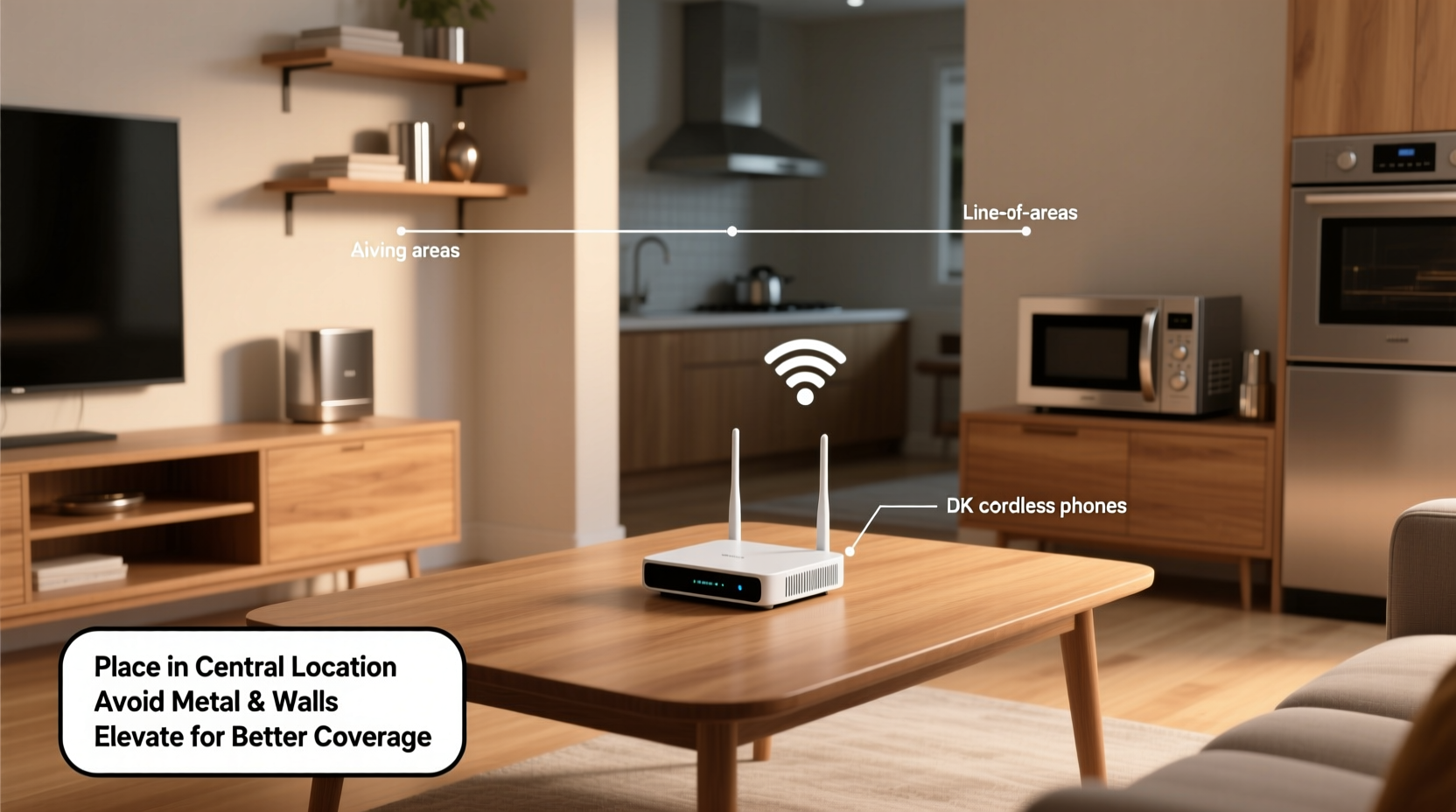
The ideal spot maximizes line-of-sight exposure to the areas you use most. Think of your router as a lightbulb: if it's hidden under a table or blocked by furniture, its “light” (signal) won’t reach effectively. Here’s what research and network engineers recommend:
- Elevate the router: Place it on a shelf or desk, not on the floor. Signals spread better when unobstructed below.
- Centralize the location: Position it near the center of your home, especially if you use multiple rooms frequently.
- Avoid obstructions: Keep it away from thick walls, mirrors, metal objects, and large appliances like refrigerators.
- Minimize interference: Don’t place it next to microwaves, cordless phone bases, or gaming consoles.
- Face antennas properly: If your router has external antennas, orient one vertically and one horizontally to support different device orientations.
Concrete, brick, and plaster walls absorb more signal than drywall. Mirrors and glass reflect Wi-Fi, creating dead zones. Even fish tanks and filing cabinets can degrade performance due to water and metal content.
Real-World Example: Fixing a Home Office Dropout
Consider Sarah, a remote worker living in a two-story townhouse. Her router was placed in a closet near the front door, just above her cable modem. She consistently lost connection during Zoom calls in her upstairs office. After testing signal strength with a Wi-Fi analyzer app, she discovered only -75 dBm (a weak signal) in her workspace—anything below -70 dBm is considered unreliable for video conferencing.
She moved the router to a central bookshelf on the main floor, elevated and free of nearby electronics. Within minutes, her office signal improved to -58 dBm, and disconnections ceased. No new equipment, no subscription upgrades—just strategic placement.
“More than half the Wi-Fi issues I troubleshoot stem from suboptimal router placement. It’s not always about buying better gear—it’s about using what you have smarter.” — James Lin, Network Engineer with 12 years in residential ISP support
Do’s and Don’ts of Router Positioning
| Do | Don't |
|---|---|
| Place the router in a central, open area | Hide it in a cabinet or closet |
| Elevate it off the ground | Leave it on the floor or behind furniture |
| Keep it away from large metal objects | Mount it near a radiator or breaker box |
| Use both 2.4 GHz and 5 GHz bands appropriately | Force all devices onto 5 GHz in distant rooms |
| Ensure ventilation to prevent overheating | Stack books or electronics around it |
This simple comparison highlights how everyday decisions impact performance. Many users unknowingly sabotage their own networks by prioritizing aesthetics over function—tucking routers out of sight because they don’t look “nice.” But functionality should come first. Consider camouflaging the router with decorative boxes that allow airflow, or integrating it into a media console without enclosing it completely.
Step-by-Step Guide to Optimizing Your Router’s Location
Follow this actionable process to identify and fix placement issues in your home:
- Map your usage zones: List the rooms where you use Wi-Fi most (e.g., bedroom, kitchen, office).
- Identify current router position: Note its exact location and nearby objects (appliances, walls, furniture).
- Test baseline signal: Use a Wi-Fi analyzer app (like NetSpot, Wi-Fi Analyzer, or Fing) to measure signal strength (in dBm) in key areas.
- Select a new central location: Choose a spot equidistant from high-use zones, ideally on the main floor of multi-level homes.
- Relocate and retest: Move the router, wait two minutes for reboot, then re-measure signal strength in the same locations.
- Adjust antenna orientation: For models with external antennas, experiment with angles to maximize coverage.
- Monitor stability over 24–48 hours: Check for disconnections during video calls, downloads, and streaming.
If significant dead zones remain after optimization, consider upgrading to a mesh Wi-Fi system. However, never assume mesh is necessary before trying proper placement. In many homes under 2,500 square feet, a well-placed single router performs excellently.
Advanced Tips for Long-Term Stability
Beyond placement, a few additional tweaks can further stabilize your connection:
- Change Wi-Fi channels manually: Routers automatically select channels, but this can lead to overcrowding. Log into your router settings and switch to a less congested 2.4 GHz channel (1, 6, or 11) or a clear 5 GHz channel.
- Enable Quality of Service (QoS): Prioritize traffic for critical applications like video conferencing or gaming.
- Update firmware regularly: Manufacturers release updates that fix bugs and improve performance.
- Use Ethernet when possible: Connect stationary devices (TVs, desktops, game consoles) via cable to reduce wireless load.
Additionally, monitor your network for unknown devices. An unexpected device could indicate unauthorized access, which drains bandwidth and causes instability.
Checklist: Optimize Your Wi-Fi in One Hour
- ✅ Identify primary usage areas in your home
- ✅ Locate current router position and note obstructions
- ✅ Download a Wi-Fi analyzer app
- ✅ Measure signal strength in key rooms
- ✅ Choose a new central, elevated location
- ✅ Move the router and ensure ventilation
- ✅ Retest signal strength post-move
- ✅ Adjust antennas for optimal spread
- ✅ Log into router settings and update firmware
- ✅ Reboot all connected devices to refresh connections
Frequently Asked Questions
Can walls really block Wi-Fi signals?
Yes. Materials like concrete, brick, and metal significantly weaken Wi-Fi. Drywall and wood have less impact. Each wall between your device and router can reduce signal strength by up to 25%. Bathrooms with tile and plumbing are particularly challenging due to water and metal pipes.
Should I turn off my router at night?
It’s not necessary, but rebooting once a week helps maintain performance. Continuous operation doesn’t harm modern routers if they’re well-ventilated. However, turning it off during extended absences saves energy and reduces wear.
Does a bigger router mean better coverage?
Not necessarily. High-end routers with powerful antennas and beamforming technology help, but placement still matters more than specs. A mid-range router in the right spot often outperforms a premium model in a poor location.
Take Control of Your Connection Today
Wi-Fi disconnections aren’t inevitable. Before calling your ISP or shopping for expensive extenders, take a close look at where your router lives. Often, the solution is already in your home—just waiting to be repositioned. By applying these science-backed placement strategies, you can achieve stronger signals, fewer dropouts, and smoother streaming across all your devices.
Start with the basics: elevate, centralize, and declutter. Then fine-tune with signal testing and smart settings. The difference can be immediate. Thousands of users have transformed their home networks with nothing more than a screwdriver (to mount the router) and ten minutes of thoughtful adjustment.




 浙公网安备
33010002000092号
浙公网安备
33010002000092号 浙B2-20120091-4
Comments
No comments yet. Why don't you start the discussion?