
If you've ever been in the middle of an important Zoom meeting only for your screen to freeze, your audio to cut out, or your connection to drop entirely, you're not alone. As remote work and virtual communication have become standard, stable internet is no longer a convenience—it's a necessity. Yet, despite advancements in home networking, many users still face recurring WiFi disconnections during video calls. The frustration is real: missed information, awkward interruptions, and a tarnished professional image.
The root causes vary widely—from router placement and bandwidth congestion to outdated firmware and signal interference. While Zoom itself is generally reliable, it demands consistent upload and download speeds, low latency, and minimal packet loss. When any part of your network falters, Zoom suffers first. The good news is that most WiFi issues are fixable with targeted troubleshooting. This guide walks through the technical and environmental factors behind unstable connections and provides actionable solutions to ensure smooth, uninterrupted Zoom sessions.
Understanding Why WiFi Fails During Zoom Calls
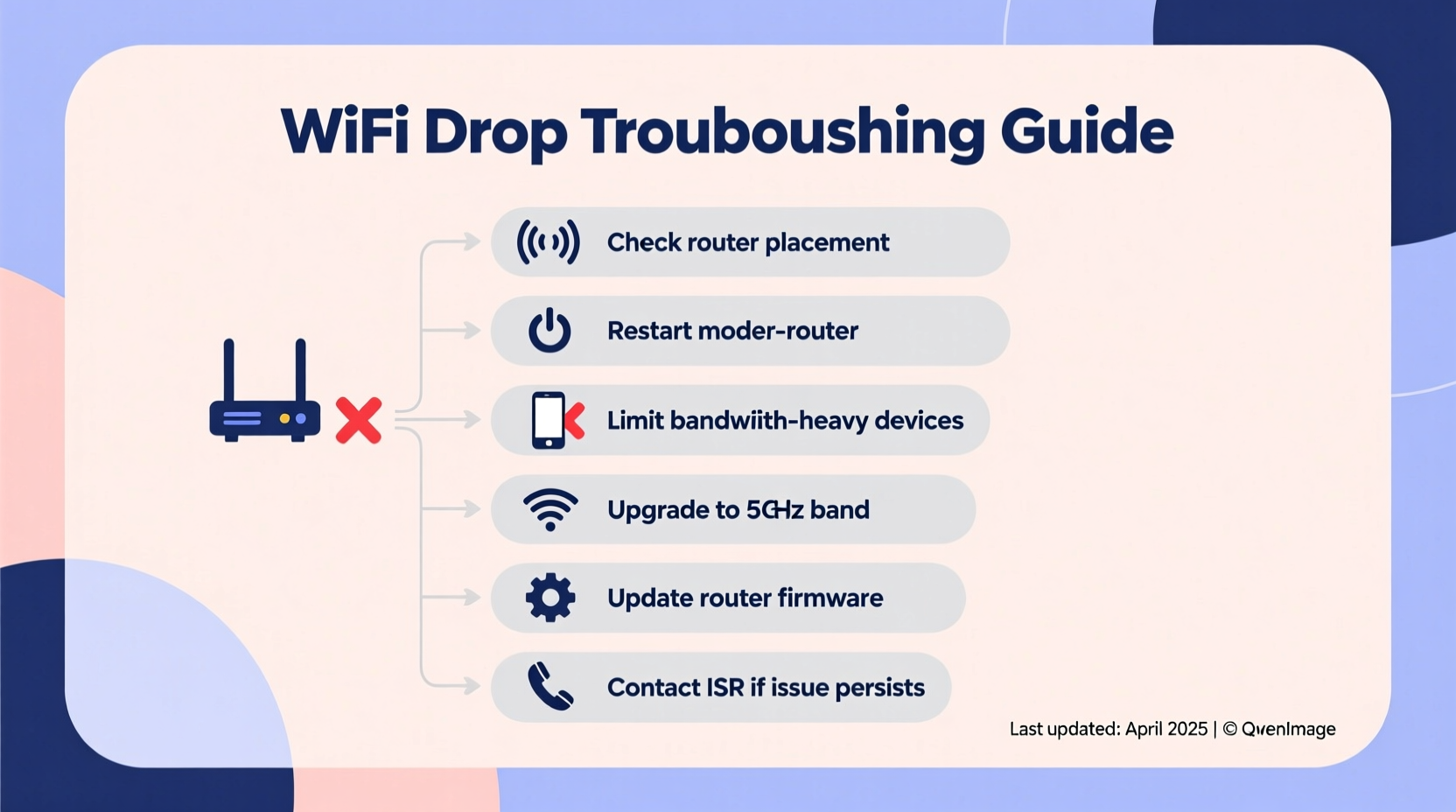
Zoom calls require a steady stream of data. Unlike browsing or streaming, video conferencing involves two-way communication: your device uploads your video and audio while simultaneously downloading those of others. Even brief interruptions in this exchange can cause freezing, echo, or disconnection. WiFi instability during Zoom often stems from one or more of the following:
- Bandwidth saturation: Multiple devices using the network at once can overwhelm available capacity.
- Signal interference: Walls, appliances, and neighboring networks on the same channel disrupt signals.
- Router limitations: Older routers may struggle with modern traffic demands or lack Quality of Service (QoS) features.
- Device-specific issues: Outdated drivers, poor antenna reception, or background apps consuming bandwidth.
- ISP throttling or outages: Internet providers may limit bandwidth during peak hours or experience local service degradation.
A 2023 FCC report found that nearly 40% of U.S. households experienced noticeable internet performance drops during high-usage hours—precisely when Zoom meetings are most common. The key to resolving these issues lies in diagnosing the specific bottleneck in your setup.
“Video conferencing exposes network weaknesses that casual browsing might never reveal. It’s like stress-testing your WiFi.” — Dr. Lin Zhao, Network Performance Analyst at Broadband Insights Group
Step-by-Step Troubleshooting Process
Follow this logical sequence to identify and resolve the cause of your WiFi drops. Start with simple checks and progress to deeper diagnostics.
- Test your internet speed using a trusted tool like Fast.com or Speedtest.net. For HD Zoom calls, aim for at least 3 Mbps download and 1.5 Mbps upload. If results fall short, contact your ISP.
- Restart your router and modem. Unplug both for 30 seconds, then power them back on. This clears temporary glitches and refreshes the connection.
- Move closer to the router. Distance weakens signal strength. Test connectivity from different rooms to isolate range issues.
- Check for active downloads or updates. Background processes like cloud backups or software updates consume bandwidth. Pause them during calls.
- Switch to 5 GHz band if available. The 2.4 GHz band is crowded and slower; 5 GHz offers faster speeds and less interference, though shorter range.
- Inspect your device’s WiFi adapter. Update drivers or reset network settings if your laptop or phone shows weak signal bars despite proximity.
- Use Zoom’s built-in diagnostics. In the desktop app, go to Settings > Audio & Video to test microphone, camera, and network quality.
Common Fixes and Optimization Strategies
Once you’ve ruled out temporary glitches, implement long-term improvements to harden your network against disruptions.
Optimize Router Placement
Place your router centrally, elevated, and away from obstructions. Avoid basements, metal cabinets, microwaves, cordless phones, and thick walls. A central location ensures even signal distribution.
Enable Quality of Service (QoS)
QoS prioritizes certain types of traffic. Access your router’s admin page (usually via 192.168.1.1) and enable QoS. Set Zoom or video conferencing as a high-priority application. This ensures bandwidth is reserved even when others are streaming or gaming.
Update Firmware Regularly
Manufacturers release firmware updates to patch bugs and improve stability. Check your router’s support page or admin dashboard for available updates. Enable automatic updates if supported.
Limit Connected Devices
Each connected device consumes overhead. Disconnect unused smart home gadgets, tablets, or guest phones during critical calls. Alternatively, set up a guest network to offload non-essential traffic.
Use a Wired Connection
Ethernet is vastly more stable than WiFi. If possible, connect your computer directly to the router with a Cat 6 cable. You’ll eliminate wireless interference entirely and gain lower latency.
Do’s and Don’ts of Home WiFi Management
| Do’s | Don’ts |
|---|---|
| Position the router in an open, central area | Place the router near large metal objects or appliances |
| Use the 5 GHz band for video calls | Assume 2.4 GHz is better just because it reaches farther |
| Update router firmware monthly | Ignore firmware update notifications |
| Set up QoS to prioritize Zoom | Allow unlimited device access without limits |
| Restart your router weekly | Leave it running for months without a reboot |
Real-World Case: Fixing a Remote Worker’s Connection
Sarah, a project manager based in Chicago, worked remotely from her apartment and frequently experienced dropped Zoom calls mid-meeting. Her initial assumption was that her ISP was unreliable. However, after testing her speed (which showed excellent results), she began investigating internally.
She discovered that her router was in a closet near the kitchen, where the microwave and refrigerator caused constant interference. Additionally, her teenage son was gaming online during her morning meetings, consuming most of the bandwidth. Sarah moved the router to her living room shelf, switched to the 5 GHz band, and enabled QoS to prioritize her laptop. She also agreed with her son on a schedule to pause gaming during her core work hours.
The result? No more disconnections over the next three weeks. “I went from apologizing every other day to having flawless calls,” she said. “It wasn’t my internet plan—it was how I was using it.”
Advanced Solutions for Persistent Issues
If basic troubleshooting fails, consider upgrading your infrastructure.
WiFi Mesh Systems
For larger homes or multi-floor setups, traditional routers often leave dead zones. Mesh systems like Google Nest WiFi or Eero use multiple nodes to blanket your space with seamless coverage. They automatically switch devices to the strongest signal, reducing dropouts.
WiFi Extenders vs. Mesh
While extenders boost signal, they often halve bandwidth and create separate network names. Mesh systems provide a single SSID and smarter routing, making them superior for video conferencing.
Upgrade Your Router
If your router is more than three years old, it likely lacks modern standards like WiFi 6 (802.11ax), which improves efficiency in dense environments. Newer models handle multiple devices better and offer advanced QoS and security features.
Monitor Network Traffic
Use tools like Fing (mobile) or Wireshark (advanced) to see which devices are consuming bandwidth. Some routers include built-in analytics. Identifying silent bandwidth hogs—like a security camera uploading footage—can solve unexplained slowdowns.
“WiFi 6 isn’t just about speed—it’s about consistency under load. That’s exactly what video calls need.” — Raj Patel, Senior Engineer at NetGear Labs
FAQ: Common Questions About WiFi and Zoom Stability
Why does my WiFi disconnect only during Zoom calls and not other activities?
Zoom requires sustained two-way data flow. Activities like browsing involve short bursts of data, so minor hiccups go unnoticed. Video calls expose even brief interruptions, making them more sensitive to network instability.
Can antivirus software cause WiFi drops during calls?
Yes. Some security suites perform real-time scanning or firewall checks that momentarily interrupt network traffic. Try temporarily disabling non-essential protection during calls to test. If the issue resolves, adjust settings to exclude Zoom from deep scans.
Is it better to use Zoom on mobile data instead of WiFi?
In some cases, yes—especially if your cellular signal is strong and your home WiFi is unreliable. Modern LTE or 5G connections can outperform congested home networks. Use this as a backup option during critical calls.
Final Checklist: Ensure Stable Zoom Calls
- ✅ Test internet speed (min. 3 Mbps down / 1.5 Mbps up)
- ✅ Restart router and modem weekly
- ✅ Position router centrally and away from interference
- ✅ Connect via Ethernet when possible
- ✅ Switch to 5 GHz WiFi band
- ✅ Enable QoS and prioritize Zoom traffic
- ✅ Update router firmware and device drivers
- ✅ Limit background downloads and connected devices
- ✅ Consider a mesh WiFi system for large spaces
- ✅ Monitor bandwidth usage during calls
Conclusion: Take Control of Your Connection
WiFi drops during Zoom calls are frustrating but rarely inevitable. With methodical troubleshooting and a few strategic upgrades, you can transform an unreliable connection into a dependable communication channel. The goal isn’t perfection—it’s consistency. Whether you’re presenting to executives, interviewing for a job, or collaborating with teammates, a stable connection reflects professionalism and preparedness.
Start today: run a speed test, reposition your router, and schedule a weekly restart. Small actions compound into significant improvements. Share your own solutions or challenges in the comments—your experience could help someone else stay online when it matters most.




 浙公网安备
33010002000092号
浙公网安备
33010002000092号 浙B2-20120091-4
Comments
No comments yet. Why don't you start the discussion?