
If your iPhone keeps losing Wi-Fi while other devices stay connected, it’s both frustrating and puzzling. You’re not imagining it—this is a common issue affecting many iPhone users across various models and iOS versions. The problem often lies in a combination of software quirks, network settings, or hardware behavior unique to how iOS manages wireless connections. Unlike routers failing for all devices, this issue typically isolates the iPhone, making troubleshooting more targeted but also more confusing.
The good news: most cases are fixable without resetting your phone or contacting Apple Support. With a few strategic adjustments, you can restore reliable Wi-Fi performance. This guide breaks down the root causes and provides practical, step-by-step solutions that have helped thousands of users eliminate intermittent disconnects.
Common Causes of iPhone-Specific Wi-Fi Drops
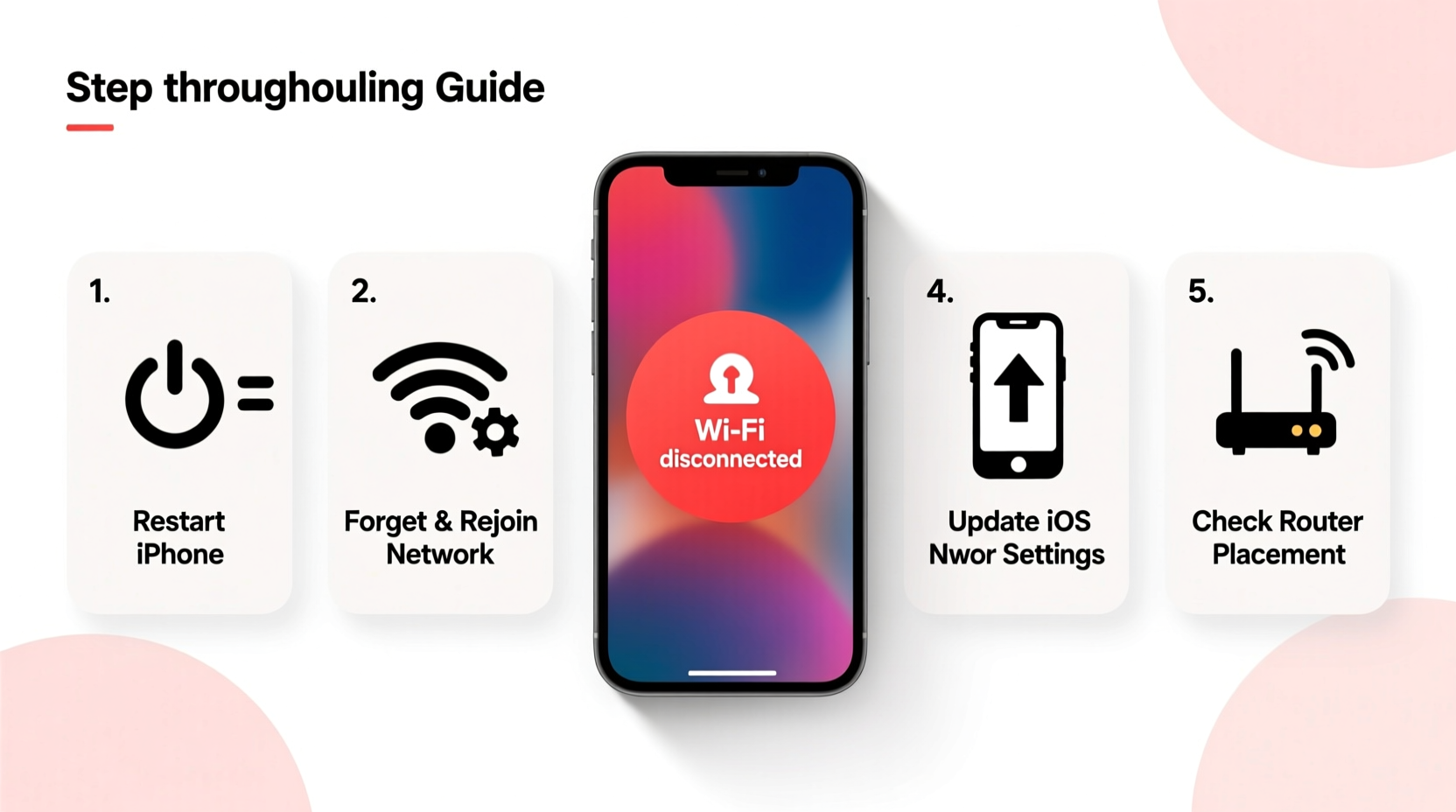
Before diving into fixes, it helps to understand what might be triggering the disconnection. While routers and internet service play roles, the fact that only your iPhone is affected narrows the field significantly. Here are the most frequent culprits:
- iOS Network Settings Glitches: Over time, saved networks accumulate configuration errors, especially after updates or location changes.
- Auto-Join vs. Auto-Switch Conflicts: iOS tries to optimize connections by switching between Wi-Fi and cellular data, but this feature can backfire.
- DNS or IP Address Issues: Incorrect or outdated IP configurations can cause periodic dropouts.
- Firmware Mismatch with Router: Some older or budget routers don’t fully support modern WPA3 encryption used by newer iPhones.
- Background App Interference: Apps refreshing aggressively in the background may trigger iOS to temporarily disable Wi-Fi to conserve power.
- Hardware-Level Antenna Problems: Rare, but possible—especially if the device has experienced physical damage.
Understanding these underlying factors helps prioritize which fixes to try first. Start with software and settings before suspecting hardware failure.
Step-by-Step Fixes to Restore Stable Wi-Fi
Follow this sequence of solutions in order. Most users resolve the issue within the first three steps.
- Restart Your iPhone and Router
A full reboot clears temporary memory issues on both ends. Turn off your iPhone completely, wait 30 seconds, then power it back on. Do the same for your router—unplug it for 30 seconds before restoring power. Wait for all lights to stabilize before reconnecting. - Forget and Rejoin the Wi-Fi Network
Go to Settings > Wi-Fi, tap the “i” icon next to your network, and select Forget This Network. Then re-enter the password and reconnect. This resets stored credentials and forces iOS to negotiate a fresh connection. - Reset Network Settings
Navigate to Settings > General > Transfer or Reset iPhone > Reset > Reset Network Settings. This erases all saved Wi-Fi passwords, Bluetooth pairings, and cellular preferences. After the reset, reconnect to your network. Use this if forgetting the network didn’t help. - Disable Wi-Fi Assist
Wi-Fi Assist automatically switches to cellular data when Wi-Fi signal is weak. While useful, it can make it seem like Wi-Fi is dropping even when technically still connected. Turn it off via Settings > Cellular > Wi-Fi Assist. - Turn Off Auto-Join and Re-enable Manually
Sometimes iOS fails to re-authenticate properly when auto-joining. Temporarily disable auto-join by tapping the “i” next to the network and toggling off Auto-Join. Then manually reconnect and re-enable Auto-Join afterward. - Update iOS and Router Firmware
Check for iOS updates under Settings > General > Software Update. Similarly, log into your router’s admin panel (usually via 192.168.1.1) and check for firmware updates. Outdated software is a silent cause of compatibility issues. - Change DNS Settings
In rare cases, faulty DNS resolution causes timeouts. Try switching to Google DNS:
- Go to Settings > Wi-Fi
- Tap the “i” next to your network
- Under IPv4, change Configure DNS to Manual
- Add8.8.8.8and8.8.4.4as servers
- Save and reconnect.
Tips to Prevent Future Wi-Fi Disconnections
Maintaining consistent connectivity requires ongoing care. These habits reduce the likelihood of future drops:
- Limit Background App Refresh: Too many apps syncing at once can overload the network stack. Disable unnecessary refreshes under Settings > General > Background App Refresh.
- Avoid Crowded Wi-Fi Channels: If you live in an apartment complex, neighboring networks may interfere. Use a free app like NetSpot or Wi-Fi Analyzer (on Android) to find the least congested channel and adjust your router accordingly.
- Use 5 GHz Band When Possible: Modern routers offer dual bands. Connect your iPhone to the 5 GHz network (usually named differently) for faster speeds and less interference than 2.4 GHz.
- Keep Your iPhone Cool: Overheating can throttle wireless components. Avoid leaving it in direct sunlight or enclosed spaces while using heavy data apps.
Do’s and Don’ts: iPhone Wi-Fi Best Practices
| Do’s | Don’ts |
|---|---|
| Reboot your router monthly | Ignore repeated firmware update prompts on your router |
| Forget and re-add networks after major iOS updates | Assume the problem is always with your iPhone—test other devices too |
| Use strong, updated passwords for Wi-Fi security | Enable public hotspot sharing without protection |
| Check for physical obstructions near your router | Place your router near microwaves or cordless phones (they cause interference) |
| Update apps regularly to avoid bugs affecting connectivity | Leave unused Bluetooth/Wi-Fi accessories paired indefinitely |
Real-World Example: Fixing Persistent Drops in a Home Office
Sarah, a freelance designer in Austin, noticed her iPhone 14 would lose Wi-Fi every 10–15 minutes during video calls, while her MacBook and iPad stayed connected. She tried restarting multiple times with no lasting effect. After reading about DNS issues, she checked her router and found it was using an ISP-provided DNS known for instability.
She switched her iPhone to use Google DNS manually and disabled Wi-Fi Assist. The disconnections stopped immediately. Later, she updated her router’s firmware and changed its broadcast channel from 6 to 11 to avoid overlap with her neighbor’s network. Since then, she’s had zero Wi-Fi drops—even during long Zoom sessions.
This case highlights how layered the issue can be: one fix helped, but combining several created lasting stability.
“Many iPhone Wi-Fi issues stem from mismatched expectations between the device and the router. iOS assumes certain standards are supported; when they aren’t, the fallback process isn’t always smooth.” — David Lin, Senior Network Engineer at NetSignal Labs
Quick Checklist: Resolve iPhone Wi-Fi Drops in 10 Minutes
Use this checklist for fast troubleshooting:
- ✅ Restart your iPhone and router
- ✅ Forget the Wi-Fi network and reconnect
- ✅ Disable Wi-Fi Assist (Settings > Cellular)
- ✅ Toggle Airplane Mode on/off
- ✅ Ensure iOS is up to date
- ✅ Reset network settings if problems persist
- ✅ Test connection on another device to isolate the issue
Most users regain stable connectivity within this window. If not, proceed to deeper diagnostics.
Frequently Asked Questions
Why does my iPhone disconnect from Wi-Fi when locked?
iOS optimizes battery life by reducing background activity when the screen is off. If Wi-Fi signal is borderline, the phone may disconnect to save power. To prevent this, go to Settings > Wi-Fi, tap the “i” next to your network, and ensure Auto-Join is enabled. Also, disable Low Power Mode during critical tasks.
Can a router cause Wi-Fi drops on just one iPhone?
Yes. Routers manage connections per device. If your iPhone uses WPA3 encryption and your router has spotty WPA3 support, it may fail to maintain the handshake. Try setting your router to use WPA2/WPA3 transition mode or pure WPA2 temporarily to test.
Is there a way to monitor Wi-Fi stability on my iPhone?
While iOS doesn’t have a built-in signal strength logger, you can use the Field Test Mode to view real-time signal levels. Dial *3001#12345#* to enter Field Test Mode, then check the “rsrp0” value under LTE or NR. Lower negative numbers (e.g., -85 dBm) indicate stronger signals. Values below -110 dBm suggest poor reception.
Final Steps and When to Seek Help
If you’ve completed all the steps above and your iPhone still drops Wi-Fi, consider these final actions:
- Test with a Different Network: Visit a friend’s house or a café and see if the issue persists. If it doesn’t, the problem is likely your home network setup.
- Check for Carrier or SIM Issues: Though rare, a corrupted SIM can affect overall connectivity management. Try removing and reinserting the SIM card.
- Contact Apple Support: If only your iPhone behaves this way across multiple networks, there may be a hardware defect. Schedule a Genius Bar appointment or use Apple’s online diagnostics tool.
Remember: intermittent Wi-Fi loss on a single device is almost always solvable through settings and maintenance. Hardware failure is the last possibility, not the first.




 浙公网安备
33010002000092号
浙公网安备
33010002000092号 浙B2-20120091-4
Comments
No comments yet. Why don't you start the discussion?