
It’s a common frustration: your smartphone shows full bars near the router, but just a few steps into another room, the signal vanishes. You're not alone. Millions of households experience uneven Wi-Fi coverage, leading to buffering videos, dropped video calls, and sluggish browsing. The reasons are often rooted in physics, building materials, and network design—not faulty equipment. Understanding what causes dead zones and how to address them can transform your home network from unreliable to robust.
Why Wi-Fi Signals Fade in Specific Rooms
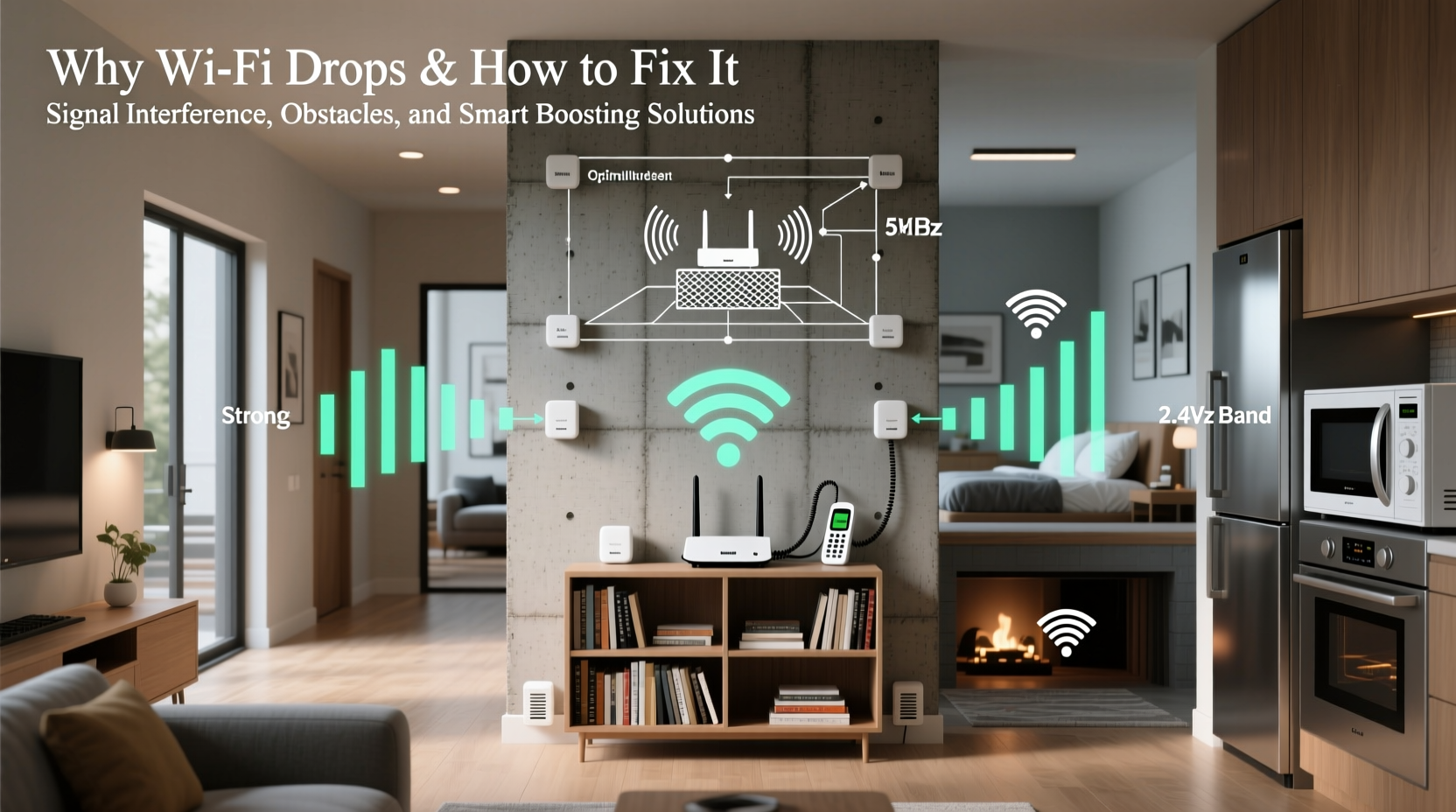
Wi-Fi operates using radio waves, typically on the 2.4 GHz or 5 GHz frequency bands. These signals radiate outward from your router like ripples in water, weakening as they travel and interact with obstacles. While modern routers are powerful, their reach is limited by environmental factors that are often beyond manufacturer control.
One of the primary culprits behind signal degradation is physical obstruction. Thick walls—especially those made of concrete, brick, or plaster with metal lath—can block or reflect Wi-Fi signals. Metal objects like filing cabinets, refrigerators, or even mirrors act as shields. Water, found in fish tanks, plumbing pipes, or even houseplants, absorbs 2.4 GHz signals effectively, further reducing range.
Interference is another major issue. In dense neighborhoods, multiple Wi-Fi networks operating on overlapping channels create congestion, especially on the crowded 2.4 GHz band. Devices such as cordless phones, baby monitors, and microwaves also emit electromagnetic noise in this spectrum, disrupting connectivity.
Additionally, distance plays a role. Even without obstructions, signal strength diminishes with distance due to the inverse-square law—doubling the distance from the router reduces signal power to one-fourth. If your router is tucked in a corner or basement, distant rooms will naturally receive weaker signals.
Common Building Materials That Block Wi-Fi
Not all walls are created equal when it comes to wireless penetration. Some materials are far more disruptive than others. Knowing which ones interfere most can help you plan better router placement or decide where to install signal boosters.
| Material | Impact on Wi-Fi Signal | Notes |
|---|---|---|
| Drywall | Low | Minimal interference; ideal for open floor plans. |
| Wood | Low to Moderate | Solid wood doors may reduce signal slightly. |
| Plaster with Metal Lath | High | Metal mesh reflects signals; common in older homes. |
| Concrete & Brick | Very High | Significantly attenuates both 2.4 GHz and 5 GHz bands. |
| Insulated Glass / Windows | Moderate | Low-E coatings contain metallic layers that block signals. |
| Appliances (Fridge, Oven) | High | Metal surfaces reflect and absorb radio waves. |
This table highlights why a bedroom on the opposite side of a concrete wall might suffer poor reception, even if it's relatively close to the router. Recognizing these barriers helps inform decisions about network upgrades and device placement.
Strategies to Improve Wi-Fi Coverage
Boosting Wi-Fi coverage doesn’t always require expensive gear. Often, simple adjustments yield noticeable improvements. Start with optimizing your existing setup before investing in new hardware.
1. Optimize Router Placement
The location of your router is arguably the most critical factor in coverage. Place it centrally within your home, elevated off the ground (on a shelf or desk), and away from obstructions. Avoid basements, closets, or behind TVs and entertainment centers. Keep antennas vertical for optimal horizontal signal distribution.
2. Switch Wi-Fi Channels to Reduce Interference
If you live in an apartment complex or densely populated area, neighboring networks may be competing for bandwidth. Use a free app like Wi-Fi Analyzer (Android) or NetSpot (Windows/Mac) to scan nearby networks and identify the least congested channel. For 2.4 GHz, stick to channels 1, 6, or 11 to avoid overlap. On 5 GHz, choose non-DFS channels (e.g., 36–48) for stability.
3. Upgrade Your Router Firmware
Manufacturers regularly release firmware updates that improve performance, security, and compatibility. Log into your router’s admin panel (usually via 192.168.1.1 or 192.168.0.1) and check for updates under the maintenance or administration tab.
4. Use Quality-of-Service (QoS) Settings
If multiple devices stream or game simultaneously, prioritize traffic. QoS settings allow you to assign higher priority to video calls or gaming consoles, preventing lag during peak usage.
“Most Wi-Fi issues aren’t due to weak hardware but suboptimal placement and configuration.” — Dr. Lena Patel, Network Engineer at Broadband Insights Group
Hardware Solutions for Dead Zones
When repositioning your router isn't enough, consider expanding your network with dedicated hardware. Several options exist, each suited to different home layouts and budgets.
Wi-Fi Extenders (Repeaters)
Extenders pick up your existing signal and rebroadcast it, effectively doubling the range. They’re affordable and easy to set up. However, they halve available bandwidth because they communicate with the router on the same frequency they use to serve clients. Best for light use like browsing or smart home devices.
Mesh Wi-Fi Systems
Mesh networks consist of a main router and satellite nodes placed throughout the home. Unlike extenders, mesh systems use dedicated backhaul channels (some even have tri-band radios) to maintain speed while covering large areas. Brands like Google Nest Wifi, Eero, and TP-Link Deco offer seamless roaming and unified SSIDs. Ideal for multi-story homes over 2,000 sq ft.
Powerline Adapters
These devices transmit data through your home’s electrical wiring. Plug one adapter near the router (connected via Ethernet), and another in a distant room. They work well in older homes where Wi-Fi struggles due to thick walls. Performance depends on circuit quality—avoid using surge protectors, and ensure both adapters are on the same electrical phase.
Access Points (APs)
For maximum performance, install wired access points connected via Ethernet cables. This requires running cables through walls or ceilings but delivers full-speed, low-latency connectivity. Professional installation may be needed, but APs are the gold standard for large homes or offices.
Step-by-Step Guide to Eliminate Wi-Fi Dead Zones
Follow this structured approach to diagnose and resolve coverage issues in your home:
- Map Your Current Coverage: Walk through each room with a smartphone or laptop. Note where signal strength drops below two bars. Use a Wi-Fi analyzer app to record signal strength (in dBm) and interference levels.
- Reposition the Router: Move it to a central, elevated location. Ensure it’s not near large metal objects or appliances. Test again after relocation.
- Update Firmware and Settings: Access your router’s interface and apply any pending updates. Change to the least congested channel and enable WPA3 encryption for better efficiency.
- Test Hardware Upgrades: Based on your home size and layout, choose a solution:
- Small apartment: Try a single extender.
- Medium home (1,500–3,000 sq ft): Install a 2- or 3-node mesh system.
- Large or multi-level home: Combine mesh nodes with Ethernet backhaul or add access points.
- Monitor and Adjust: After installation, test speeds in previously weak areas. Use tools like Speedtest.net or Ookla to verify improvements. Fine-tune node placement if necessary.
Mini Case Study: Fixing Connectivity in a Two-Story Home
Mark lives in a 2,200-square-foot colonial house with hardwood floors and plaster walls. His router was in the basement near the modem, resulting in frequent disconnections upstairs. Video calls froze, and his daughter’s online classes were interrupted daily.
He first tried a Wi-Fi extender on the main floor, but streaming remained choppy. After reading about mesh networks, he installed a three-node TP-Link Deco system—one node in the basement, one on the main floor, and one upstairs. All nodes connected via automatic mesh backhaul.
Result: Full bars on every floor. Streaming, gaming, and remote work now run smoothly. Total cost: $180. Installation took under 20 minutes using the companion app.
Checklist: How to Boost Your Home Wi-Fi
- ☐ Place router centrally and elevated
- ☐ Avoid proximity to metal objects and appliances
- ☐ Update router firmware regularly
- ☐ Switch to less congested Wi-Fi channel
- ☐ Test signal strength room by room
- ☐ Choose the right solution: extender, mesh, or access point
- ☐ Use Ethernet backhaul for mesh systems when possible
- ☐ Consider professional installation for access points
Frequently Asked Questions
Can thick curtains or rugs affect Wi-Fi?
Generally, no. Most fabrics don’t significantly block Wi-Fi signals. However, heavy blackout curtains with metallic linings can reflect or absorb some frequencies, especially 5 GHz. If you notice a drop near such curtains, try opening them or relocating the device.
Is 5 GHz faster than 2.4 GHz?
Yes, 5 GHz offers faster speeds and less interference, but it has shorter range and penetrates walls poorly. Use 5 GHz for high-bandwidth activities like streaming or gaming near the router. Use 2.4 GHz for devices farther away or for smart home gadgets that don’t need high speed.
Do Wi-Fi boosters really work?
Basic repeaters can help, but they often sacrifice speed and reliability. Modern mesh systems are far more effective. Look for models with dedicated backhaul bands and seamless roaming to avoid connection drops when moving between zones.
Conclusion: Take Control of Your Home Network
Poor Wi-Fi in certain rooms isn’t inevitable—it’s solvable. By understanding how signals behave and applying practical fixes, you can achieve consistent, high-speed connectivity throughout your home. Whether it’s repositioning your router, switching channels, or investing in a mesh system, each step brings you closer to a frustration-free digital experience. Don’t accept buffering and dropped connections as normal. Assess your space, implement the right solution, and enjoy reliable internet in every corner of your house.




 浙公网安备
33010002000092号
浙公网安备
33010002000092号 浙B2-20120091-4
Comments
No comments yet. Why don't you start the discussion?