
If your WiFi works perfectly everywhere except for one frustrating corner of your home, you're not alone. Many homeowners experience strong connectivity in most areas but face sudden drops or complete dead zones in a single room. This inconsistency can disrupt video calls, streaming, gaming, or even simple browsing. The root causes are often physical, technical, or environmental — and more predictable than they seem. Understanding the science behind signal behavior and identifying the unique factors affecting that particular space is the first step toward restoring seamless coverage.
Common Causes of Room-Specific WiFi Drops
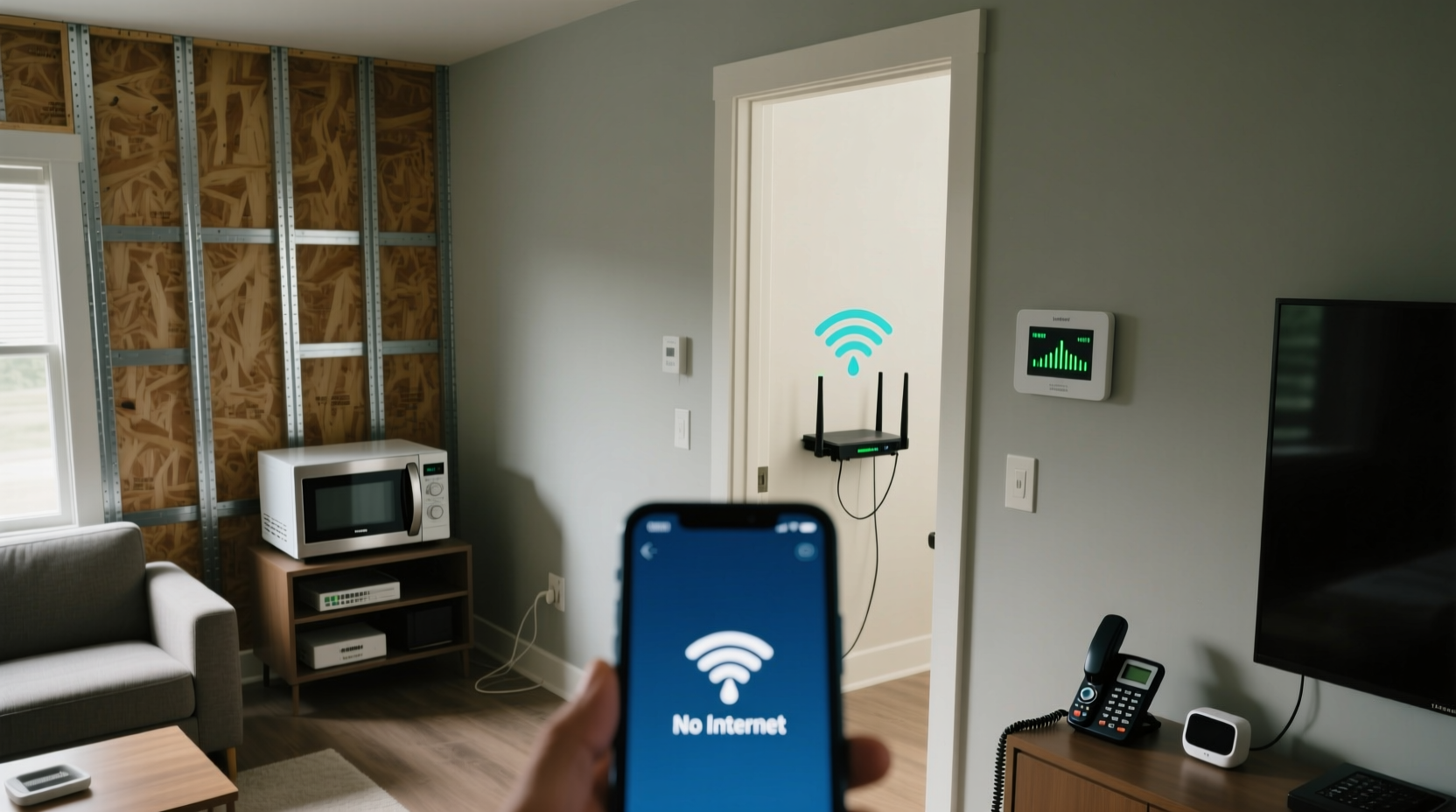
WiFi signals travel as radio waves, typically at 2.4 GHz or 5 GHz frequencies. These waves can be absorbed, reflected, or blocked by various materials and devices. When one room consistently suffers from poor signal while others remain stable, it's rarely random. Instead, it points to localized interference or structural obstacles.
- Building Materials: Concrete walls, metal studs, brick, or foil-backed insulation can block or weaken signals significantly.
- Room Location: Basements, interior rooms without windows, or those far from the router are naturally prone to weaker reception.
- Electronic Interference: Microwaves, cordless phones, baby monitors, or poorly shielded electronics emit electromagnetic noise on similar frequencies.
- Large Appliances: Refrigerators, washing machines, or HVAC units contain metal and motors that reflect or absorb signals.
- Water Sources: Large fish tanks, plumbing stacks, or even high humidity levels can interfere due to water’s ability to absorb microwave energy.
Step-by-Step Diagnosis Process
Before investing in new hardware, conduct a methodical assessment to pinpoint the cause. Follow this sequence to isolate variables and identify the source of disruption.
- Map Signal Strength: Use a WiFi analyzer app (such as NetSpot, Wi-Fi Analyzer, or OpenSignal) to measure signal strength (in dBm) in multiple spots around the house, especially near the problem room.
- Check Distance and Obstacles: Note how many walls, floors, or large objects lie between the router and the affected area. Each solid wall can reduce signal by 3–9 dB.
- Test at Different Times: Run speed tests during peak usage hours and late at night to rule out network congestion.
- Isolate Device Issues: Try multiple devices in the weak-signal room. If all perform poorly, the issue is environmental; if only one device struggles, it may have faulty hardware.
- Power Cycle Equipment: Restart your modem and router to eliminate temporary glitches or firmware hiccups.
- Inspect for Active Interference: Turn off nearby electronics one by one (especially microwaves, Bluetooth speakers, or smart home hubs) and observe changes in signal stability.
Structural and Environmental Factors at Play
Not all rooms are created equal when it comes to wireless transmission. Some architectural features silently sabotage connectivity.
| Factor | Impact on WiFi | Solutions |
|---|---|---|
| Concrete or cinder block walls | High attenuation — blocks up to 90% of signal | Relocate router, use mesh system, or install access point |
| Metal framing or ductwork | Reflects signals, creating dead zones | Avoid routing near metal; use wired backhaul systems |
| Energy-efficient windows (low-E coating) | Blocks RF signals like a Faraday cage | Place access point inside the room or use repeater |
| Large mirrors or glass partitions | Reflect signals, causing multipath interference | Reposition router or adjust antenna orientation |
| Water pipes or aquariums | Water absorbs 2.4 GHz waves effectively | Use 5 GHz band (if close enough), or reposition router |
The combination of these elements can create a \"perfect storm\" in one room. For example, a basement office with concrete walls, overhead metal beams, and adjacent plumbing may suffer from compounded signal loss — even if the router is just one floor above.
“WiFi doesn’t fail uniformly across a home. One room’s layout, materials, and contents can turn it into a signal trap.” — Dr. Lin Zhao, RF Engineer & Wireless Systems Consultant
Real-World Example: The Case of the Disappearing Living Room Signal
Consider Mark, a remote worker living in a mid-century ranch home. His internet worked flawlessly in every room except the living room, where his Zoom calls frequently froze. After ruling out device issues, he discovered that the entertainment center housed an older cordless phone base station operating at 2.4 GHz — the same band as his WiFi. Even though the phone wasn’t in use, its constant background transmission disrupted the channel.
Further investigation revealed that the TV stand was backed by a decorative aluminum panel, which reflected signals away from the seating area. By relocating the phone base to the garage and switching his router to the less congested 5 GHz band (using beamforming to target the room), Mark restored stable connectivity without purchasing new equipment.
This case illustrates how seemingly minor details — outdated electronics and reflective surfaces — can combine to create persistent problems in one location.
Practical Solutions to Restore Connectivity
Once you’ve diagnosed the cause, implement targeted fixes. Not every solution requires spending money — some adjustments are free and immediate.
Optimize Router Placement
Even small relocations can make a big difference. Place your router:
- Centrally, if possible
- Away from large metal objects
- Elevated (on a shelf, not the floor)
- With antennas oriented correctly (one vertical, one diagonal for mixed-device environments)
Switch WiFi Bands Strategically
Modern dual-band routers offer both 2.4 GHz and 5 GHz networks. While 5 GHz is faster, it has shorter range and poorer wall penetration. In contrast, 2.4 GHz travels farther but is more prone to interference.
In a problematic room:
- If close to the router, try connecting to 5 GHz for better speed and less noise.
- If far away or through thick walls, stick with 2.4 GHz for reliability.
Upgrade Hardware When Necessary
If optimization isn't enough, consider:
- Mesh WiFi Systems: Nodes placed strategically extend coverage seamlessly. Ideal for large homes or those with complex layouts.
- WiFi Extenders: Cost-effective but can halve bandwidth. Best for light usage like smart home devices.
- Access Points via Ethernet: Hardwiring an access point into the problem room delivers maximum speed and stability.
WiFi Fix Checklist
Follow this checklist to systematically resolve room-specific signal drops:
- ✅ Conduct a WiFi heat map using a mobile app
- ✅ Identify physical barriers between router and room
- ✅ Eliminate sources of electronic interference
- ✅ Test multiple devices to confirm environmental issue
- ✅ Reposition router or adjust antenna angles
- ✅ Switch between 2.4 GHz and 5 GHz bands
- ✅ Update router firmware to latest version
- ✅ Consider installing a mesh node or access point in or near the room
- ✅ Label and test each change individually to track improvements
Frequently Asked Questions
Why does my phone show full bars but still have no internet in one room?
Full signal bars indicate strong connection to the router, but not necessarily good throughput. The issue could be network congestion, DNS problems, or interference degrading data integrity despite apparent signal strength. Run a speed test and check latency to verify actual performance.
Can furniture really affect WiFi signal?
Yes. Dense materials like bookshelves filled with books, upholstered sofas, or wooden cabinets with metal frames can absorb or scatter signals. A large piece of furniture positioned between your device and the router can act as a partial barrier, especially on the 5 GHz band.
Will a WiFi extender solve my problem?
It might — but with caveats. Extenders rebroadcast your existing signal, which means they inherit any weaknesses. If the original signal reaching the extender is already weak or noisy, performance will suffer. For best results, place the extender halfway between the router and the problem room, where the signal is still strong (ideally -50 dBm or better).
Final Thoughts and Next Steps
WiFi inconsistencies in a single room are rarely magic — they’re physics. Whether it’s a hidden appliance emitting interference, a wall made of signal-blocking material, or simply poor router placement, there’s almost always a logical explanation and a practical fix. Start with observation and testing, then apply targeted adjustments before upgrading hardware. Most issues can be resolved with minimal cost and effort.
Don’t accept spotty connectivity as inevitable. With a clear diagnosis and the right strategy, every room in your home can enjoy reliable, high-speed internet. Take action today: run a quick signal test, inspect the environment, and begin eliminating variables. Your frustration-free browsing, streaming, and working await.




 浙公网安备
33010002000092号
浙公网安备
33010002000092号 浙B2-20120091-4
Comments
No comments yet. Why don't you start the discussion?