
It’s a familiar frustration: your internet works perfectly in the living room, kitchen, or home office—but the moment you step into the bedroom, the signal vanishes. Video calls freeze, streaming buffers endlessly, and even basic browsing becomes a chore. If your WiFi consistently drops in just one room, especially the bedroom, it’s not random. There are specific, often fixable reasons behind this localized dead zone. Understanding what's interfering with your signal—and how to correct it—can transform your connectivity experience.
The bedroom may seem like an unlikely hotspot for wireless disruption, but its layout, construction materials, furniture placement, and even personal habits can create a perfect storm of signal degradation. Unlike systemic network issues that affect the entire home, isolated problems require targeted diagnosis and solutions. This guide breaks down the most common causes of bedroom-specific WiFi drops and offers actionable steps to eliminate them.
Common Causes of WiFi Signal Drops in the Bedroom
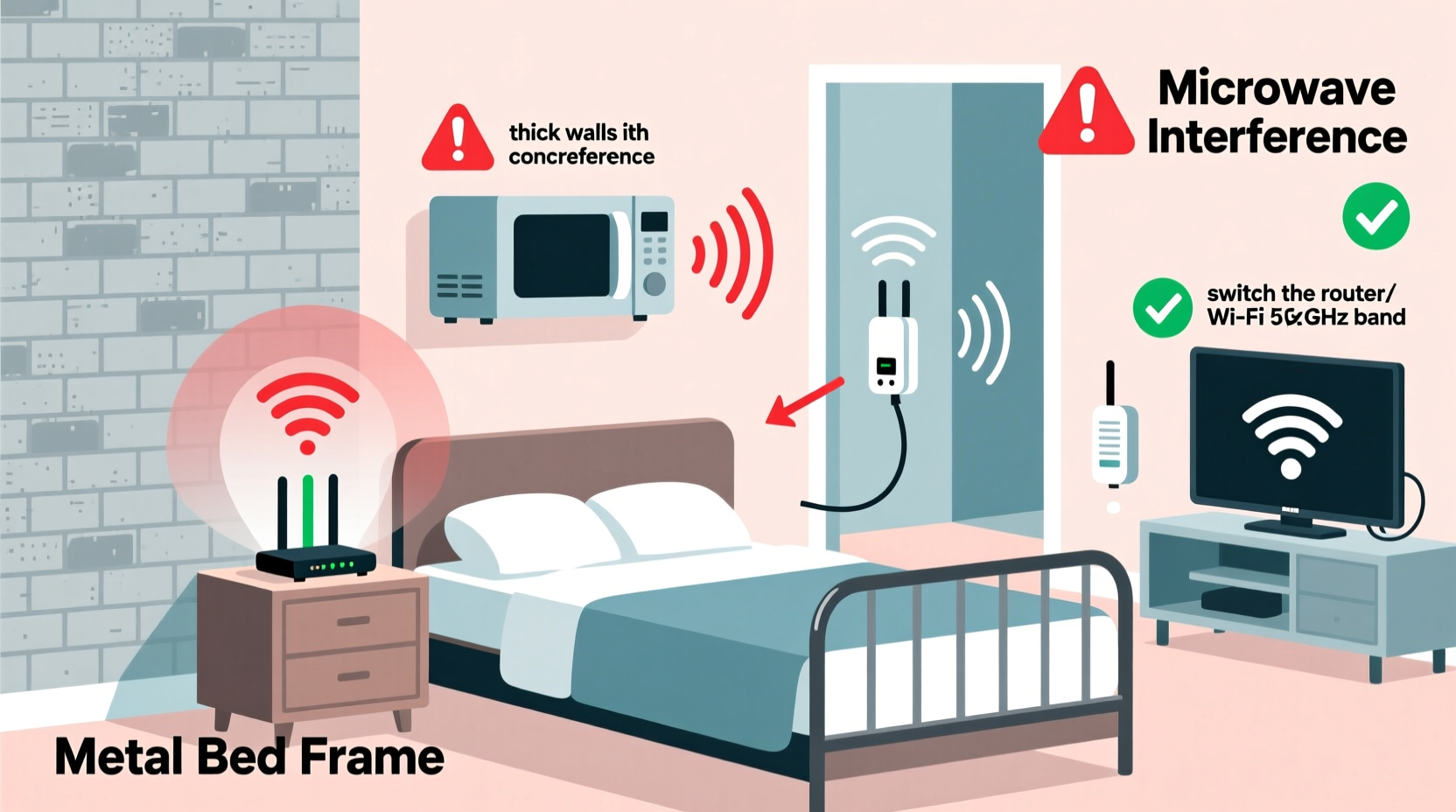
WiFi signals operate on radio frequencies—typically 2.4 GHz and 5 GHz—that travel through the air and walls but weaken when obstructed. The bedroom is often the farthest room from the router and may contain multiple signal blockers. Below are the primary culprits behind inconsistent connectivity in this space.
1. Distance and Obstruction
The farther you are from your router, the weaker the signal becomes. If your bedroom is on the opposite side of the house or separated by several walls, signal strength naturally diminishes. Each wall, especially those made of concrete, brick, or plaster with metal lath, absorbs or reflects radio waves. Floors and ceilings also contribute to attenuation, particularly in multi-story homes.
2. Building Materials
Not all walls are created equal. Older homes with plaster-and-lath walls are notorious WiFi killers because the metal mesh embedded in the plaster acts like a Faraday cage. Similarly, concrete, cinder block, and insulated drywall can severely limit signal penetration. Even modern energy-efficient windows coated with metallic films can reflect WiFi signals rather than allowing them to pass through.
3. Electronic Interference
Many bedroom electronics emit electromagnetic interference (EMI) that disrupts WiFi performance. Devices such as cordless phones, baby monitors, microwaves (if nearby), Bluetooth speakers, and even poorly shielded power strips can operate on the same 2.4 GHz band used by many routers. When these devices are active, they create noise that degrades signal quality.
4. Furniture and Layout
Large metal objects—like bed frames, filing cabinets, mirrors with backing, or entertainment centers—can block or reflect WiFi signals. Water-filled items, including fish tanks or even your body, absorb radio waves. A cluttered room with dense furniture reduces signal propagation, turning the bedroom into a maze of dead zones.
5. Router Placement and Antenna Orientation
If your router is tucked away in a cabinet, basement, or corner of another room, its ability to reach the bedroom is compromised. Additionally, router antennas radiate signals in specific patterns—usually strongest perpendicular to the antenna. If antennas are pointing downward or horizontally in a way that doesn’t align with the bedroom’s direction, coverage suffers.
Step-by-Step Guide to Diagnose and Fix Bedroom WiFi Issues
Resolving WiFi problems in the bedroom begins with methodical testing and adjustment. Follow this sequence to identify the root cause and apply effective solutions.
- Test Signal Strength: Use a WiFi analyzer app (such as NetSpot, WiFi Analyzer, or OpenSignal) on your smartphone or tablet to measure signal strength (in dBm) in different parts of the bedroom. Readings above -60 dBm are excellent; below -70 dBm indicate weak signal.
- Check for Interference: Turn off non-essential electronics in the bedroom—especially cordless devices, Bluetooth gadgets, and USB 3.0 hubs. Monitor if signal stability improves.
- Change WiFi Channel: Log into your router’s admin panel and switch from the default channel to a less congested one. On the 2.4 GHz band, channels 1, 6, and 11 are non-overlapping. For 5 GHz, choose channels above 36 with minimal neighbor overlap.
- Reposition the Router: Move the router closer to the bedroom if possible, or at least ensure it’s unobstructed and elevated. Avoid basements or closets.
- Adjust Antennas: If your router has external antennas, orient them vertically for broad horizontal coverage. If the bedroom is upstairs, angle one antenna slightly upward.
- Update Firmware: Check your router manufacturer’s website for firmware updates. Outdated software can cause instability and poor performance.
- Switch Bands: If your device supports 5 GHz, connect to it instead of 2.4 GHz. It’s faster and less prone to interference, though it has shorter range. For longer distances, stick with 2.4 GHz but ensure it’s not overcrowded.
Solutions That Actually Work: From Simple Tweaks to Advanced Upgrades
Once you’ve diagnosed the issue, implement solutions based on severity and budget. Start with low-cost adjustments before investing in hardware.
WiFi Extenders vs. Mesh Systems
For persistent signal loss, consider extending coverage. Here’s how two popular options compare:
| Solution | Pros | Cons | Best For |
|---|---|---|---|
| WiFi Range Extender | Affordable, easy setup, immediate boost | Can halve bandwidth, creates separate network name (SSID) | Small homes, temporary fix |
| Mesh WiFi System | Seamless roaming, consistent speed, unified SSID, app control | Higher cost, requires multiple units | Larger homes, long-term solution |
A mesh system like Google Nest WiFi, Eero, or TP-Link Deco places satellite nodes throughout your home, creating a single, robust network. One node can be placed near the bedroom to eliminate dead zones without sacrificing speed.
Powerline Adapters: Using Electrical Wiring
In older homes with thick walls, powerline adapters offer a reliable alternative. These devices transmit data through your home’s electrical circuits. Plug one adapter near the router and connect it via Ethernet, then plug a second adapter into an outlet in the bedroom. You can then connect a wireless access point or directly link a device via cable.
Note: Powerline performance depends on circuit compatibility. Outlets on different electrical phases may not communicate effectively.
Upgrade Your Router
If your router is more than three years old, it may lack modern standards like WiFi 6 (802.11ax), MU-MIMO, or beamforming—technologies that improve range and device handling. A newer router can better focus signals toward connected devices, increasing bedroom reliability.
Real-World Example: Solving a Persistent Bedroom Drop
Consider Mark, a remote worker living in a 1920s bungalow. His router was in the basement family room, while his bedroom—and home office setup—was on the second floor at the rear of the house. He experienced constant disconnections during video meetings.
Initial tests showed a signal strength of -78 dBm in the bedroom—too weak for stable use. After ruling out interference (he had no major electronics nearby), he tried a WiFi extender, but it created lag due to bandwidth splitting. Then, he installed a dual-node mesh system: one unit in the basement, another on the first-floor hallway directly below the bedroom. Signal improved to -58 dBm, and his connection stabilized completely.
Additionally, he discovered his bedroom had plaster-and-wire lath walls. The mesh node’s proximity compensated for the material’s blocking effect. Mark now enjoys seamless Zoom calls and uninterrupted streaming—all because he addressed both distance and construction challenges.
“WiFi dead zones aren’t inevitable. With proper placement and modern equipment, even historic homes can achieve full coverage.” — Lena Patel, Network Infrastructure Consultant
Quick Checklist: Restore Your Bedroom WiFi in 10 Minutes
Before investing in new gear, run through this rapid troubleshooting checklist:
- ✅ Restart your router and modem
- ✅ Move your phone/laptop closer to the door of the bedroom to test if signal improves
- ✅ Turn off nearby electronics (Bluetooth devices, cordless phones)
- ✅ Ensure your device isn’t stuck on a weak band—manually connect to 5 GHz if close enough, or 2.4 GHz for range
- ✅ Reorient router antennas vertically
- ✅ Check for firmware updates in your router settings
- ✅ Use a free WiFi analyzer app to confirm signal levels
- ✅ Remove thick metal cases from smartphones or tablets—they can block reception
This quick audit often reveals simple oversights that restore functionality without spending a dime.
Frequently Asked Questions
Can my bed frame really block WiFi?
Yes. Metal bed frames, especially large ones with springs or coils, can reflect or absorb WiFi signals. While not the strongest blocker, they contribute to signal degradation when positioned between your device and the router. Wooden or upholstered frames have minimal impact.
Why does my WiFi work at night but not during the day?
This pattern often points to network congestion. During daytime hours, neighbors’ networks, smart home devices, and background updates increase traffic on shared channels. Switching to a less crowded WiFi channel or using the 5 GHz band can help maintain consistency.
Is it safe to place a WiFi extender in the bedroom?
Yes. WiFi extenders emit radiation levels well below international safety limits. The exposure is comparable to that of a smartphone and decreases rapidly with distance. If concerned, place the extender a few feet from your bed or use a mesh node with scheduling features to turn off at night.
Final Thoughts: Take Control of Your Home Network
A disappearing WiFi signal in the bedroom isn’t a mystery—it’s a solvable engineering challenge. Whether caused by physical barriers, outdated hardware, or avoidable interference, every issue has a corresponding fix. Start with observation and testing, then apply targeted improvements. Often, a small change in router placement or a single upgrade can restore seamless connectivity.
Don’t accept buffering and dropped calls as normal. Modern life demands reliable internet everywhere, especially in private spaces where work, relaxation, and communication converge. By understanding the science behind signal behavior and leveraging today’s networking tools, you can eliminate dead zones for good.




 浙公网安备
33010002000092号
浙公网安备
33010002000092号 浙B2-20120091-4
Comments
No comments yet. Why don't you start the discussion?