
If you’ve noticed that your Wi-Fi works perfectly everywhere in your home except the bedroom, you’re not alone. This is one of the most common complaints among home internet users. The frustration peaks when you're trying to stream a movie, join a video call, or even just check email—only to be met with buffering icons or disconnections the moment you step into your bedroom.
The issue isn’t usually with the bedroom itself, but rather how Wi-Fi signals behave under specific conditions. Walls, materials, interference, and router placement all play critical roles. The good news? You don’t need to buy a new router or hire a technician. Most problems can be solved with a few smart adjustments and simple troubleshooting steps.
Understanding Why Bedroom Wi-Fi Fails
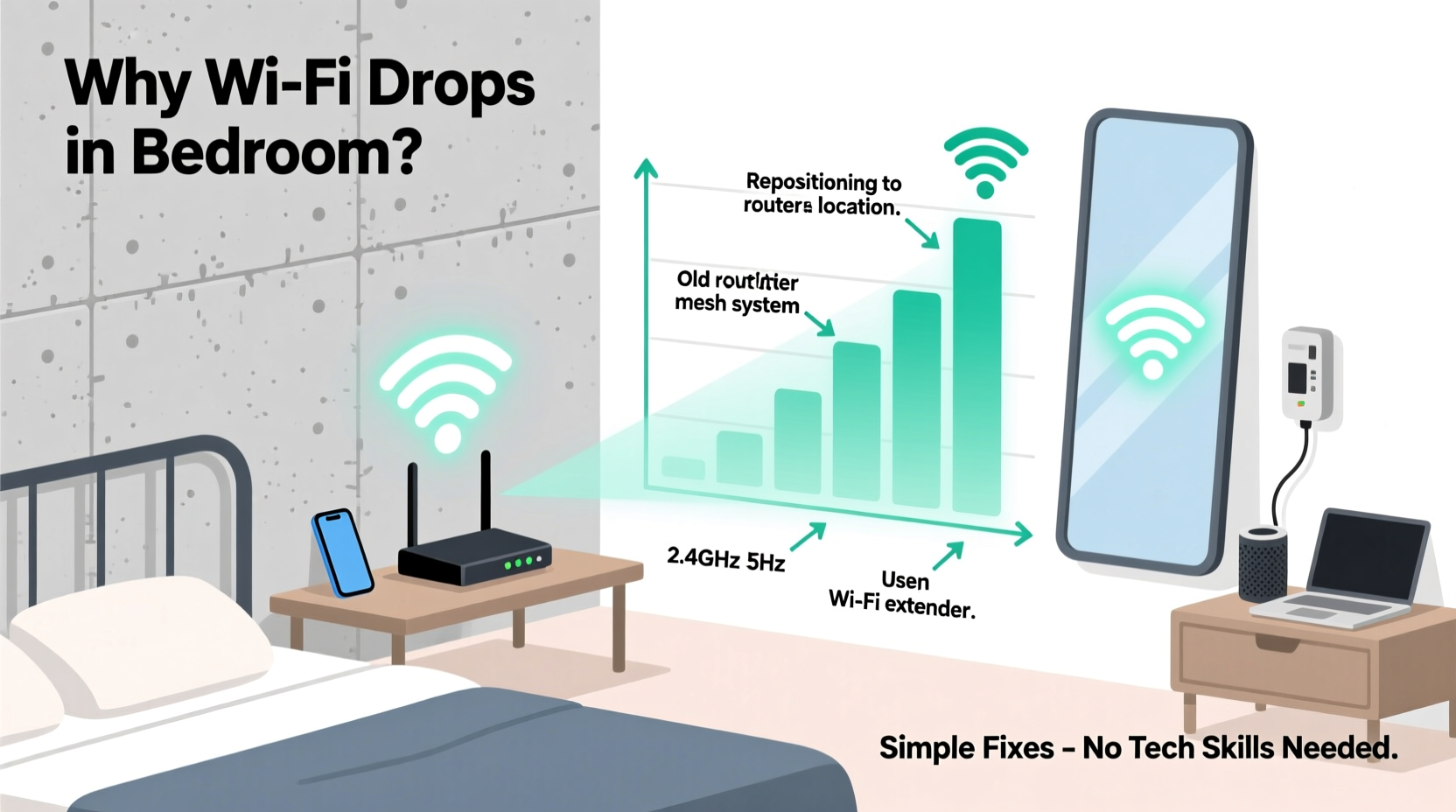
Wi-Fi signals are radio waves, typically operating on 2.4 GHz or 5 GHz frequencies. These signals travel outward from your router but weaken as they pass through obstacles. The bedroom often becomes a dead zone due to its location, construction materials, and surrounding electronics.
Common culprits include:
- Dense walls: Concrete, brick, or plaster walls absorb more signal than drywall.
- Metal objects: Bed frames, mirrors, filing cabinets, or HVAC ducts reflect or block signals.
- Distance: If the bedroom is far from the router, especially on another floor, signal strength naturally degrades.
- Interference: Baby monitors, cordless phones, microwaves, or neighboring networks can disrupt 2.4 GHz bands.
- Furniture layout: Large furniture pieces or clutter can create signal shadows.
Unlike other rooms where you might move around near windows or open spaces, the bedroom often has fixed layouts—making poor signal feel unavoidable. But understanding these factors is the first step toward fixing them.
Router Placement: The Most Overlooked Fix
Where you place your router dramatically affects performance throughout your home. Many people tuck their routers away in closets, basements, or behind entertainment centers to hide them. Unfortunately, this often places them in suboptimal locations for signal distribution.
For consistent coverage, especially to distant rooms like bedrooms, follow these placement guidelines:
- Elevate the router: Place it on a shelf or desk, not on the floor. Signals spread better when broadcast from above obstructions.
- Centralize if possible: Position the router near the center of your home, not tucked in a corner or back room.
- Keep it clear: Avoid enclosing it in cabinets or placing large metal objects nearby.
- Aim antennas properly: If your router has external antennas, position one vertically and one horizontally to support multiple device orientations.
- Stay away from appliances: Microwaves, refrigerators, and washing machines emit electromagnetic interference.
Even moving your router just 3–6 feet can make a noticeable difference. For example, shifting it from behind a TV stand to an open bookshelf facing the hallway could improve signal penetration into adjacent rooms.
“Router placement is the single most impactful factor in residential Wi-Fi performance. A well-placed $100 router outperforms a poorly placed $300 model.” — David Lin, Network Infrastructure Consultant
Step-by-Step Guide: Diagnose and Fix Bedroom Signal Loss
Follow this systematic approach to identify and resolve your bedroom Wi-Fi issues using only basic tools and settings.
Step 1: Confirm It’s a Real Signal Issue
Before adjusting hardware or settings, verify that the problem is signal-related and not device-specific. Try connecting multiple devices (phone, laptop, tablet) in the bedroom. If all struggle, it's likely a network issue.
Step 2: Run a Speed Test Outside the Bedroom
Use a free tool like Fast.com or Speedtest.net in a room close to the router. Record your download/upload speeds and ping. This establishes a baseline.
Step 3: Repeat the Test in the Bedroom
Now run the same test in the bedroom. If speeds drop significantly (e.g., from 100 Mbps to under 10 Mbps), you have a coverage gap.
Step 4: Check Your Router’s Channel and Band
Log into your router’s admin panel (usually via 192.168.1.1 or 192.168.0.1). Look for wireless settings and consider switching from 2.4 GHz to 5 GHz—or vice versa.
- 2.4 GHz: Better range, slower speed, more prone to interference.
- 5 GHz: Faster speed, shorter range, less interference.
If the bedroom is far from the router, 2.4 GHz may perform better despite being slower.
Step 5: Change the Wi-Fi Channel
In crowded neighborhoods, multiple networks on the same channel cause congestion. Use a Wi-Fi analyzer app (like Wi-Fi Analyzer for Android) to find the least busy channel. Then manually set your router to use it.
Step 6: Reboot the Router
Power cycle your router by unplugging it for 30 seconds, then plugging it back in. This clears temporary glitches and resets connections.
Step 7: Update Firmware
Check your router manufacturer’s website for firmware updates. Outdated firmware can cause instability and weak signal management.
Do’s and Don’ts: Simple Router Habits That Matter
| Do’s | Don’ts |
|---|---|
| Place the router centrally and elevated | Hide it in a cabinet or basement |
| Use both 2.4 GHz and 5 GHz bands wisely | Assume 5 GHz is always better |
| Reboot monthly or after outages | Leave it running for months without restart |
| Update firmware regularly | Ignore update notifications |
| Test signal with Wi-Fi analyzer apps | Rely solely on bar indicators |
These small habits compound over time. Consistent maintenance prevents gradual degradation that users often mistake for hardware failure.
Mini Case Study: Restoring Connectivity in a Two-Story Home
Sarah lives in a two-story house with her router in the living room on the ground floor. Her bedroom is at the far end of the second floor. She consistently experienced dropped calls and buffering videos in bed, while her kids had no issues playing games downstairs.
She tried moving her phone closer to the door and opening the bedroom window—minor improvements, but not reliable. After reading about router positioning, she moved the device from behind the TV to a central hallway shelf. She also switched her phone to the 2.4 GHz network instead of 5 GHz.
Result: Her signal bars increased from one to four, and speed tests improved from 6 Mbps to 42 Mbps in the bedroom. No hardware upgrade was needed—just strategic placement and band selection.
When to Consider Hardware Upgrades (And When Not To)
Before spending money on mesh systems or Wi-Fi extenders, exhaust all low-cost options. Many users rush to buy new gear when a software or placement fix would suffice.
Consider upgrading only if:
- Your router is over 4–5 years old.
- You’ve optimized placement and settings with no improvement.
- You have large square footage (over 2,000 sq ft) or complex layouts.
However, if you do decide to upgrade, start with cost-effective solutions:
- Wi-Fi extender: Repeats signal to dead zones. Inexpensive but can reduce bandwidth.
- Powerline adapter: Uses electrical wiring to extend network. Works well in older homes with thick walls.
- Mesh system: Multiple nodes provide seamless coverage. Ideal for large homes but costs more.
But again: try repositioning, rebooting, and switching bands first. You might save $100–$300.
FAQ: Common Questions About Bedroom Wi-Fi Drops
Why does my Wi-Fi disconnect only when I enter the bedroom?
This typically indicates a severe signal drop. Your device may still show “bars,” but the signal-to-noise ratio is too low to maintain a stable connection. Try switching to the 2.4 GHz band for better wall penetration.
Can my bed frame really block Wi-Fi?
Yes. Metal bed frames, headboards with built-in electronics, or large spring mattresses with metal coils can reflect or absorb signals. Repositioning your bed slightly or using wired Ethernet for stationary devices (like smart TVs) can help.
Is it safe to leave my router on all the time?
Yes, modern routers are designed for continuous operation. However, periodic reboots (weekly or monthly) improve performance by clearing cache and reconnecting to optimal channels.
Final Checklist: Quick Fixes to Try Tonight
Before calling your ISP or shopping for new equipment, go through this checklist:
- ✅ Move the router to a more central, elevated location.
- ✅ Switch your device to the 2.4 GHz network for better range.
- ✅ Reboot the router and modem.
- ✅ Log into the router and change to a less congested Wi-Fi channel.
- ✅ Check for and install firmware updates.
- ✅ Test signal strength with a Wi-Fi analyzer app.
- ✅ Avoid placing the router near large metal objects or appliances.
Most bedroom Wi-Fi issues stem from avoidable setup flaws—not broken hardware. With a little patience and attention to detail, you can achieve reliable coverage where you need it most.
Conclusion
Dealing with spotty Wi-Fi in the bedroom doesn’t have to mean costly upgrades or technical headaches. Often, the solution lies in understanding how Wi-Fi behaves and making small, intentional changes to your router’s environment and settings. From repositioning the device to selecting the right frequency band, each adjustment brings you closer to seamless connectivity.
Start tonight: walk through the diagnostic steps, apply the tips, and test the results. Share what works in your home—you might help someone else finally stream their favorite show in peace.




 浙公网安备
33010002000092号
浙公网安备
33010002000092号 浙B2-20120091-4
Comments
No comments yet. Why don't you start the discussion?