
If you've noticed your internet crawling every evening—videos buffering, games lagging, video calls freezing—you're not alone. Millions of households experience the same nightly drop in Wi-Fi performance. The frustration peaks when you're trying to stream a movie or attend a remote meeting, only to be met with spinning icons and pixelated screens. But what causes this predictable slowdown, and more importantly, can you fix it without spending hundreds on new equipment? The answer is yes—and it starts with understanding the real reasons behind the congestion.
Wi-Fi isn't magic. It's a shared wireless network that relies on radio frequencies, bandwidth limits, and physical infrastructure. When demand spikes—especially during peak hours—your connection suffers. The good news is that many of the most effective fixes are simple, inexpensive, and within your control.
Why Your Wi-Fi Slows Down at Night
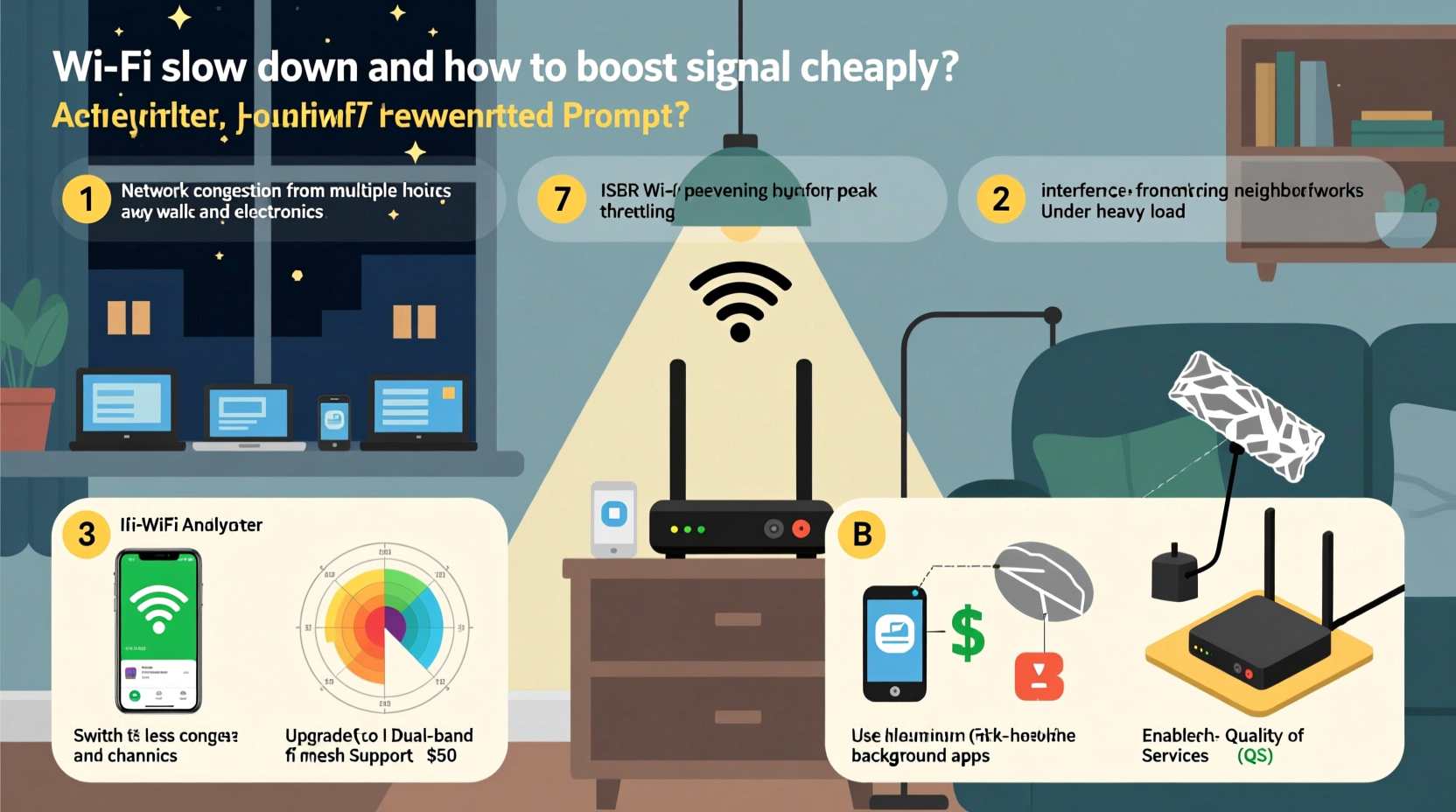
The root cause of nighttime Wi-Fi slowdowns lies in network congestion, both inside and outside your home. As people return from work and school, multiple devices connect simultaneously: smartphones, tablets, smart TVs, gaming consoles, security cameras, and voice assistants. This sudden surge strains your router’s capacity.
But internal traffic is only part of the problem. External factors play a major role too. Internet Service Providers (ISPs) manage shared bandwidth across neighborhoods. During peak usage times—typically between 7 PM and 11 PM—your ISP’s local node becomes overloaded. Think of it like rush hour on a highway: more cars (data) on the same road (bandwidth) means slower travel.
“Even if you have a high-speed plan, your actual throughput depends on neighborhood demand. Peak-time throttling is common in densely populated areas.” — Raj Patel, Network Engineer at Broadband Insights Group
In addition to network load, interference from neighboring Wi-Fi networks worsens at night. Most routers default to the same 2.4 GHz channel, creating signal overlap. If five homes on your block use Channel 6, their signals interfere, reducing effective speed and range for everyone.
How to Diagnose the Real Culprit
Before investing in hardware, confirm whether the issue is internal (your setup) or external (ISP or neighborhood congestion). Here’s how:
- Run a speed test at different times: Use sites like Speedtest.net or Fast.com to measure download/upload speeds and latency. Compare results from midday versus 8–9 PM.
- Test via Ethernet: Connect a laptop directly to your router with an Ethernet cable. If wired speeds are fast but Wi-Fi is slow, the problem is wireless, not your ISP.
- Check connected devices: Log into your router’s admin page (usually 192.168.1.1 or 192.168.0.1) and review active devices. You might find forgotten gadgets siphoning bandwidth.
- Monitor for interference: Use free apps like Wi-Fi Analyzer (Android) or NetSpot (Windows/Mac) to see which channels nearby networks use.
If your wired speed drops significantly at night, the bottleneck is likely your ISP’s network. If only Wi-Fi suffers, focus on optimizing your router placement, settings, and environment.
Cheap and Effective Ways to Boost Your Wi-Fi Signal
You don’t need a mesh system or a $300 router to improve performance. Many budget-friendly solutions deliver noticeable gains. Start with these proven strategies:
1. Reposition Your Router Strategically
Router placement is the single most overlooked factor in Wi-Fi performance. Avoid basements, closets, or corners surrounded by metal appliances. Instead:
- Place the router centrally in your home, elevated (on a shelf), and away from walls.
- Keep it clear of microwaves, cordless phones, baby monitors, and Bluetooth speakers—these emit interference on the 2.4 GHz band.
- Orient antennas vertically for horizontal coverage; tilt one slightly for upper floors.
2. Switch to the Less-Congested Wi-Fi Channel
Your router likely uses auto-channel selection, which often defaults to overcrowded options. Manually switching to a less busy channel can reduce interference.
For the 2.4 GHz band (better range, slower speed):
- Use channels 1, 6, or 11—they don’t overlap.
- Pick the one with the fewest neighboring networks.
For the 5 GHz band (faster, shorter range):
- Choose higher, non-DFS channels (e.g., 36, 40, 44, 48) if available.
- Fewer neighbors use 5 GHz, so congestion is lower.
To change channels, log into your router settings, navigate to Wireless Settings, and adjust under 2.4GHz/5GHz bands.
3. Upgrade Firmware and Optimize Settings
Outdated firmware can cause instability, weak signals, and security flaws. Check your router manufacturer’s website for updates. Most modern routers allow automatic updates, but older models require manual installation.
While there, consider these tweaks:
- Enable Quality of Service (QoS): Prioritize traffic for video calls or gaming over background downloads.
- Separate 2.4 GHz and 5 GHz networks: Name them differently (e.g., “Home-2G” and “Home-5G”) so you can manually connect devices to the best band.
- Reduce transmit power if you live in a small apartment: Lowering power can reduce interference with neighbors and improve stability.
4. Build a DIY Wi-Fi Extender (Under $10)
You can create a passive signal reflector using aluminum foil or a soda can. While it won’t add true range, it can redirect existing signal toward weak areas.
Simple Parabolic Reflector:
- Cut the top off a clean soda can.
- Flatten and shape it into a curved reflector.
- Position it behind a router antenna, curving outward to focus the beam forward.
This hack works best if you’re trying to push signal down a hallway or into a distant room. It’s not a replacement for a repeater, but it’s free and surprisingly effective.
5. Use an Old Router as a Repeater (Free to $20)
If you have an old router lying around, repurpose it as a Wi-Fi extender. Install open-source firmware like DD-WRT or OpenWrt, then configure it in “repeater” mode.
Steps:
- Flash the old router with DD-WRT (check compatibility at dd-wrt.com).
- Connect it to your main network wirelessly.
- Set up a new SSID or clone the existing one.
This creates a seamless extended network. Total cost: $0 if you already own the hardware.
Do’s and Don’ts of Budget Wi-Fi Optimization
| Do | Don’t |
|---|---|
| Place the router in a central, elevated location | Hide it in a cabinet or basement |
| Update router firmware regularly | Ignore firmware update notifications |
| Use QoS to prioritize important devices | Let all devices consume equal bandwidth |
| Switch to less crowded Wi-Fi channels | Assume auto-channel is always optimal |
| Repurpose old hardware as extenders | Spend $200+ without testing cheaper fixes first |
Real-World Example: How Sarah Fixed Her Streaming Issues
Sarah, a teacher in Chicago, struggled with nightly Netflix freezes. Her family used three phones, two laptops, and a tablet after dinner. She assumed she needed a new router—but decided to troubleshoot first.
She ran a speed test and found her wired connection was fine, but Wi-Fi dropped from 75 Mbps to 12 Mbps at night. Using Wi-Fi Analyzer, she discovered 14 nearby networks—all on Channel 6. She switched her router to Channel 1 and separated her 2.4 GHz and 5 GHz bands. She moved the router from a closet to her living room shelf.
Result? Streaming stabilized, Zoom meetings stopped glitching, and her kids’ online homework loaded faster—all without spending a dime.
Step-by-Step Plan to Improve Nighttime Wi-Fi (Under $30)
Follow this timeline to systematically enhance your signal:
- Day 1 – Diagnosis: Run speed tests at different times. Note wired vs. wireless performance.
- Day 2 – Audit Devices: Log into your router and disconnect unused or suspicious devices.
- Day 3 – Reposition Router: Move it to a central, open area. Adjust antenna angles.
- Day 4 – Change Wi-Fi Channels: Use a scanner app and switch to the least congested channel.
- Day 5 – Enable QoS: Set priorities for work, school, or streaming devices.
- Day 6 – Build a Reflector (Optional): Use foil or a can to direct signal where needed.
- Day 7 – Test & Repeat: Re-run speed tests. If still slow, consider a second-hand router for repeater mode.
This entire process costs nothing unless you opt for a used router ($10–$20 on eBay or Craigslist). Most improvements are immediate.
Frequently Asked Questions
Can my neighbors really slow down my Wi-Fi?
Yes. If multiple nearby networks operate on the same channel—especially in apartments or dense suburbs—they create interference. This is called co-channel congestion. Switching to a less crowded channel reduces this effect.
Is 5 GHz better than 2.4 GHz at night?
Generally, yes. The 5 GHz band is faster and less prone to interference because fewer devices and networks use it. However, it has shorter range and struggles through walls. Use 5 GHz for devices near the router (laptops, streaming boxes) and 2.4 GHz for distant or low-power devices (smart plugs, doorbells).
Will restarting my router help with nightly slowdowns?
Temporarily, yes. Restarting clears memory leaks, resets connections, and can resolve minor glitches. For better results, set your router to reboot automatically every 48 hours via its admin interface.
Conclusion: Take Control of Your Connection
Nightly Wi-Fi slowdowns aren’t inevitable. They stem from predictable issues—congestion, poor placement, outdated settings—that you can address with minimal cost and effort. Before upgrading your internet plan or buying expensive gear, try these practical, proven fixes. Reposition your router, optimize channels, leverage free tools, and repurpose old hardware. Small changes often yield dramatic improvements.




 浙公网安备
33010002000092号
浙公网安备
33010002000092号 浙B2-20120091-4
Comments
No comments yet. Why don't you start the discussion?