
If your internet crawls every evening just when you want to stream a movie or join a video call, you're not imagining it. Many households experience the same frustrating drop in Wi-Fi performance after sunset. The issue isn’t always your provider or outdated equipment—it’s often a combination of network congestion, environmental interference, and suboptimal router placement. The good news? You don’t need to pay for a more expensive plan or new hardware to fix it. With smart adjustments and a few strategic tweaks, you can significantly improve your Wi-Fi speed and reliability—especially during peak hours.
Why Wi-Fi Slows Down at Night: The Real Causes
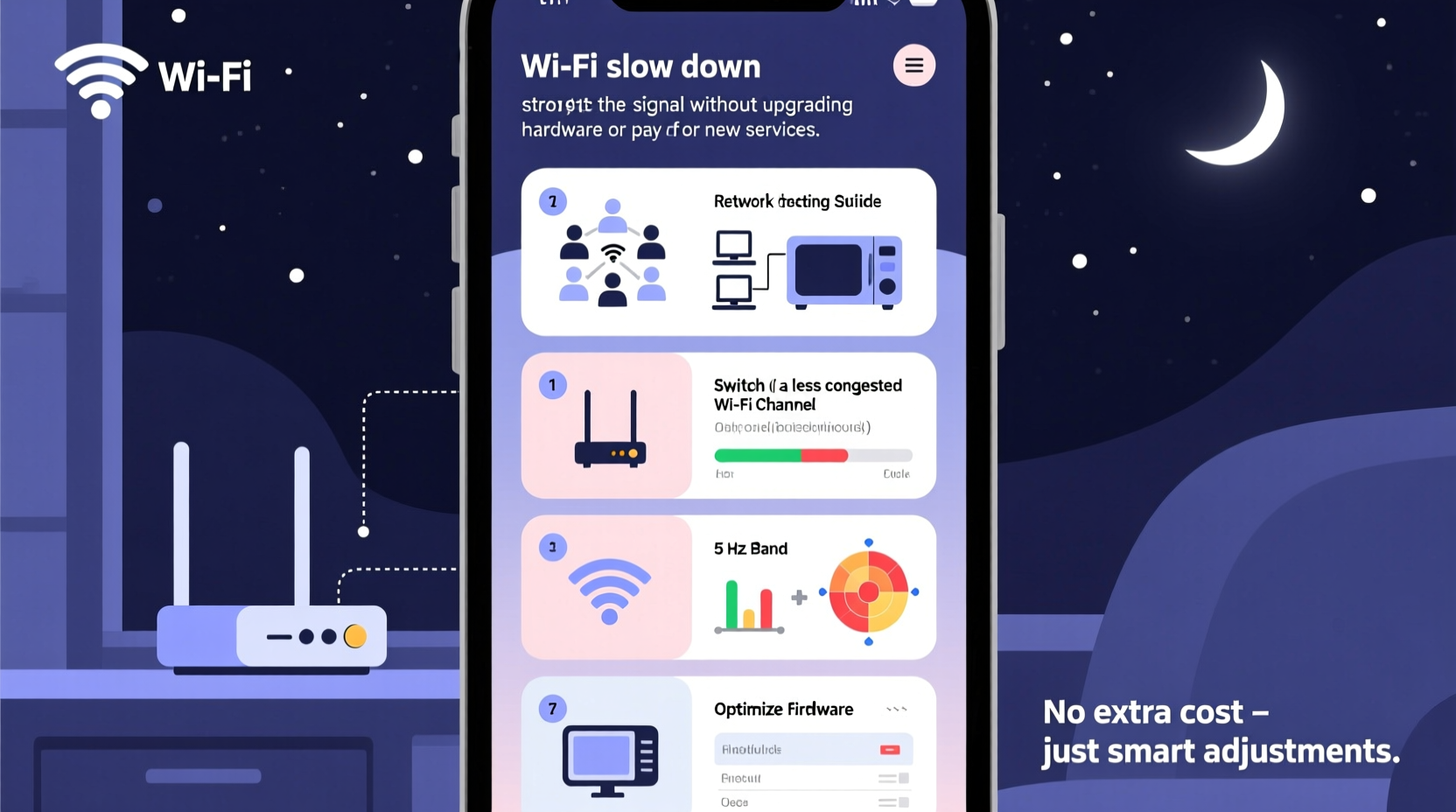
Nighttime internet slowdowns are so common they’ve earned their own nickname: “the internet rush hour.” Several interrelated factors contribute to this phenomenon:
- Increased Network Congestion: After work and school hours, everyone in your neighborhood goes online. Streaming, gaming, video calls, and downloads spike, overwhelming shared bandwidth from your Internet Service Provider (ISP).
- Router Overload: Routers process data from all connected devices. At night, multiple phones, tablets, laptops, smart TVs, and IoT devices may be active simultaneously, straining processing capacity.
- Neighbor Interference: In apartments or dense neighborhoods, nearby Wi-Fi networks operate on the same radio frequencies. When dozens of routers broadcast on overlapping channels, signals interfere with each other.
- Electromagnetic Interference (EMI): Household appliances like microwaves, cordless phones, and baby monitors emit signals that disrupt 2.4 GHz Wi-Fi bands—especially when used in the evening.
- Thermal Throttling: Routers generate heat. If placed in enclosed spaces or near electronics, prolonged use causes overheating, forcing them to reduce performance to cool down.
“Wi-Fi congestion is like traffic on a city highway—everyone wants to get home at the same time. Without smart routing, bottlenecks are inevitable.” — Dr. Lena Patel, Network Engineer at OpenSignal Labs
How to Diagnose Your Nighttime Slowdown
Before applying fixes, confirm the source of the slowdown. Run these checks during peak evening hours:
- Test Your Speed: Use free tools like Fast.com or Speedtest.net to measure download/upload speeds. Compare results to your ISP’s advertised rate.
- Check Wired vs. Wireless: Connect a laptop directly to your router via Ethernet. If wired speeds are normal but Wi-Fi is slow, the issue is wireless signal degradation—not your ISP.
- Monitor Connected Devices: Log into your router’s admin panel (usually accessible via 192.168.1.1 or 192.168.0.1) to see how many devices are connected. Unrecognized devices could indicate unauthorized access.
- Scan Wi-Fi Channels: Use apps like Wi-Fi Analyzer (Android) or NetSpot (Windows/Mac) to identify crowded channels in your area.
Proven Ways to Boost Wi-Fi Signal Without Upgrading
You don’t need a new router or a pricier internet plan to regain fast Wi-Fi. Try these cost-free or low-cost strategies first:
1. Optimize Router Placement
Your router’s location dramatically affects coverage. Avoid basements, closets, or behind metal furniture. Instead:
- Place it centrally in your home, elevated (on a shelf), and away from walls.
- Keep it at least 3–5 feet from large appliances, mirrors, and fish tanks (water absorbs radio waves).
- Avoid placing it near cordless phones or microwaves.
2. Switch to Less Crowded Wi-Fi Channels
Most routers auto-select channels, but they often pick the most congested ones. Manually switching can reduce interference:
- Use a Wi-Fi analyzer app to find the least busy 2.4 GHz and 5 GHz channels.
- In the U.S., channels 1, 6, and 11 are non-overlapping on 2.4 GHz. Pick the one with the weakest competing signals.
- On 5 GHz, choose any channel under 48 to avoid DFS (Dynamic Frequency Selection) restrictions.
- Log into your router settings and change the channel under “Wireless Settings.”
3. Enable Quality of Service (QoS)
QoS prioritizes critical traffic—like video calls or streaming—over less urgent tasks such as software updates. Most modern routers support it:
- Access your router’s admin interface.
- Look for “QoS,” “Bandwidth Control,” or “Traffic Prioritization.”
- Set priority for devices or applications you use at night (e.g., your smart TV or work laptop).
4. Reboot Your Router Regularly
Routers accumulate memory leaks and connection errors over time. A simple reboot clears temporary issues:
- Unplug your router for 30 seconds, then plug it back in.
- Consider using a smart plug to schedule automatic reboots at 2 AM—before peak usage.
5. Limit Bandwidth-Hungry Devices
Some devices consume disproportionate bandwidth without you realizing it:
- Schedule cloud backups (e.g., Google Drive, iCloud) for daytime hours.
- Pause torrents or large downloads overnight.
- Disable autoplay on streaming platforms like YouTube or Netflix.
DIY Signal Boosters and Creative Hacks
While commercial range extenders cost money, you can create effective signal reflectors using household items:
Aluminum Foil Reflector (Parabolic Dish Hack)
Shape heavy-duty aluminum foil into a curved parabola and place it behind your router’s antenna. This reflects and focuses the signal toward your main living area.
Cleaning the Antennas
Dust buildup on external antennas can slightly degrade performance. Gently wipe them with a dry microfiber cloth monthly.
Upgrade Firmware for Free
Manufacturers release firmware updates that improve stability, security, and speed. Check your router brand’s website for instructions to manually update it. Never skip this step—it’s free and powerful.
| Hack | Effectiveness | Best For |
|---|---|---|
| Aluminum foil reflector | Moderate (up to 30% direction boost) | Single-direction signal focus |
| Channel switching | High | Urban/apartment dwellers |
| QoS settings | High | Households with mixed usage |
| Smart reboot scheduling | Moderate | Older routers |
Real-World Example: How Maria Fixed Her Evening Streaming Issues
Maria lived in a three-bedroom apartment in downtown Chicago. Every night at 7 PM, her Netflix would buffer despite having a 100 Mbps plan. She tried restarting her device, but the problem persisted.
She followed a diagnostic routine: first testing wired speed (which was fine), then checking her router’s connected devices. She found two unknown smartphones linked to her network. After changing her Wi-Fi password, she used a Wi-Fi Analyzer app and discovered her router was on Channel 6—used by 12 other networks nearby. She switched to Channel 1, where only three networks operated.
Next, she enabled QoS and prioritized her smart TV. Finally, she moved the router from a cabinet in the kitchen to a shelf in the living room. The combined changes eliminated buffering entirely. Her evening internet now runs smoothly—even during family Zoom calls with multiple participants.
Step-by-Step Guide: Fix Your Wi-Fi in One Evening
Follow this timeline to resolve slowdowns in under two hours:
- 6:00 PM – Run a Speed Test
Record current download/upload speeds on your phone and a wired laptop. - 6:15 PM – Access Router Settings
Type your gateway IP into a browser, log in with admin credentials (check the router label). - 6:30 PM – Audit Connected Devices
Kick off unknown devices and set up a stronger password (WPA3 if available). - 6:45 PM – Change Wi-Fi Channel
Use analyzer data to switch to the least congested channel. - 7:00 PM – Enable QoS
Prioritize your primary devices. - 7:15 PM – Reposition the Router
Move it to a central, open, elevated spot. - 7:30 PM – Reboot and Retest
Restart the router, then run another speed test. Compare results.
“Most Wi-Fi issues aren’t about speed tiers—they’re about signal intelligence. Small changes in configuration often yield bigger gains than doubling bandwidth.” — Carlos Mendez, ISP Field Technician
Frequently Asked Questions
Can neighbors really slow down my Wi-Fi?
Yes. If multiple routers operate on the same channel in close proximity, their signals interfere, reducing efficiency. This is especially true in apartments and townhouses. Changing your Wi-Fi channel minimizes this effect.
Is the 5 GHz band better at night?
Generally, yes. The 5 GHz band is faster and less prone to interference from appliances and neighboring networks. However, it has shorter range. Use 5 GHz for devices near the router and 2.4 GHz for distant ones.
Does turning off Wi-Fi at night help?
Turning it off doesn’t improve speed, but rebooting does. If you turn Wi-Fi off, do so via a scheduled restart rather than a full shutdown to maintain router health and clear memory caches.
Final Checklist: Quick Wins to Restore Nighttime Speed
- ✅ Test both wired and wireless speeds at peak time
- ✅ Move router to a central, elevated, open location
- ✅ Switch to a less crowded Wi-Fi channel (use an analyzer app)
- ✅ Enable QoS and prioritize key devices
- ✅ Reboot the router weekly or schedule automatic restarts
- ✅ Update router firmware to the latest version
- ✅ Secure your network with a strong password to prevent freeloaders
- ✅ Limit background downloads and cloud sync at night
Take Back Control of Your Internet Experience
Your Wi-Fi shouldn’t become unusable just because it’s evening. The slowdowns you experience are predictable—and solvable. By understanding the real causes of congestion and applying simple, no-cost optimizations, you can enjoy smooth, reliable internet without upgrading your service. These fixes don’t require technical expertise, only attention to detail and a willingness to experiment. Start tonight: reposition your router, change a channel, and reclaim your bandwidth. Share your success story or ask questions in the comments—your experience might help someone else finally say goodbye to buffering.




 浙公网安备
33010002000092号
浙公网安备
33010002000092号 浙B2-20120091-4
Comments
No comments yet. Why don't you start the discussion?