
If your internet crawls every evening despite having only a few devices connected, you're not imagining things. This frustrating pattern affects millions of households worldwide. While it may seem like your router is misbehaving or your ISP is throttling you unfairly, the reality involves a mix of network congestion, signal interference, infrastructure limitations, and usage patterns—both in your home and beyond. Understanding the root causes is the first step toward reclaiming fast, reliable Wi-Fi after sunset.
Network Congestion in Your Neighborhood
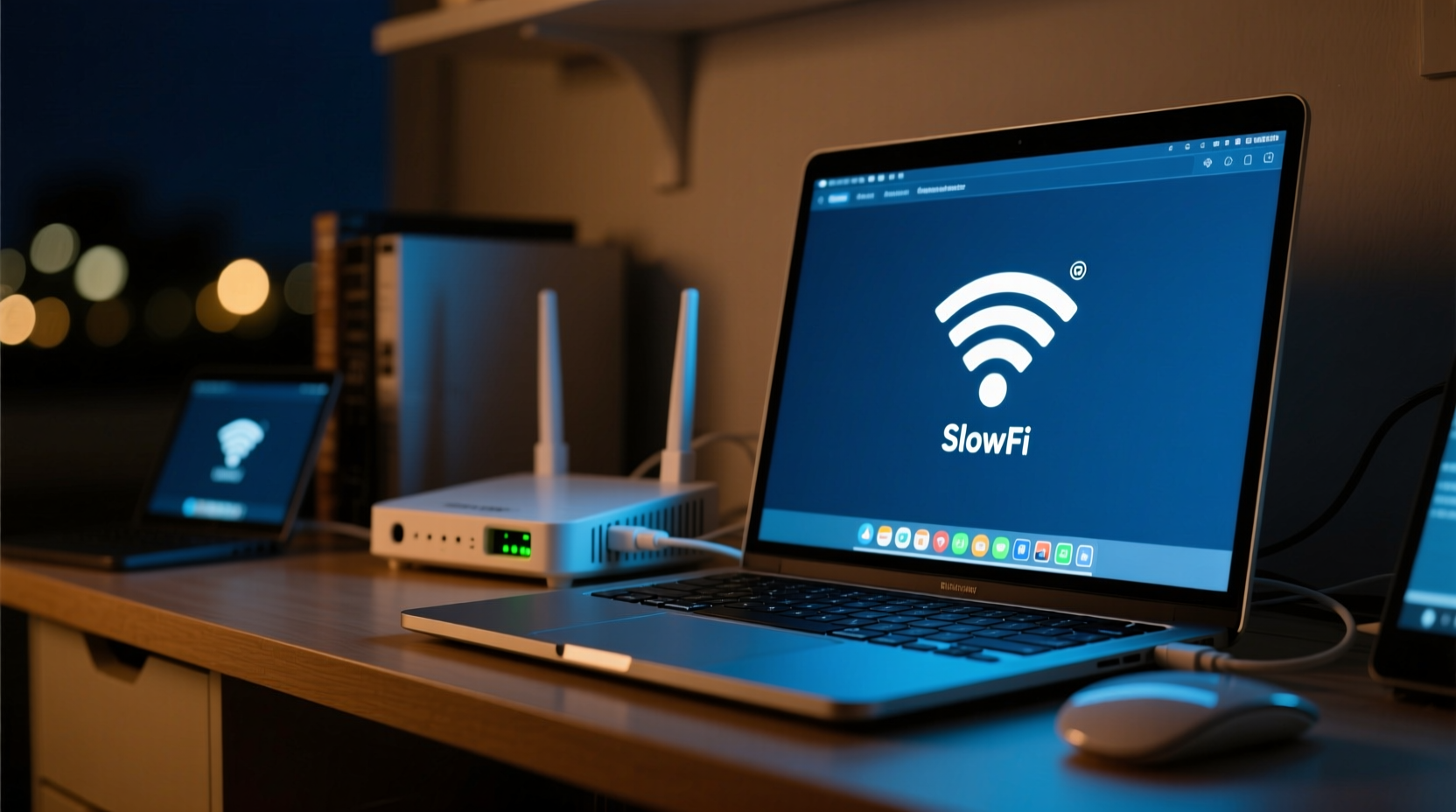
Even if your household has minimal device usage at night, your Wi-Fi doesn’t operate in isolation. It shares airspace with dozens of neighboring networks, all competing for bandwidth on limited radio channels. During peak hours—typically between 7 PM and 11 PM—local network traffic spikes dramatically as families stream video, play online games, and browse social media.
This creates what’s known as “neighborhood congestion.” Routers operating on the same 2.4 GHz band (the most common frequency) can interfere with each other, especially in densely populated areas like apartment complexes or suburban neighborhoods. When multiple networks transmit simultaneously on overlapping channels, data collisions occur, forcing retransmissions and slowing overall throughput.
“Wi-Fi performance isn’t just about your equipment—it’s also about how crowded your wireless environment is. At night, that congestion reaches its peak.” — Dr. Alan Reyes, Network Engineer at OpenSignal Labs
ISP Throttling and Bandwidth Shaping
Some internet service providers implement bandwidth shaping or throttling during high-usage periods. While they rarely admit to this openly, many ISPs manage network load by reducing speeds for heavy users or specific types of traffic—like video streaming or peer-to-peer downloads—after certain hours.
Throttling often targets data-intensive activities that spike at night. Even if you’re not using much bandwidth personally, your ISP might be prioritizing traffic dynamically across the network, deprioritizing residential connections when demand surges. This means your connection gets queued behind others, resulting in higher latency and lower throughput.
To determine if throttling is occurring:
- Run speed tests at different times of day using tools like Ookla Speedtest or FCC’s M-Lab.
- Compare results from wired versus wireless connections.
- Check if speeds improve when using a VPN—if they do, throttling based on traffic type is likely.
Router Overheating and Performance Degradation
Routers generate heat, especially when running continuously. After long days of operation, combined with poor ventilation or enclosed spaces (like cabinets or entertainment centers), routers can overheat. Thermal stress leads to reduced processing efficiency, packet loss, and automatic throttling of transmission power to prevent hardware damage.
Nighttime slowdowns may coincide with accumulated heat buildup. What starts as a cool afternoon connection becomes sluggish by bedtime due to degraded internal performance. Older or budget routers are particularly vulnerable because they lack advanced thermal management systems.
| Symptom | Possible Cause | Solution |
|---|---|---|
| Slower speeds only at night | Router overheating | Improve airflow; elevate off carpet; consider cooling pad |
| Intermittent disconnections | Overheating or outdated firmware | Update firmware; reboot nightly |
| Lag during video calls | Channel congestion or QoS misconfiguration | Enable Quality of Service settings |
Inefficient Router Placement and Signal Interference
The physical location of your router plays a major role in nighttime performance. Common household appliances like microwaves, cordless phones, baby monitors, and even LED lighting emit electromagnetic interference in the 2.4 GHz range—the same band used by most Wi-Fi networks.
At night, appliance usage increases. A microwave running dinner leftovers, a smart TV streaming Netflix, or a Bluetooth speaker pairing—all contribute to RF noise. These signals don’t break your Wi-Fi, but they raise the “noise floor,” making it harder for your router to distinguish real data from background static. The result? Lower effective speeds and increased latency.
Additionally, building materials like concrete walls, metal ducts, and mirrored surfaces reflect or absorb Wi-Fi signals. If your router is tucked in a corner, basement, or closet, nighttime activity patterns (e.g., people moving around, doors closing) can further obstruct signal paths.
Mini Case Study: The Apartment Complex Dilemma
Consider Sarah, a remote worker living in a mid-rise apartment building in Chicago. She noticed her Zoom meetings froze every evening around 8 PM—even though no one else was actively using the internet in her unit. Her initial suspicion was faulty equipment.
After testing her connection with a direct Ethernet cable, she found full speeds during the day but significant drops at night. Using a Wi-Fi scanner app, she discovered 37 nearby networks—29 of them on Channel 6, the default setting for her router. By switching to Channel 1 (least crowded), upgrading to a dual-band mesh system, and relocating her router near a central window away from kitchen appliances, her nighttime speeds improved by over 60%.
Sarah’s case illustrates how external factors—not personal usage—are often the real culprits behind evening slowdowns.
Step-by-Step Guide to Diagnose and Fix Nighttime Wi-Fi Slowness
Follow this structured approach to identify and resolve the underlying issues causing your nightly Wi-Fi drop:
- Conduct Time-Based Speed Tests
Use a trusted tool (e.g., Speedtest.net) to measure download, upload, and ping at various times: midday, early evening, and late night. Record results over 5–7 days to spot trends. - Switch to the 5 GHz Band
If your router supports dual-band, connect devices to the 5 GHz network. It offers faster speeds and less interference than 2.4 GHz, though with shorter range. - Change Your Wi-Fi Channel
Log into your router’s admin panel (usually via 192.168.1.1). Under wireless settings, manually select a less congested channel. For 2.4 GHz, stick to Channels 1, 6, or 11 (non-overlapping). For 5 GHz, choose higher channels (e.g., 36–48) to avoid DFS interference. - Update Router Firmware
Manufacturers release updates that fix bugs, improve stability, and enhance security. Check your model’s support page or admin interface for available updates. - Reboot Your Router Daily
Schedule a nightly reboot via your router’s interface or use a smart plug timer. This clears memory leaks, resets connections, and cools components. - Optimize Router Placement
Place the router centrally, elevated, and away from electronics. Avoid basements, metal shelves, and thick walls. Keep at least three feet from microwaves and cordless phone bases. - Enable Quality of Service (QoS)
QoS lets you prioritize critical traffic (video calls, gaming) over background tasks (cloud backups, software updates). Set priority rules based on device or application.
Checklist: Quick Fixes for Faster Nighttime Wi-Fi
- ✅ Run speed tests at different times to confirm the issue
- ✅ Switch devices to the 5 GHz band where possible
- ✅ Change Wi-Fi channel to reduce interference
- ✅ Reboot your router before peak hours begin
- ✅ Update router firmware regularly
- ✅ Move router to a central, unobstructed location
- ✅ Enable QoS to prioritize important applications
- ✅ Consider upgrading to a mesh Wi-Fi system for larger homes
When Hardware Limits Are the Real Issue
Not all problems stem from environment or configuration. Outdated hardware simply cannot keep up with modern demands. Routers more than three years old may lack support for newer standards like Wi-Fi 5 (802.11ac) or Wi-Fi 6 (802.11ax), which offer better multi-device handling, beamforming, and OFDMA efficiency.
Similarly, aging modems can bottleneck your entire connection. If your ISP provides a combo modem-router unit, it may be underpowered or poorly maintained. Leasing equipment from an ISP often means using older models shared across thousands of customers.
Investing in modern hardware pays dividends:
- Wi-Fi 6 routers handle congestion better and serve multiple devices efficiently.
- Mesh systems eliminate dead zones and balance loads across nodes.
- Dual-band or tri-band setups separate traffic to reduce interference.
Pair your new router with a high-performance standalone modem compatible with your ISP’s DOCSIS standard (e.g., DOCSIS 3.1 for gigabit speeds).
FAQ: Common Questions About Nighttime Wi-Fi Slowdowns
Can my ISP legally throttle my internet at night?
Yes, within limits. Most ISPs include clauses in their Terms of Service allowing reasonable network management. They typically don’t target individual users without cause but may deprioritize heavy bandwidth users during congestion. Transparency varies, so monitoring your speeds helps detect such practices.
Does turning off unused devices help improve Wi-Fi speed?
Marginally. Even idle devices maintain background connections (checking email, syncing cloud data). Disconnecting them reduces overhead slightly, but the bigger gains come from optimizing your network environment and hardware. However, disabling Wi-Fi on unused gadgets minimizes potential interference sources.
Is it better to leave my router on all the time or turn it off at night?
Leaving it on ensures consistent connectivity, but regular reboots improve performance. Instead of turning it off manually, set a scheduled reboot (via admin settings or smart plug) to refresh the system during low-usage hours, such as 2 AM.
Conclusion: Take Control of Your Evening Connection
Nighttime Wi-Fi slowdowns aren’t inevitable. While some factors—like neighborhood congestion or ISP policies—are beyond your control, many solutions are simple, low-cost, and highly effective. From adjusting your router’s channel and placement to upgrading outdated hardware and leveraging QoS features, proactive steps can transform your evening browsing experience.
Start with diagnostics: gather data, isolate variables, and test changes systematically. Small adjustments often yield dramatic improvements. Don’t accept buffering and lag as normal. With the right knowledge and tools, you can enjoy smooth, responsive Wi-Fi any time of day.




 浙公网安备
33010002000092号
浙公网安备
33010002000092号 浙B2-20120091-4
Comments
No comments yet. Why don't you start the discussion?