
If your internet feels lightning-fast during the day but crawls by 8 PM, you're not imagining things. Millions of users experience degraded Wi-Fi performance in the evening — streaming buffers, video calls freeze, and downloads stall. While it may seem like a mysterious glitch, the slowdown is usually the result of predictable network dynamics, ISP practices, and router limitations. The good news: most causes are fixable with the right knowledge.
This guide breaks down the real reasons behind nighttime Wi-Fi congestion, reveals common ISP tactics that affect speed, and delivers proven fixes to keep your connection strong when you need it most.
Why Nighttime Wi-Fi Slows Down: The Core Causes
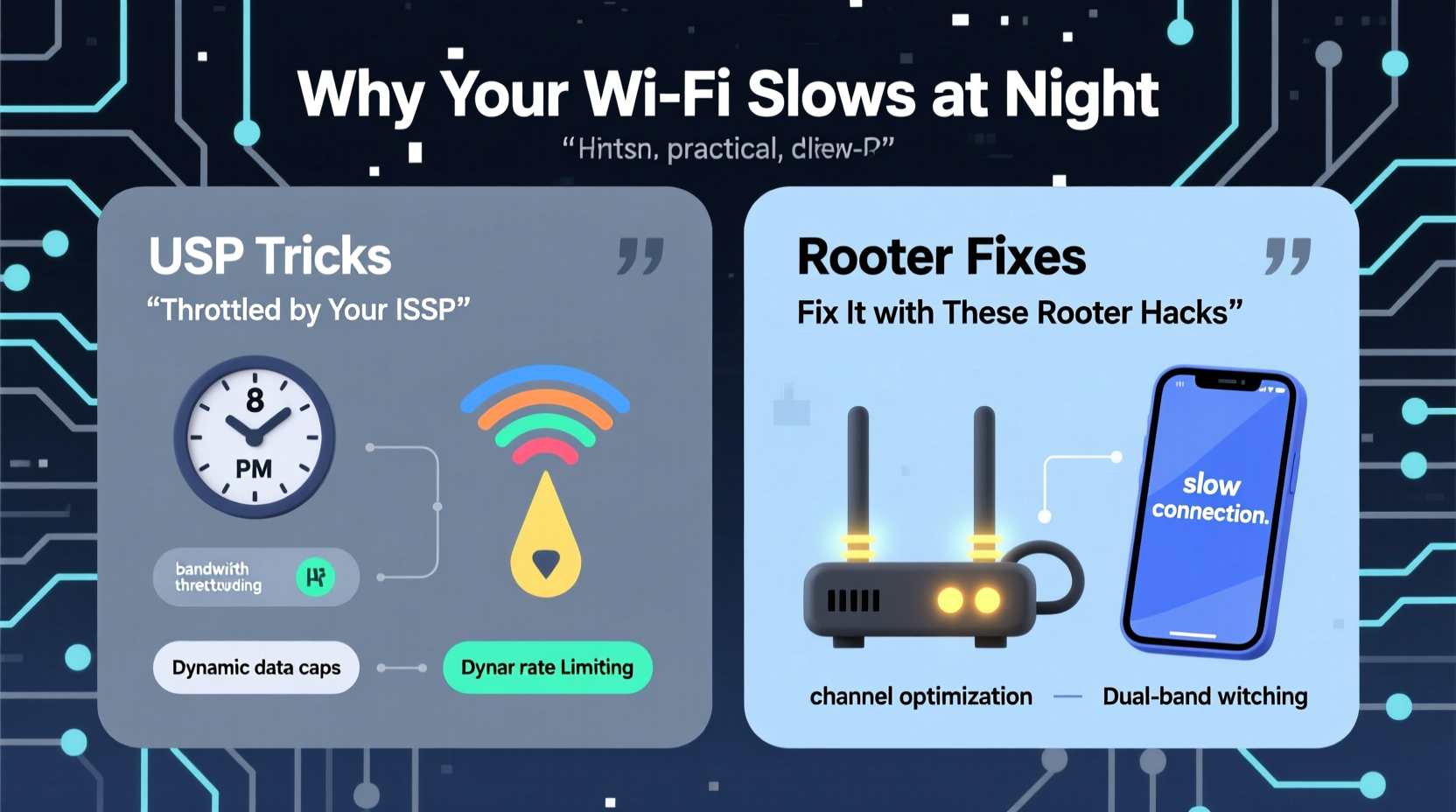
The primary reason for evening slowdowns is network congestion — both on your local network and across your Internet Service Provider’s (ISP) infrastructure. As people return home, they simultaneously use bandwidth-heavy services: Netflix, YouTube, Zoom, online gaming, and smart home devices all compete for limited bandwidth.
On a technical level, this surge increases latency (delay) and reduces throughput (speed). Your router has to manage more data requests, and your ISP’s shared network segments become overloaded. Unlike dedicated fiber lines, many residential networks operate on a “shared medium” model — meaning your neighborhood shares a single upstream connection. When everyone uses it at once, speeds drop.
Local Network Overload
Inside your home, multiple devices can overwhelm your router. Modern homes average 15–20 connected devices — phones, tablets, TVs, security cameras, voice assistants, and more. Many run background updates or stream content overnight, even when not actively used.
Routers have finite processing power and memory. Once device count or traffic volume exceeds capacity, performance degrades. Older routers, especially those provided by ISPs, often lack the hardware to handle peak-hour demands.
ISP Throttling and Network Management
Some ISPs implement \"traffic shaping\" or throttling during high-demand periods. Though rarely advertised, this practice prioritizes certain types of traffic or limits bandwidth-intensive activities like video streaming or torrenting after specific hours.
While ISPs claim this ensures fair usage, it disproportionately affects heavy users who rely on stable connections for remote work or entertainment. Not all providers do this equally — cable-based ISPs (like Comcast or Spectrum) are more prone to congestion than fiber providers (such as Google Fiber or AT&T Fiber).
“Peak-time slowdowns are less about technology and more about economics. ISPs oversell bandwidth because most users aren’t using full speed simultaneously — until they all come online at night.” — Dr. Alan Zhou, Network Engineer & Broadband Consultant
Common ISP Practices That Affect Evening Speeds
Understanding your ISP’s role helps identify whether the problem lies within your control or theirs. Below are three key tactics some ISPs use that impact nighttime performance.
1. Bandwidth Caps and Throttling Policies
Many ISPs advertise “unlimited” data but impose soft caps. After a certain threshold (e.g., 1TB/month), they may deprioritize your traffic during congested times. This doesn't disconnect you — it just makes your connection slower than others who haven’t hit their limit.
Check your service agreement for terms like “network optimization,” “data prioritization,” or “reasonable usage policy.” These often mask throttling clauses.
2. Shared Node Congestion
Cable internet typically divides neighborhoods into “nodes” — shared network segments serving 50–200 homes. During evenings, if too many households stream 4K video or game online, the node becomes saturated. No matter how good your router is, you can’t get faster than what the node delivers.
Fiber-to-the-home (FTTH) avoids this issue by offering dedicated bandwidth per household, making it far more resilient to time-based slowdowns.
3. Outdated Infrastructure
In rural or underserved areas, ISPs may use aging equipment incapable of handling modern demand. Amplifiers, modems, and backbone links designed for early broadband can’t support today’s data loads. Upgrades happen slowly due to cost, leaving customers with chronic evening lag.
Router Fixes to Improve Nighttime Wi-Fi Performance
Even if your ISP contributes to slowdowns, optimizing your router can reclaim significant performance. Many issues stem from poor placement, outdated firmware, or incorrect settings.
1. Upgrade to a Modern Dual-Band or Tri-Band Router
Older single-band 2.4 GHz routers struggle with interference and congestion. Modern dual-band (2.4 GHz + 5 GHz) or tri-band (one 2.4 GHz + two 5 GHz) routers distribute devices across frequencies, reducing crowding.
- 2.4 GHz band: Better range, but slower and more prone to interference (microwaves, baby monitors).
- 5 GHz band: Faster speeds, shorter range, less interference — ideal for streaming and gaming.
Assign high-bandwidth devices (smart TVs, gaming consoles) to the 5 GHz network. Reserve 2.4 GHz for low-demand IoT gadgets (thermostats, lights).
2. Optimize Router Placement
A poorly placed router cripples signal strength. Common mistakes include hiding it in cabinets, placing it near metal objects, or locating it in basements.
For best coverage:
- Place centrally in your home.
- Elevate off the floor (on a shelf or desk).
- Avoid proximity to microwaves, cordless phones, or thick walls.
- Keep at least 3–5 feet away from large electronics.
3. Update Firmware Regularly
Manufacturers release firmware updates to patch bugs, improve stability, and enhance security. An outdated router may suffer from known performance flaws.
To update:
- Access your router’s admin page (usually via 192.168.1.1 or 192.168.0.1).
- Log in with admin credentials (check manual if unknown).
- Navigate to “Administration” or “Firmware Update.”
- Download and install the latest version from the manufacturer’s website.
4. Use Quality of Service (QoS) Settings
QoS lets you prioritize critical devices or applications. For example, you can assign higher priority to video conferencing or gaming over background downloads.
In your router settings:
- Enable QoS (often under “Advanced” or “Traffic Control”).
- Select devices or services to prioritize.
- Set bandwidth limits for non-essential devices (e.g., guest phones).
| Fix | Difficulty | Impact on Speed | Time Required |
|---|---|---|---|
| Upgrade Router | Medium | ★★★★☆ | 30–60 min |
| Optimize Placement | Easy | ★★★☆☆ | 10–15 min |
| Update Firmware | Easy | ★★★☆☆ | 10 min |
| Enable QoS | Medium | ★★★★☆ | 20 min |
| Change Wi-Fi Channel | Easy | ★★★☆☆ | 15 min |
Step-by-Step Guide to Diagnose and Fix Slow Night Wi-Fi
Follow this systematic approach to identify and resolve the root cause of your evening slowdowns.
- Test Speeds at Different Times
Use tools like Ookla Speedtest or FCC’s M-Lab to measure download/upload speeds and ping at noon, 6 PM, and 9 PM. Compare results. - Restart Your Router and Modem
Unplug both devices for 30 seconds, then power them back on. This clears temporary glitches and refreshes the connection. - Check Connected Devices
Log into your router dashboard and review active devices. Disconnect unknown or unused ones. Look for devices running updates or backups. - Switch Wi-Fi Channels
In crowded areas, neighboring networks interfere on the same channel. Use a tool like Wi-Fi Analyzer (Android) to find the least congested 2.4 GHz or 5 GHz channel, then set it manually in router settings. - Limit Bandwidth-Hungry Applications
Schedule large downloads or cloud backups for off-peak hours (e.g., overnight via task scheduler). Disable auto-updates on non-critical devices. - Contact Your ISP
Share your speed test data. Ask if you’re on a congested node, whether throttling applies, and if a plan upgrade or technology shift (e.g., fiber) is available. - Consider Mesh Wi-Fi or Extenders
If dead zones exist, a mesh system (like Eero or Netgear Orbi) provides seamless coverage and better load balancing than traditional extenders.
Mini Case Study: How One Family Fixed Their Evening Lag
The Thompson family in Austin, Texas, struggled nightly with buffering Disney+ streams and dropped Zoom calls. Their ISP was Spectrum, and they used a rented Arris modem-router combo.
After conducting speed tests, they found daytime speeds of 120 Mbps dropped to 35 Mbps after 7 PM. Investigation revealed:
- 14 devices connected simultaneously.
- Smart TV and gaming console downloading updates at night.
- Router placed in a closet near a refrigerator.
- Living in a dense suburban area with 18 nearby Wi-Fi networks.
They took these steps:
- Moved the router to a central shelf.
- Upgraded to a TP-Link Archer AX6000 (Wi-Fi 6).
- Enabled QoS to prioritize laptops and smart TVs.
- Scheduled updates for 2 AM.
- Contacted Spectrum and confirmed they were on a congested node; switched to a fiber alternative where available.
Result: Evening speeds stabilized at 90+ Mbps, and streaming became smooth.
FAQ: Common Questions About Nighttime Wi-Fi Slowdowns
Does turning off my router at night help?
Not directly. However, rebooting every few days can clear memory leaks and refresh connections. Turning it off nightly isn’t necessary unless you're concerned about energy use or EMF exposure.
Can my neighbors really slow down my Wi-Fi?
Yes — especially on the 2.4 GHz band. Dozens of nearby networks operating on the same channel create interference. Use a Wi-Fi analyzer app to detect overlap and switch to a cleaner channel.
Is Wi-Fi 6 worth it for evening performance?
Absolutely. Wi-Fi 6 improves efficiency in high-density environments through OFDMA (Orthogonal Frequency Division Multiple Access), which allows routers to serve multiple devices simultaneously rather than sequentially. This reduces lag during peak usage.
Conclusion: Take Control of Your Connection
Nighttime Wi-Fi slowdowns aren’t inevitable. While ISP congestion plays a role, much of the solution lies within your reach. From strategic router placement to enabling QoS and upgrading hardware, small changes yield dramatic improvements. Understanding your network’s behavior empowers you to advocate with your ISP and make informed decisions about service plans and equipment.
Don’t accept sluggish evenings as normal. Diagnose the issue, apply the fixes, and reclaim the speed you pay for. Your next movie night shouldn’t be interrupted by buffering.




 浙公网安备
33010002000092号
浙公网安备
33010002000092号 浙B2-20120091-4
Comments
No comments yet. Why don't you start the discussion?