
If your internet grinds to a crawl every evening, you're not alone. Millions of households experience the same frustrating drop in Wi-Fi performance after sunset. What was once a smooth streaming session turns into endless buffering, video calls freeze, and online gaming becomes unplayable. The root cause often lies in either network congestion during peak hours or unresolved issues with your own devices and setup. Understanding the difference between external bandwidth strain and internal technical flaws is key to restoring fast, reliable connectivity.
Understanding Peak-Time Network Congestion
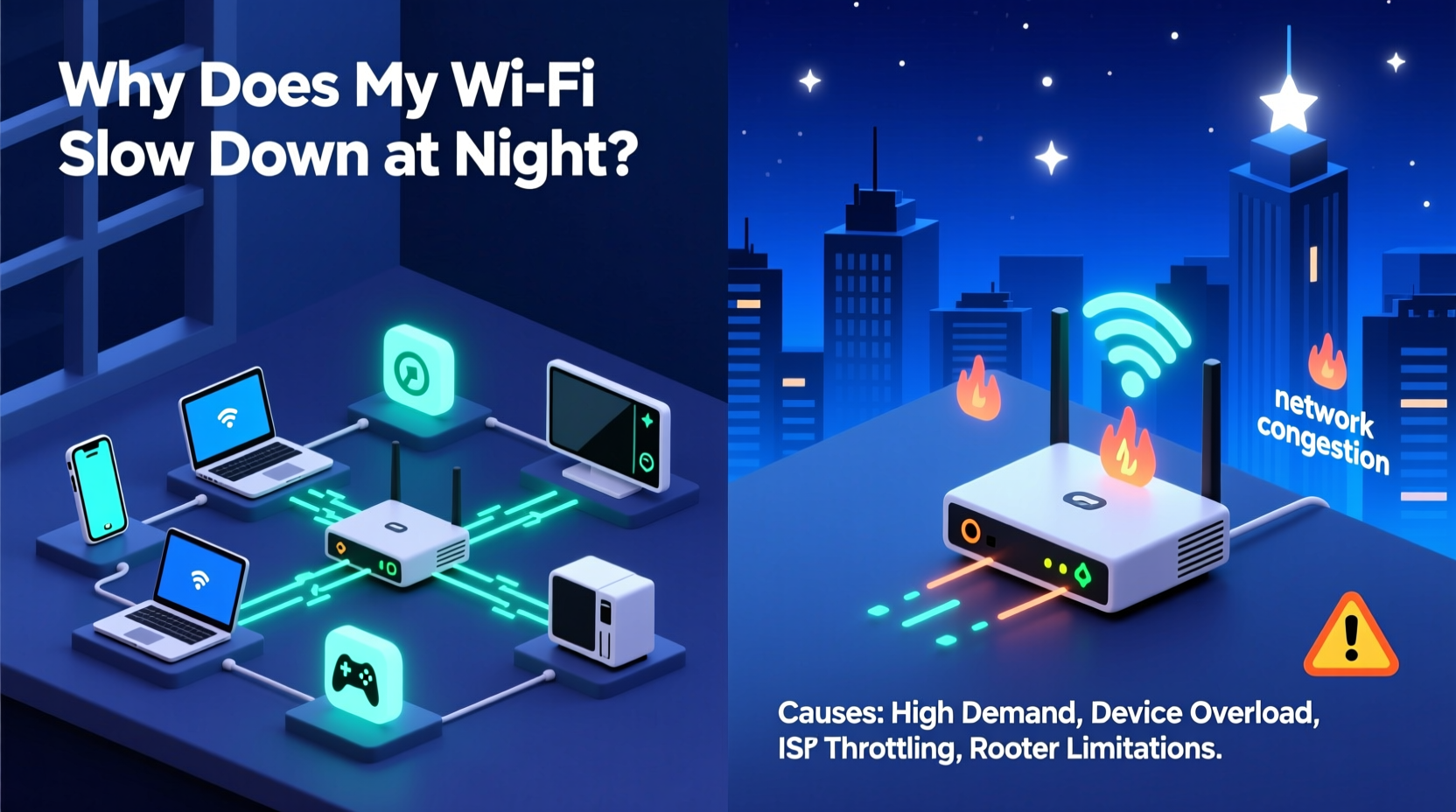
Between 7 PM and 11 PM, most people return home, turn on smart TVs, stream movies, game online, and browse social media. This surge in demand affects both your home network and your Internet Service Provider’s (ISP) infrastructure. When too many users access the same local node or cell tower, bandwidth gets divided, leading to slower speeds for everyone.
Internet providers often oversell bandwidth, banking on the fact that not all customers use their full connection simultaneously. But during peak hours, this assumption fails. You might have a 300 Mbps plan, but if dozens of neighbors are also maxing out their connections, your actual throughput can drop below 50 Mbps.
This phenomenon isn’t limited to rural areas. Even in urban zones with fiber-optic networks, shared infrastructure like neighborhood nodes or apartment building backbones can become bottlenecks when multiple tenants go online simultaneously.
Device and Router Issues That Worsen Nighttime Performance
While external congestion plays a major role, internal factors within your home network can amplify the problem. Outdated hardware, poor router placement, interference from other electronics, and too many connected devices all contribute to degraded performance—especially under stress.
Routers, like any electronic device, degrade over time. Models older than three to four years may lack support for modern standards like MU-MIMO (Multi-User, Multiple Input, Multiple Output), which allows simultaneous data transmission to multiple devices. Without it, your router handles traffic sequentially, creating delays when several devices are active.
Additionally, firmware updates are crucial. Manufacturers release patches that improve stability, security, and efficiency. An outdated router may struggle more during high-load periods simply because its software isn’t optimized for current demands.
Common Device-Related Causes
- Overloaded router: Too many devices (smartphones, tablets, smart speakers, cameras) competing for bandwidth.
- Poor signal strength: Walls, metal appliances, and distance weaken Wi-Fi signals, especially on 5 GHz bands.
- Interference: Microwaves, cordless phones, baby monitors, and Bluetooth devices operate on the 2.4 GHz band and can disrupt Wi-Fi.
- Background apps: Phones and laptops downloading updates or syncing cloud data overnight consume bandwidth unnoticed.
“Many users assume their ISP is at fault, but nearly 40% of 'slow Wi-Fi' complaints stem from misconfigured or aging home equipment.” — David Lin, Senior Network Engineer at Broadband Insights Group
How to Diagnose Whether It’s Peak Usage or a Device Issue
Distinguishing between network-wide congestion and localized problems requires systematic testing. Here’s how to pinpoint the source:
- Test speed during off-peak hours: Run a speed test at noon and again at 8 PM. If speeds drop significantly only at night, peak usage is likely involved.
- Connect via Ethernet: Plug a computer directly into your modem/router. If wired speeds remain stable while Wi-Fi lags, the issue is wireless-related (router, interference, or device overload).
- Reboot your router: A simple restart clears memory leaks and resets connections. If performance improves temporarily, your router may be struggling under load.
- Disconnect non-essential devices: Turn off smart TVs, tablets, and IoT gadgets. If speed returns, device congestion is part of the problem.
- Check for firmware updates: Log into your router’s admin panel (usually via 192.168.1.1 or similar) and verify the firmware is up to date.
Troubleshooting Checklist
- ✅ Run speed tests at peak and off-peak times
- ✅ Restart your router daily or use a smart plug to automate reboots
- ✅ Update router firmware
- ✅ Switch to 5 GHz band for less interference (if within range)
- ✅ Limit background downloads on devices
- ✅ Position router centrally, away from walls and appliances
- ✅ Consider upgrading to a mesh Wi-Fi system for larger homes
Real-World Example: The Johnson Family’s Evening Lag
The Johnsons in suburban Denver subscribed to a 200 Mbps cable plan. Every evening, their Netflix streams stalled, Zoom meetings dropped, and their son’s online gaming lagged. They called their ISP multiple times, only to be told “your speeds are fine.” Frustrated, they decided to investigate themselves.
Using a free app like WiFi Analyzer, they discovered their router was on channel 6—the most crowded 2.4 GHz channel in their neighborhood. Their neighbor’s router was on the same channel, causing constant interference. They also found 18 devices connected overnight, including two smartphones downloading iOS updates and a smart fridge syncing logs.
They switched their router to channel 11, enabled Quality of Service (QoS) settings to prioritize video calls and streaming, and scheduled automatic reboots at 9 PM via a smart plug. Within days, evening performance improved dramatically—even though external congestion hadn’t changed.
Their case illustrates how internal configuration can make or break user experience, even under suboptimal network conditions.
Comparing Solutions: What Works Best?
| Solution | Effectiveness Against Peak Usage | Effectiveness Against Device Issues | Cost & Effort |
|---|---|---|---|
| Upgrade ISP Plan | High – More bandwidth helps during congestion | Low – Doesn’t fix local bottlenecks | $$$ / Medium effort |
| Mesh Wi-Fi System | Medium – Better coverage reduces dead zones | High – Handles multiple devices efficiently | $$ / Low effort |
| Router Firmware Update | Low – No impact on external load | High – Fixes bugs and improves stability | $ / Very low effort |
| Use QoS Settings | Medium – Prioritizes critical traffic | High – Prevents one device from hogging bandwidth | $ / Low effort |
| Switch to 5 GHz Band | Medium – Less interference than 2.4 GHz | High – Faster, cleaner signal (shorter range) | $ / Very low effort |
| Contact ISP About Node Congestion | High – May prompt infrastructure upgrades | None | $ / High effort |
Step-by-Step Guide to Fixing Nighttime Wi-Fi Slowdowns
Follow this structured approach to diagnose and resolve your evening connectivity issues:
- Baseline Speed Test (Day vs. Night): Use a tool like Ookla Speedtest at 2 PM and 8 PM. Compare results. If night speeds are below 50% of daytime, suspect congestion.
- Isolate the Problem: Connect a laptop via Ethernet. If speeds improve, focus on Wi-Fi optimization.
- Update and Reboot: Check for router firmware updates. Reboot the modem and router together.
- Optimize Wi-Fi Channels: Use a Wi-Fi analyzer app to find the least congested 2.4 GHz and 5 GHz channels. Manually set them in your router settings.
- Enable Quality of Service (QoS): In your router dashboard, assign higher priority to devices used for streaming or work calls.
- Reduce Connected Devices: Disconnect unused smart devices. Set guest networks to auto-expire.
- Consider Hardware Upgrade: If your router is over 4 years old, replace it with a Wi-Fi 6 model or a mesh system like Eero or TP-Link Deco.
- Contact Your ISP: Share your speed test data. Ask if your neighborhood node is overloaded and whether an upgrade or technology shift (e.g., DOCSIS 3.1) is planned.
Frequently Asked Questions
Can my neighbors really slow down my Wi-Fi?
Yes—not directly, but if you’re on the same frequency channel or sharing a network node with your ISP, overlapping signals and bandwidth contention can degrade performance. This is common in apartments and dense neighborhoods.
Should I switch to a different DNS server to improve speed?
Changing DNS (e.g., to Google DNS at 8.8.8.8 or Cloudflare at 1.1.1.1) won’t increase raw bandwidth, but it can reduce latency in domain lookups, making websites feel faster. It’s a simple tweak worth trying.
Is Wi-Fi 6 worth it for fixing nighttime slowdowns?
Wi-Fi 6 routers offer better handling of multiple devices, improved power efficiency, and reduced latency. If you have more than five active devices, upgrading can noticeably improve performance during peak usage, even on the same internet plan.
Take Control of Your Home Network
Nighttime Wi-Fi slowdowns don’t have to be inevitable. While peak usage is a real challenge, especially in densely populated areas, much of the frustration stems from overlooked device management, outdated hardware, and suboptimal configurations. By taking proactive steps—updating firmware, optimizing router placement, managing connected devices, and understanding your network’s behavior—you can reclaim reliable performance when you need it most.
Don’t accept buffering as normal. Use the tools and strategies outlined here to diagnose, improve, and maintain your home internet. Small changes often yield dramatic results. Start tonight: reboot your router, run a speed test, and see what difference a few smart adjustments can make.




 浙公网安备
33010002000092号
浙公网安备
33010002000092号 浙B2-20120091-4
Comments
No comments yet. Why don't you start the discussion?