
If your internet crawls every evening—just when you're trying to stream a movie, join a video call, or let the kids finish homework—you're not alone. Millions of households experience the same frustrating drop in Wi-Fi performance after sunset. The slowdown isn't imaginary, and it’s rarely due to your internet provider “throttling” you without cause. Instead, it's often the result of network congestion, hardware limitations, or environmental interference that intensifies during peak usage hours. The good news? Most of these issues can be fixed with simple, low-cost solutions.
Understanding why this happens is the first step toward fixing it. Once you know the root causes, you can take targeted action to improve your connection—without upgrading your plan or replacing all your equipment.
Why Wi-Fi Slows Down at Night: The Real Causes
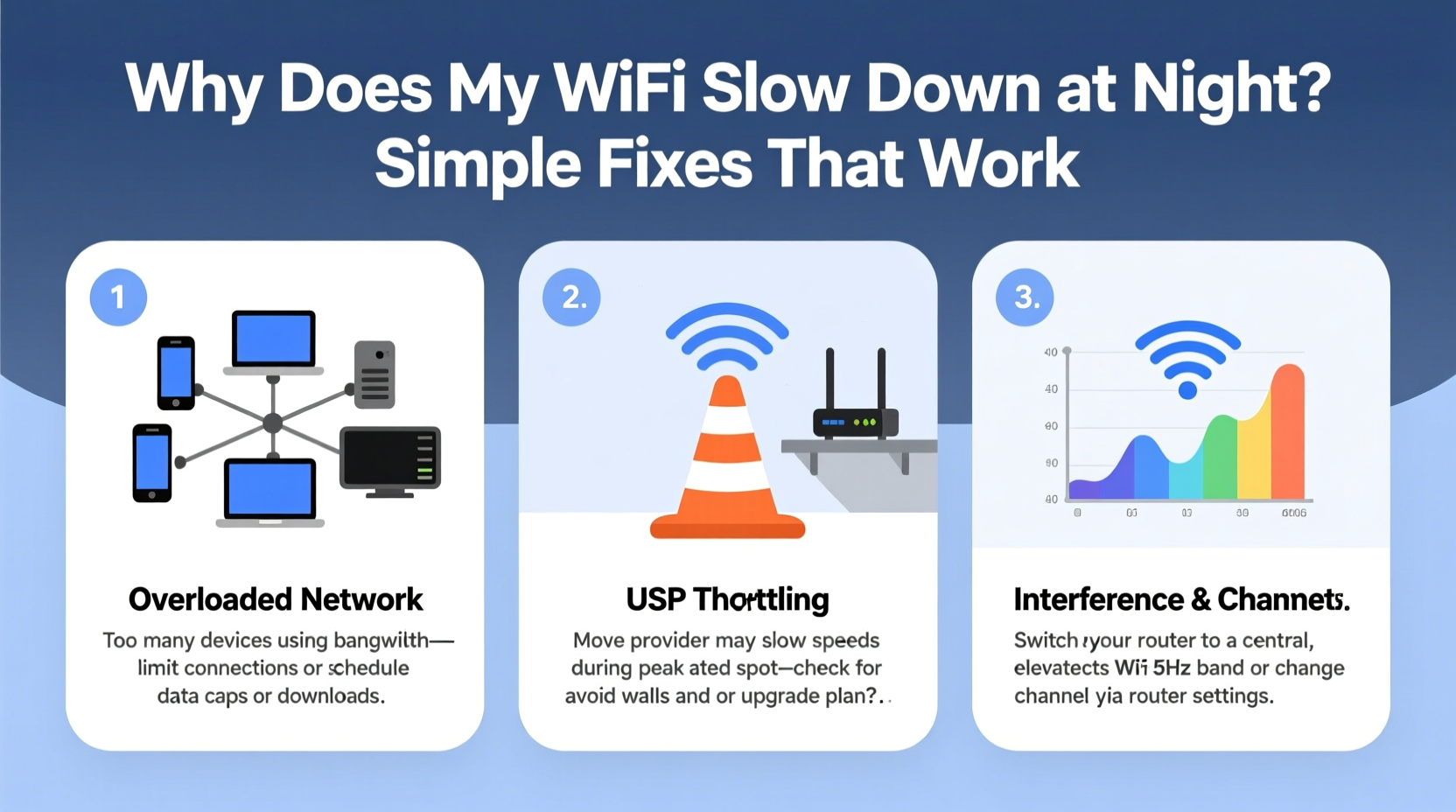
The primary reason your Wi-Fi slows down at night is increased demand—both inside and outside your home. During the day, people are at work, school, or out running errands. But by 6 PM, everyone comes home, powers up their devices, and starts streaming, gaming, downloading, and browsing. This sudden spike in activity puts pressure on multiple levels of the network infrastructure.
- Local Network Congestion: Multiple devices in your home competing for bandwidth (smart TVs, phones, tablets, smart speakers).
- Neighborhood Network Overlap: Nearby Wi-Fi networks interfere with yours, especially in apartments or dense neighborhoods.
- ISP Network Congestion: Your internet service provider’s local node becomes overloaded as more users go online simultaneously.
- Router Overheating or Aging Hardware: Older routers struggle under sustained load and may throttle performance when hot.
- Background Updates and Syncing: Devices automatically update apps, back up photos, or sync data overnight, consuming bandwidth silently.
“Even if you’re paying for 300 Mbps, you might only get 50 Mbps during peak hours if your router or ISP node is overwhelmed.” — David Lin, Network Engineer at Broadband Insights Group
This doesn’t mean you’re being cheated. It reflects how shared broadband systems function. Think of it like rush hour traffic: more cars (data) on the same road (network) naturally leads to slower movement.
Simple Fixes That Actually Work
You don’t need technical expertise to improve your evening Wi-Fi. Many effective solutions require just a few minutes and cost little or nothing. Start with these practical steps before considering expensive upgrades.
1. Reboot Your Router Daily
Like any computer, routers run better after a restart. Over time, memory leaks, firmware glitches, and overheating degrade performance. A nightly reboot clears temporary issues.
2. Switch to the 5 GHz Band
If your router supports dual-band Wi-Fi (2.4 GHz and 5 GHz), connect devices that support it to the 5 GHz network. It’s faster and less prone to interference—though it has shorter range.
- 2.4 GHz: Better range, but crowded (used by microwaves, baby monitors, older devices).
- 5 GHz: Faster speeds, fewer devices using it, but weaker through walls.
Use 5 GHz for streaming boxes and gaming consoles near the router; reserve 2.4 GHz for smart home gadgets farther away.
3. Optimize Router Placement
A poorly placed router kills performance. Avoid basements, closets, metal cabinets, or behind TVs. Central, elevated locations work best.
4. Limit Bandwidth-Hungry Devices
Some devices consume disproportionate bandwidth. Smart TVs updating apps, cloud backups, or automatic game patches can hog your connection.
Check your router’s admin interface (usually accessible via 192.168.1.1 or similar) to see which devices are using the most data. You can prioritize important devices (like laptops) or pause updates during peak hours.
5. Change Your Wi-Fi Channel
In crowded areas, neighboring networks on the same channel create interference. Use a free app like Wi-Fi Analyzer (Android) or NetSpot (Windows/Mac) to find the least congested channel.
For 2.4 GHz, stick to channels 1, 6, or 11—they don’t overlap. For 5 GHz, choose higher channels (e.g., 36–48) if available, as they’re less likely to conflict.
Step-by-Step Guide to Fixing Nighttime Wi-Fi Slowdowns
Follow this sequence over one evening to diagnose and resolve your issue:
- Monitor Usage (7 PM): Open your router’s device list and note which gadgets are active.
- Run a Speed Test: Use fast.com or speedtest.net to measure current download/upload speeds.
- Reboot the Router: Unplug for 30 seconds, then power back on.
- Switch to 5 GHz: Connect your main device (laptop/phone) to the 5 GHz network if within range.
- Change Wi-Fi Channel: Log into your router settings and switch to a less crowded channel based on your analysis tool.
- Limit Background Traffic: Pause iCloud/Google backups, disable auto-updates on consoles, or set QoS (Quality of Service) rules if supported.
- Retest Speed (8 PM): Compare results. If improved, identify what made the difference.
Repeat this process over two nights to confirm consistent improvement.
Do’s and Don’ts: Wi-Fi Optimization Table
| Do | Don’t |
|---|---|
| Place router centrally and elevated | Hide it in a cabinet or basement |
| Use 5 GHz for high-bandwidth devices | Force all devices onto 2.4 GHz |
| Update router firmware regularly | Ignore firmware update notifications |
| Schedule reboots using a smart plug | Leave router running for weeks without restart |
| Enable Quality of Service (QoS) | Allow all devices equal priority |
| Use Ethernet for stationary devices (TV, PC) | Rely solely on Wi-Fi for everything |
Mini Case Study: The Martinez Family’s Streaming Fix
The Martinez family in suburban Chicago struggled every night with buffering Netflix and dropped Zoom calls. Their 200 Mbps plan should have been sufficient, but speeds dropped to 15 Mbps after 7 PM.
They followed the step-by-step guide above and discovered three key issues:
- Their router was in a closet behind a filing cabinet.
- All devices were on the 2.4 GHz band.
- Their son’s gaming console was downloading a 50 GB game update every evening.
After moving the router to a shelf in the living room, switching streaming devices to 5 GHz, and scheduling game updates for midday, their evening speeds jumped to a stable 170 Mbps. No new hardware required.
When to Upgrade Your Equipment
Sometimes, fixes aren’t enough—especially if your router is more than four years old. Modern standards offer significant improvements:
- Wi-Fi 5 (802.11ac): Good for medium homes, supports 5 GHz well.
- Wi-Fi 6 (802.11ax): Handles multiple devices better, improves efficiency in congested areas.
- Mesh Systems: Ideal for large homes or those with dead zones (e.g., Eero, TP-Link Deco).
If you frequently have 10+ connected devices or live in a multi-story home, consider a mesh Wi-Fi 6 system. These distribute signal evenly and reduce strain on any single point.
Frequently Asked Questions
Does my ISP throttle my internet at night?
Most major ISPs do not throttle specific types of traffic unless you exceed a data cap. What feels like throttling is usually network congestion. True throttling is rare and typically disclosed in your service agreement.
Can neighbors really slow down my Wi-Fi?
Yes. In apartment buildings or dense suburbs, overlapping Wi-Fi signals interfere with each other, especially on the 2.4 GHz band. Changing channels or switching to 5 GHz reduces this effect.
Is it worth getting a new router if mine is 3 years old?
If you’re experiencing frequent disconnections, slow speeds, or lack features like QoS or guest networks, yes. Wi-Fi technology advances quickly. A newer router can dramatically improve reliability and speed, especially with modern devices.
Final Checklist: Restore Your Nighttime Speed
- ✅ Reboot router tonight
- ✅ Move router to a central, open location
- ✅ Connect key devices to 5 GHz network
- ✅ Run a Wi-Fi analyzer to pick the best channel
- ✅ Schedule automatic reboots via smart plug
- ✅ Limit background downloads during peak hours
- ✅ Test speed before and after changes
- ✅ Consider upgrading to Wi-Fi 6 if still struggling
Conclusion: Take Control of Your Connection
Your Wi-Fi shouldn’t turn into a slideshow every evening. The slowdowns you experience are predictable and fixable. By understanding the real causes—congestion, interference, outdated hardware—and applying practical solutions, you can reclaim fast, reliable internet when you need it most.
Start small: move your router, switch bands, and reboot. Track your results. Most people see noticeable improvements within hours. If problems persist, gradually implement advanced fixes like QoS settings or mesh networking.




 浙公网安备
33010002000092号
浙公网安备
33010002000092号 浙B2-20120091-4
Comments
No comments yet. Why don't you start the discussion?