
Wireless mice offer freedom from tangled cords and greater flexibility at the desk, but nothing disrupts productivity faster than a mouse that randomly drops its signal. Whether you're in the middle of a presentation, editing a document, or gaming competitively, an unstable mouse can be more than just annoying—it can cost time and focus. The root causes vary widely: interference, power issues, outdated drivers, or hardware limitations. Understanding what’s behind the disconnections is the first step toward a reliable solution.
This guide breaks down the most common reasons wireless mice lose connection, provides actionable steps to diagnose and fix each issue, and offers long-term strategies to maintain consistent performance across different environments and devices.
Common Causes of Wireless Mouse Disconnection
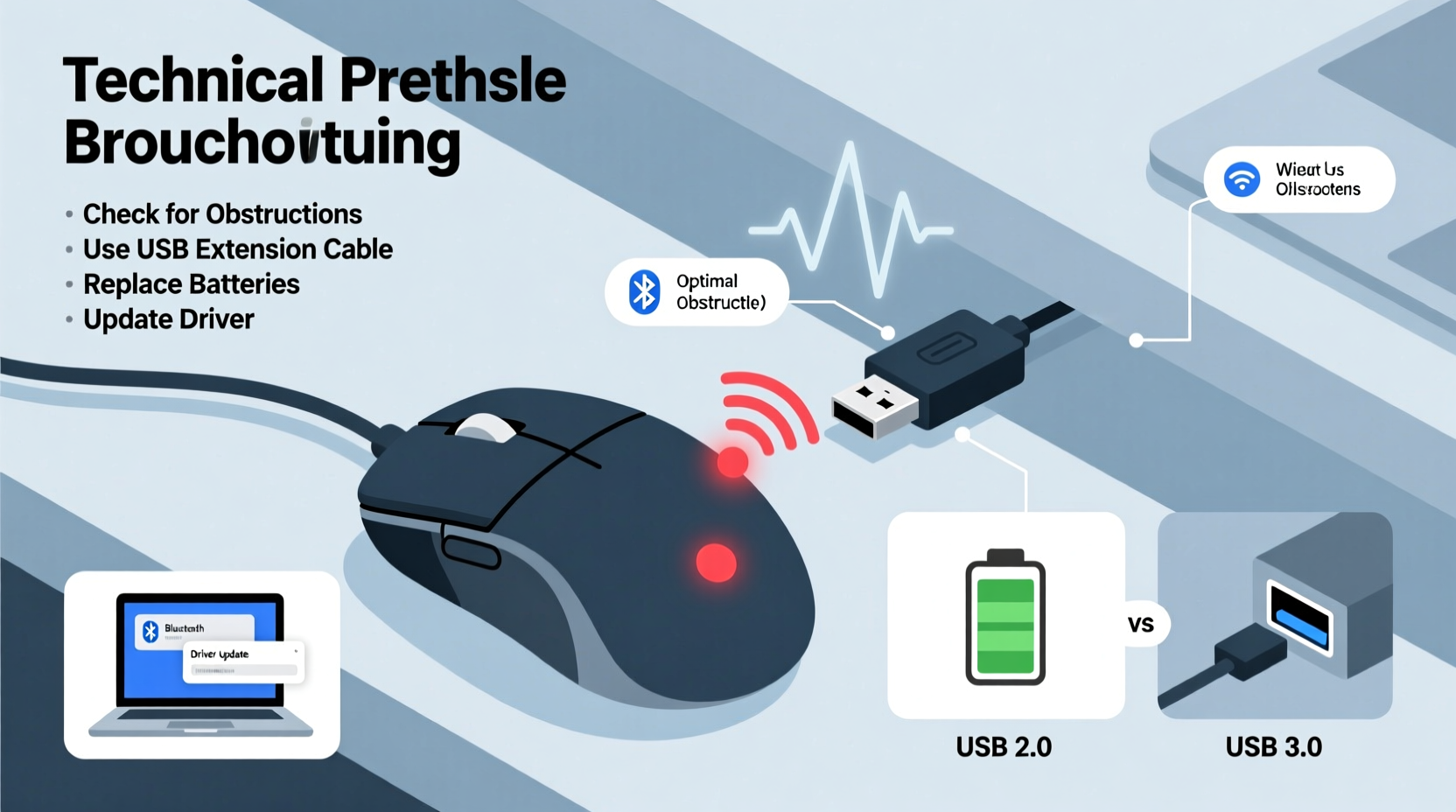
Before jumping into fixes, it's essential to identify the underlying cause. A wireless mouse relies on either Bluetooth or a USB receiver (typically 2.4GHz) to communicate with your computer. Any disruption in this communication chain can result in lag, freezing, or complete disconnection.
- Interference from other wireless devices: Microwaves, cordless phones, routers, and even nearby Bluetooth speakers can emit signals that interfere with your mouse’s frequency band.
- Low battery power: As batteries deplete, signal strength weakens, leading to erratic behavior or shutdowns.
- USB port or receiver issues: A loose connection, faulty port, or obstructed line-of-sight between the mouse and receiver can break communication.
- Outdated or corrupt drivers: Operating system updates may render older mouse drivers incompatible or unstable.
- Distance and physical obstructions: Exceeding the effective range or placing objects (especially metal) between the mouse and receiver blocks the signal.
- Hardware failure: Internal components like the antenna or circuitry may degrade over time, especially in lower-quality models.
Step-by-Step Guide to Diagnose and Fix Disconnections
A methodical approach helps isolate the problem quickly. Follow this sequence to test and resolve the most likely culprits:
- Check the battery level. Replace or recharge the batteries immediately if they’re low. Even if the mouse appears functional, weak voltage can cause intermittent drops.
- Inspect the USB receiver placement. If using a 2.4GHz dongle, ensure it’s plugged directly into a front or side USB port—not one hidden behind the PC tower. Avoid using USB hubs; plug directly into the host device.
- Test on another computer. Connect the mouse to a different machine to determine if the issue follows the mouse or stays with your original system.
- Switch USB ports. Some ports provide inconsistent power or suffer from electromagnetic interference. Test multiple ports, preferably USB 2.0 over USB 3.0 if available, as some older receivers perform better on 2.0.
- Update or reinstall mouse drivers. Go to Device Manager (Windows), locate the mouse under \"Mice and other pointing devices,\" right-click, and choose \"Update driver.\" Alternatively, uninstall the driver and restart your PC to trigger automatic reinstallation.
- Disable Bluetooth conflicts. If both Bluetooth and a 2.4GHz receiver are active, disable Bluetooth temporarily to see if stability improves.
- Scan for wireless interference. Turn off nearby electronics like wireless chargers, speakers, or microwaves while testing the mouse.
Optimizing Your Environment for Stable Connectivity
Your workspace plays a crucial role in maintaining a strong wireless signal. Small changes in setup can dramatically improve reliability.
Many users place their USB receiver behind their desktop, where it’s shielded by metal chassis and surrounded by other electronic noise. This creates a poor signal path to the mouse, especially when hands and wrists block transmission during use.
| Setup Factor | Problem | Solution |
|---|---|---|
| Receiver behind metal case | Signal blocked or weakened | Use a USB extension cable to position receiver near monitor edge |
| Mouse too far from receiver | Exceeds operational range | Keep within 1–2 meters; avoid walls or large obstacles |
| Multiple 2.4GHz devices nearby | Frequency congestion | Relocate router or switch to 5GHz Wi-Fi to free up bandwidth |
| Using USB 3.0 hub | Electromagnetic interference with 2.4GHz | Plug receiver into USB 2.0 port or use ferrite-core extension |
For laptop users, placing the receiver on the opposite side of the device from the mouse can also create dead zones due to internal shielding. Position the receiver so there’s a clear line of sight to where your hand typically rests.
“Over 60% of wireless peripheral issues stem from suboptimal receiver placement or environmental interference—not hardware defects.” — Dr. Lin Zhao, RF Communications Engineer at TechSignal Labs
Mini Case Study: Resolving Disconnections in a Home Office
Mark, a freelance graphic designer working from a converted bedroom, experienced frequent mouse dropouts during client Zoom calls. His Logitech MX Master 3 connected via USB receiver kept freezing mid-gesture, forcing him to unplug and replug the dongle repeatedly.
Initial troubleshooting ruled out battery issues—he used rechargeable cells at full charge. Testing on another laptop confirmed the mouse worked fine elsewhere, pointing to his main workstation as the source.
Upon inspection, he found the USB receiver was plugged into a rear port of his desktop PC, located beneath a metal desk frame. Additionally, his Wi-Fi router sat just 12 inches from the tower, operating on the crowded 2.4GHz band.
He applied two fixes: first, he used a 6-inch USB 2.0 extension cable to move the receiver to the top front edge of his desk. Second, he changed his router settings to prioritize 5GHz for primary devices, reducing 2.4GHz traffic.
Result: The mouse remained stable for over three weeks without a single dropout, even during extended design sessions.
Software and Firmware Updates That Improve Stability
While hardware setup matters, software often holds the key to long-term reliability. Manufacturers regularly release firmware updates that enhance signal efficiency, power management, and compatibility with new operating systems.
For branded mice (e.g., Logitech, Microsoft, Razer), download the official companion software:
- Logitech Options / Logi Options+
- Microsoft Mouse and Keyboard Center
- Razer Synapse
These tools not only allow customization but also check for firmware updates automatically. For example, Logitech’s software detected a known bug in early 2023 affecting certain MX series mice under Windows 11 22H2, which caused periodic disconnects due to sleep mode mismanagement. A firmware patch resolved the issue entirely.
If no dedicated software exists, visit the manufacturer’s support site, enter your model number, and manually check for firmware or driver updates. Always back up your system before installing such updates.
Checklist: How to Stabilize Your Wireless Mouse Connection
Use this practical checklist to systematically eliminate causes and achieve lasting stability:
- ✅ Replace or recharge batteries
- ✅ Plug receiver directly into a USB 2.0 port (avoid hubs)
- ✅ Use a USB extension cable to position receiver near the monitor
- ✅ Ensure no large metal objects block the signal path
- ✅ Update mouse drivers through Device Manager or manufacturer software
- ✅ Check for and install firmware updates
- ✅ Disable Bluetooth if using a 2.4GHz receiver
- ✅ Reduce nearby wireless interference (routers, phones, chargers)
- ✅ Test the mouse on another computer to isolate hardware vs. system issues
- ✅ Consider switching to a wired mouse for mission-critical tasks
Frequently Asked Questions
Can USB 3.0 ports interfere with my wireless mouse?
Yes. USB 3.0 ports emit electromagnetic interference in the 2.4GHz spectrum, which can disrupt wireless peripherals. Studies show that poorly shielded USB 3.0 controllers can reduce wireless mouse range by up to 75%. Solution: Use a USB 2.0 port or add a ferrite core to the extension cable.
Why does my mouse disconnect when my laptop wakes from sleep?
This is often due to aggressive USB selective suspend settings in Windows. To fix it, go to Power Options > Change plan settings > Change advanced power settings > USB settings > USB selective suspend setting, and set it to \"Disabled.\" This prevents the OS from cutting power to the receiver during sleep cycles.
Is Bluetooth more stable than a 2.4GHz receiver?
It depends. Bluetooth can be more prone to latency and interference in dense wireless environments, but modern Bluetooth 5.0+ offers improved range and coexistence with other signals. A dedicated 2.4GHz receiver usually provides lower latency and better reliability, assuming proper placement and minimal interference.
Conclusion: Achieving Reliable, Long-Term Performance
A wireless mouse should enhance your workflow—not hinder it. Frequent disconnections are rarely random; they’re symptoms of identifiable issues ranging from poor battery health to electromagnetic congestion. By methodically testing each potential cause and applying targeted solutions, you can restore seamless operation.
The most impactful improvements often come from simple adjustments: relocating the receiver, updating firmware, or managing power settings. These small efforts yield significant gains in responsiveness and dependability.




 浙公网安备
33010002000092号
浙公网安备
33010002000092号 浙B2-20120091-4
Comments
No comments yet. Why don't you start the discussion?