
Wireless mice offer freedom from cables and clutter, but when they start lagging—delayed cursor movement, stuttering tracking, or unresponsive clicks—the convenience quickly turns into frustration. Lag can make everyday tasks like browsing, editing, or gaming feel sluggish and inefficient. While many assume this is an inevitable trade-off of going wireless, most lag issues stem from specific, fixable causes. Understanding these root problems and knowing which settings to adjust can transform a frustrating experience into seamless control.
Lag isn't always about hardware failure. It often results from interference, outdated drivers, power-saving features, or incorrect DPI and polling rate configurations. By systematically diagnosing and addressing each potential factor, you can restore your mouse’s responsiveness without needing to replace it.
Understanding the Causes of Wireless Mouse Lag
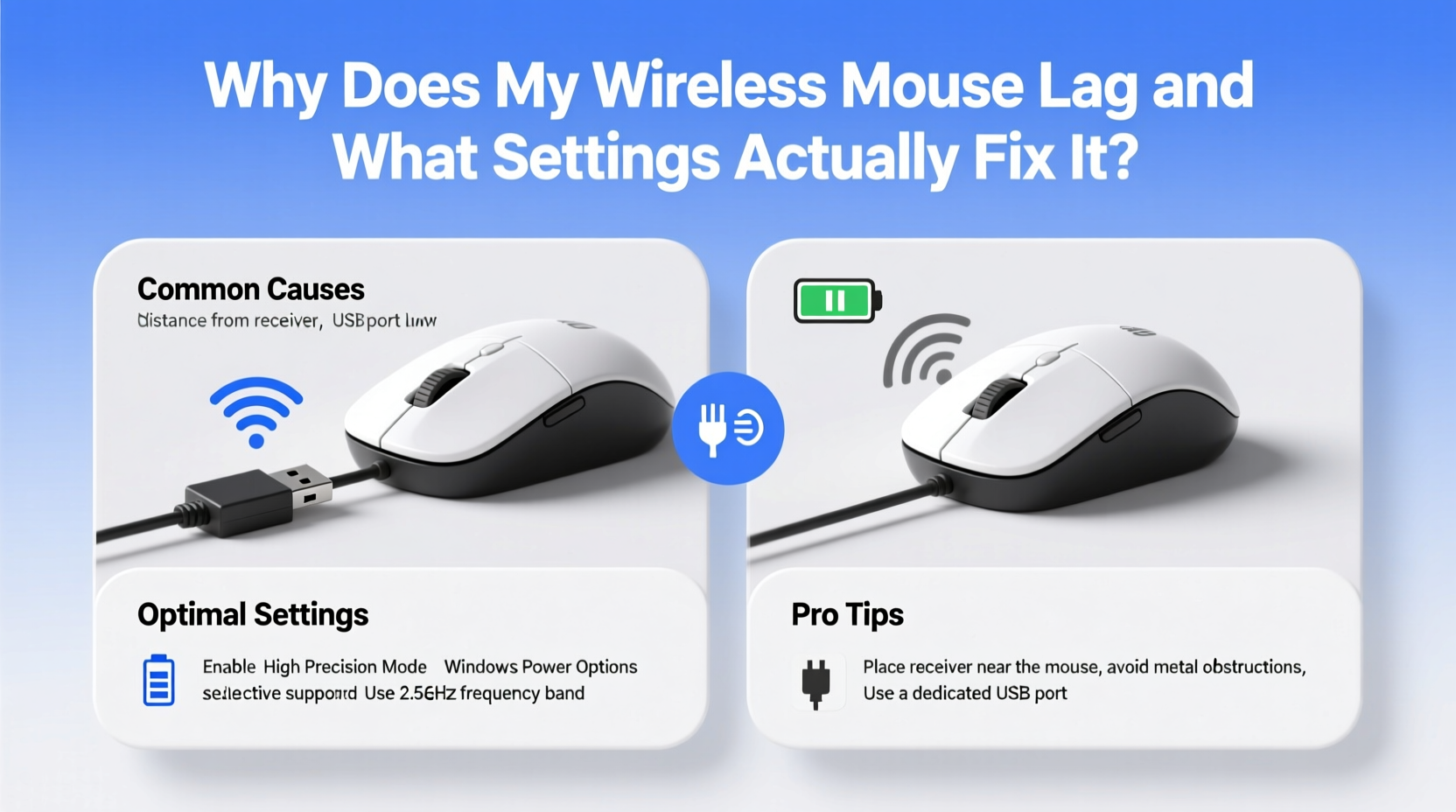
Before diving into fixes, it's essential to understand why wireless mice lag in the first place. Unlike wired counterparts, wireless devices rely on radio frequency (RF) signals—typically 2.4 GHz—or Bluetooth to communicate with your computer. These connections are inherently more vulnerable to disruptions than direct USB links.
- Signal Interference: Other wireless devices such as routers, cordless phones, or even microwaves operating on the same 2.4 GHz band can disrupt communication between your mouse and receiver.
- Low Battery: As battery levels drop, wireless mice reduce transmission power to conserve energy, leading to inconsistent signal delivery and perceived lag.
- DPI and Polling Rate Mismatch: If your mouse operates at a low polling rate (e.g., 125Hz), it reports position only 125 times per second—too slow for fluid motion in fast-paced tasks.
- USB Receiver Placement: A poorly positioned receiver—especially if behind a metal case or blocked by other devices—can weaken signal strength.
- Driver or Software Conflicts: Outdated, corrupted, or conflicting mouse drivers can cause input delays or erratic behavior.
- Power Management Settings: Windows may throttle USB device performance to save power, inadvertently affecting mouse responsiveness.
“Many users blame their hardware, but over 70% of wireless mouse lag cases I’ve diagnosed were resolved through driver updates or eliminating RF interference.” — Jordan Lee, Peripheral Systems Engineer at TechFix Labs
Step-by-Step Guide to Diagnose and Fix Mouse Lag
Follow this structured approach to identify and eliminate the source of lag. Each step targets a common culprit, building toward optimal performance.
- Check Battery Level
Start with the simplest possibility: low battery. Replace or recharge your mouse batteries. Even if the indicator shows “medium,” weak voltage under load can degrade signal stability. - Reposition the USB Receiver
Move the receiver closer to the mouse. Use a USB extension cable to place it in front of your PC, away from metal obstructions. Avoid placing it near high-emission devices like routers or monitors. - Eliminate Signal Interference
Turn off nearby wireless gadgets temporarily. Switch your Wi-Fi router to the 5 GHz band if possible. Test the mouse in another room to rule out environmental interference. - Test on Another Computer
Plug the mouse and receiver into a different system. If it works smoothly there, the issue lies with your original machine’s configuration or USB ports. - Update Mouse Drivers
Go to Device Manager > Human Interface Devices, locate your mouse, right-click, and select \"Update driver.\" Alternatively, download the latest firmware from the manufacturer’s website (Logitech, Razer, Microsoft, etc.). - Adjust Power Management Settings
In Device Manager, find the USB Root Hub controlling your mouse. Right-click > Properties > Power Management, and uncheck “Allow the computer to turn off this device to save power.” Repeat for all USB hubs. - Change Polling Rate and DPI
Use your mouse’s software (e.g., Logitech G HUB, Razer Synapse) to increase the polling rate to 500Hz or 1000Hz. Set DPI between 800–1600 for balanced speed and precision.
Do’s and Don’ts: Optimizing Wireless Performance
Small habits can have a big impact on wireless reliability. The table below outlines key practices to adopt—and avoid.
| Do’s | Don’ts |
|---|---|
| Use fresh, high-quality alkaline or rechargeable batteries | Let batteries drain below 20% before replacing |
| Place the USB receiver within clear line-of-sight of the mouse | Hide the receiver behind a metal PC case or monitor base |
| Keep firmware and drivers updated monthly | Ignore software update notifications for peripheral devices |
| Disable power-saving modes for USB devices in Windows | Assume default power plans are optimal for peripherals |
| Switch to 5GHz Wi-Fi to reduce 2.4GHz congestion | Run multiple 2.4GHz devices in close proximity without testing interference |
Real-World Example: Solving Lag in a Home Office Setup
Consider Sarah, a freelance graphic designer working from her apartment. She noticed her Logitech MX Master 3 began lagging during client Zoom calls and photo edits. At first, she assumed the mouse was failing. She tried new batteries—no improvement. Then she moved her laptop closer to the router, which made the problem worse.
After reading about RF interference, she realized her Wi-Fi router, wireless keyboard, and mouse all used the 2.4 GHz band. Her desk sat just six inches from the router. She switched her laptop to 5 GHz Wi-Fi, moved the mouse receiver to a USB extension cable placed at the front edge of her desk, and updated the Logitech Options software. The lag disappeared instantly.
Sarah’s case illustrates how environmental factors and small setup changes can have outsized effects. No hardware was replaced—only awareness and adjustment were required.
Key Settings That Actually Fix Lag
While physical placement and environment matter, software and firmware settings are equally critical. Here are the top three technical adjustments that deliver measurable improvements:
1. Increase Polling Rate
The polling rate determines how often your mouse reports its position to the computer. Standard rates include 125Hz (every 8ms), 500Hz (2ms), and 1000Hz (1ms). For general use, 500Hz is sufficient. Gamers or precision workers should aim for 1000Hz. This setting must be adjusted via manufacturer software—Windows cannot change it natively.
2. Optimize DPI Sensitivity
DPI (dots per inch) controls cursor speed. Too low (e.g., 400 DPI), and you’ll need large arm movements; too high (e.g., 3200+ DPI), and fine control suffers. For most users, 800–1600 DPI offers the best balance. Adjust in your mouse software and test across applications.
3. Disable Windows Pointer Precision
Also known as “Enhance pointer precision,” this feature applies acceleration to mouse movement, making slow motions slower and fast motions faster. While intended to help, it introduces inconsistency and delay. To disable:
- Open Control Panel > Mouse.
- Go to the Pointer Options tab.
- Uncheck “Enhance pointer precision.”
- Click Apply.
This change alone can eliminate perceived lag by ensuring 1:1 cursor response.
FAQ: Common Questions About Wireless Mouse Lag
Is Bluetooth more prone to lag than 2.4 GHz wireless?
Yes, generally. Bluetooth uses shared bandwidth and often has higher latency than dedicated 2.4 GHz RF dongles. High-end Bluetooth mice with Low Energy (BLE) and optimized protocols (like Apple’s Magic Mouse) perform well, but for consistent responsiveness, a proprietary 2.4 GHz connection is superior.
Can USB 3.0 ports cause interference?
Yes. Studies show that USB 3.0 ports can emit electromagnetic noise in the 2.4 GHz range, disrupting wireless peripherals. If possible, plug your mouse receiver into a USB 2.0 port, or use a ferrite bead-equipped extension cable to suppress interference.
Does surface type affect wireless performance?
No, surface type affects optical tracking, not wireless signal. However, poor tracking can be mistaken for lag. Ensure you’re using a smooth, non-reflective mousepad for accurate sensor performance.
Final Checklist: Eliminate Mouse Lag for Good
Use this checklist to ensure every potential cause has been addressed:
- ✅ Replace or recharge mouse batteries
- ✅ Reposition USB receiver for clear line-of-sight
- ✅ Move away from sources of 2.4 GHz interference (routers, microwaves)
- ✅ Update mouse drivers and firmware
- ✅ Disable USB selective suspend in Windows Power Options
- ✅ Turn off “Enhance pointer precision” in Mouse Settings
- ✅ Set polling rate to 500Hz or 1000Hz via manufacturer software
- ✅ Adjust DPI to 800–1600 for balanced control
- ✅ Test on another computer to isolate hardware vs. software issues
- ✅ Consider switching to a 5 GHz Wi-Fi network to free up 2.4 GHz spectrum
Conclusion: Take Control of Your Wireless Experience
Wireless mouse lag is rarely unavoidable. With a methodical approach, you can diagnose and resolve the underlying causes—often without spending a dime. From repositioning a receiver to tweaking system settings, the solutions are accessible and effective. Don’t accept sluggish performance as the price of convenience. Apply these fixes, optimize your setup, and reclaim the smooth, responsive control you deserve.




 浙公网安备
33010002000092号
浙公网安备
33010002000092号 浙B2-20120091-4
Comments
No comments yet. Why don't you start the discussion?