
There’s nothing more frustrating than a wireless mouse that cuts out mid-click. Whether you're working on a critical document, editing photos, or gaming under pressure, sudden disconnections disrupt flow and damage productivity. Unlike wired mice, wireless models rely on complex interactions between hardware, software, and environmental conditions—any of which can fail silently. Understanding the root causes is the first step toward restoring seamless control.
Random disconnections are rarely due to a single issue. Instead, they stem from a combination of signal interference, power problems, outdated drivers, or hardware limitations. The good news? Most of these issues are fixable with targeted troubleshooting. This guide breaks down the most common culprits and provides actionable solutions so you can regain consistent, responsive performance from your wireless mouse.
Common Causes of Wireless Mouse Disconnection
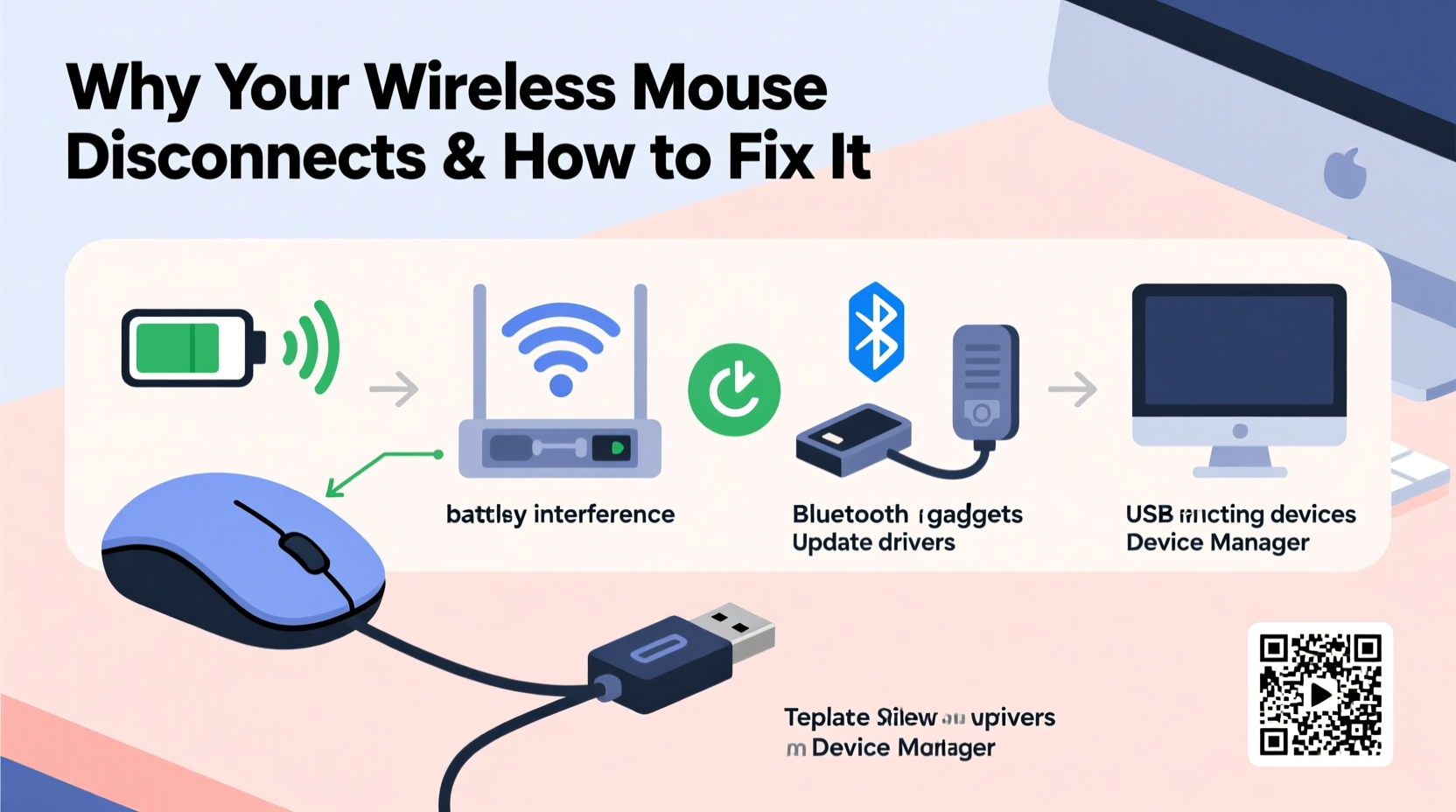
Before jumping into fixes, it's essential to understand what might be causing the instability. Identifying the underlying reason ensures you apply the right solution rather than guessing at symptoms.
- Low battery power: As batteries deplete, voltage drops can cause intermittent signal loss.
- Signal interference: Other wireless devices (Wi-Fi routers, cordless phones, Bluetooth gadgets) emit radio frequencies that clash with your mouse’s 2.4GHz band.
- Dongle placement: USB receivers placed behind monitors or inside laptop ports may suffer poor line-of-sight, weakening signal strength.
- Outdated or corrupted drivers: Operating system updates or driver bugs can break communication between your PC and the mouse.
- USB port power saving: Windows often disables USB ports to conserve energy, cutting power to connected peripherals.
- Hardware incompatibility: Older wireless protocols or mismatched dongles (especially after replacements) may not maintain stable links.
- Physical obstructions: Metal objects, thick desks, or even your hand can block the RF signal path.
“Over 60% of wireless peripheral issues we see in tech support stem from environmental interference or misconfigured power management—not hardware failure.” — Raj Patel, Senior Support Engineer at Periphix Systems
Step-by-Step Troubleshooting Guide
Follow this systematic approach to isolate and resolve the issue. Start with quick checks before moving to advanced configurations.
- Replace or recharge the batteries. Even if the battery indicator shows charge, weak cells can’t sustain consistent transmission. Use high-quality alkaline or lithium batteries for best results.
- Reposition the USB receiver. Move the dongle closer to the mouse using an extension cable. Avoid placing it near metal surfaces or behind monitors.
- Test on another computer. Plug the mouse and receiver into a different machine. If it works reliably, the problem lies with your original system’s configuration or environment.
- Check for firmware updates. Visit the manufacturer’s website (Logitech, Microsoft, Razer, etc.) and search for firmware tools specific to your model.
- Update or reinstall mouse drivers. In Device Manager, locate your mouse under “Mice and other pointing devices,” right-click, and choose “Update driver” or “Uninstall device” (then restart to reinstall).
- Disable USB selective suspend setting. This Windows feature shuts down USB devices during inactivity. Turn it off to prevent forced disconnections.
- Switch wireless channels (if supported). Some high-end mice allow channel selection via companion software to avoid crowded frequencies.
Do’s and Don’ts: Best Practices for Stable Connection
Prevention is better than repair. Once you’ve fixed the immediate problem, follow these guidelines to minimize future disruptions.
| Do’s | Don’ts |
|---|---|
| Use a USB extension cable to position the receiver within clear line-of-sight of the mouse | Place the receiver behind a metal monitor stand or deep inside a port bank |
| Keep spare batteries on hand and rotate them monthly | Wait until the mouse stops working before replacing batteries |
| Keep your operating system and mouse drivers up to date | Ignore firmware update notifications from your device manufacturer |
| Minimize nearby wireless devices operating on 2.4GHz | Place Wi-Fi routers or microwaves directly next to your workspace |
| Clean the mouse sensor regularly with a dry microfiber cloth | Use compressed air aggressively near the sensor—it can damage internal components |
Real-World Example: Fixing a Persistent Office Issue
Sarah, a graphic designer in Toronto, experienced frequent dropouts with her Logitech MX Master 3 while working from home. Her mouse would freeze every few minutes, forcing her to reconnect manually. She tried new batteries and restarting her PC, but the issue persisted.
After testing the mouse on her partner’s laptop (where it worked flawlessly), she suspected a software or environmental cause. She noticed her Wi-Fi router was mounted directly beneath her desk, just inches from the USB receiver. Moving the router to another room eliminated the interference. Additionally, she downloaded Logitech Options software and updated the mouse firmware—resolving a known bug affecting macOS Monterey users.
The combined fix restored full stability. Sarah now uses a 6-inch USB extension cable to keep the receiver elevated and away from electronic clutter—a small change that made a major difference.
Essential Checklist: Restore Your Mouse in 10 Minutes
If you're short on time, run through this rapid diagnostic checklist to get your mouse back online quickly.
- ✅ Replace or fully charge the batteries
- ✅ Reposition the USB receiver for clear line-of-sight
- ✅ Try a different USB port (preferably on the front of a desktop)
- ✅ Disable USB selective suspend in Power Options
- ✅ Unplug nearby 2.4GHz devices temporarily (e.g., speakers, phones)
- ✅ Re-pair the mouse (for Bluetooth models: remove and re-add in OS settings)
- ✅ Check Device Manager for driver errors or conflicts
- ✅ Restart your computer after making changes
Advanced Fixes for Stubborn Disconnections
If basic steps don’t resolve the issue, consider deeper technical adjustments.
Adjust Power Management Settings
Windows may disable USB devices to save power. To stop this:
- Open Control Panel > Hardware and Sound > Power Options.
- Click “Change plan settings” next to your active plan.
- Select “Change advanced power settings.”
- Expand USB settings > USB selective suspend setting.
- Set both “On battery” and “Plugged in” to Disabled.
- Click Apply and OK.
Switch from Bluetooth to Dongle (or vice versa)
If your mouse supports both connection types, test each. Bluetooth is convenient but prone to interference in crowded environments. A dedicated 2.4GHz dongle often provides lower latency and higher reliability.
Use a High-Quality USB Extension Cable
A short (6–12 inch) shielded USB extension cable lets you place the receiver on top of your desk, close to the mouse and away from interference sources. This simple tool dramatically improves signal quality in obstructed setups.
Scan for RF Interference
While specialized tools exist, you can perform a basic interference check by turning off nearby wireless devices one by one. If the mouse stabilizes after disabling a particular device (like a speaker or phone charger), you’ve found the culprit. Consider relocating it or switching to a wired alternative.
Frequently Asked Questions
Why does my wireless mouse disconnect when I move it?
This typically indicates poor signal reception. Movement may shift the mouse out of optimal range or create temporary obstructions. Ensure the receiver has a clear line-of-sight and isn’t blocked by your hand or desk materials. Using a USB extension cable often resolves this.
Can a faulty USB port cause mouse disconnections?
Yes. A loose, damaged, or underpowered USB port can interrupt power delivery or data transfer. Test the mouse in multiple ports. If only certain ports work reliably, the others may need cleaning or replacement.
Does Bluetooth interfere with wireless mice?
It can. Many wireless mice use the 2.4GHz band, which overlaps with Bluetooth, Wi-Fi, and other devices. When multiple signals compete, packet loss occurs. If you’re using Bluetooth headphones or speakers, try turning them off to see if mouse stability improves.
Conclusion: Take Control of Your Wireless Experience
A wireless mouse should offer freedom, not frustration. Random disconnections are a common but solvable issue. By methodically addressing power, positioning, interference, and software settings, you can achieve the same reliability as a wired device—with none of the cable clutter.
The key is understanding that wireless performance depends on more than just the mouse itself. Your environment, setup choices, and system settings all play crucial roles. Small adjustments—like repositioning a receiver or updating firmware—can have outsized impacts.




 浙公网安备
33010002000092号
浙公网安备
33010002000092号 浙B2-20120091-4
Comments
No comments yet. Why don't you start the discussion?