
Many professionals, students, and administrators have experienced the frustration of sending a carefully formatted Word document—only to hear back that tables are misaligned, fonts look different, or paragraphs are suddenly stacked oddly. This issue isn't random; it's rooted in how email clients render documents and the underlying compatibility between software versions and file formats. Understanding the causes empowers you to take control and ensure your message arrives exactly as intended.
The core problem lies not in Microsoft Word itself, but in the journey your document takes from sender to recipient. Email systems don’t always handle richly formatted files the same way Word does. What looks perfect on your screen may appear distorted on another device or email client due to differences in rendering engines, font availability, or default settings.
How Email Clients Affect Document Formatting
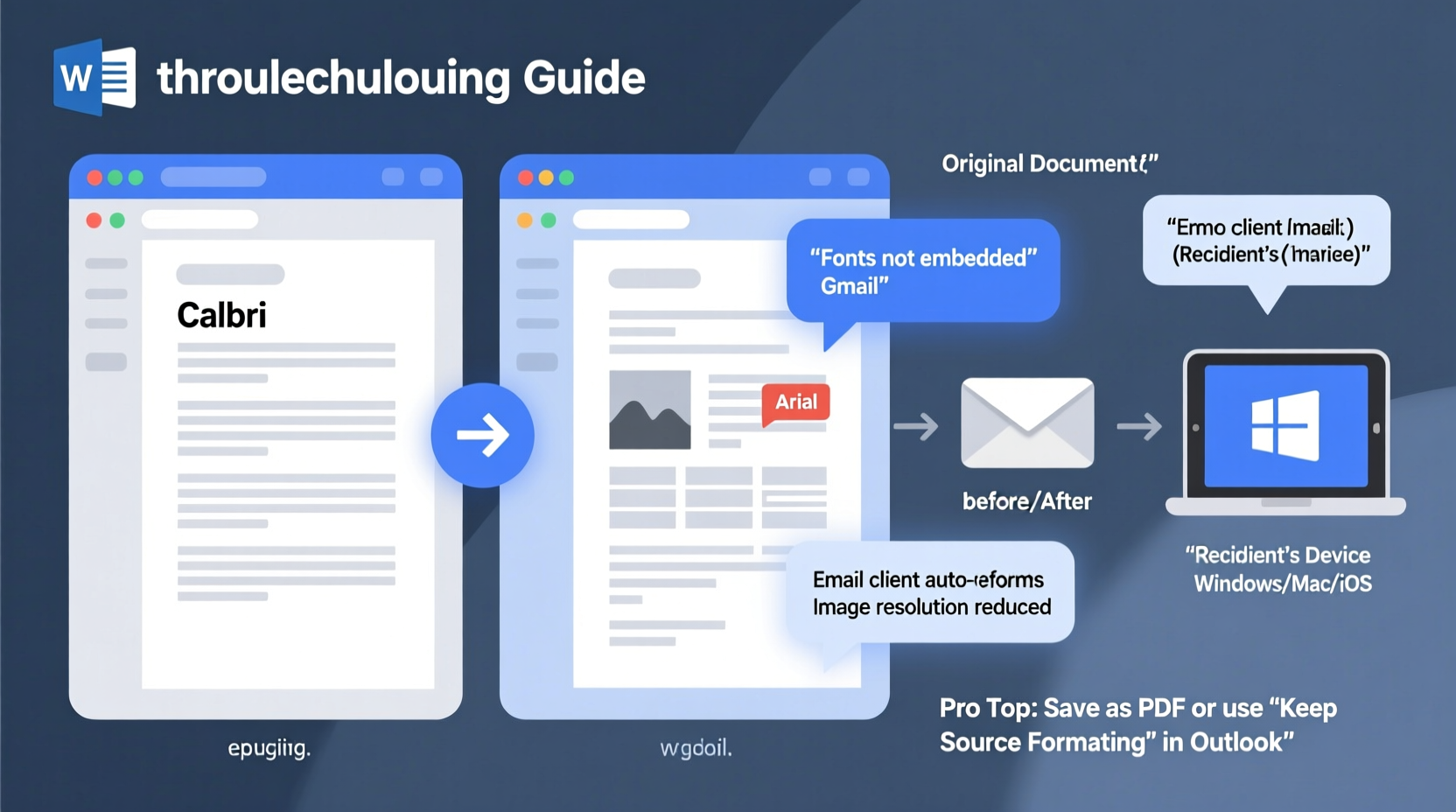
Email clients such as Outlook, Gmail, Apple Mail, and others process attachments and inline content differently. When you attach a .docx file, most clients preserve the original structure. However, if you paste content directly into the body of an email, the formatting is converted to HTML—a web-based format that supports only a subset of Word’s features.
For example, Gmail uses its own HTML rendering engine, which strips out advanced Word styling like custom styles, complex headers, or certain spacing rules. Even bullet point indentation can collapse because CSS (Cascading Style Sheets) support varies widely across platforms. Outlook for Windows handles formatting better than web-based clients, but even it struggles with cross-platform consistency.
This mismatch becomes especially noticeable with:
- Nested tables that shift or break
- Text boxes or shapes that disappear or reposition
- Custom fonts replaced by system defaults
- Paragraph spacing altered due to differing margin interpretations
File Format Compatibility Issues
The version of Word used to create the document and the one used to open it play a major role in formatting integrity. Older versions of Word (e.g., 2003 or earlier) use the .doc format, while modern versions default to .docx. Although newer Word versions can read .doc files, some advanced formatting may not translate correctly—especially if macros, embedded objects, or specific theme elements are involved.
When recipients open a .docx file in an outdated program without compatibility mode enabled, layout issues often arise. Similarly, opening a document created in a newer version of Word on an older machine may result in missing fonts, incorrect line breaks, or distorted images.
Beyond Microsoft’s ecosystem, third-party word processors like LibreOffice, Google Docs, or Apple Pages interpret .docx files with varying degrees of accuracy. While they strive for compatibility, subtle differences in how styles, spacing, and object anchoring are handled can lead to visible shifts.
“Even minor discrepancies in how paragraph spacing is calculated between applications can cascade into major layout problems.” — Dr. Alan Reeves, Software Interoperability Researcher at TechStandards Institute
Font Substitution and Missing Resources
One of the most common yet overlooked reasons for formatting changes is font substitution. If your document uses a font like Calibri, Arial, or Times New Roman—standard on most Windows machines—it will likely display correctly. But if you’ve used a custom or premium font (e.g., Montserrat, Garamond Premier Pro), and the recipient doesn’t have it installed, their system automatically substitutes it with a default alternative.
This substitution affects more than just appearance. Different fonts have unique character widths and spacing metrics. Replacing a narrow sans-serif font with a wider serif one can cause text overflow, disrupt table cell dimensions, or push content onto new pages unexpectedly.
Additionally, embedded resources such as logos, charts, or background images may fail to load properly depending on how the email client handles linked vs. embedded media. Word allows both options, but linked images depend on file paths that don’t exist once the document leaves your computer.
Best Practices for Font and Resource Handling
- Stick to widely available system fonts unless you're certain all recipients have access to custom ones.
- Embed TrueType fonts in your document via Word’s Save Options (File > Options > Save > Embed fonts in the file).
- Convert critical visuals to inline images rather than external links.
- Flatten complex designs into static images where fidelity is non-negotiable.
Step-by-Step Guide to Preserving Formatting When Emailing
To maintain document integrity from sender to recipient, follow this structured approach:
- Finalize Content First
Complete all edits before preparing the document for email. Avoid last-minute changes after export steps. - Use Compatible Fonts
Select standard fonts like Arial, Georgia, Verdana, or Cambria. These are widely supported across operating systems. - Minimize Use of Advanced Features
Avoid excessive use of text boxes, floating objects, or multi-level nested tables. Simplify layouts for maximum portability. - Save as PDF for Critical Documents
If visual accuracy is essential, convert the final version to PDF. Go to File > Save As > Choose PDF (*.pdf). This locks formatting permanently. - Test Before Sending
Send the document to yourself via different email accounts (Gmail, Outlook, mobile) and open it on various devices to verify consistency. - Attach, Don’t Paste
Always attach the file instead of copying and pasting into the email body unless plain text is acceptable. - Provide Instructions if Needed
In the email message, note: “Please view the attached document in Word or Adobe Reader for correct formatting.”
Do’s and Don’ts: Formatting Best Practices Table
| Do’s | Don’ts |
|---|---|
| Use simple, clean layouts with consistent margins | Overuse drop caps, columns, or section breaks |
| Embed fonts when using non-standard typefaces | Rely on uncommon fonts without embedding |
| Save final versions as PDF for legal, formal, or design-sensitive documents | Assume everyone sees your document exactly as you do |
| Compress large image files within Word (via Picture Format > Compress Pictures) | Insert high-resolution images without optimization |
| Use built-in Word styles (Heading 1, Normal, etc.) for consistency | Manually adjust spacing and fonts repeatedly |
Real Example: The Client Proposal That Didn’t Land
Sarah, a marketing consultant, spent hours crafting a polished proposal in Word. She used her company’s branded font, added a cover page with a background image, and designed a pricing table with alternating row colors. Confident in her work, she copied the entire document into Gmail and hit send.
Within minutes, her client replied: “I can’t read half of this—the table is broken, the headings are tiny, and there’s a black bar across the top.” Sarah checked her sent message and realized Gmail had stripped the background, resized images, and failed to apply her custom font. The professional tone was lost.
She resent the proposal as a PDF attachment with a brief note explaining the format choice. The client responded positively, complimenting the clarity and design. From then on, Sarah made it a rule: no more pasting Word content into emails. Attachments only, preferably in PDF.
Checklist: Prevent Formatting Changes When Emailing Word Docs
- ☐ Finalize all content and proofread before export
- ☐ Switch to standard, universally available fonts
- ☐ Embed any custom fonts via Word’s Save settings
- ☐ Flatten or embed all images and graphics
- ☐ Avoid complex layouts (columns, text boxes, overlapping shapes)
- ☐ Save a PDF copy for reference and backup
- ☐ Attach the file rather than pasting into the email body
- ☐ Test opening the attachment on multiple devices or email clients
- ☐ Include a short note: “For best results, open in Word or Adobe Acrobat”
Frequently Asked Questions
Why does my document look fine when I send it but wrong when the recipient opens it?
Differences in software versions, operating systems, and installed fonts cause inconsistencies. Even if both parties use Word, macOS and Windows may render spacing and fonts slightly differently. Email clients also preprocess attachments in some cases, altering metadata or scaling images.
Is there a way to send a Word document so it looks identical everywhere?
The most reliable method is converting the document to PDF before sending. PDFs preserve fonts, layout, and graphics regardless of the viewer’s system. For editable content, ensure all collaborators use recent versions of Word and agree on standardized templates.
Can I fix formatting issues after they happen?
Yes, but prevention is far more efficient. If a recipient reports issues, ask them to download the file (not preview in-browser), check their Word version, and install any missing updates. You can also resend as a PDF or simplify the original layout for easier compatibility.
Conclusion: Take Control of Your Document’s Presentation
Your Word document represents your professionalism, attention to detail, and credibility. Letting formatting errors undermine your message is avoidable. By understanding the technical limitations of email systems and making smart choices about fonts, layout, and file formats, you ensure your content arrives intact.
Adopting simple habits—like attaching files instead of pasting, testing across platforms, and using PDFs when precision matters—can eliminate most formatting surprises. Technology should serve communication, not hinder it. With these strategies, your documents will consistently reflect the quality of your work.




 浙公网安备
33010002000092号
浙公网安备
33010002000092号 浙B2-20120091-4
Comments
No comments yet. Why don't you start the discussion?