
Gaming consoles like the Xbox are engineered for performance, but sustained use, poor ventilation, or environmental factors can push them beyond their thermal limits. Overheating is one of the most common issues affecting Xbox users across models—whether you're using an Xbox One, Xbox Series S, or Xbox Series X. When internal temperatures rise too high, the console may throttle performance, freeze, shut down unexpectedly, or in severe cases, suffer permanent hardware damage. Understanding the root causes and knowing how to cool your Xbox naturally—without expensive cooling accessories—is essential for preserving both gameplay quality and system longevity.
Why Your Xbox Overheats: Common Causes
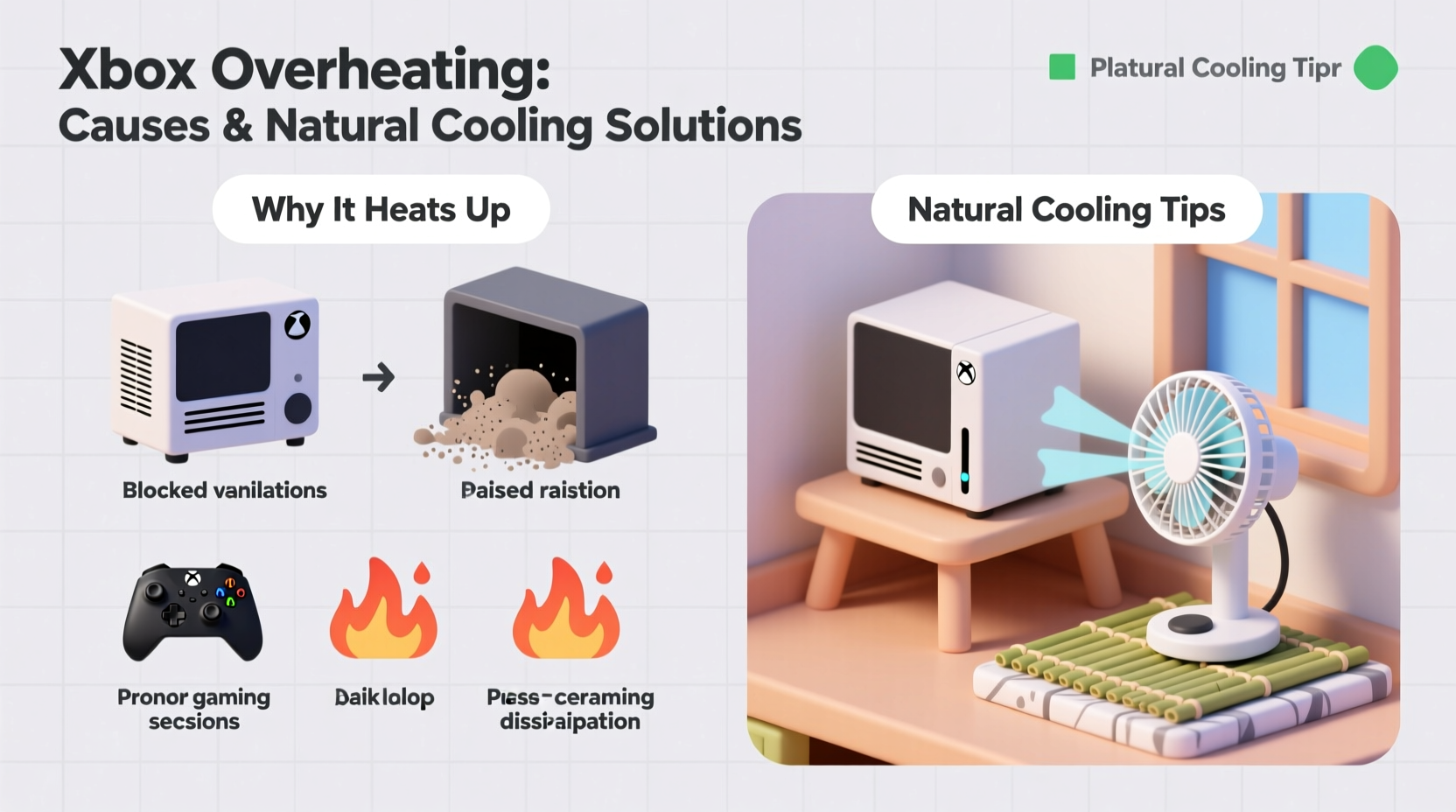
Xbox consoles generate significant heat during operation, especially when running graphically intensive games or streaming 4K content. While they are designed with built-in cooling systems—including fans, heat sinks, and thermal paste—not all environments or usage patterns support optimal airflow. Several key factors contribute to overheating:
- Poor Ventilation: Placing the console in a closed cabinet, entertainment center, or tight space restricts airflow, trapping hot air around the unit.
- Dust Accumulation: Over time, dust clogs air vents and coats internal components, acting as insulation that prevents heat from escaping.
- High Ambient Room Temperature: Operating your Xbox in a hot room (above 77°F or 25°C) reduces the efficiency of the cooling system.
- Console Orientation: Some models perform better in vertical vs. horizontal positions due to airflow design. Using the wrong orientation can disrupt cooling.
- Extended Gaming Sessions: Long hours of continuous use without breaks prevent the system from cooling down between sessions.
- Aging Components: As fans wear out or thermal paste degrades over time, heat dissipation becomes less efficient.
Natural Cooling Methods That Actually Work
You don’t need third-party cooling fans or expensive modifications to keep your Xbox running cool. Natural, passive cooling techniques rely on improving airflow, reducing ambient temperature, and minimizing heat retention—all without altering the console’s hardware.
1. Optimize Console Placement
The location of your Xbox plays a crucial role in its ability to dissipate heat. Avoid placing it inside enclosed cabinets, under piles of blankets, or directly against walls. Instead, place it on an open shelf or entertainment stand where air can circulate freely.
2. Keep Vents Clean and Unobstructed
Dust buildup is a silent killer of electronics. Use a soft-bristled brush or compressed air to gently clean external vents every 4–6 weeks. Never insert sharp objects into the vents, as this can damage internal components.
3. Control Room Temperature
If possible, run a fan or air conditioner in the gaming room during long sessions. Even lowering the room temperature by 5–10 degrees Fahrenheit can significantly reduce internal console heat.
4. Use the Correct Orientation
Microsoft designs each Xbox model with specific airflow patterns depending on whether it's placed vertically or horizontally. Check your user manual to ensure you're using the recommended orientation. For example, the Xbox Series X is optimized for vertical use with the base properly attached to maintain stability and airflow.
5. Allow Cool-Down Periods Between Sessions
After 3–4 hours of continuous gameplay, power down the console for at least 30 minutes. This gives internal components time to return to baseline temperatures and prevents cumulative heat stress.
“Many console failures we see in repair shops stem from avoidable overheating caused by poor placement and lack of maintenance.” — Carlos Mendez, Electronics Technician & Console Repair Specialist
Step-by-Step Guide: How to Cool Down an Overheating Xbox
If your Xbox has already started showing signs of overheating—such as loud fan noise, screen warnings, or sudden shutdowns—follow this step-by-step process to safely cool it down and prevent further damage.
- Power Off Immediately: If you receive an overheating warning, turn off the console right away. Do not unplug it while it’s still running.
- Move to a Cooler Area: Relocate the console to a well-ventilated space away from direct sunlight or heat sources.
- Elevate the Console: Place it on a hard, flat surface. Avoid carpets, rugs, or fabric-covered furniture that can block bottom vents.
- Clean External Vents: Use compressed air to blow dust from all visible vents. Hold the can upright and use short bursts to avoid moisture buildup.
- Wait 1–2 Hours: Let the console cool completely before turning it back on. Patience here prevents thermal shock.
- Monitor Fan Noise: After restarting, listen for unusually loud fan activity. Persistent noise may indicate deeper dust accumulation or fan issues.
- Adjust Usage Habits: Limit session length, close background apps, and ensure software is up to date for optimal efficiency.
Do’s and Don’ts of Xbox Temperature Management
| Do’s | Don’ts |
|---|---|
| Place the console in an open, elevated area | Store it in a closed cabinet or entertainment unit |
| Clean vents every 1–2 months | Use vacuum cleaners directly on vents (can cause static damage) |
| Keep room temperature below 77°F (25°C) | Game near radiators, windows, or heat-emitting devices |
| Use the correct stand if positioning vertically | Force the console into unstable positions |
| Allow cooldown periods after extended play | Play for 6+ hours continuously without breaks |
Mini Case Study: Recovering from Repeated Shutdowns
Jason, a college student and avid gamer, began experiencing frequent shutdowns during multiplayer matches on his Xbox Series S. At first, he assumed it was a software glitch. After receiving an “overheating” alert, he inspected the console and found it wedged behind his TV in a cramped media shelf, surrounded by cables and DVDs. The bottom vents were nearly sealed against the wood surface, and dust had accumulated heavily around the rear fan.
He followed the cooling steps outlined above: moved the console to an open desk, cleaned the vents with compressed air, and elevated it using rubber feet. He also started closing unused apps and limited sessions to 3-hour blocks. Within a week, the shutdowns stopped entirely, fan noise decreased, and performance improved noticeably. Jason now cleans his console every two months and keeps the room cooler during summer gaming marathons.
When to Consider Internal Maintenance
While most overheating issues can be resolved externally, some situations may require deeper intervention. If your Xbox continues to overheat despite proper placement and cleaning, internal dust buildup or degraded thermal paste could be the culprit. Microsoft advises against opening the console yourself, as this voids the warranty and risks electrostatic damage.
However, if your console is out of warranty and symptoms persist—like constant high-pitched fan noise or rapid temperature spikes—you might consider professional cleaning or repasting. Third-party repair services can disassemble the unit, clean internal components, replace worn thermal paste, and re-lubricate fans. This process can restore near-original cooling efficiency and extend the console’s life by several years.
Frequently Asked Questions
How do I know if my Xbox is overheating?
Signs include automatic shutdowns, on-screen overheating warnings, unusually loud fan noise, sluggish performance, or a hot exterior—especially near the vents. The console may also fail to power on until it cools down.
Can I use a cooling pad made for laptops under my Xbox?
Generally not recommended. Laptop cooling pads are designed for smaller devices and may not align with Xbox vent locations. They can also introduce vibrations or obstruct airflow if not sized correctly. Stick to natural airflow improvements instead.
Does playing in energy-saving mode help reduce heat?
Yes. On Xbox Series X|S, enabling Energy-Saving Mode reduces power consumption and heat output by disabling quick resume and lowering idle power draw. While it slightly increases startup time, it’s an effective way to minimize thermal stress during casual use.
Checklist: Prevent Xbox Overheating Naturally
- ✅ Place console in an open, ventilated area
- ✅ Keep at least 6 inches of clearance around all sides
- ✅ Clean external vents monthly with compressed air
- ✅ Avoid enclosing the console in cabinets or shelves
- ✅ Use the correct orientation (vertical/horizontal) as per model guidelines
- ✅ Limit continuous gameplay to 3–4 hours with breaks
- ✅ Maintain room temperature below 77°F (25°C)
- ✅ Elevate the console off carpeted or soft surfaces
- ✅ Monitor fan noise and response after updates or new game installations
- ✅ Enable Energy-Saving Mode if performance isn’t critical
Conclusion: Protect Your Console with Smart Habits
Overheating doesn’t have to be a recurring issue. With thoughtful placement, regular maintenance, and awareness of environmental conditions, you can keep your Xbox running cool and reliable for years. These natural cooling methods cost nothing but a few minutes of your time and can prevent costly repairs or premature replacement. Gaming should be seamless and enjoyable—not interrupted by warning messages or unexpected shutdowns. Take action today by reviewing your console’s setup, cleaning its vents, and optimizing your play habits. A cooler Xbox means smoother gameplay, longer hardware life, and peace of mind.




 浙公网安备
33010002000092号
浙公网安备
33010002000092号 浙B2-20120091-4
Comments
No comments yet. Why don't you start the discussion?