
Overwatch 2 remains one of the most popular team-based shooters on PC, but frequent crashes can turn an intense match into a frustrating experience. Whether the game exits to desktop mid-match, freezes during loading screens, or fails to launch altogether, instability issues are more than just inconvenient—they disrupt gameplay, rankings, and enjoyment. The root causes vary widely: outdated drivers, corrupted game files, overheating hardware, or background software interference. Understanding these factors and knowing how to address them systematically is key to restoring smooth performance.
This guide breaks down the most common reasons behind Overwatch 2 crashes on PC and provides detailed, actionable solutions. From quick fixes to advanced diagnostics, each step is designed to help you identify and eliminate the underlying issue—without relying on guesswork.
Common Causes of Overwatch 2 Crashes
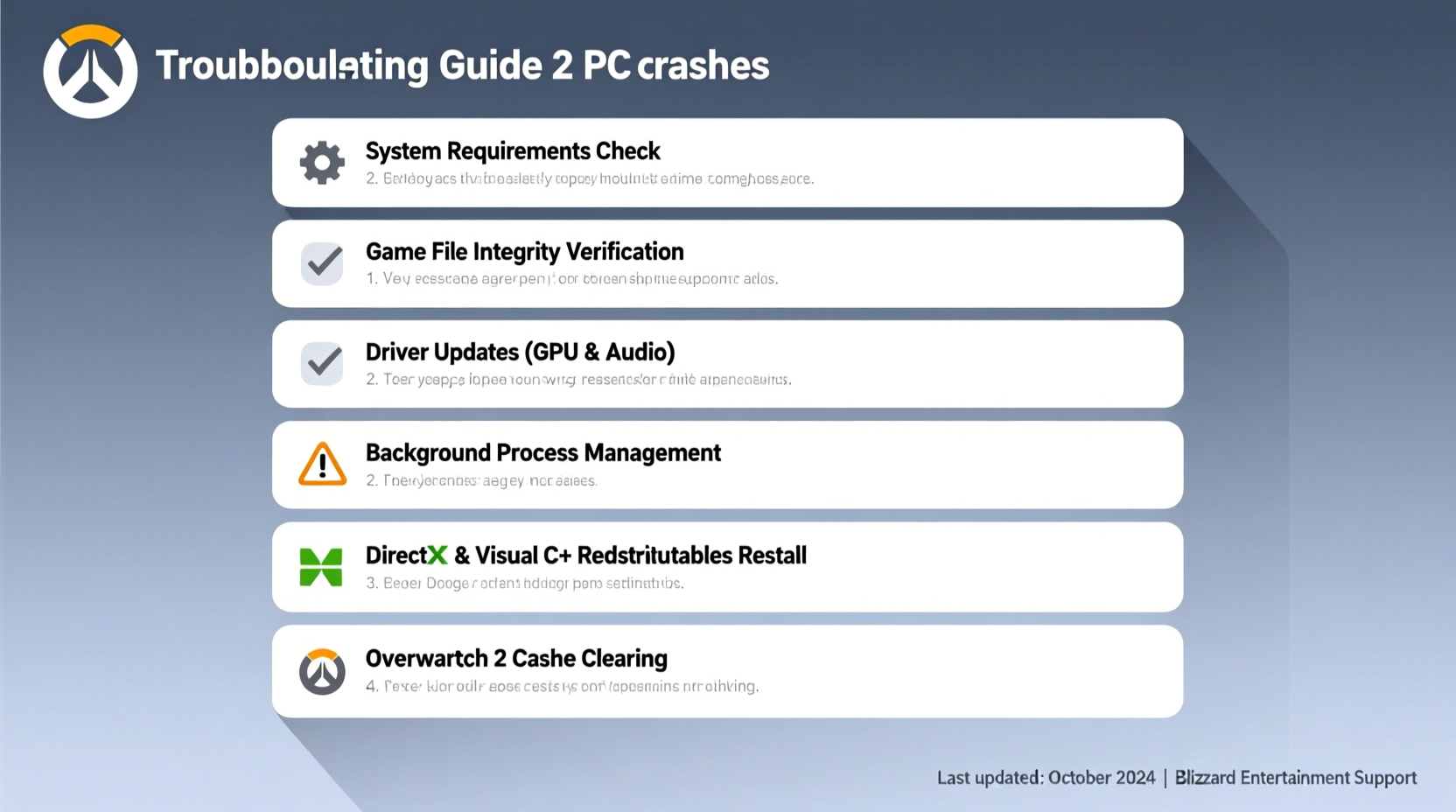
Before jumping into fixes, it’s essential to understand what typically triggers crashes in Overwatch 2. Unlike console platforms, PC environments introduce variability in hardware, drivers, and system configurations, making stability less predictable. Here are the primary culprits:
- Outdated or incompatible graphics drivers – GPU drivers play a critical role in rendering game visuals efficiently. Outdated versions may lack optimizations for newer patches or cause memory leaks.
- Corrupted or missing game files – Digital distribution platforms like Battle.net occasionally fail to verify or update files correctly, leading to instability.
- Inadequate system resources – Running too many background applications while playing can starve Overwatch 2 of RAM or CPU cycles.
- Overheating components – Sustained high temperatures, especially on laptops or poorly ventilated systems, can trigger thermal throttling or forced shutdowns.
- Conflicting third-party software – Antivirus tools, overlay apps (Discord, GeForce Experience), or screen recorders may interfere with game processes.
- Windows OS issues – Missing updates, incorrect power settings, or damaged system files can destabilize game execution.
Step-by-Step Troubleshooting Guide
Follow this structured approach to isolate and resolve crash issues. Begin with basic checks and progress to more advanced solutions only if necessary.
- Restart your system and router
A simple reboot clears temporary glitches in both the operating system and network stack. This often resolves soft crashes caused by memory fragmentation or driver hiccups. - Verify game files via Battle.net launcher
Open the Battle.net app, select Overwatch 2, click the gear icon, and choose “Scan and Repair.” This checks for file corruption and replaces damaged assets automatically. - Update your graphics drivers
Visit NVIDIA, AMD, or Intel’s official website (depending on your GPU) and download the latest WHQL-certified driver. Avoid beta versions unless specifically recommended for Overwatch 2. - Close unnecessary background applications
Use Task Manager (Ctrl+Shift+Esc) to end non-essential processes, especially those consuming high CPU, RAM, or disk usage. Common offenders include Chrome tabs, Discord overlays, and cloud sync tools. - Run the game as administrator
Right-click the Overwatch 2 shortcut, go to Properties > Compatibility, and check “Run this program as an administrator.” This ensures full access to system resources and avoids permission-related crashes. - Adjust in-game graphics settings
Lower resolution, disable V-Sync, reduce texture quality, and turn off ray tracing if enabled. High settings can overwhelm older GPUs or integrated graphics. - Disable fullscreen optimizations
In the game’s executable properties (right-click .exe file > Properties > Compatibility), enable “Disable fullscreen optimizations.” This prevents Windows from interfering with display handling. - Check for Windows updates
Navigate to Settings > Update & Security > Windows Update. Install any pending updates, including optional driver updates from Microsoft. - Clean boot your PC
Perform a clean boot using System Configuration (msconfig) to rule out software conflicts. Disable all non-Microsoft startup items and services, then test the game. - Monitor hardware temperatures
Use tools like MSI Afterburner or HWMonitor to track GPU and CPU temps during gameplay. Sustained temperatures above 85°C indicate cooling problems that may cause crashes.
When Crashes Occur at Specific Times
The timing of a crash can offer diagnostic clues:
- Crash on launch: Likely due to missing dependencies (e.g., Visual C++ Redistributables), corrupted installation, or driver incompatibility.
- Crash during hero selection or map load: Often tied to memory allocation issues or shader compilation errors.
- Crash during active gameplay: Could indicate overheating, GPU driver timeout, or RAM limitations.
- Crash after audio cue or voice line: Rare but reported; may stem from audio driver bugs or corrupted sound files.
“Over 60% of reported crashes in Overwatch 2 are resolved through driver updates and file verification alone.” — Technical Support Lead, Blizzard Community Team
Do’s and Don’ts When Fixing Game Crashes
| Do | Don’t |
|---|---|
| Regularly update GPU drivers from official sources | Rely solely on Windows Update for graphics drivers |
| Use the Battle.net repair tool weekly if issues persist | Delete game folders manually without reinstalling properly |
| Keep your PC well-ventilated and dust-free | Play extended sessions on laptops without cooling pads |
| Test stability after each change (don’t apply multiple fixes at once) | Ignore error codes or crash logs—they contain vital clues |
| Report consistent crashes to Blizzard with dxdiag and event logs | Assume the problem is entirely your fault—some bugs are client-side |
Real-World Example: Resolving Persistent Crashes on a Mid-Tier Gaming Rig
Consider the case of Mark, a competitive player using a mid-range desktop with an NVIDIA GTX 1660 Super, 16GB RAM, and an Intel i5-10400F. He experienced random crashes every 10–15 minutes, particularly during payload pushes. Initial attempts—restarting, lowering settings—failed. He verified game files (no issues found), updated his GPU driver, and still faced instability.
The breakthrough came when he monitored temperatures using MSI Afterburner. His GPU was hitting 88°C under load. Upon inspection, two case fans were not spinning due to a loose power connection. After reseating the cables and cleaning dust from the heatsink, temperatures dropped to 72°C, and crashes ceased entirely.
This example underscores a crucial point: symptoms may appear software-related, but the root cause can be physical. Always consider thermal and hardware health alongside digital fixes.
Advanced Fixes for Stubborn Issues
If standard steps don’t resolve the problem, explore deeper interventions:
Reinstall Visual C++ and DirectX Components
Overwatch 2 relies on Microsoft Visual C++ Redistributables and DirectX runtime libraries. Corrupted or missing versions can lead to sudden closures.
- Download the latest Visual C++ Redistributable packages (x64 and x86) from Microsoft’s site.
- Reinstall DirectX End-User Runtime from the official Microsoft archive.
- Restart your PC after installation.
Modify Launch Options
Add command-line arguments through the Battle.net launcher to bypass known instability triggers:
-windowed -noborder: Forces borderless windowed mode, which some users find more stable than fullscreen.-dx11: Forces DirectX 11 even if DX12 is available (helpful if DX12 causes renderer crashes).-high: Sets process priority to high (use cautiously; may affect other apps).
Clear Shader Cache
Over time, compiled shaders can become bloated or corrupt, especially after major updates.
- Navigate to
C:\\Users\\[YourUsername]\\AppData\\Local\\Blizzard Entertainment\\Battle.net\\ShaderCache. - Delete all contents inside the folder (do not delete the folder itself).
- Launch the game—it will regenerate shaders, which may take a few minutes.
Frequently Asked Questions
Why does Overwatch 2 crash only during multiplayer matches?
This often relates to network stress combined with high graphical demands. Packet loss or latency spikes can desynchronize client data, triggering a crash. Ensure your internet connection is stable and close bandwidth-heavy apps (streaming, downloads).
Can overclocking cause Overwatch 2 to crash?
Yes. Overclocked CPUs or GPUs—even mildly—can become unstable under sustained gaming loads. Return components to stock speeds temporarily to test stability. If crashes stop, gradually reapply overclocks with stress testing between stages.
Does disabling Ray Tracing improve stability?
Absolutely. Ray tracing significantly increases GPU workload and memory usage. On mid-tier or older GPUs, enabling it can push the system beyond its limits, causing crashes. Disable it in the video settings unless your hardware explicitly supports it.
Final Checklist: What to Do When Overwatch 2 Crashes
- Restart your PC and router.
- Verify game files using Battle.net’s repair tool.
- Update graphics drivers from the manufacturer’s site.
- Close background apps consuming CPU/RAM.
- Run Overwatch 2 as administrator.
- Disable fullscreen optimizations in compatibility settings.
- Lower in-game graphics settings temporarily.
- Check system temperatures during gameplay.
- Perform a clean boot to rule out software conflicts.
- Contact Blizzard Support with crash logs if unresolved.
Conclusion: Regain Control Over Your Gameplay
Overwatch 2 crashing on PC doesn’t have to be a permanent setback. With methodical troubleshooting, most stability issues are resolvable using a combination of software updates, configuration tweaks, and hardware awareness. The key is patience—apply one fix at a time, test thoroughly, and document results. You’re not just fixing a crash; you’re optimizing your entire gaming environment for better performance across all titles.




 浙公网安备
33010002000092号
浙公网安备
33010002000092号 浙B2-20120091-4
Comments
No comments yet. Why don't you start the discussion?