
Roblox has become a cornerstone of online gaming, especially for younger users who enjoy its creative freedom and social features. However, many Chromebook users report frequent and random crashes when playing the game. Unlike high-end PCs or consoles, Chromebooks operate on limited hardware and rely heavily on browser performance and internet stability. When Roblox suddenly closes without warning, it disrupts gameplay, frustrates users, and can even result in lost progress. Understanding the root causes and knowing how to address them can make the difference between a smooth experience and constant interruptions.
Understanding Why Roblox Crashes on Chromebooks
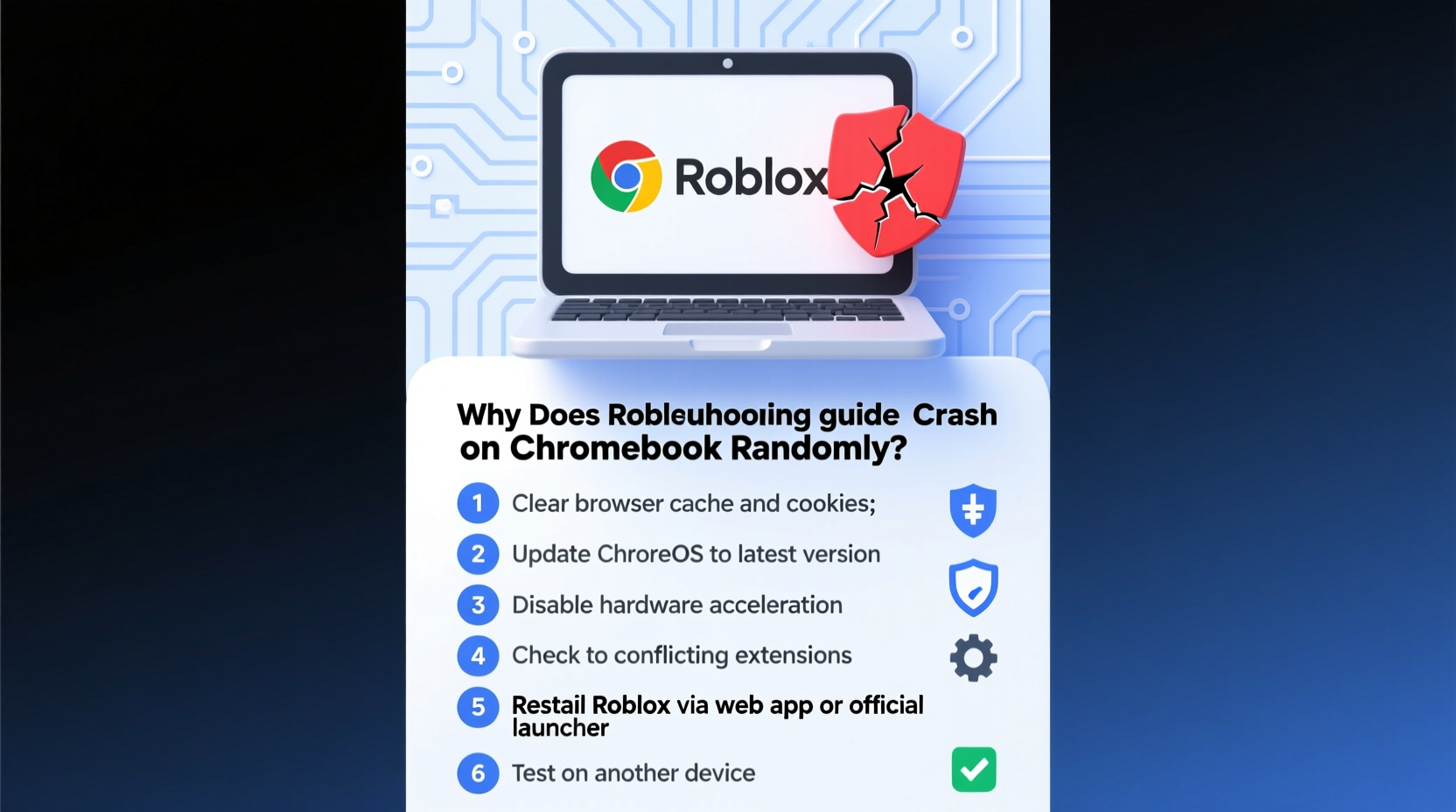
Chromebooks are designed primarily for web-based tasks like browsing, email, and light productivity. While they’ve improved significantly over the years, running resource-intensive applications like Roblox—especially through a browser—can push their limits. Roblox isn’t just a simple website; it’s a 3D game platform that requires consistent processing power, memory, and graphics rendering. When any part of this system falters, the app or browser tab may crash.
Common reasons include insufficient RAM, outdated software, browser overload, poor internet connection, and background processes consuming resources. Additionally, Chromebooks often use ARM-based processors or low-power Intel chips, which aren’t optimized for sustained gaming workloads. The combination of these factors makes crashes more likely during peak gameplay moments, such as entering crowded servers or loading complex worlds.
“Many Chromebooks are not built with gaming in mind. Running Roblox is essentially asking an office device to perform like a gaming laptop—and that mismatch leads to instability.” — Jordan Lee, EdTech & Device Performance Analyst
Step-by-Step Troubleshooting Guide
When Roblox crashes unexpectedly, follow this structured approach to identify and resolve the issue:
- Restart Your Chromebook – A simple reboot clears temporary files and resets active processes. Many crashes stem from accumulated background activity.
- Close Unnecessary Browser Tabs and Apps – Each open tab consumes memory. Close unused tabs, extensions, and Android apps running in the background.
- Check Internet Connection – Use a wired Ethernet connection if possible, or move closer to your Wi-Fi router. Test speed via Google’s network test.
- Clear Browser Cache and Cookies – Go to Settings > Privacy and Security > Clear Browsing Data. Select “All time” and check all boxes except passwords.
- Update Chrome OS – Outdated systems can cause compatibility issues. Navigate to Settings > About Chrome OS > Check for Updates.
- Reinstall the Roblox App (if using Android version) – Uninstall and reinstall Roblox from the Google Play Store to fix corrupted files.
- Disable Hardware Acceleration Temporarily – In Chrome settings, go to System and toggle off “Use hardware acceleration when available.” Test Roblox performance afterward.
Optimizing Chromebook Performance for Roblox
Preventing crashes means proactively managing your Chromebook’s environment. Since you can’t upgrade internal hardware, focus on software and usage habits.
- Limit Background Activity: Avoid running multiple Android apps or streaming music while playing Roblox.
- Use Guest Mode for Gaming: Create a guest profile with minimal extensions and apps. This reduces interference and improves performance.
- Play During Off-Peak Hours: Server congestion on Roblox can increase lag and crash likelihood. Try playing early in the morning or late afternoon.
- Adjust In-Game Graphics Settings: Lower graphic quality within Roblox by going to Settings > Graphics Mode > Manual, then reduce the slider.
Additionally, consider using the desktop site version of Roblox instead of the mobile app if you're on a newer Chromebook. The desktop version often runs more smoothly due to better optimization for keyboard and mouse navigation.
Performance Optimization Checklist
- ✅ Restart Chromebook before launching Roblox
- ✅ Close all unnecessary tabs and apps
- ✅ Ensure Chrome OS is up to date
- ✅ Clear browsing data at least once a week
- ✅ Set Roblox graphics mode to 5–6 for balance
- ✅ Disable non-essential Chrome extensions
- ✅ Connect to a stable, high-speed Wi-Fi network
- ✅ Avoid multitasking while playing
Common Mistakes That Trigger Crashes
Even experienced users sometimes overlook basic habits that contribute to instability. Here are some common pitfalls:
| Mistake | Why It Causes Issues | How to Fix |
|---|---|---|
| Running too many Chrome extensions | Extensions consume RAM and CPU, reducing resources for Roblox | Disable or remove unused extensions under chrome://extensions |
| Using outdated versions of Chrome OS | Older builds may lack security patches or performance improvements | Regularly check for updates in Settings |
| Playing on public Wi-Fi networks | Unstable connections cause latency and disconnections | Use home Wi-Fi or a trusted hotspot with strong signal |
| Leaving the Chromebook plugged in constantly | Overheating degrades performance and battery health | Allow occasional discharge cycles and avoid blocking vents |
| Ignoring storage space | Low disk space slows down system operations | Delete old downloads and clear cache regularly |
Real Example: How One Student Fixed Daily Crashes
A 13-year-old student in Portland reported that Roblox crashed every 10–15 minutes on her school-issued Acer Chromebook. She followed generic advice online but saw no improvement. After consulting with her tech-savvy cousin, they discovered she had over 30 browser tabs open across two windows, including YouTube videos and Google Classroom assignments. Her Chromebook was also two major OS versions behind.
The solution involved three steps: first, updating Chrome OS; second, creating a dedicated “gaming session” profile with only Roblox open; third, lowering the graphics mode inside Roblox to level 5. After implementing these changes, the crashes stopped entirely. She now plays for up to an hour without interruption. This case highlights how small, overlooked issues can compound into major performance problems.
When to Consider Alternative Devices
Not all Chromebooks are capable of handling Roblox reliably. Entry-level models with 2GB or 4GB of RAM, especially those older than three years, struggle with modern games. If troubleshooting doesn’t resolve the issue, it may be time to evaluate whether your device is suitable.
Consider upgrading to a Chromebook with at least 8GB of RAM and an Intel Core i3 processor or better. Alternatively, access Roblox from a more powerful device like a Windows laptop, Mac, or gaming tablet. For families on a budget, used refurbished laptops often offer better value for gaming than new budget Chromebooks.
Frequently Asked Questions
Can I play Roblox on any Chromebook?
Most Chromebooks released after 2019 support Roblox either through the Chrome browser or the Google Play Store app. However, performance varies widely based on hardware. Devices with 4GB RAM or less may experience frequent crashes, especially in multiplayer games.
Does clearing cache delete my Roblox account?
No. Clearing browser cache removes temporary files but does not affect your login status or saved games. Your Roblox account is stored online, not locally. However, you may need to log back in after clearing cookies.
Why does Roblox crash only during certain games?
Some Roblox experiences are more graphically intensive than others. Games with large maps, many players, or advanced effects require more processing power. If your Chromebook struggles with these titles, try switching to simpler games or reducing graphics settings manually.
Expert Insight: What Developers Say
Roblox Corporation acknowledges that performance on lower-end devices remains a challenge. In a 2023 developer update, the company stated it was working on “lightweight client optimizations” specifically for ARM-based and low-memory devices. They also emphasized the importance of adaptive graphics scaling and efficient JavaScript rendering in the browser version.
“Our goal is to make Roblox accessible on as many devices as possible, but we also encourage users to understand their device’s limits. Stability starts with a clean system and realistic expectations.” — Roblox Engineering Team, Developer Blog, April 2023
This transparency underscores the reality: while improvements are ongoing, user-side maintenance plays a critical role in ensuring a stable experience.
Final Recommendations for Long-Term Stability
To minimize crashes and enjoy a smoother Roblox experience on your Chromebook, adopt a routine of proactive maintenance. Treat your Chromebook like a performance-sensitive tool rather than a passive browsing device. Schedule weekly restarts, monitor storage space, and keep software updated. Avoid installing unnecessary apps or extensions that run in the background.
If you're a parent helping a child with Roblox issues, consider setting up a dedicated user profile just for gaming. This isolates the environment from schoolwork and other activities, reducing conflicts and improving reliability. Teach responsible usage habits early—such as closing tabs after use and avoiding excessive multitasking—to build long-term digital literacy.
Conclusion
Random Roblox crashes on Chromebooks are frustrating but often preventable. By understanding the limitations of your device and applying targeted fixes—from clearing cache to managing system resources—you can significantly improve stability and gameplay duration. While Chromebooks weren’t designed for heavy gaming, smart optimization allows many users to enjoy Roblox successfully. Don’t accept constant crashes as inevitable. With the right approach, you can reclaim control and get back to building, playing, and connecting.




 浙公网安备
33010002000092号
浙公网安备
33010002000092号 浙B2-20120091-4
Comments
No comments yet. Why don't you start the discussion?