
Roblox is a global phenomenon, attracting millions of players daily with its user-generated games and social experiences. But even with a strong internet connection, many users report frustrating lag—choppy gameplay, delayed responses, or sudden disconnections. This inconsistency can be baffling: if your Wi-Fi speed tests show excellent results, why does Roblox still stutter?
The truth is, internet speed alone doesn’t guarantee smooth performance in online games. Roblox’s stability depends on a complex interplay between network quality, device hardware, server-side conditions, and in-game settings. Understanding the root causes behind lag—even on high-speed connections—is essential for fixing it effectively.
Understanding the Difference Between Speed and Latency
One of the most common misconceptions is equating \"fast internet\" with \"no lag.\" While download and upload speeds determine how quickly data moves, they don’t account for latency—the time it takes for a signal to travel from your device to the game server and back. This round-trip delay, measured in milliseconds (ms), is what truly affects real-time responsiveness in gaming.
For example, you might have a 300 Mbps connection but still experience 150 ms ping due to routing inefficiencies or distant servers. In fast-paced Roblox games like Blood Warfare or Arsenal, even 80–100 ms can feel sluggish compared to competitive standards where under 40 ms is ideal.
“High bandwidth doesn’t equal low latency. Gamers often overlook packet loss and jitter—two silent killers of online performance.” — Jordan Lee, Network Engineer at GameOptimize Labs
Latency isn’t just about distance. It’s influenced by:
- Routing path efficiency between your ISP and Roblox servers
- Network congestion during peak hours
- Wi-Fi interference or signal degradation
- Background applications consuming bandwidth
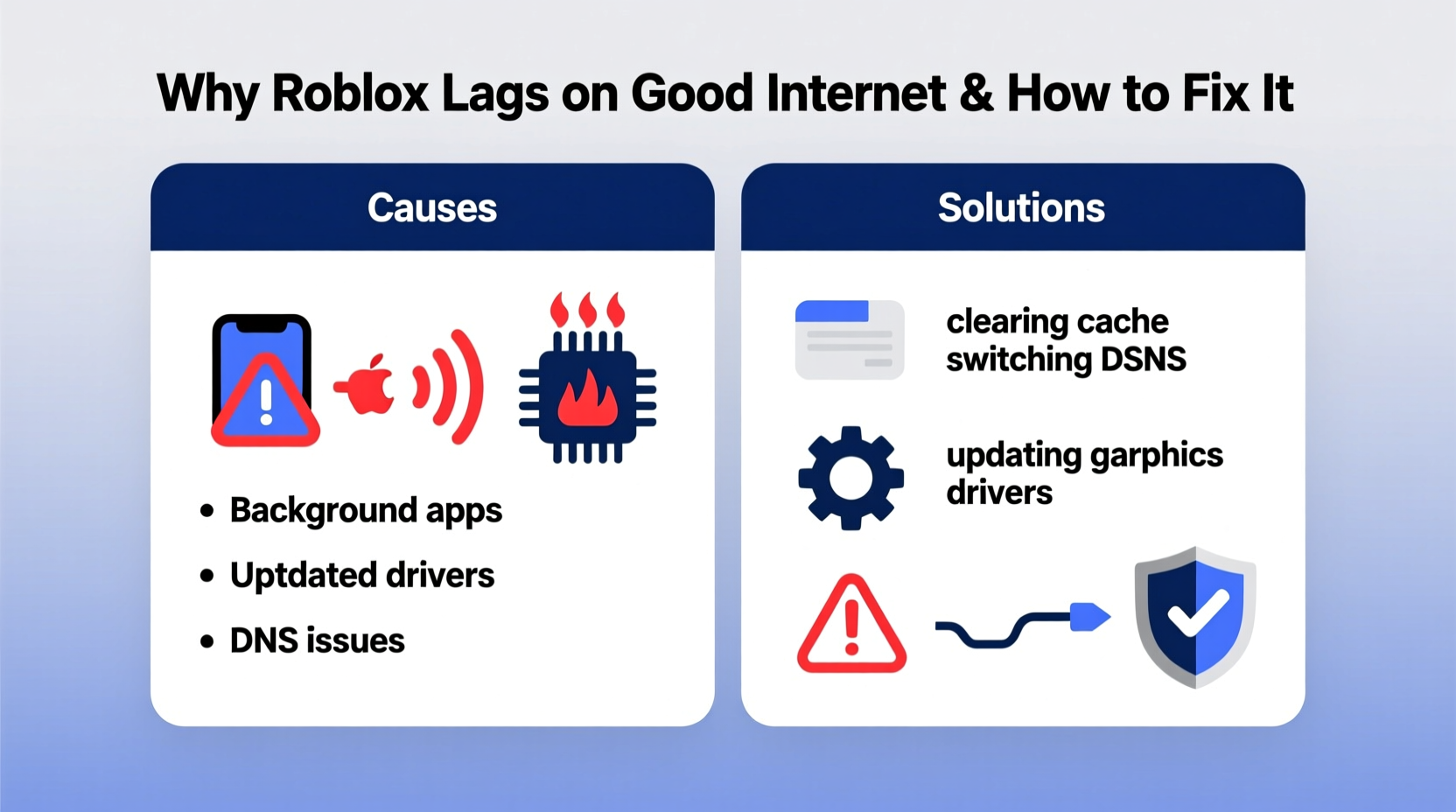
Common Causes of Roblox Lag Despite Good Internet
Even when your internet appears stable, several factors can degrade Roblox performance:
1. Suboptimal Server Selection
Roblox automatically assigns players to servers based on proximity, but this system isn’t flawless. Sometimes, you're routed to an overloaded or geographically distant server, increasing latency regardless of your local connection quality.
2. Device Hardware Limitations
Your computer or tablet may struggle to keep up with rendering demands. Low RAM, outdated graphics drivers, or CPU bottlenecks cause frame drops that mimic network lag. The game appears to “freeze” momentarily, even though your internet remains steady.
3. Background Bandwidth Usage
Other devices or apps on your network—like streaming services, cloud backups, or automatic updates—can consume bandwidth unpredictably. Even if your total speed seems sufficient, these activities introduce jitter and packet delays that disrupt real-time gameplay.
4. Wi-Fi vs. Ethernet Instability
Wireless connections are inherently less reliable than wired ones. Signal interference from walls, appliances, or neighboring networks introduces micro-delays and packet loss. These fluctuations aren't always visible in speed tests but severely impact gaming consistency.
5. Roblox Client or Script Overload
Some Roblox experiences use poorly optimized scripts or excessive assets. When hundreds of objects update simultaneously, even powerful devices can struggle. This is especially true in crowded games where client-side processing spikes.
6. ISP Throttling or Peering Issues
Although rare, some ISPs throttle traffic to specific platforms during peak times. Additionally, peering disputes between your provider and Microsoft Azure (which hosts Roblox) can create routing detours, increasing latency without reducing overall speed.
Step-by-Step Guide to Fix Roblox Lag
Follow this structured troubleshooting process to identify and resolve the source of lag:
- Restart Your Network Equipment
Power cycle your modem and router. Unplug them for 30 seconds, then reconnect. This clears temporary glitches and refreshes IP assignments. - Switch to Ethernet
If possible, connect your device directly via Ethernet cable. Wired connections eliminate Wi-Fi interference and reduce latency variance. - Close Background Applications
Exit bandwidth-heavy programs: streaming apps, downloads, video calls, and cloud sync tools. Use Task Manager (Windows) or Activity Monitor (Mac) to spot hidden consumers. - Update Graphics Drivers
Outdated GPU drivers hurt rendering performance. Visit your graphics card manufacturer’s website (NVIDIA, AMD, Intel) to install the latest version. - Adjust Roblox Graphics Settings
In Roblox, press Esc → Settings → Graphics Mode → Select \"Manual.\" Lower the graphics quality slider to 3–5. Disable shadows and reflections to reduce load. - Clear Roblox Cache
Navigate to:
- Windows:%localappdata%\\Roblox\\logsand delete all files
- Mac:~/Library/Logs/Roblox
Clearing logs and temp files prevents memory bloat over time. - Change DNS Servers
Use faster DNS resolvers like Google DNS (8.8.8.8, 8.8.4.4) or Cloudflare (1.1.1.1). This speeds up domain lookups and can improve connection stability. - Test During Off-Peak Hours
Play outside 6 PM – 10 PM local time. Network congestion decreases after midnight, often improving server responsiveness. - Verify Server Region
In-game, check the top-right corner for server location. If it shows a faraway region (e.g., you’re in Canada but connected to a Florida server), exit and rejoin until you get a closer one. - Upgrade Hardware if Necessary
Ensure your device meets minimum specs: quad-core processor, 4GB+ RAM, dedicated GPU (or modern integrated graphics like Apple M1/M2 or Intel Iris Xe).
Do’s and Don’ts: Optimizing Roblox Performance
| Action | Do | Don’t |
|---|---|---|
| Connection Type | Use Ethernet whenever possible | Rely solely on 2.4 GHz Wi-Fi in congested areas |
| Graphics Settings | Set quality to manual level 4 or lower | Keep graphics on \"Automatic\" in busy games |
| Device Management | Close unused browser tabs and apps | Run antivirus scans mid-game session |
| Updates | Regularly update OS, drivers, and Roblox | Ignore system update notifications for weeks |
| Network Testing | Run ping tests to 104.17.144.0/20 (Roblox subnets) | Assume speed test = gaming performance |
Real Example: Solving Persistent Lag on a 500 Mbps Connection
Consider the case of Maya, a high school student in Denver who consistently experienced lag in Adopt Me! despite having a 500 Mbps fiber-optic connection. Her family wasn’t streaming or downloading during play sessions, yet her character would freeze every few minutes.
After testing, she discovered her laptop was connecting via Wi-Fi to a router two floors away. Using a Wi-Fi analyzer app, she found severe interference from nearby networks on the same channel. She switched to a 5 GHz band and moved closer to the router—latency dropped from 110 ms to 48 ms.
Next, she noticed her graphics were set to \"Automatic,\" which bumped up quality in visually rich areas of the game. Forcing it down to level 3 stabilized her FPS from fluctuating between 30–60 to a steady 60. Combined, these changes eliminated nearly all lag, proving that hardware and configuration mattered more than raw internet speed.
Checklist: Quick Fixes for Immediate Improvement
- ✅ Restart modem/router
- ✅ Connect via Ethernet instead of Wi-Fi
- ✅ Close all non-essential apps and browser tabs
- ✅ Set Roblox graphics mode to Manual (Level 3–5)
- ✅ Update graphics drivers
- ✅ Clear Roblox cache folder
- ✅ Change DNS to 1.1.1.1 or 8.8.8.8
- ✅ Test gameplay at different times of day
- ✅ Monitor ping and FPS using Shift+F5
- ✅ Reinstall Roblox if issues persist
Frequently Asked Questions
Can Roblox lag even with low ping?
Yes. A low ping only measures network round-trip time. Lag can still occur due to low frame rates caused by weak hardware, overheating, or inefficient game scripts. If your device can't render frames quickly enough, the game feels choppy regardless of network speed.
Does restarting the Roblox app help with lag?
Often, yes. Restarting clears temporary memory leaks and resets network connections. If the app has been running for hours, accumulated data can slow performance. Fully close Roblox from the task manager or force quit on mobile, then relaunch.
Is it better to play Roblox on PC or mobile to avoid lag?
Generally, PCs offer better performance due to superior processing power and cooling. Mobile devices throttle performance under heat and rely heavily on Wi-Fi. However, newer tablets and phones with strong chipsets (e.g., iPad Pro, Samsung Galaxy S series) can perform well if kept cool and connected via 5 GHz Wi-Fi or Ethernet adapters.
Final Thoughts and Action Plan
Lag in Roblox despite a strong internet connection is a multifaceted issue, not a simple bandwidth problem. True optimization requires looking beyond speed tests and addressing latency, device capability, software settings, and environmental factors.
The solution isn’t always upgrading your plan—it’s smarter configuration. From switching to Ethernet and lowering graphics settings to monitoring real-time performance metrics, each adjustment contributes to a smoother, more responsive experience.
Start with the checklist above. Implement one change at a time and test the results. Most users see noticeable improvements within 20 minutes of targeted troubleshooting. Don’t accept lag as inevitable; with the right approach, Roblox can run fluidly even on modest hardware, as long as the full ecosystem—from router to GPU—is aligned.




 浙公网安备
33010002000092号
浙公网安备
33010002000092号 浙B2-20120091-4
Comments
No comments yet. Why don't you start the discussion?