
In recent years, if you've downloaded an image from a website or viewed one on a mobile device, there's a good chance it was saved in WebP format—often without you even noticing. Developed by Google in 2010, WebP has steadily gained traction as a default image format across browsers, content management systems, and digital platforms. But why are images increasingly being saved as WebP? And what makes it different—or better—than traditional formats like JPEG, PNG, or GIF?
The answer lies in efficiency. WebP delivers smaller file sizes with comparable or superior visual quality, which translates into faster page loads, reduced bandwidth usage, and improved user experience. As internet traffic continues to grow and mobile browsing dominates, optimizing image delivery is no longer optional—it’s essential.
What Is WebP and How Does It Work?
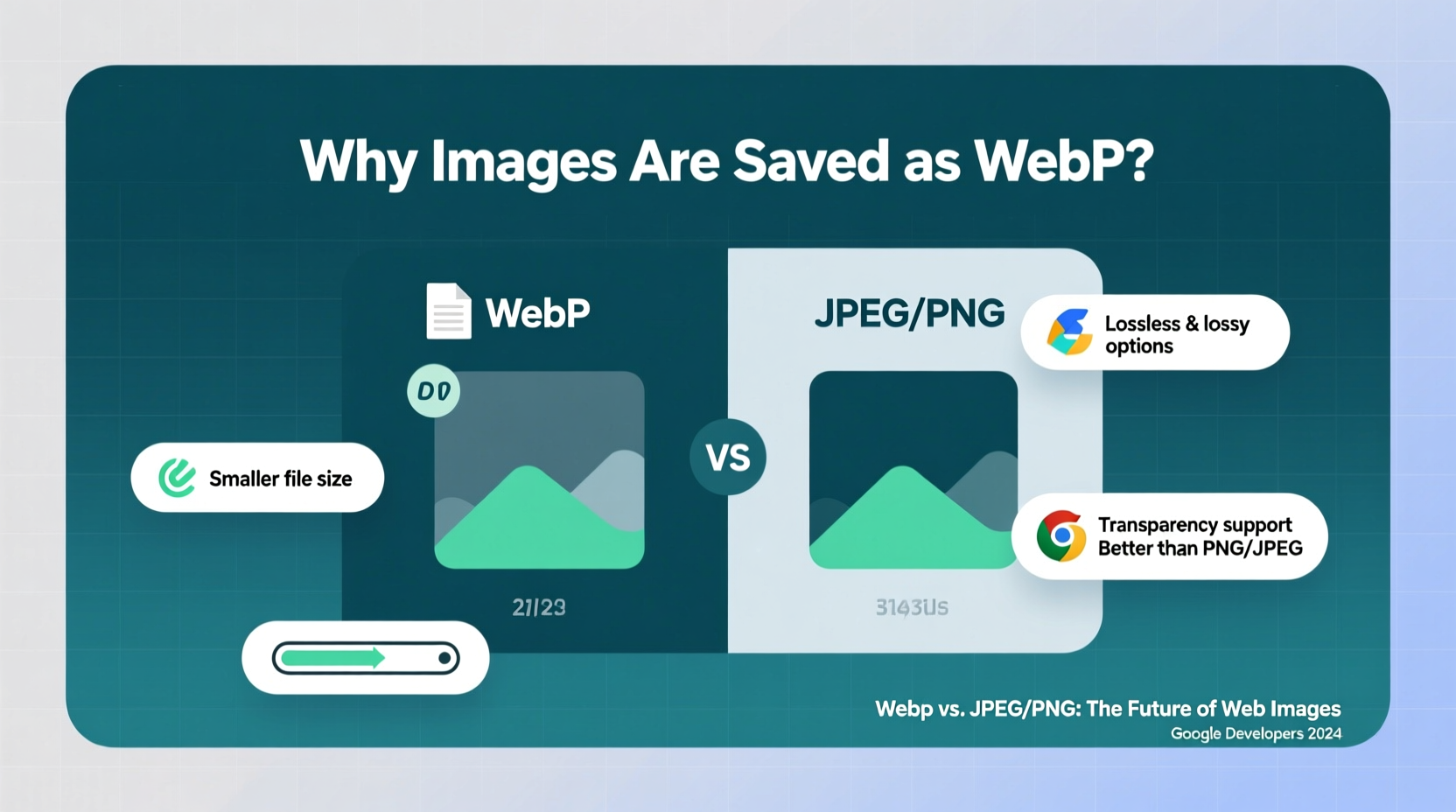
WebP is an image format that supports both lossy and lossless compression, along with transparency (alpha channel) and animation. It uses advanced compression techniques derived from the video codec VP8, allowing it to outperform older formats in most scenarios.
In lossy mode, WebP compresses images by discarding some data that the human eye is less likely to notice—similar to JPEG—but does so more efficiently thanks to predictive encoding. In lossless mode, it reconstructs the original pixel data exactly, yet still achieves up to 26% smaller files than PNG. For animated images, WebP can be 65% smaller than GIFs while supporting full color and transparency.
“WebP represents a significant leap in image efficiency. When implemented correctly, it reduces load times without sacrificing perceived quality.” — Adrian Burch, Web Performance Engineer at Mozilla
Comparing WebP to Other Image Formats
To understand why WebP is becoming the go-to choice, it helps to compare it directly with the most widely used alternatives. Each format has its strengths, but WebP often strikes the best balance between size, quality, and functionality.
| Format | Compression Type | Transparency | Animation | Average File Size Reduction vs. Legacy Format |
|---|---|---|---|---|
| JPEG | Lossy only | No | No | Baseline (N/A) |
| PNG | Lossless only | Yes | No | Baseline for transparency |
| GIF | Lossless, limited palette | Yes (binary) | Yes | Baseline for animation |
| WebP | Lossy & Lossless | Yes (full alpha) | Yes | 25–35% smaller than JPEG, 26% smaller than PNG, 65% smaller than GIF |
The table highlights WebP’s versatility. Unlike JPEG, it supports transparency. Unlike PNG, it offers lossy compression. And unlike GIF, it supports 24-bit colors and smoother animations—all while reducing file size significantly.
When Should You Use WebP—and When Should You Avoid It?
While WebP excels in many situations, it isn’t always the right choice. Adoption is high, but not universal. Consider these guidelines when deciding whether to save or serve images in WebP.
Best Use Cases for WebP
- E-commerce product images: Smaller files mean faster browsing, which improves conversion rates.
- Blogs and news sites: Page speed impacts SEO rankings; WebP helps meet Core Web Vitals thresholds.
- Mobile-first applications: Reduced bandwidth usage extends battery life and lowers data costs for users.
- Social media previews and thumbnails: High volume of images benefits greatly from compression.
Limited or Not Recommended
- Print or professional photography: WebP lacks support for CMYK or high-bit-depth color spaces required for print.
- Legacy browser environments: Older versions of Internet Explorer and some enterprise systems don't support WebP.
- Archival purposes: PNG remains preferable for preserving exact pixel data over decades.
How to Convert and Implement WebP Images
Switching to WebP doesn’t require a complete overhaul. Many tools and workflows make adoption seamless. Here’s a practical step-by-step guide for integrating WebP into your digital workflow.
- Assess browser support: Over 97% of global users now use WebP-compatible browsers (Chrome, Firefox, Edge, Safari 14+). If your audience skews toward modern devices, proceed confidently.
- Convert existing images: Use free tools like ImageMagick, cwebp (Google’s official encoder), or online converters such as Squoosh.app to batch-convert JPEG/PNG files to WebP.
- Set up responsive delivery: Use the HTML
<picture>element to serve WebP to compatible browsers and fall back to JPEG or PNG otherwise. - Automate via CDN or CMS: Platforms like WordPress (via ShortPixel or EWWW), Shopify, or Cloudinary can automatically generate and serve WebP versions based on user agent.
- Test performance gains: Use Lighthouse or WebPageTest to measure improvements in load time and overall score after deployment.
“We switched our entire media library to WebP and saw a 40% drop in average image payload. Our bounce rate decreased by 12% within three months.” — Lena Torres, Lead Developer at NovaStyle Online Retail
Real-World Example: A News Website’s Speed Transformation
A mid-sized digital news outlet was struggling with slow load times, especially on mobile networks. Their homepage loaded over 30 images, mostly in JPEG and PNG formats, totaling nearly 5MB. After analyzing their traffic, they found that 94% of visitors used WebP-compatible devices.
Their team converted all featured images to WebP using automated scripts and implemented <picture> tags for backward compatibility. They also enabled server-side detection through their CDN to serve WebP only when supported.
The result? Total image payload dropped to 2.8MB—a 44% reduction—without visible quality loss. Time to first meaningful paint improved by 1.8 seconds on 3G connections. Within two months, mobile session duration increased by 22%, and ad viewability rose due to faster rendering.
Frequently Asked Questions
Can I open WebP images on my computer?
Yes. Modern operating systems and applications support WebP natively. Windows 10/11 (with updates), macOS (Safari 14+), Chrome, Firefox, and Edge can all open WebP files. For older systems, install a codec or use an online viewer.
Does WebP support metadata like EXIF or XMP?
Yes, WebP supports metadata including EXIF (camera settings), XMP (copyright, captions), and ICC profiles (color management), though not all software reads them reliably yet. Always verify metadata retention after conversion.
Is WebP replacing JPEG and PNG entirely?
Not immediately. While WebP is gaining dominance online, JPEG and PNG remain entrenched in workflows involving print, legacy systems, and archival storage. However, for web and mobile delivery, WebP is increasingly the default choice.
Conclusion: Embrace the Future of Web Imaging
The shift toward WebP is more than a trend—it’s a response to real demands for speed, efficiency, and sustainability in digital media. As global data consumption rises, every kilobyte saved contributes to faster experiences and lower environmental impact from data transmission.
You don’t need to abandon JPEG or PNG overnight. But for any new project focused on the web, adopting WebP should be standard practice. With broad support, proven performance gains, and easy implementation pathways, there’s little reason to delay.




 浙公网安备
33010002000092号
浙公网安备
33010002000092号 浙B2-20120091-4
Comments
No comments yet. Why don't you start the discussion?