
For millions of players, Call of Duty is more than just a game—it’s a competitive arena where milliseconds matter. Yet, nothing disrupts the experience faster than lag: delayed inputs, rubberbanding, or sudden frame drops that turn a winning streak into frustration. While many assume lag stems from their internet connection, the truth is often more complex. Server-side bottlenecks, network routing inefficiencies, and misconfigured client settings all contribute to performance issues. Understanding the root causes—and how to address them—can transform your gameplay from sluggish to seamless.
Understanding the Causes of Lag in Call of Duty
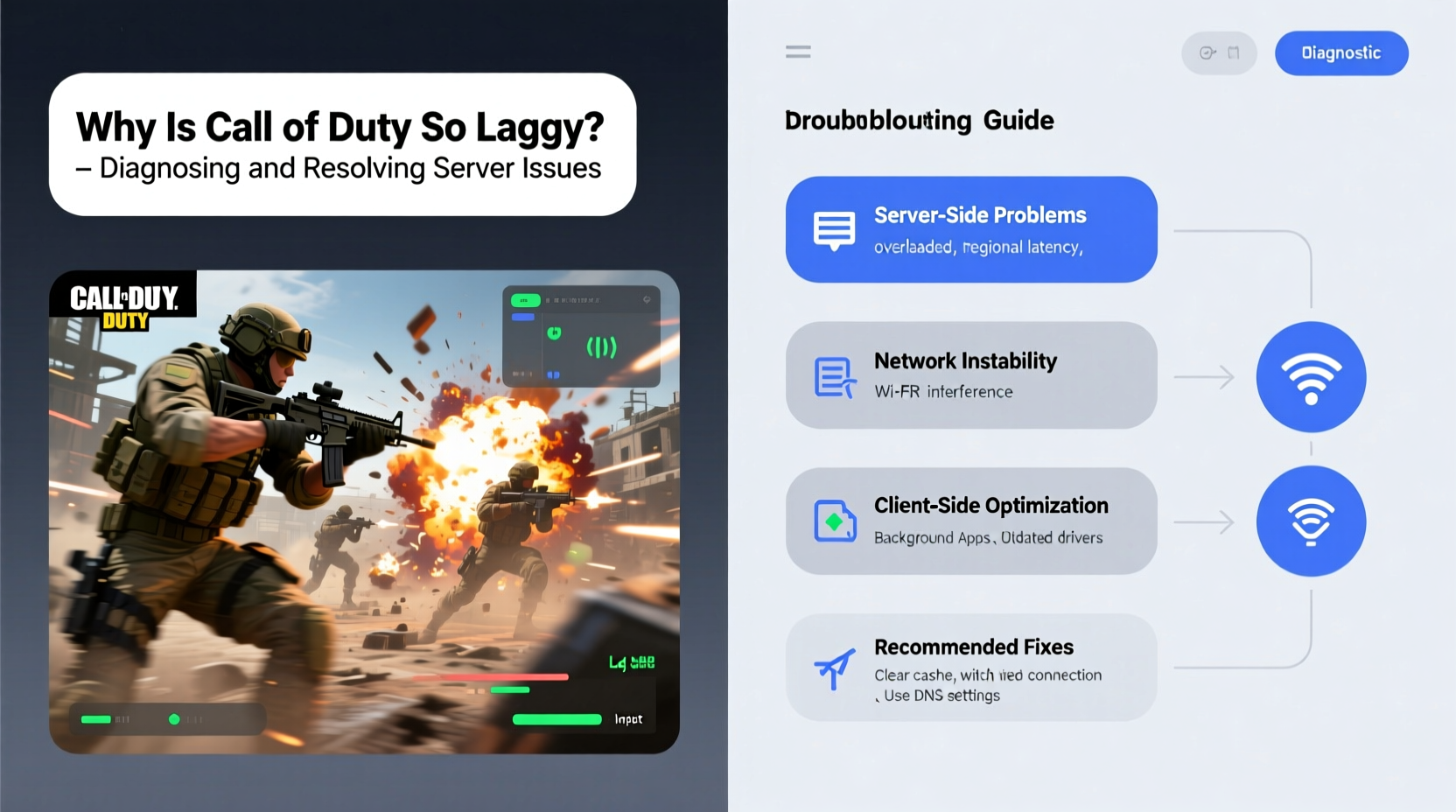
Lag in Call of Duty isn’t a single issue but a symptom of multiple potential problems. It can originate from your local network, your device, or the game servers themselves. The most common types include:
- High ping: Delay between your input and the server’s response, often due to distance or poor routing.
- Packet loss: Data sent from your device fails to reach the server, causing stuttering or disconnections.
- Jitter: Inconsistent latency that makes movement unpredictable.
- Server overload: Too many players on one server, especially during peak hours or major updates.
Modern Call of Duty titles like Modern Warfare III and Warzone rely on centralized data centers. If those servers are geographically distant or overwhelmed, even a perfect home network won’t prevent lag. Additionally, Activision’s matchmaking system prioritizes skill-based grouping over proximity, which may place you on a server thousands of miles away.
Step-by-Step Guide to Diagnose and Fix Lag
Before blaming your ISP or console, follow this systematic approach to isolate and resolve lag sources.
- Check your current connection status
In-game, open the scoreboard (usually Tab or Up on D-pad) to view your ping and packet loss. A ping under 50ms is ideal; above 100ms indicates noticeable delay. - Restart your router and console/PC
Power cycle all devices. This clears temporary glitches and renews IP leases, often improving stability. - Switch to a wired connection
Wi-Fi introduces interference and signal degradation. Ethernet provides a direct, stable path to your router. - Test your internet speed
Use fast.com or speedtest.net. For smooth CoD gameplay, aim for at least 15 Mbps download and 3 Mbps upload, with low jitter (<30ms). - Close bandwidth-heavy applications
Streaming services, cloud backups, and downloads consume bandwidth. Pause them during gameplay. - Forward ports used by Call of Duty
Port forwarding helps maintain consistent connections. Key ports include:- TCP: 3074, 3478–3480
- UDP: 3074, 3478–3479, 27000–27200
- Enable UPnP (Universal Plug and Play)
Allows your console to automatically configure port settings. Enable it in your router settings if port forwarding seems too technical.
Do’s and Don’ts When Troubleshooting Server Lag
| Do’s | Don’ts |
|---|---|
| Use a gaming-optimized DNS (e.g., Google DNS: 8.8.8.8 or Cloudflare: 1.1.1.1) | Ignore firmware updates for your router |
| Play during off-peak hours (early morning or midday) | Run large downloads while gaming |
| Verify server status via Downdetector or Activision Support Twitter | Assume the problem is always on your end |
| Update your network drivers (PC) or console system software | Use public Wi-Fi for multiplayer matches |
Real Example: Resolving Persistent Lag in Warzone
Jason, a dedicated Warzone player from Minneapolis, experienced constant rubberbanding despite having a 200 Mbps fiber connection. His in-game ping fluctuated between 120 and 220 ms. After testing his connection, he discovered high packet loss on hop #7 in his network route—likely an overloaded regional node. He switched his DNS to Cloudflare’s 1.1.1.1 and enabled Quality of Service (QoS) settings on his router to prioritize his console’s traffic. He also adjusted his router’s MTU size to 1450 to reduce fragmentation. Within 24 hours, his average ping dropped to 68 ms with zero packet loss. The change wasn’t in raw speed, but in smarter data handling.
“Many players overlook routing efficiency. It’s not just about bandwidth—it’s about the path your data takes.” — David Lin, Network Infrastructure Engineer at a major ISP
When the Problem Is Server-Side: What You Can’t Control
Sometimes, no amount of local optimization helps because the issue lies within Activision’s infrastructure. During seasonal launches or major updates, servers face unprecedented load. Matchmaking queues spike, and backend systems struggle to keep up. In 2023, the launch of Warzone 2.0 saw widespread complaints of desync and spawn killing due to server instability.
Activision uses AWS-powered data centers globally, but coverage isn’t uniform. Players in regions like South America, Southeast Asia, or Eastern Europe often connect to distant hubs, increasing latency. While the company has expanded server locations, edge coverage remains limited.
In such cases, monitor official channels:
- Activision Support Status
- @CallofDuty on X (formerly Twitter)
- Downdetector reports for real-time user feedback
Advanced Fixes for PC Players
PC gamers have additional tools to combat lag beyond basic troubleshooting.
- Adjust in-game network settings: Lower render distance, disable motion blur, and cap frame rate to reduce GPU load and improve input consistency.
- Use a gaming VPN: Services like ExitLag or WTFast reroute traffic through optimized paths, bypassing congested nodes. Note: Only use reputable providers to avoid security risks.
- Disable background overlays: Discord, Steam, or GeForce Experience overlays can introduce micro-stutters. Disable them during intense sessions.
- Update NIC drivers: Outdated network interface card drivers can cause packet loss. Check your motherboard or laptop manufacturer’s website for updates.
FAQ
Why is my ping high even with a fast internet connection?
Ping depends on physical distance to the server and routing efficiency, not just bandwidth. Even with gigabit speeds, a poorly routed connection or distant server location can result in high latency.
Does restarting my router really help with lag?
Yes. Routers accumulate cached data and temporary errors over time. Restarting clears memory, refreshes the connection to your ISP, and can resolve routing issues—often improving both speed and stability.
Can other people in my house affect my Call of Duty performance?
Absolutely. Simultaneous streaming, video calls, or large downloads consume shared bandwidth. Set up QoS rules on your router to prioritize gaming traffic, or schedule heavy usage outside playtimes.
Conclusion: Take Control of Your Gaming Experience
Lag in Call of Duty doesn’t have to be inevitable. While some factors—like server load or regional infrastructure—are beyond your control, a significant portion of performance issues stem from correctable local conditions. From switching to wired connections and optimizing DNS settings to monitoring server health and adjusting network hardware, each step brings you closer to responsive, fluid gameplay. The difference between a frustrating match and a flawless victory often comes down to preparation. Apply these strategies consistently, stay informed about server status, and make your connection work for you—not against you.




 浙公网安备
33010002000092号
浙公网安备
33010002000092号 浙B2-20120091-4
Comments
No comments yet. Why don't you start the discussion?