
Google Chrome remains the world’s most popular web browser, known for its speed, simplicity, and integration with Google services. Yet, even the fastest tools can falter over time. If you’ve noticed Chrome becoming sluggish—tabs freezing, pages loading slowly, or memory usage spiking—it’s not just in your head. Performance degradation affects millions of users, especially as websites grow more complex and extensions multiply. The good news: most slowdowns are fixable. With a mix of optimization techniques, smart habits, and system awareness, you can restore Chrome to peak performance in 2025.
Understanding Why Chrome Slows Down
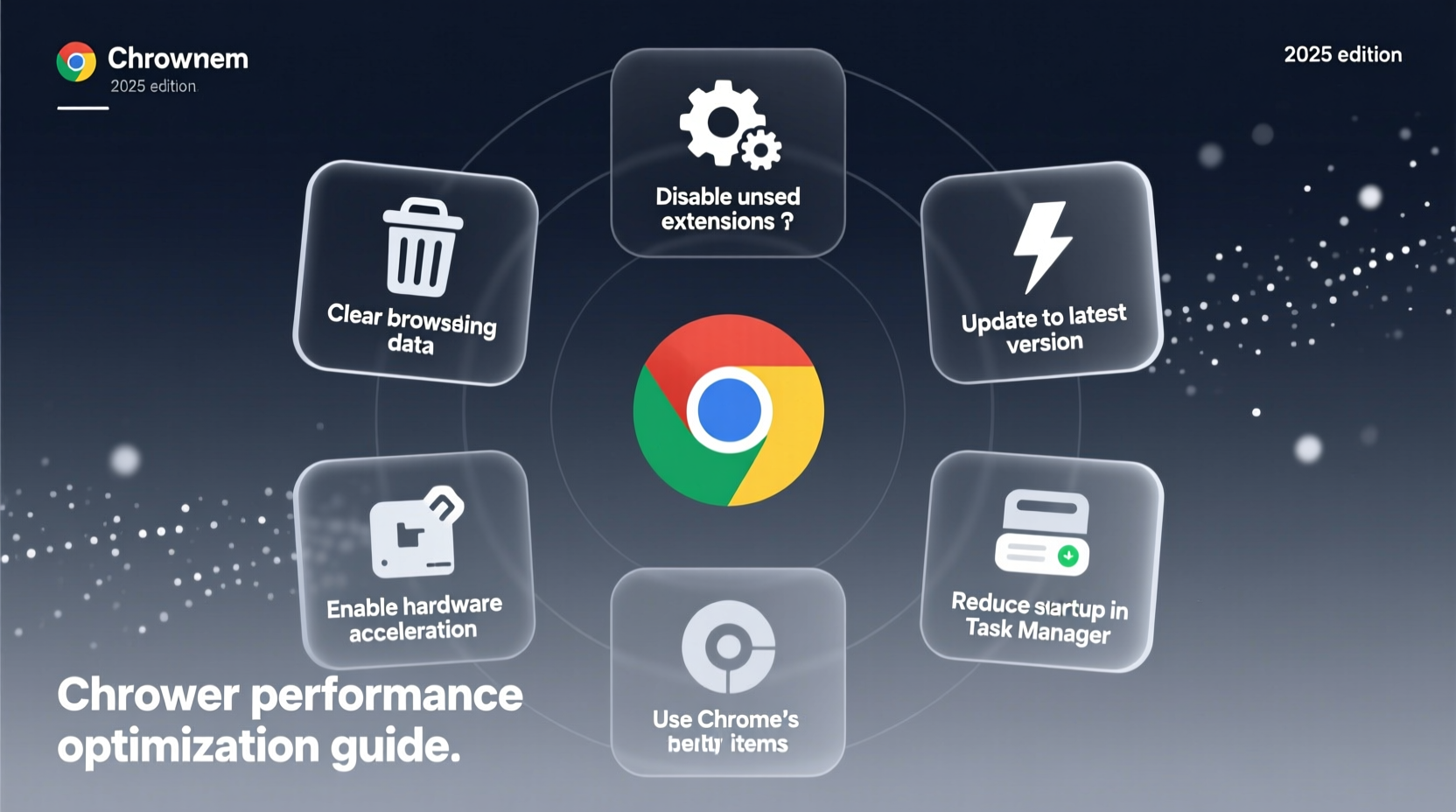
Chrome’s architecture is built on a multi-process model, meaning each tab, extension, and plugin runs in its own isolated process. This design improves stability and security but comes at a cost: high RAM consumption. Over time, factors like outdated software, bloated cache, misbehaving extensions, and background processes accumulate, dragging down performance.
Common culprits include:
- Too many open tabs: Each tab consumes memory. Ten tabs might use 2–3 GB of RAM collectively.
- Buggy or outdated extensions: Some add-ons run scripts continuously, slowing down browsing.
- Accumulated cache and cookies: While useful for quick loading, old data can cause conflicts.
- Hardware limitations: Older machines with limited RAM or HDDs (not SSDs) struggle with modern Chrome demands.
- Background apps and services: Syncing, updates, and predictive features eat CPU cycles.
“Chrome’s strength—its separation of processes—is also its weakness under heavy load. Managing resource allocation is key to maintaining speed.” — Dr. Lena Torres, Web Performance Analyst at Mozilla
Step-by-Step Guide to Speed Up Chrome in 2025
Follow this structured approach to diagnose and resolve Chrome slowness systematically.
- Check Task Manager for Resource Hogs
PressShift + Escinside Chrome to open its built-in Task Manager. Sort by Memory or CPU usage. Identify tabs or extensions consuming excessive resources and end them. - Update Chrome to the Latest Version
Go to Settings > About Chrome. An update will download automatically if available. Staying current ensures bug fixes and performance improvements. - Disable or Remove Unnecessary Extensions
Navigate to chrome://extensions. Disable all, then re-enable one by one while testing speed. Remove those that aren’t essential. - Clear Browsing Data Regularly
In Settings > Privacy and Security > Clear Browsing Data, select “All time” and check Cookies, Cached Images, and Hosted App Data. Avoid clearing passwords unless necessary. - Reset Chrome Settings (If Needed)
As a last resort, go to Settings > Reset Settings > Restore settings to their original defaults. This won’t delete bookmarks or saved passwords but will disable extensions and clear temporary settings.
Optimization Checklist for Peak Chrome Performance
Use this checklist monthly to maintain fast, responsive browsing:
- ✅ Update Chrome and your operating system
- ✅ Review and remove unused extensions
- ✅ Clear cache and cookies every 2–4 weeks
- ✅ Enable Memory Saver and Energy Saver modes
- ✅ Close unused tabs or use a tab suspender extension
- ✅ Scan for malware using Chrome’s built-in scanner (Settings > Security > Check for harmful apps)
- ✅ Disable hardware acceleration if causing instability (try toggling it off)
- ✅ Restart Chrome completely at least once a week
Do’s and Don’ts: Chrome Speed Best Practices
| Do’s | Don’ts |
|---|---|
| Use built-in performance features like Memory Saver | Install too many extensions without reviewing permissions |
| Keep fewer than 10 tabs open at once | Leave Chrome running in the background 24/7 |
| Use Chrome profiles to separate work and personal browsing | Ignore warning signs like constant spinning wheels or crashes |
| Run Chrome Cleanup Tool if suspicious behavior occurs | Store large files or media-heavy sites open indefinitely |
| Upgrade hardware when possible (e.g., add RAM or switch to SSD) | Assume slowness is always due to internet connection |
Real Example: How Sarah Regained Chrome Speed in 15 Minutes
Sarah, a freelance designer from Portland, relied on Chrome for client research, email, and Figma access. By early 2025, her browser had become nearly unusable—pages took 10+ seconds to load, and her laptop fan ran constantly. She assumed she needed a new machine. Instead, she followed a quick diagnostic routine.
Opening Chrome’s Task Manager revealed one extension—“Coupon Finder Pro”—was using 45% CPU despite being idle. She removed it immediately. Next, she cleared 1.2 GB of cached data and disabled hardware acceleration, which had been causing GPU conflicts on her older MacBook. Finally, she enabled Memory Saver and closed 18 inactive tabs.
The result? Chrome launched 60% faster, tab switching became instant, and overall system responsiveness improved. No hardware upgrade needed—just smart optimization.
Frequently Asked Questions
Why does Chrome slow down over time even if I don’t install anything new?
Even without new extensions, Chrome accumulates cached data, session storage, and background processes. Websites increasingly use heavy JavaScript frameworks, and automatic updates may introduce compatibility issues. Additionally, synced data across devices can bloat local profiles.
Is it better to use Chrome or an alternative like Firefox or Edge for performance?
It depends on your system and usage. Chrome excels in compatibility and sync with Google services but uses more RAM. Microsoft Edge, based on the same engine (Chromium), often performs slightly better on Windows due to deeper OS integration. Firefox uses less memory on long browsing sessions and prioritizes privacy. For low-RAM systems, Edge or Firefox may offer smoother experiences.
Can malware really affect Chrome’s speed?
Absolutely. Malicious browser hijackers or adware can inject scripts, redirect searches, and spawn hidden tabs. These run in the background, consuming CPU and network bandwidth. Chrome includes a built-in cleanup tool (Settings > Security > Clean up computer) that scans for such threats—run it monthly if you notice unexplained slowdowns.
Conclusion: Take Control of Your Browsing Experience
Chrome doesn’t have to be slow. The slowdowns many users experience are not inevitable—they’re symptoms of neglect, misconfiguration, or outdated practices. By understanding how Chrome uses system resources and applying consistent maintenance, you can reclaim speed, stability, and efficiency in 2025 and beyond.
Start today: audit your extensions, clear your cache, enable performance modes, and close unnecessary tabs. Small changes yield immediate results. A faster Chrome means more productive work, smoother streaming, and less frustration. Don’t wait for the next crash—optimize now.




 浙公网安备
33010002000092号
浙公网安备
33010002000092号 浙B2-20120091-4
Comments
No comments yet. Why don't you start the discussion?