
Players around the world have voiced frustration over persistent lag in Call of Duty titles—especially during peak multiplayer hours. Whether it's delayed gunfire responses, rubber-banding, or sudden disconnections, server lag can ruin even the most well-executed gaming sessions. While some assume the issue lies solely with their internet connection, the reality is more complex. Server infrastructure, network routing, game optimization, and regional disparities all contribute to performance issues. Understanding the root causes and implementing targeted fixes can dramatically improve your experience.
Understanding the Causes of COD Server Lag
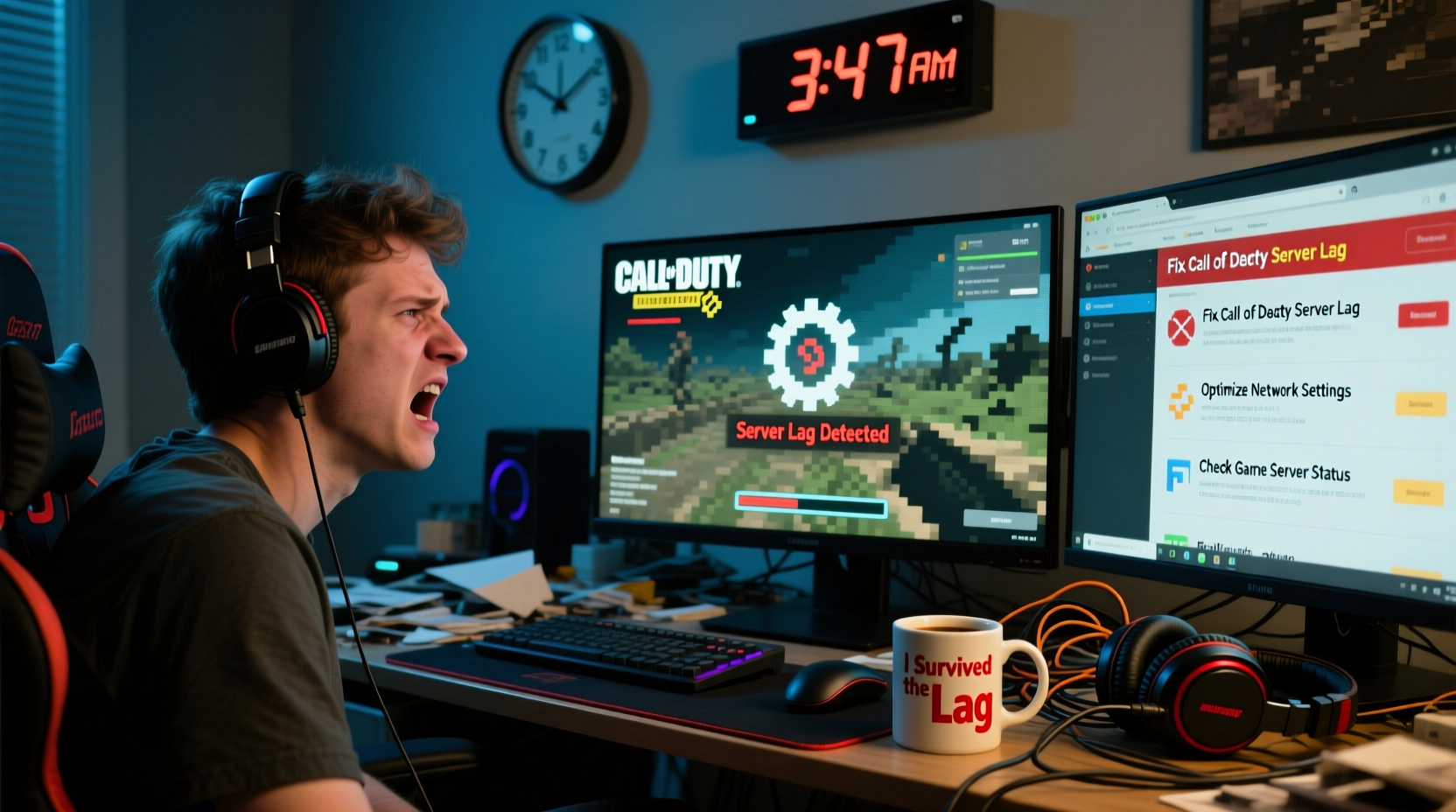
Lag in Call of Duty isn’t a single-issue problem. It stems from a combination of client-side, server-side, and network-related factors. Modern CoD titles like Warzone, Modern Warfare II/III, and Black Ops Cold War rely on centralized server clusters that host matches globally. When these servers are overloaded, poorly optimized, or geographically distant from players, latency spikes occur.
- Server Overload: During major updates or seasonal launches, millions log in simultaneously. Servers struggle to handle the influx, leading to packet loss and high ping.
- Poor Server Distribution: Activision uses AWS-powered data centers, but not all regions have equal coverage. Players in South America, Southeast Asia, or Eastern Europe often connect to distant servers, adding 100ms+ of latency.
- Netcode Limitations: Despite improvements, CoD’s netcode still relies heavily on client-server prediction. Inconsistent tick rates (often 20–30Hz) compared to competitors like Apex Legends (60Hz) result in less responsive hit registration.
- Dedicated vs. Peer-to-Peer Hybrid Model: While recent titles use dedicated servers, some modes still offload responsibilities to host clients, creating instability if the host has poor connection.
“Even with a perfect 10 Mbps connection, if the game server is 8,000 km away and running at 20Hz tick rate, you’re going to feel unresponsive gameplay.” — Marcus Lin, Network Engineer & Competitive FPS Analyst
Step-by-Step Guide to Reduce Lag in Call of Duty
While you can’t control Activision’s server load, you can optimize your setup to minimize perceived lag. Follow this sequence for maximum impact:
- Test Your Internet Connection: Use tools like Speedtest.net or Cloudflare’s speed test to measure ping, download, upload, and jitter. Aim for ping under 50ms, jitter under 10ms.
- Switch to Wired Ethernet: Wi-Fi introduces variable latency. A Cat 6 cable directly from router to console/PC eliminates signal interference.
- Enable Quality of Service (QoS) on Your Router: Prioritize gaming traffic. Assign highest priority to your device’s IP address.
- Use a Gaming VPN (Selectively): Services like ExitLag or WTFast reroute your connection through optimized nodes, reducing hops between you and the server.
- Change Regional Server Preference: In-game settings allow you to select preferred regions. Choose the closest one—even if slightly farther, pick the one with lower population.
- Close Background Applications: Streaming apps, downloads, and cloud syncs consume bandwidth. Shut them down before launching CoD.
- Update Firmware and Drivers: Outdated router firmware or network drivers can cause packet inefficiencies. Check manufacturer sites regularly.
Do’s and Don’ts: Managing CoD Network Performance
| Do | Don't |
|---|---|
| Use a wired connection for competitive play | Rely on 2.4GHz Wi-Fi during matches |
| Play during off-peak hours (early morning local time) | Download large files while in a match |
| Choose servers with green latency indicators | Ignore repeated disconnect warnings—investigate immediately |
| Flush DNS and renew IP via command prompt (ipconfig /flushdns) | Assume high download speed equals low lag |
| Monitor packet loss using PingPlotter or traceroute | Use public Wi-Fi for online multiplayer |
Real-World Example: Fixing Lag in Warzone Pacific
Javier, a player from Chile, consistently experienced 180ms ping in Warzone despite having a 100 Mbps fiber connection. His gameplay suffered—he’d frequently die before seeing enemies. After testing multiple solutions, he discovered his ISP routed traffic through Miami instead of Santiago. By subscribing to a gaming-optimized VPN that forced direct routing to São Paulo servers (the closest stable node), his ping dropped to 92ms. He also switched from Wi-Fi to Ethernet and set QoS rules on his router. The combined changes reduced rubber-banding and improved kill consistency. His K/D ratio increased by 37% over the next two weeks.
Expert Tools and Settings to Monitor Lag
Beyond basic troubleshooting, advanced users can leverage diagnostic tools to pinpoint bottlenecks:
- WinMTR (Windows): Combines ping and traceroute to identify where packet loss occurs along the route to the server.
- Wireshark (Advanced): Analyzes real-time network packets to detect retransmissions or protocol errors.
- In-Game Net Graph (PC): Enable developer console and type
+net_graph 1. This displays fps, ping, packet loss, and choke rates in real time.
The net_graph is particularly revealing. If “packet loss” exceeds 2% or “choke” is consistently above 0, your upstream connection is struggling. Choke indicates dropped outgoing packets due to bandwidth saturation or congestion.
FAQ: Common Questions About CoD Lag
Why is my ping high even with fast internet?
Download speed doesn’t affect ping. High ping results from physical distance to servers, inefficient routing, or network congestion. Even 1 Gbps fiber can have 200ms latency if connecting across continents.
Does restarting the game help with lag?
Sometimes. Restarting clears temporary network buffers and forces a fresh server handshake. If the original server was overloaded, relaunching might place you on a better one—especially after a matchmaking reset.
Are certain platforms less laggy?
Performance varies. PC offers the most control over network settings and hardware, while consoles depend on manufacturer optimizations. However, all platforms share the same server infrastructure, so core latency remains similar. That said, PC allows better background process management and driver tuning.
Conclusion: Take Control of Your CoD Experience
Lag in Call of Duty isn’t inevitable. While Activision continues refining server deployment and netcode, players aren’t powerless. By understanding the interplay between local network conditions and global server dynamics, you can take meaningful steps toward smoother gameplay. From switching to wired connections and optimizing router settings to leveraging smart routing tools, each adjustment compounds into a more responsive, enjoyable experience. Don’t accept lag as part of the game—diagnose, adapt, and dominate.




 浙公网安备
33010002000092号
浙公网安备
33010002000092号 浙B2-20120091-4
Comments
No comments yet. Why don't you start the discussion?