
Discord has become a central hub for communication among gamers, remote teams, and online communities. Despite its popularity, many users report persistent lag, stuttering audio, or freezing interfaces—especially during screen sharing or while running multiple applications. While network issues are often blamed, the root cause may lie in how Discord interacts with your system’s graphics processing, particularly through hardware acceleration.
This feature, designed to improve performance by offloading rendering tasks from the CPU to the GPU, can sometimes backfire—especially on older or underpowered systems. When misconfigured or incompatible with your drivers, hardware acceleration turns from a performance booster into a bottleneck. Understanding this balance is key to restoring smooth operation.
Understanding Hardware Acceleration in Discord
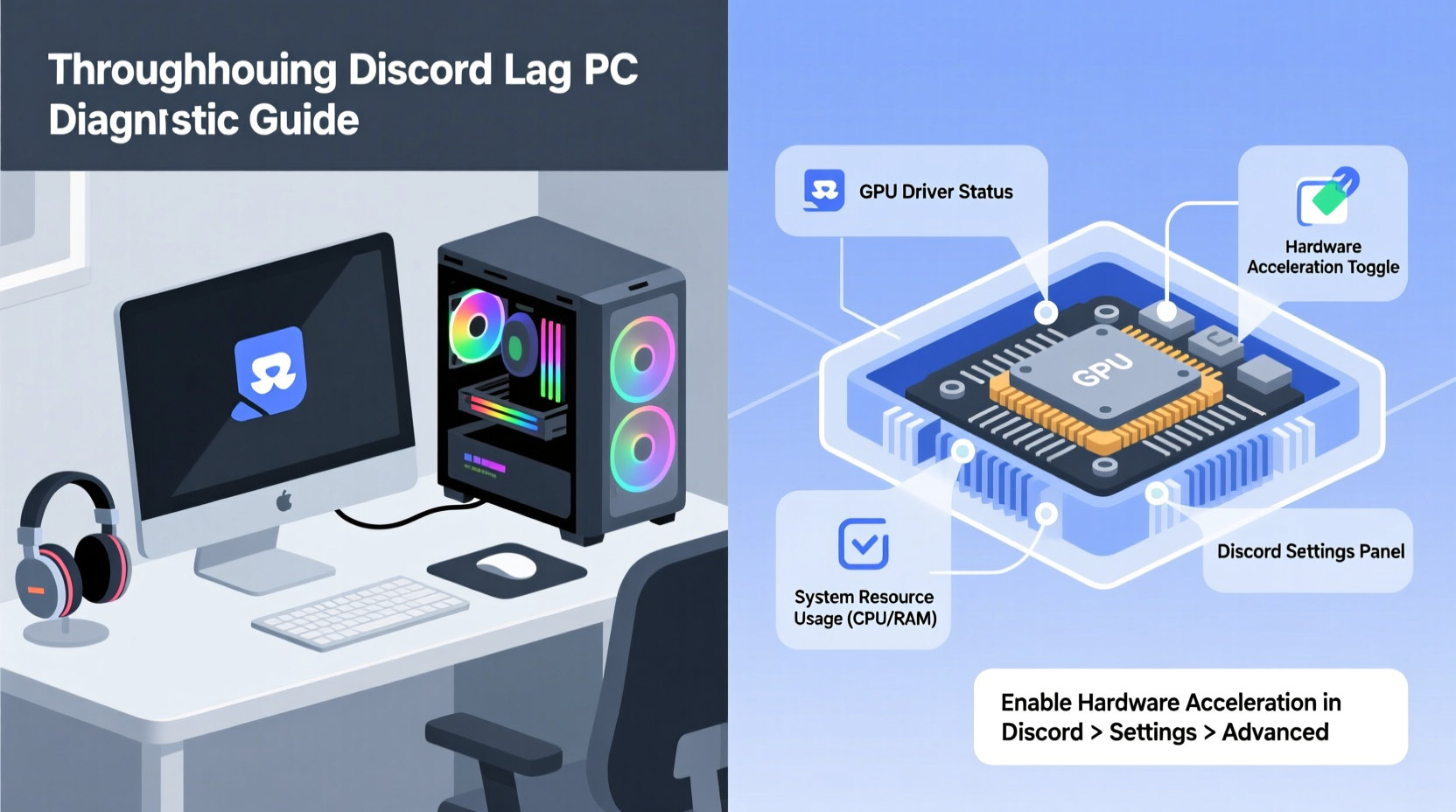
Hardware acceleration allows applications like Discord to use your computer’s graphics card (GPU) to handle visual rendering instead of relying solely on the CPU. This includes drawing windows, animations, text, and video overlays. In theory, this should make Discord run faster and more efficiently, especially when sharing screens or viewing high-resolution streams.
However, not all GPUs or drivers are created equal. Outdated, buggy, or poorly optimized drivers can cause conflicts when Discord attempts to access GPU resources. Additionally, integrated graphics (such as Intel HD Graphics) may struggle under the load, leading to frame drops, input delay, or even application crashes.
Some users experience no issues at all, while others see immediate improvements after disabling the feature. The inconsistency stems from differences in hardware configurations, operating system versions, and background processes competing for GPU memory.
Step-by-Step: How to Disable Hardware Acceleration in Discord
If Discord feels sluggish, unresponsive, or frequently stutters during calls, adjusting hardware acceleration is one of the fastest fixes to test. Follow these steps to disable it:
- Open Discord on your desktop.
- Click the gear icon ⚙️ near your profile picture in the bottom-left corner to access User Settings.
- Navigate to App Settings > Advanced.
- Locate the option labeled Hardware Acceleration.
- Toggle the switch to turn it Off.
- When prompted, click Relaunch to restart Discord with the new settings.
After relaunching, monitor Discord’s responsiveness during voice chats, screen shares, and scrolling through messages. Most users notice reduced lag within minutes. If performance doesn’t improve, consider re-enabling the feature—some modern GPUs benefit significantly from acceleration, especially when multitasking.
“Hardware acceleration can be a double-edged sword. On compatible systems, it boosts efficiency. But on mismatched or outdated setups, it introduces bottlenecks that outweigh any gains.” — Mark Tran, Senior Systems Engineer at TechFlow Solutions
Common Causes of Discord Lag Beyond Hardware Acceleration
While hardware acceleration is a frequent culprit, it’s rarely the only factor contributing to Discord lag. A holistic approach requires checking several interconnected components of your system and network setup.
- Outdated Graphics Drivers: Old GPU drivers may lack support for modern rendering techniques used by Electron-based apps like Discord.
- Background Applications: Browsers, game launchers, or streaming software consuming CPU/GPU resources can starve Discord of needed power.
- Network Congestion: High ping, packet loss, or bandwidth throttling affects real-time communication regardless of local performance.
- DNS Issues: Slow domain resolution can delay connection to Discord’s servers, increasing perceived latency.
- Corrupted App Cache: Accumulated temporary files can degrade performance over time.
Each of these elements plays a role. For example, even with perfect hardware settings, poor Wi-Fi signal strength can make voice chat choppy. Conversely, a powerful GPU won’t help if Discord’s cache is bloated or corrupted.
Troubleshooting Checklist: Fix Discord Lag
- ✅ Disable hardware acceleration and relaunch Discord
- ✅ Update your graphics drivers (NVIDIA, AMD, or Intel)
- ✅ Close unnecessary background apps (especially browsers and game clients)
- ✅ Restart your router and test internet speed
- ✅ Clear Discord cache via Settings > Advanced > Reset App State
- ✅ Set Discord to high priority in Task Manager (Windows)
- ✅ Test Discord on another device to isolate the issue
Real-World Example: Resolving Lag on a Mid-Range Gaming Laptop
Consider Alex, a university student who uses Discord daily for group study sessions and gaming with friends. His mid-2016 HP laptop with Intel Core i5-6200U and integrated Intel HD 520 graphics began experiencing severe lag during screen-sharing sessions. Audio would cut out, video froze, and the entire interface became unresponsive—even though his internet speed tested at 100 Mbps down and 20 Mbps up.
He first assumed the problem was network-related and contacted his ISP. After ruling that out, he tried reinstalling Discord, which provided no improvement. Then, recalling a forum post about hardware acceleration, he disabled the feature in settings. Immediately, the app ran smoother. Screen shares were stable, and audio sync improved dramatically.
Further investigation revealed that his GPU drivers hadn’t been updated in over two years. After installing the latest version from Intel’s website, he re-enabled hardware acceleration and found that Discord now performed better than ever. The combination of driver updates and proper configuration resolved what had seemed like an intractable issue.
This case illustrates that solutions are often layered. One fix alone might not work—but combining targeted adjustments leads to lasting results.
Performance Comparison: With vs. Without Hardware Acceleration
| Performance Factor | With Hardware Acceleration | Without Hardware Acceleration |
|---|---|---|
| CPU Usage | Lower (GPU handles rendering) | Higher (CPU renders UI) |
| GPU Usage | Higher (active rendering role) | Lower (minimal involvement) |
| Startup Speed | Faster (optimized rendering) | Slightly slower |
| Stability on Weak GPUs | Poor (driver conflicts, crashes) | Better (less strain) |
| Screen Share Quality | High (smooth encoding) | Good (depends on CPU) |
| Lag During Multitasking | Variable (depends on GPU headroom) | More consistent |
This comparison shows that hardware acceleration isn’t universally good or bad—it depends on your system’s capabilities. Users with dedicated GPUs (e.g., NVIDIA GTX/RTX series or AMD Radeon) typically benefit. Those with integrated or outdated graphics may find disabling it improves stability.
Advanced Optimization Tips for Persistent Lag
If basic troubleshooting fails, deeper system-level optimizations can help. These require slightly more technical knowledge but offer significant returns for users committed to maximizing performance.
Set Discord to High Process Priority
On Windows, you can instruct the OS to prioritize Discord’s processes, reducing the chance of lag due to resource contention.
- Press Ctrl + Shift + Esc to open Task Manager.
- Find Discord.exe under Processes.
- Right-click it and select Go to details.
- Right-click the highlighted process again and choose Set priority > High.
Note: Avoid setting it to “Realtime,” as this can destabilize other critical system functions.
Use Clean DNS for Faster Connection
Slow DNS resolution delays initial connection to Discord’s servers. Switching to a fast, reliable DNS service like Google DNS or Cloudflare can reduce latency.
To change DNS on Windows:
- Go to Control Panel > Network and Sharing Center > Change adapter settings.
- Right-click your active connection > Properties > Internet Protocol Version 4 (TCP/IPv4).
- Select “Use the following DNS server addresses” and enter:
- Preferred DNS:
8.8.8.8(Google) or1.1.1.1(Cloudflare) - Alternate DNS:
8.8.4.4or1.0.0.1
- Preferred DNS:
Limit Background Apps and Browser Tabs
Modern browsers like Chrome can consume several gigabytes of RAM and significant CPU when multiple tabs are open. Since Discord runs on Chromium’s Electron framework, it competes directly for similar resources. Closing unused tabs and applications frees up memory and processing power.
Frequently Asked Questions
Does disabling hardware acceleration affect screen sharing quality?
Not necessarily. While hardware acceleration can enhance encoding efficiency, modern CPUs are capable of handling screen sharing well, especially at 720p or lower resolutions. Some users report no visible difference after disabling it, while others see improved stability.
Will updating my GPU drivers always fix Discord lag?
Not always, but it’s one of the most effective preventive measures. Updated drivers include bug fixes, security patches, and performance improvements for applications using DirectX or OpenGL—technologies Discord relies on indirectly. Always download drivers from official sources: NVIDIA GeForce Experience, AMD Adrenalin, or Intel Driver & Support Assistant.
Can antivirus software slow down Discord?
Yes. Overly aggressive real-time scanning can interfere with Discord’s file access and network operations. Try adding Discord to your antivirus exclusion list. Common culprits include McAfee, Norton, and certain third-party firewalls.
Conclusion: Take Control of Your Discord Experience
Discord shouldn’t feel sluggish, especially when simple adjustments can restore smooth performance. Hardware acceleration is a powerful tool—but only when your system supports it. By evaluating your GPU, updating drivers, managing background loads, and fine-tuning settings, you reclaim control over your communication experience.
Start with disabling hardware acceleration as a diagnostic step. If performance improves, you’ve identified a key issue. From there, refine your setup with driver updates and system optimizations. Small changes compound into major gains in responsiveness and reliability.




 浙公网安备
33010002000092号
浙公网安备
33010002000092号 浙B2-20120091-4
Comments
No comments yet. Why don't you start the discussion?