
Facebook remains one of the most widely used social platforms globally, yet many users regularly face frustrating slowdowns—pages that take forever to load, videos buffering endlessly, or the app freezing mid-scroll. While it might seem like a simple internet issue, the causes are often more layered, involving device performance, browser settings, network conditions, and even Facebook’s own infrastructure. Understanding the root causes and applying targeted fixes can transform your experience from sluggish to seamless.
Why Facebook Feels Slow: Common Causes
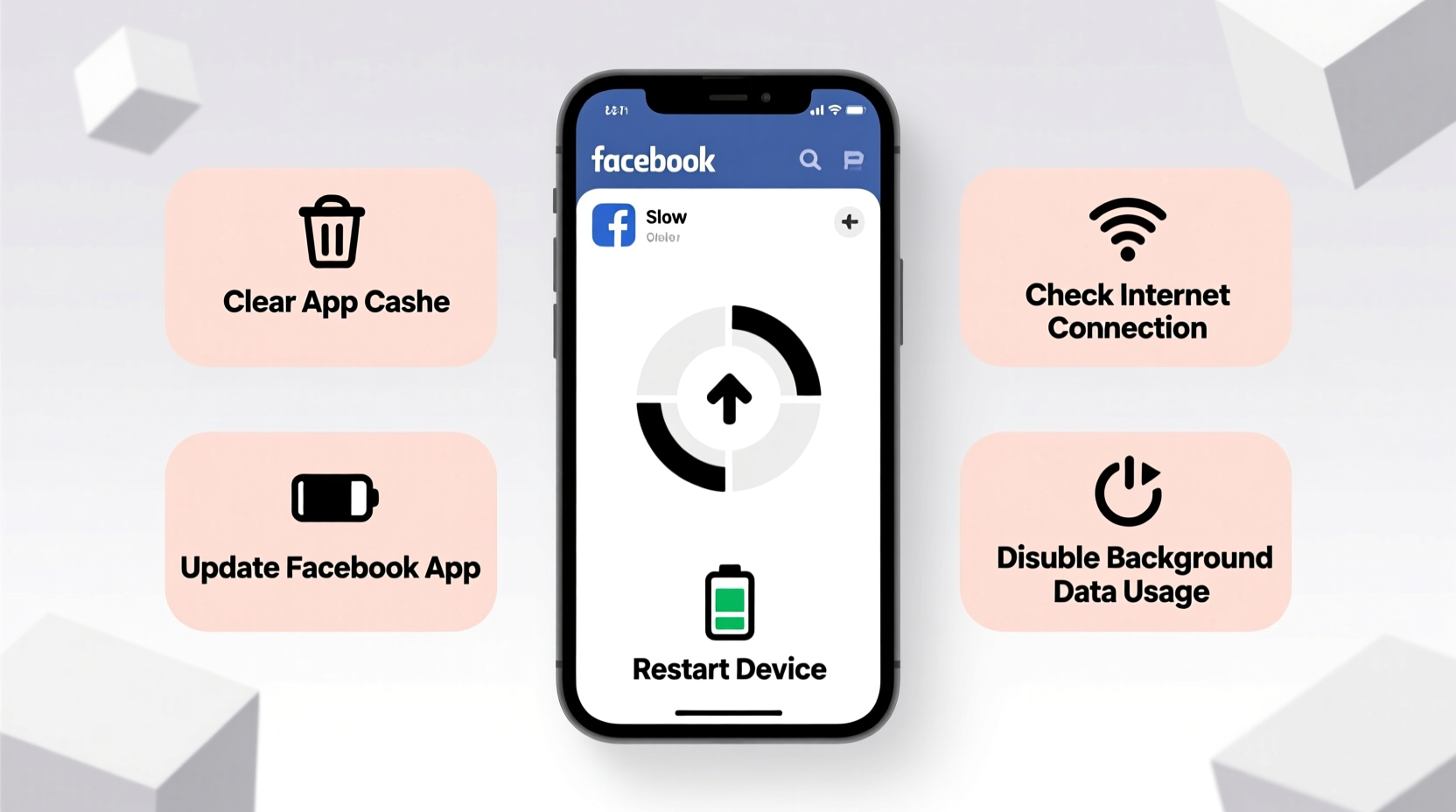
Before jumping into solutions, it's essential to identify what’s actually slowing things down. Facebook isn’t just a static website—it’s a dynamic platform packed with real-time updates, auto-playing videos, embedded ads, and background scripts. All of these elements consume bandwidth and processing power.
- Network congestion: Shared Wi-Fi networks or weak cellular signals can drastically reduce loading speeds.
- Bloated browser cache: Accumulated cookies, cached files, and extensions can interfere with page rendering.
- Outdated app or browser: Older versions may lack performance optimizations or security patches.
- Device limitations: Low RAM or outdated processors struggle with modern web applications.
- Facebook’s ad-heavy design: The platform loads numerous third-party tracking scripts and video ads that drain resources.
- Server-side issues: Occasionally, Facebook experiences outages or regional slowdowns beyond user control.
Step-by-Step Guide to Speed Up Facebook
Follow this structured approach to diagnose and fix performance bottlenecks efficiently.
- Check your internet connection
Use a speed test tool (e.g., Speedtest.net) to verify download/upload speeds. For smooth Facebook use, aim for at least 5 Mbps download speed. If speeds are low, restart your router or switch to a wired connection. - Clear browser cache and cookies
Over time, stored data can corrupt or overload your browser. In Chrome: Settings > Privacy and Security > Clear Browsing Data. Select “Cached images and files” and “Cookies.” - Disable unnecessary browser extensions
Ad blockers, password managers, and social widgets run in the background and can conflict with Facebook. Temporarily disable them to test performance. - Update your browser or app
Ensure you're using the latest version of Chrome, Firefox, Safari, or the Facebook app. Updates often include performance improvements and bug fixes. - Switch to Facebook Lite (mobile)
Available on Android, Facebook Lite uses 90% less data and loads faster on slower devices or networks. It strips away heavy visuals while retaining core functionality. - Restart your device
A simple reboot clears memory leaks and resets background processes that may be hogging system resources. - Limit background apps
On smartphones, too many running apps reduce available RAM. Close unused apps to free up memory for Facebook.
Tips to Reduce Facebook Load Time
Even with a fast connection, inefficient usage habits can make Facebook feel slow. These tips help minimize resource consumption.
- Turn off autoplay for videos in Facebook settings (Settings & Privacy > Media and Contacts > Autoplay).
- Log out of unused accounts on shared devices to reduce session conflicts.
- Use incognito/private browsing mode to bypass cached clutter and extension interference.
- Bookmark frequently visited groups or pages instead of navigating through the news feed.
- Unfollow or mute inactive friends and pages to reduce feed bloat.
Comparison: Full Facebook vs. Optimized Alternatives
| Feature | Standard Facebook App | Facebook Lite | Mobile Web (m.facebook.com) |
|---|---|---|---|
| Data Usage | High | Very Low | Low |
| Loading Speed | Moderate to Slow | Fast | Fast |
| Video Autoplay | Enabled by default | Disabled | Optional |
| Storage Required | 100MB+ | Under 10MB | N/A (browser-based) |
| Best For | High-end devices, strong Wi-Fi | Older phones, slow networks | Quick access without installing apps |
Real Example: Maria’s Facebook Fix
Maria, a small business owner in Austin, relied on Facebook daily to manage her bakery’s page and respond to customers. Over time, she noticed the app took over 30 seconds to open and often crashed during live posts. Her phone was three years old, and she had multiple tabs open in Chrome.
She followed a simplified version of this guide: cleared her browser cache, uninstalled the main Facebook app, and switched to Facebook Lite. She also disabled autoplay and turned on Data Saver. The result? The app opened in under 5 seconds, and her live streams ran smoothly. She regained over 1GB of storage and extended her phone’s battery life by nearly two hours.
“Performance issues on social platforms are rarely just about the app itself. It’s the ecosystem—device, network, settings—that determines speed.” — Raj Patel, Mobile Optimization Engineer at a leading tech consultancy
Checklist: Quick Facebook Speed Boost
Run through this checklist whenever Facebook feels sluggish:
- ✅ Test internet speed with a third-party tool
- ✅ Restart your router and device
- ✅ Clear browser cache or app data
- ✅ Disable non-essential browser extensions
- ✅ Update Facebook app or browser
- ✅ Switch to Facebook Lite or m.facebook.com
- ✅ Turn off video autoplay and background data
- ✅ Close unused apps running in the background
Frequently Asked Questions
Why is Facebook slow only on my phone but fine on my laptop?
This usually indicates device-specific issues. Your phone may have limited RAM, an outdated operating system, or a poorly optimized app version. Try clearing the app cache or switching to Facebook Lite. Also, check if background app refresh is overloading the system.
Does logging out of Facebook improve speed?
Yes, especially on shared or older devices. Active sessions accumulate temporary data that can slow performance. Logging out clears some session data, and logging back in often results in a cleaner, faster experience.
Can antivirus software slow down Facebook?
Some antivirus programs scan every webpage in real time, including Facebook. This adds latency. Try disabling the browser protection module temporarily to test if speed improves. If so, consider adjusting scan settings or switching to a lighter security suite.
Final Thoughts: Take Control of Your Experience
Facebook doesn’t have to be a constant source of frustration. While the platform’s design prioritizes engagement over efficiency, you’re not powerless. By understanding the technical factors at play—and applying smart, tested fixes—you can reclaim speed and usability. Whether you’re managing a business page, staying in touch with family, or following community groups, a faster Facebook means more productivity and less wasted time.




 浙公网安备
33010002000092号
浙公网安备
33010002000092号 浙B2-20120091-4
Comments
No comments yet. Why don't you start the discussion?