
If you're playing Fortnite and experiencing rubber-banding, delayed shots, or sudden freezes mid-match, high ping is likely the culprit. While many assume their internet speed is to blame, the real issue often lies in how your home network—specifically your router—is configured. Even with a fast connection, poor router settings can sabotage your gaming experience. The good news? You don’t need expensive gear or technical wizardry to fix it. With a few strategic tweaks, you can significantly reduce latency and enjoy smoother, more responsive gameplay.
Understanding Ping and Why It Matters in Fortnite
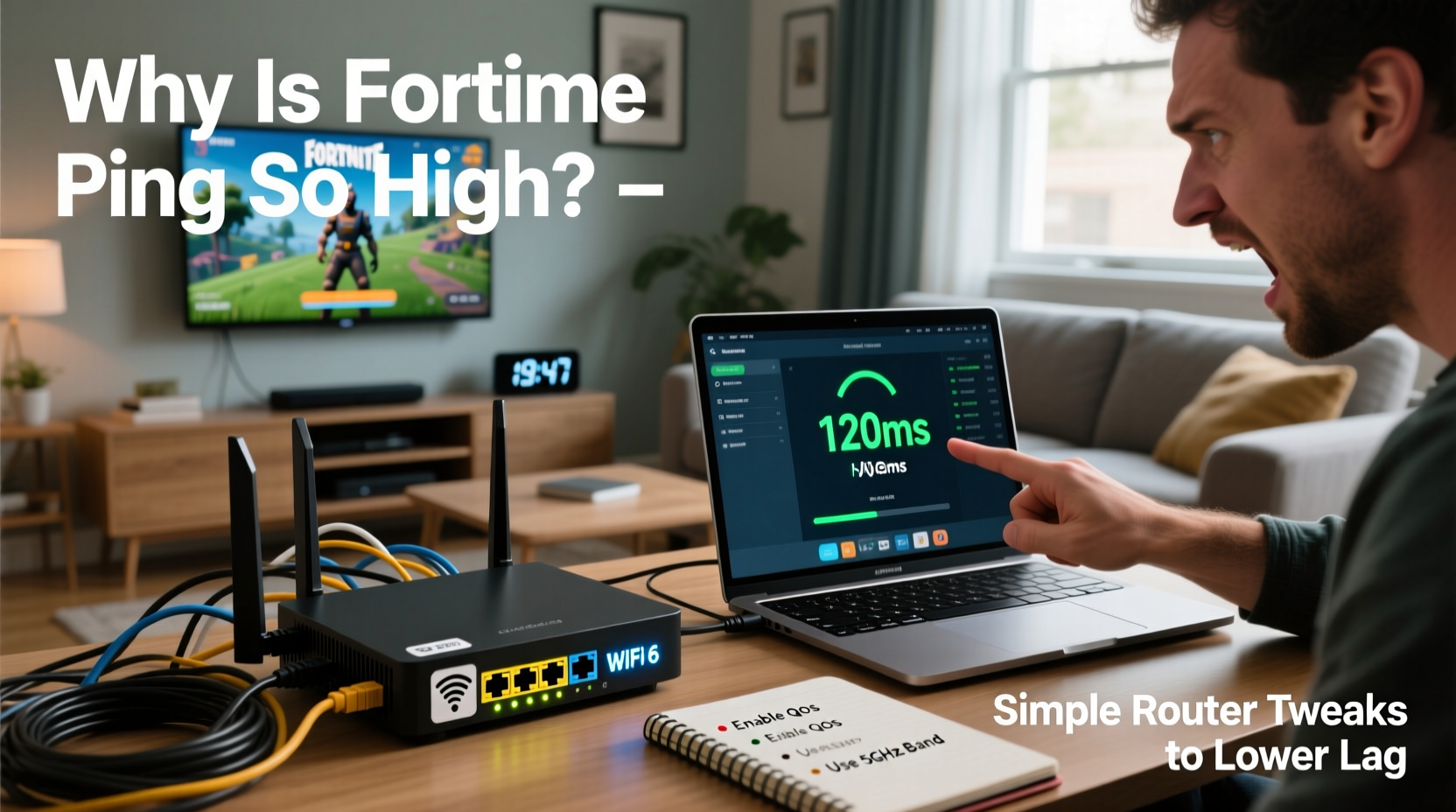
Ping measures the time it takes for data to travel from your device to the game server and back, expressed in milliseconds (ms). In competitive games like Fortnite, every millisecond counts. A ping under 50 ms is ideal; anything above 100 ms starts to impact responsiveness. High ping means your actions—like shooting, building, or dodging—register late on the server, putting you at a severe disadvantage.
Latency isn’t just about raw download speed. You could have a 300 Mbps connection but still suffer from high ping due to network congestion, suboptimal routing, or outdated firmware. Your router plays a central role in managing this traffic. Think of it as a traffic cop: if it's overwhelmed or misconfigured, even fast lanes become clogged.
“Gaming performance depends less on bandwidth and more on consistency and routing efficiency. A well-tuned router can outperform a faster but poorly managed one.” — David Lin, Network Infrastructure Engineer at NetOptima Labs
Common Router Issues That Increase Fortnite Ping
Several router-related factors contribute to high ping in online gaming:
- Outdated firmware: Older firmware may lack optimizations for modern gaming traffic.
- Interference from other devices: Streaming, downloads, or multiple users strain bandwidth and increase latency.
- Poor wireless signal quality: Walls, distance, or interference from neighboring Wi-Fi networks degrade performance.
- Lack of Quality of Service (QoS): Without QoS, your router treats all traffic equally, letting video calls or updates disrupt your game.
- Suboptimal DNS settings: Slow DNS resolution adds milliseconds that accumulate over time.
- NAT type restrictions: Strict NAT types can cause connectivity issues and higher ping.
Step-by-Step Router Tweaks to Lower Fortnite Lag
You don’t need to replace your router to see improvements. Follow these practical steps to optimize your current setup for better Fortnite performance.
1. Enable Quality of Service (QoS)
QoS allows your router to prioritize gaming traffic over less time-sensitive activities like software updates or streaming. Here’s how to set it up:
- Log into your router’s admin panel (usually via
192.168.1.1or192.168.0.1). - Navigate to “QoS Settings” or “Traffic Control.”
- Enable QoS and set your gaming device (PC, console) as a high-priority device.
- If available, assign “Gaming” as the highest priority application category.
- Save settings and restart the router.
On some routers, you can specify port ranges used by Fortnite (UDP ports 7000–8000, TCP 80, 443). Prioritizing these ensures smooth packet delivery.
2. Switch to a Less Congested Wi-Fi Channel
Wi-Fi channels overlap, especially in densely populated areas. If your neighbors use the same channel, interference increases latency.
Use a free tool like WiFi Analyzer (Android) or NetSpot (Windows/Mac) to scan nearby networks. Choose the least crowded 2.4 GHz or 5 GHz channel. For gaming, 5 GHz is preferable—faster and less prone to interference, though shorter in range.
3. Update Your Router’s Firmware
Manufacturers release firmware updates that improve stability, security, and performance. An outdated router might not handle modern gaming demands efficiently.
To update:
- Check your router model and visit the manufacturer’s support site (e.g., Netgear, TP-Link, ASUS).
- Download the latest firmware version.
- Upload it through the router’s admin interface under “Firmware Update.”
- Wait for the process to complete—do not power off during update.
4. Change DNS Servers
Your ISP’s default DNS may be slow or unreliable. Switching to a faster public DNS can reduce lookup times and slightly lower ping.
Recommended options:
- Google DNS: 8.8.8.8 and 8.8.4.4
- Cloudflare DNS: 1.1.1.1 and 1.0.0.1
- OpenDNS: 208.67.222.222 and 208.67.220.220
To change DNS:
- Access your router settings.
- Go to WAN or Internet Settings.
- Replace the primary and secondary DNS fields with one of the above pairs.
- Save and reboot.
5. Use a Wired Connection
While Wi-Fi has improved, Ethernet remains the gold standard for low-latency gaming. Wireless signals are subject to interference, packet loss, and fluctuating speeds.
If your device supports it, connect directly to the router using a Cat 6 or Cat 7 Ethernet cable. This alone can reduce ping by 10–30 ms and eliminate jitter.
Do’s and Don’ts: Router Optimization Table
| Do’s | Don’ts |
|---|---|
| Use a wired Ethernet connection whenever possible | Place your router near large metal objects or appliances |
| Enable QoS and prioritize your gaming device | Leave firmware outdated for months |
| Switch to 5 GHz Wi-Fi for reduced interference | Run large downloads while gaming |
| Change to faster DNS servers like Cloudflare or Google | Ignore router overheating signs (warm casing, dropped signals) |
| Restart your router weekly to clear cache and errors | Use WEP or weak Wi-Fi encryption—upgrade to WPA3 if supported |
Real Example: How One Gamer Cut Ping from 140ms to 45ms
James, a 17-year-old Fortnite player from Chicago, consistently struggled with high ping despite having a 100 Mbps plan. His matches were plagued by delayed inputs and missed shots. After testing his connection, he found his ping averaged 120–140 ms during peak hours.
He decided to audit his network. First, he switched from Wi-Fi to Ethernet—ping dropped to 90 ms. Next, he updated his three-year-old TP-Link router’s firmware, which resolved a known bug affecting UDP traffic. Then, he enabled QoS and prioritized his PC. Finally, he changed his DNS to Cloudflare’s 1.1.1.1.
The result? Stable ping between 40–45 ms. James went from being eliminated early in most matches to placing top 10 regularly. “I didn’t upgrade my internet,” he said. “I just fixed what was already there.”
Advanced Option: Port Forwarding for Better Connectivity
While not always necessary, port forwarding can improve connection stability by allowing uninterrupted communication between your device and Epic Games’ servers.
Fortnite Required Ports:
- TCP: 80, 443, 5222, 5223
- UDP: 500, 3478, 3479, 3480, 49152–65535
To forward ports:
- Assign a static IP to your gaming device (via router DHCP reservation).
- Go to “Port Forwarding” in your router settings.
- Create a new rule: enter the ports above, select both TCP and UDP, and input your device’s IP.
- Name the rule “Fortnite” and save.
Note: Some modern routers support UPnP (Universal Plug and Play), which automatically opens ports. Ensure UPnP is enabled if you prefer a hands-off approach.
Checklist: Optimize Your Router for Fortnite in 10 Minutes
Follow this quick checklist to reduce lag immediately:
- ✅ Reboot your router and modem
- ✅ Connect via Ethernet instead of Wi-Fi
- ✅ Log into your router (check sticker on back for IP and password)
- ✅ Update firmware to the latest version
- ✅ Enable QoS and prioritize your gaming device
- ✅ Switch DNS to 1.1.1.1 and 1.0.0.1
- ✅ Change Wi-Fi channel to a less congested one (use analyzer app)
- ✅ Disable unused connected devices consuming bandwidth
- ✅ Set up port forwarding or ensure UPnP is active
- ✅ Test ping before and after using Fortnite’s in-game stats or
ping fortnitexxx.comin Command Prompt
Frequently Asked Questions
Does internet speed affect Fortnite ping?
Yes, but not as much as latency and stability. High download speed doesn’t guarantee low ping. A 50 Mbps connection with optimized routing can outperform a 500 Mbps one with high jitter and packet loss. Focus on consistency, not just speed.
Can a better router really reduce ping?
Absolutely. Modern routers support advanced features like MU-MIMO, beamforming, and better QoS algorithms that manage traffic more efficiently. If you’re using a router provided by your ISP from five years ago, upgrading to a gaming-oriented model (e.g., ASUS RT-AX86U, Netgear Nighthawk Pro) can make a noticeable difference.
Why does my ping spike at certain times of day?
This is typically due to network congestion. During evenings, more people in your area stream, download, or game, overwhelming local infrastructure. Your ISP’s peering routes or your home network may struggle under load. Using QoS and scheduling heavy downloads for off-peak hours helps mitigate this.
Final Thoughts: Small Tweaks, Big Gains
High ping in Fortnite isn’t inevitable. Often, it’s the result of overlooked router settings rather than inadequate internet service. By taking control of your network environment—prioritizing traffic, updating firmware, optimizing connections—you reclaim the responsiveness needed to compete at a higher level.
You don’t need a $300 router or a gigabit plan to play smoothly. What matters is smart configuration. The tweaks outlined here are accessible to anyone, regardless of technical background. Many take less than 10 minutes and deliver measurable results.




 浙公网安备
33010002000092号
浙公网安备
33010002000092号 浙B2-20120091-4
Comments
No comments yet. Why don't you start the discussion?