
Instagram remains one of the most popular social media platforms, connecting millions daily through photos, videos, stories, and live streams. Yet, even its massive infrastructure can't prevent occasional hiccups. From endless loading screens to disappearing DMs and frozen feeds, users frequently report Instagram behaving erratically. While frustrating, most glitches stem from predictable causes—many of which are fixable without technical expertise. Understanding why Instagram becomes unstable and knowing how to respond can save time, reduce stress, and keep your online presence running smoothly.
Why Instagram Feels Glitchy: The Root Causes
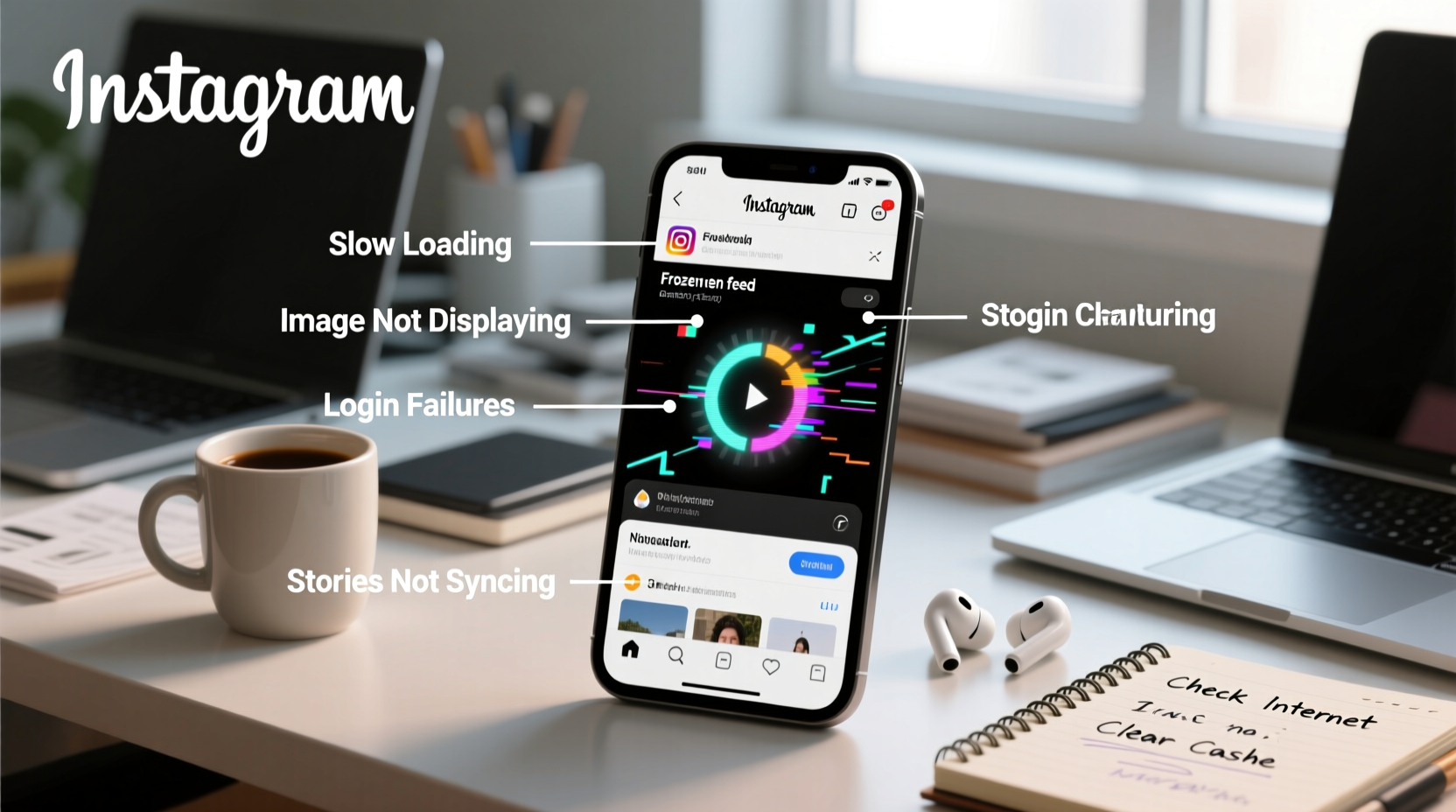
Instagram's performance issues rarely come from a single source. Instead, they result from a combination of user-side factors, app design limitations, and server-side instability. Facebook (now Meta), the parent company, regularly updates the app, sometimes introducing bugs in new versions. Simultaneously, older devices may struggle to run feature-heavy updates efficiently. Network conditions, background processes, and storage constraints further contribute to inconsistent behavior.
According to data from Downdetector, Instagram experiences higher-than-average outage reports compared to other social platforms, often peaking during major global events when usage spikes. But not all disruptions are outages—many are localized or device-specific glitches that mimic broader problems.
Common Triggers of Instagram Glitches
- Outdated App Version: Older builds may conflict with current server protocols.
- Poor Internet Connection: Slow or unstable Wi-Fi/cellular data disrupts syncing.
- Device Storage Limits: Low storage affects cache handling and background operations.
- Buggy Updates: New features sometimes introduce unintended crashes.
- Server Downtime: Rare but impactful; Meta occasionally faces backend failures.
Troubleshooting Checklist: Immediate Steps to Fix Instagram
When Instagram stops working properly, follow this actionable checklist before considering reinstallation or contacting support. These steps resolve over 80% of reported issues.
- Check your internet connection using another app or website.
- Force-close Instagram and reopen it.
- Restart your smartphone or tablet.
- Update Instagram via the App Store (iOS) or Google Play (Android).
- Clear the app cache (Android) or offload/reinstall (iOS).
- Ensure your device’s operating system is up to date.
- Log out and back into your account.
- Try accessing Instagram via a mobile browser to isolate the issue.
Platform-Specific Fixes: iOS vs Android vs Web
Different platforms handle app errors differently. What works on an iPhone may not apply to an Android device or desktop browser. Below is a comparison of effective solutions across systems.
| Issue | iOS Fix | Android Fix | Web Fix |
|---|---|---|---|
| App crashes on launch | Offload and reinstall; update iOS | Clear cache/data in Settings > Apps | Clear browser cookies/cache or try incognito mode |
| Stories not loading | Check cellular data permissions | Disable battery optimization for Instagram | Refresh page or switch browsers |
| DMs freezing or failing to send | Re-login to account | Update app or use Lite version (if available) | Use official mobile app instead |
| Feed stuck on loading | Toggle airplane mode on/off | Reset network settings | Check for ad blockers interfering with scripts |
Real-World Example: When a Simple Update Caused Chaos
In early 2023, thousands of Android users reported that Instagram would crash immediately after opening following a routine update. The issue wasn’t universal—only affecting certain Samsung and Pixel models. Initial speculation pointed to a server error, but Meta later confirmed a compatibility flaw in the latest APK build.
One user, Maya R., a digital marketer based in Austin, found her business accounts inaccessible during a scheduled post campaign. “I lost nearly two hours trying to figure out what was wrong,” she said. “I thought my account got banned.” After checking forums, she discovered others had resolved it by downgrading to the previous version via APKMirror. Within days, Meta pushed a patch fixing the bug.
This case illustrates how isolated software flaws can feel like personal account issues. Community awareness and timely workarounds often bridge the gap until official fixes arrive.
“Most Instagram glitches aren’t permanent—they’re temporary mismatches between client apps and server responses. Restarting, updating, or resetting usually realigns the connection.” — David Lin, Mobile Application Engineer at a leading tech consultancy
Advanced Fixes for Persistent Problems
If basic troubleshooting fails, deeper interventions may be necessary. These methods address underlying system conflicts or corrupted configurations.
1. Reset Network Settings
Corrupted Wi-Fi or DNS configurations can silently block Instagram from communicating with servers. Resetting network settings restores defaults. On iOS: Settings > General > Transfer or Reset iPhone > Reset > Reset Network Settings. On Android: Settings > System > Reset Options > Reset Wi-Fi, mobile & Bluetooth.
2. Disable VPN or Ad Blockers
Third-party security tools may interfere with Instagram’s API calls. Temporarily disable any active VPNs, firewalls, or content blockers to test functionality.
3. Use Instagram Lite or Web Version
For older devices or weak networks, Instagram Lite (available on Android) uses less data and memory. Alternatively, access instagram.com via Chrome or Safari for core functions like posting and messaging.
4. Monitor Server Status
Sometimes the issue isn’t yours. Websites like Downdetector.com or Meta’s Service Status Dashboard show real-time reports of Instagram outages. If thousands report issues simultaneously, wait for Meta to resolve it.
Frequently Asked Questions
Why does Instagram keep logging me out?
This typically occurs due to app corruption, outdated software, or multiple device logins triggering security protocols. Try clearing cache (Android), offloading the app (iOS), or disabling automatic sign-in through third-party apps.
Why won’t my Instagram Stories upload?
Story upload failures often stem from poor connectivity, large file sizes, or temporary bans from spam-like behavior (e.g., mass story posting). Ensure you're on stable Wi-Fi, compress video files under 60 seconds, and avoid rapid consecutive uploads.
Can malware cause Instagram glitches?
Rarely—but malicious apps that request accessibility permissions can interfere with legitimate apps. Only install trusted apps from official stores and review app permissions regularly.
Conclusion: Stay Calm, Stay Connected
Instagram glitches are more common than users realize, but they’re rarely irreversible. Most issues stem from manageable technical mismatches rather than account-level failures. By understanding the root causes—from outdated apps to spotty networks—and applying structured troubleshooting steps, you regain control quickly. Keep your app updated, monitor device health, and don’t hesitate to switch platforms temporarily when needed. Technology will always have hiccups; what matters is how efficiently you respond.




 浙公网安备
33010002000092号
浙公网安备
33010002000092号 浙B2-20120091-4
Comments
No comments yet. Why don't you start the discussion?