
Mac users often open their storage settings only to be startled by the sheer size of “System Data” — sometimes tens of gigabytes with no clear explanation. Unlike user files or apps, this category operates in the background, quietly accumulating cache, logs, temporary files, and system remnants. While essential for macOS functionality, unchecked growth can choke available storage, slow performance, and limit usability. Understanding what contributes to this bloat and how to manage it responsibly is key to maintaining a healthy, responsive Mac.
What Exactly Is System Data on Mac?
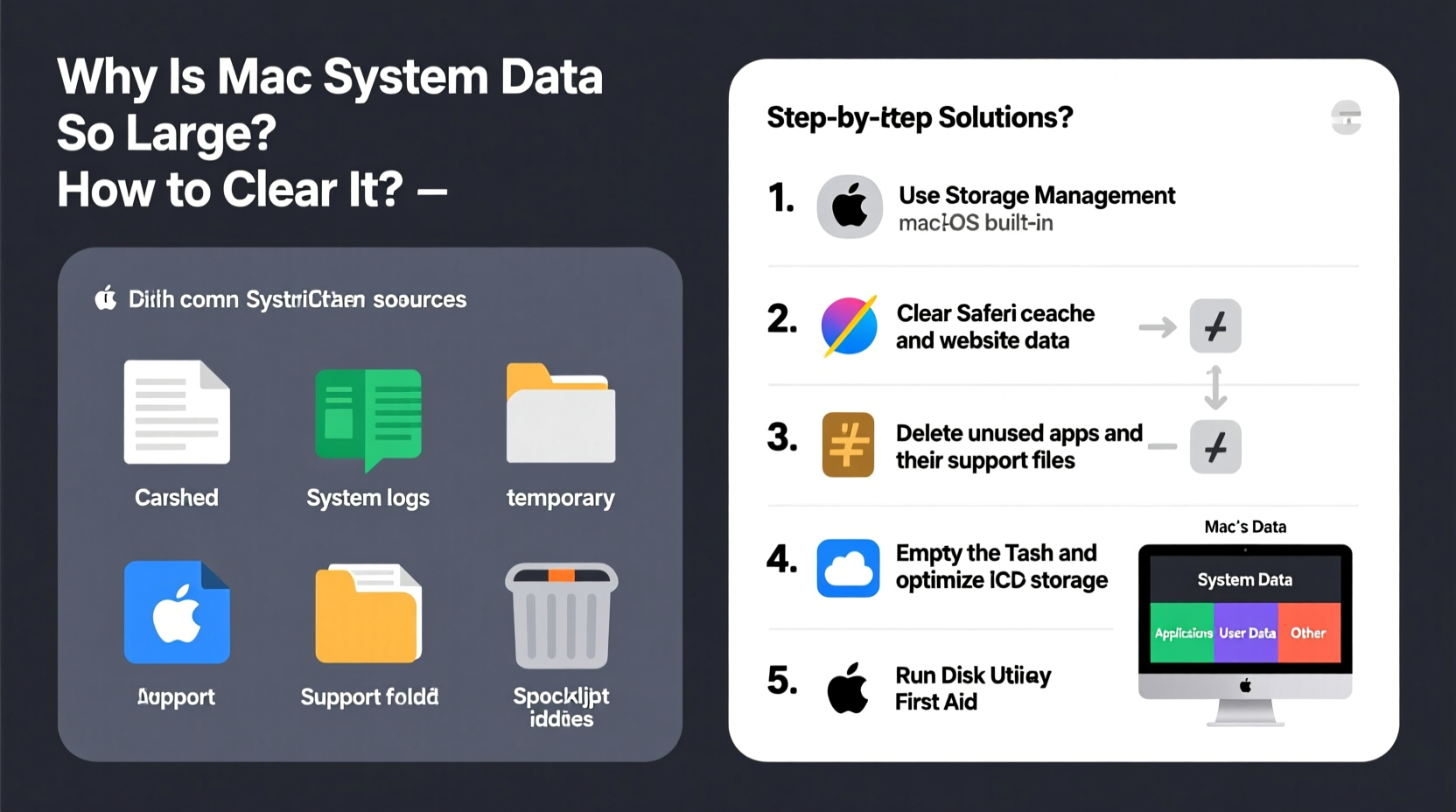
Apple defines System Data as everything that doesn’t fit into standard categories like Apps, Photos, Messages, or iCloud Drive. This includes system caches, logs, virtual machine files, mail attachments, fonts, plugins, metadata, and even partial downloads. It’s essentially a catch-all bucket for operational overhead and background processes.
Some components are necessary and unavoidable: for example, Spotlight index files or Time Machine local snapshots. Others, like outdated cache files or corrupted downloads, serve no ongoing purpose and can safely be removed.
“System Data isn’t inherently bad—it’s part of how macOS keeps things running smoothly. The problem arises when cleanup mechanisms fail or aren’t triggered.” — David Lin, Senior macOS Support Analyst at AppleInsider Tech
Common Causes of Large System Data
Several factors contribute to bloated System Data. Recognizing these helps target cleanup efforts effectively:
- Accumulated cache files: Browsers, apps, and macOS itself generate temporary cache data. Over time, especially after updates or heavy use, these can grow significantly.
- Local Time Machine snapshots: macOS creates local backups when your external drive isn’t connected. These help with file recovery but consume space silently.
- Mail attachment storage: Emails with embedded images or large attachments store copies locally, particularly if you use IMAP or POP accounts.
- Virtual machines and disk images: Tools like Parallels or VMware leave behind .dmg or .sparseimage files even after deletion attempts.
- Stuck downloads or incomplete installations: Failed software updates or paused app downloads may linger in hidden directories.
- Log files and diagnostic reports: Crash logs, console messages, and analytics accumulate over weeks or months.
Step-by-Step Guide to Clear System Data Safely
Cleaning System Data requires precision. Deleting the wrong file can destabilize your OS. Follow this sequence to minimize risk while reclaiming space:
- Check Storage Usage
Go to > About This Mac > Storage. Wait for the bar to load. Click \"System Data\" to see an estimated breakdown (available on macOS Monterey and later). - Restart Your Mac
A reboot triggers macOS to auto-purge expired caches and temporary files. Often, this alone frees several GB. - Delete Local Snapshots
Open Terminal and run:sudo tmutil listlocalsnapshots /
This shows all local backups. To delete them:sudo tmutil deletelocalsnapshots [date]
Replace [date] with the snapshot identifier (e.g., 2023-10-15-143002). - Clear System and User Caches
Navigate to~/Library/Cachesand/Library/Caches. Sort by size and delete contents of folders from apps you no longer use. Do not delete the folders themselves. - Remove Old iOS Backups
Open Finder > Go > Go to Folder >~/Library/Application Support/MobileSync/Backup/. Delete folders corresponding to old or unused devices. - Empty Trash and Clear Downloads
Right-click the Trash and select “Empty.” Also review your Downloads folder—many forget it contributes to System Data indirectly via cached previews. - Use macOS Built-in Management Tools
Go to > System Settings > General > Storage > Manage. Use recommendations under “Recommendations,” such as optimizing storage, offloading unused apps, or removing downloaded emails.
Do’s and Don’ts When Managing System Data
| Do | Don't |
|---|---|
| Use built-in macOS tools first (Storage Management, Disk Utility) | Delete system-critical folders like /System, /usr, or /var |
| Backup before making bulk deletions | Use third-party \"cleaner\" apps without research |
| Clear caches in ~/Library/Caches | Modify files in /private unless instructed |
| Restart after cleanup to finalize changes | Force eject external drives during backup operations |
| Monitor storage weekly if you're low on space | Ignore warnings about full storage—they degrade performance |
Real Example: Recovering 28GB from System Data
Sarah, a freelance graphic designer using a MacBook Pro with 256GB SSD, noticed her Mac slowing down and alerts warning of low disk space. Her storage showed 67GB under System Data—unusually high. After restarting, only 2GB was freed. Using Terminal, she listed local snapshots and found seven spanning three weeks. She deleted them, recovering 18GB. Then, she navigated to ~/Library/Caches and found Adobe Creative Cloud had stored over 6GB of outdated preview files. Removing those and old iOS backups from two retired iPhones cleared another 10GB. Total reclaimed: 28GB. Her Mac resumed normal speed within hours.
When to Consider Third-Party Tools
While manual methods are safest, some users benefit from trusted utilities like OmniDiskSweeper, DaisyDisk, or CleanMyMac X. These visualize hidden files and let you drill into large directories safely. However, avoid aggressive cleaners that promise “one-click fixes.” They may remove files needed for system integrity.
If you choose a third-party tool:
- Download only from official websites or the Mac App Store.
- Review exactly what will be deleted before confirming.
- Ensure the app has been notarized by Apple.
Frequently Asked Questions
Can clearing System Data harm my Mac?
Only if you delete critical system files. Stick to caches, logs, backups, and known app-generated data. Never modify files in /System, /bin, or /sbin unless directed by Apple support.
Why does System Data keep growing after I clean it?
Normal operation regenerates cache and logs. If growth is rapid (e.g., multiple GB per week), check for misbehaving apps, failed updates, or runaway processes via Activity Monitor. A failing SSD can also cause write anomalies that inflate usage.
Does resetting NVRAM or SMC reduce System Data?
No. NVRAM and SMC resets affect hardware settings and power management, not storage footprint. They won’t free up space or alter System Data size.
Final Checklist: Monthly System Data Maintenance
- Restart your Mac to trigger auto-cleanup.
- Check storage usage in System Settings.
- Review and delete old local snapshots via Terminal.
- Clear user and system cache folders selectively.
- Remove outdated iOS and iPadOS backups.
- Run First Aid in Disk Utility to repair disk errors.
- Verify Time Machine or cloud backup status post-cleanup.
Take Control of Your Mac’s Performance
Large System Data isn’t a flaw—it’s a side effect of macOS doing its job. But without regular oversight, it becomes a liability. By understanding what lives in that mysterious category and adopting disciplined cleanup habits, you ensure your Mac runs efficiently for years. Don’t wait for storage warnings. Schedule a monthly maintenance session, follow the steps above, and keep your system lean and responsive.




 浙公网安备
33010002000092号
浙公网安备
33010002000092号 浙B2-20120091-4
Comments
No comments yet. Why don't you start the discussion?