
Message indexing is a critical background process that enables fast search, filtering, and organization of emails, texts, and app notifications. When this process stalls—commonly referred to as \"message indexing stuck\"—users face delayed searches, missing messages in results, or sluggish performance in apps like Outlook, Gmail, or Apple Mail. While frustrating, the issue is often resolvable with targeted troubleshooting. This guide breaks down the root causes and provides practical, step-by-step fixes to restore smooth indexing.
Understanding Message Indexing and Why It Matters
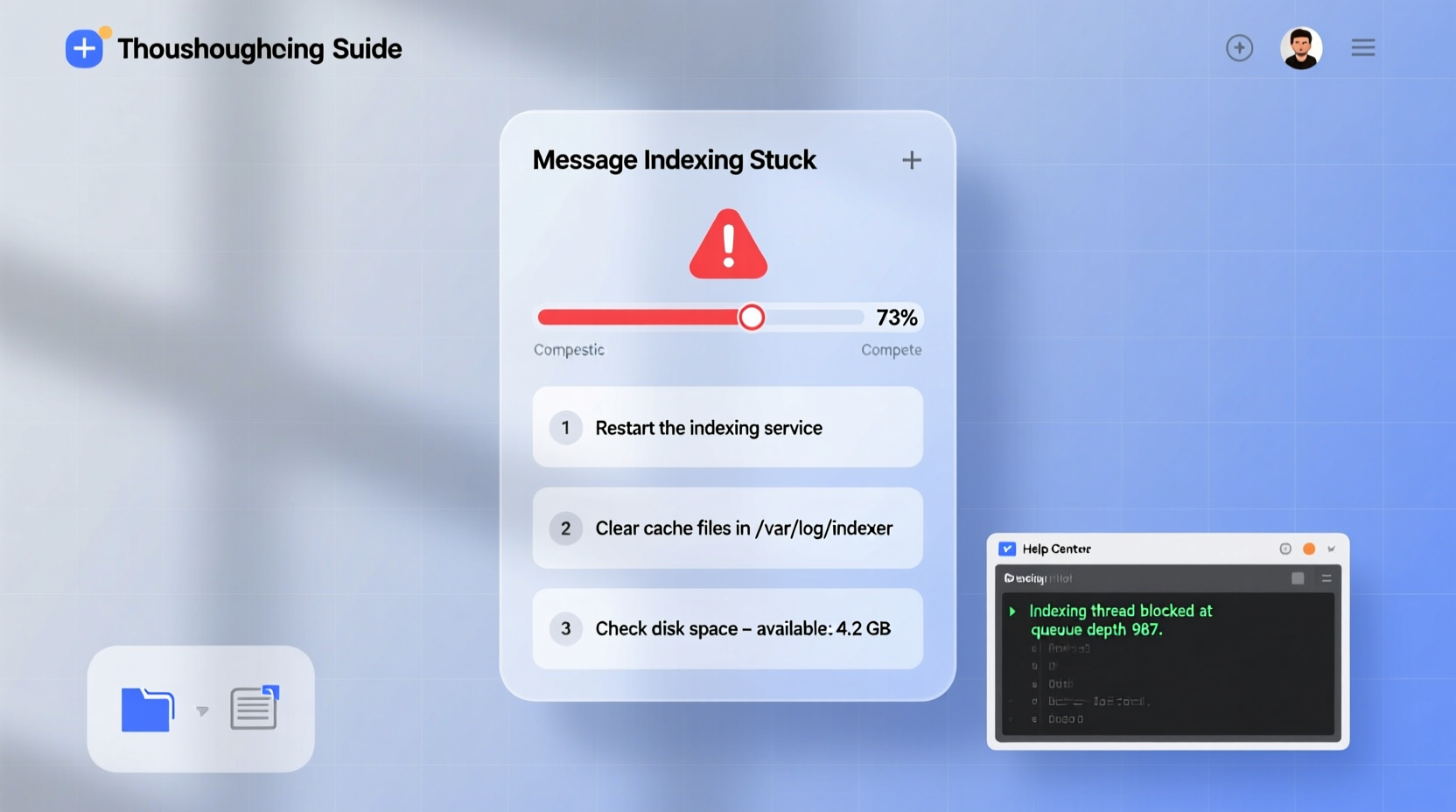
Indexing involves scanning your messages and creating a searchable database so you can quickly retrieve specific content. Without it, every search would require scanning each message individually—a time-consuming process. Modern email clients and operating systems use indexing services such as Windows Search (on PCs), Spotlight (on macOS), or Google’s Cloud Search to maintain real-time access to your data.
When indexing becomes stuck, the system fails to update this database. You might notice:
- Searches return incomplete or outdated results.
- New messages don’t appear in filtered views.
- The app shows “indexing in progress” for hours or days.
- Increased CPU or disk usage from background indexing processes.
While indexing issues are common across platforms, they’re rarely due to hardware failure. More often, they stem from software conflicts, corrupted databases, or misconfigured settings.
Common Causes of Stuck Message Indexing
Identifying the root cause is essential before applying fixes. Below are the most frequent triggers:
- Corrupted index database: The local search index may become damaged due to abrupt shutdowns or software bugs.
- Insufficient permissions: The indexing service might lack access to certain folders or accounts.
- Large mailbox size: Extremely large mailboxes (especially over 50GB) can overwhelm indexing engines.
- Sync conflicts: Third-party add-ons, antivirus tools, or cloud sync apps may interfere with indexing threads.
- Outdated software: Older versions of email clients or OS components may contain known indexing bugs.
- Network interruptions: For cloud-based services, unstable connections can halt incremental indexing updates.
Step-by-Step Troubleshooting Guide
Follow this structured approach to diagnose and resolve indexing issues efficiently.
Step 1: Restart the Device and Email Client
Begin with the simplest fix. A full reboot clears temporary glitches and resets background services. Close your email application completely, restart your computer or mobile device, then reopen the app to check if indexing resumes.
Step 2: Check Account Sync Status
Navigate to your account settings and verify that all folders are syncing correctly. On Outlook, go to Send/Receive > Send/Receive Groups > Define Send/Receive Groups. Ensure “Download unread items” and “Include subfolders” are enabled. For Gmail, confirm that IMAP is active in settings.
Step 3: Rebuild the Search Index
If the index is corrupted, rebuilding it forces a fresh scan. Here’s how:
- Windows (Outlook): Go to Control Panel > Indexing Options > Advanced > Rebuild.
- macOS (Mail): Hold Option while opening Mail, then select “Rebuild” from the mailbox menu.
- Android (Gmail): Clear cache via Settings > Apps > Gmail > Storage > Clear Cache.
- iOS (Mail): Delete and re-add the email account to force re-indexing.
Step 4: Exclude and Re-Add Problematic Folders
Sometimes, a single corrupted folder halts the entire process. In Outlook or Apple Mail, temporarily exclude suspicious folders from indexing, restart the app, then re-add them after indexing stabilizes.
Step 5: Update Software
Ensure your operating system, email client, and security software are up to date. Microsoft, Apple, and Google regularly release patches addressing indexing bugs.
Troubleshooting Checklist
Action Plan: Fix Stuck Message Indexing
- ✅ Restart your device and email application.
- ✅ Verify internet connection and account sync status.
- ✅ Check for pending software updates.
- ✅ Clear application cache or rebuild the index.
- ✅ Temporarily disable third-party plugins or antivirus tools.
- ✅ Reduce mailbox load by archiving old messages.
- ✅ Re-add the email account if necessary.
Do’s and Don’ts of Indexing Maintenance
| Do’s | Don’ts |
|---|---|
| Regularly archive old emails to reduce index size. | Don’t ignore persistent indexing warnings—they often worsen over time. |
| Keep your OS and email apps updated. | Don’t run multiple antivirus scanners simultaneously—they can conflict with indexing. |
| Monitor disk space; indexing requires free storage. | Don’t manually edit index files—they are system-critical and fragile. |
| Use built-in repair tools (e.g., Outlook’s Inbox Repair Tool). | Don’t force quit indexing processes mid-operation. |
Real-World Example: Corporate Outlook Slowdown
A marketing team at a mid-sized firm reported that Outlook searches took over two minutes and often returned no results. IT discovered that indexing had stalled on one user’s 72GB mailbox. After reviewing logs, they found repeated errors related to a corrupted PST file. The solution involved:
- Backing up the mailbox.
- Running ScanPST.exe (Inbox Repair Tool) to fix corruption.
- Rebuilding the Windows Search index.
- Setting up automatic archiving to prevent future overload.
Within 24 hours, search functionality was restored, and indexing completed normally. This case highlights how a combination of file integrity and system-level fixes can resolve deep-rooted indexing issues.
Expert Insight on Long-Term Index Health
“Indexing isn’t just about speed—it’s about reliability. A healthy index reduces strain on both the device and the user. Proactive maintenance, like regular archiving and timely updates, prevents 80% of indexing failures.” — Dr. Alan Reyes, Senior Systems Architect at TechFlow Solutions
Frequently Asked Questions
How long should message indexing take?
For a typical mailbox (under 20GB), indexing should complete within 1–4 hours after a rebuild. Larger mailboxes (40GB+) may take 12–48 hours depending on hardware. If no progress occurs after two days, investigate deeper issues like corruption or permission errors.
Can I use my email while indexing is running?
Yes, but performance may be slower, especially during search operations. Avoid heavy actions like bulk deletions or large attachments until indexing stabilizes to prevent conflicts.
Does turning off indexing improve performance?
Temporarily disabling indexing may reduce CPU usage, but it severely limits search functionality. Instead, optimize indexing by excluding non-essential folders or upgrading hardware for better throughput.
Conclusion: Take Control of Your Messaging Experience
A stuck message indexing process doesn’t have to derail your productivity. With the right diagnostic steps and preventive habits, you can restore fast, accurate search capabilities across your devices. Whether you're managing personal email or supporting enterprise users, understanding how indexing works—and how to fix it when it breaks—is a valuable skill. Don’t wait for the problem to escalate. Apply these solutions today, monitor your system health, and keep your messaging ecosystem running smoothly.




 浙公网安备
33010002000092号
浙公网安备
33010002000092号 浙B2-20120091-4
Comments
No comments yet. Why don't you start the discussion?