
If you’ve noticed your AirPods case losing charge overnight or dying after just a few hours, you’re not alone. Many users report rapid battery drain in their charging cases — even when the AirPods themselves aren’t in use. While Apple’s design is sleek and efficient, several factors can silently sap power from the case. The good news: most of these issues are fixable without replacing hardware. This guide breaks down the common culprits, offers step-by-step solutions, and provides long-term strategies to preserve your case’s battery life.
Understanding How Your AirPods Case Uses Power
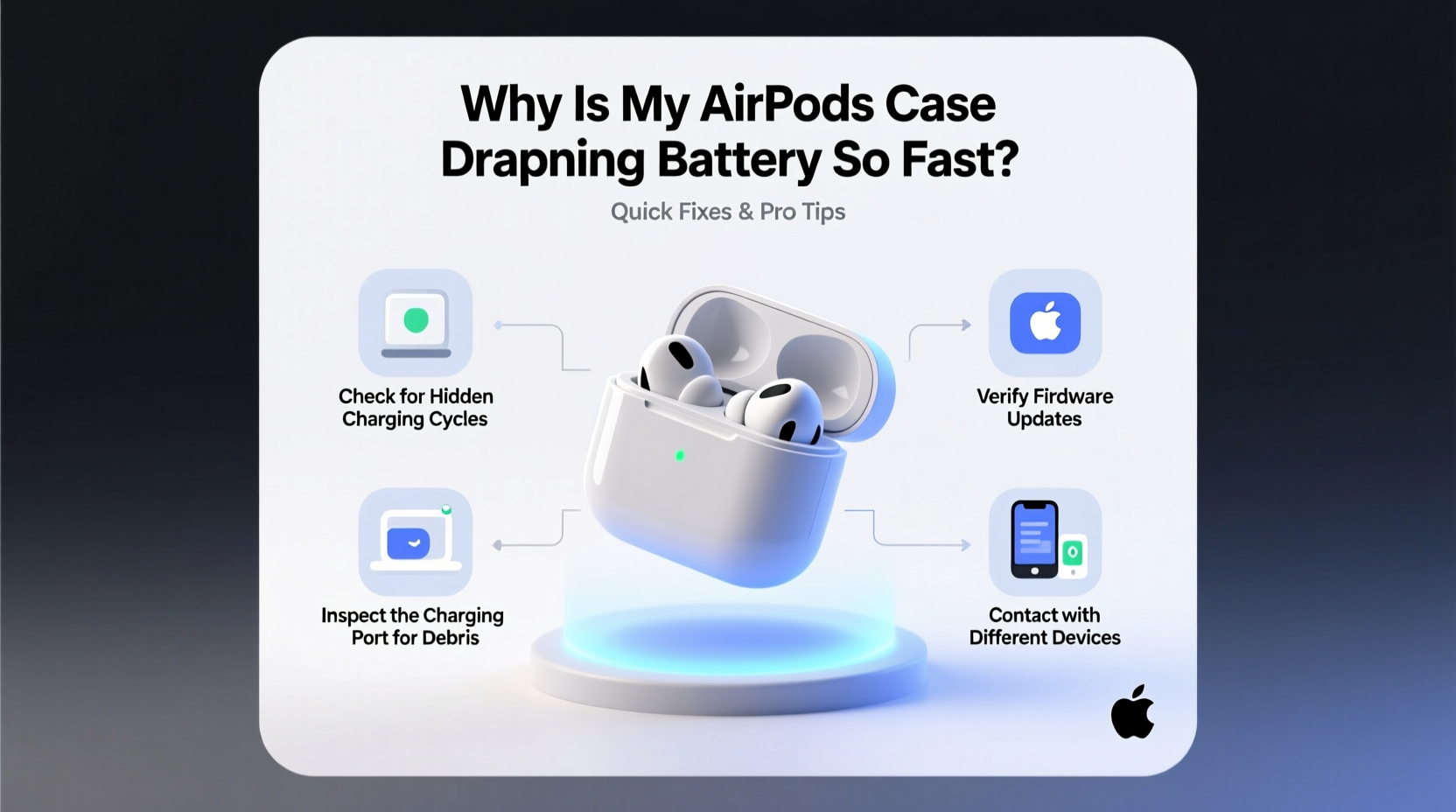
The AirPods charging case isn’t just a protective shell — it’s a portable battery pack designed to recharge your earbuds multiple times on the go. Inside, a lithium-ion battery powers both the AirPods and the case’s internal electronics, including the Bluetooth module that communicates with your devices, LED indicators, and firmware processes.
Battery drain becomes noticeable when the case consumes more energy than expected during standby or charging cycles. Unlike smartphones, the case doesn’t have an operating system, but it still runs low-level background functions that can contribute to power loss if misbehaving.
“Even in sleep mode, the AirPods case maintains a small connection footprint with paired devices. When that connection is unstable or constantly reattempted, it creates unnecessary battery load.” — Dr. Lena Torres, Wireless Systems Engineer at MIT Media Lab
Common Causes of Rapid Battery Drain
Before jumping to conclusions about a defective case, consider these frequent yet often overlooked reasons for fast battery depletion:
- Firmware glitches: Outdated or corrupted firmware can cause the case to stay active longer than needed.
- Poor Bluetooth handshake: If your AirPods frequently disconnect and reconnect, the case may wake up repeatedly to re-establish connections.
- Overheating or cold exposure: Extreme temperatures reduce battery efficiency and accelerate discharge.
- Background app refresh interference: Some iOS apps trigger audio-related services that keep AirPods “awake” longer.
- Damaged or dirty charging contacts: Poor contact forces the case to work harder during charging cycles, reducing overall efficiency.
- Using third-party chargers: Incompatible or low-quality cables and power sources can lead to inefficient charging and increased power waste.
Step-by-Step Troubleshooting Guide
Follow this structured approach to identify and resolve the root cause of your battery drain issue. Each step isolates potential problems systematically.
- Reset Bluetooth Connections
Go to Settings > Bluetooth on your iPhone, tap the (i) icon next to your AirPods, and select “Forget This Device.” Then, place your AirPods back in the case, close the lid for 15 seconds, and reopen. Press and hold the setup button on the back until the status light flashes white. Re-pair them to your device. This clears any corrupted pairing data. - Update Firmware
AirPods receive firmware updates automatically when connected to an iOS device and charging. Ensure your iPhone is updated to the latest iOS version. Leave your AirPods in the case, connected to power, and near your iPhone for several hours to allow silent updates. - Check Battery Health via Settings
Open the case near your iPhone. Wait for the pop-up showing battery levels. Note whether the case battery drops significantly within a short time (e.g., 20% in 2 hours). Also, check individual AirPod battery levels — uneven wear might indicate deeper issues. - Clean Charging Contacts
Use a dry, lint-free cloth or a soft-bristled toothbrush to gently clean the metal contacts inside the case and on the AirPods. Avoid liquids or abrasive materials. Dirt buildup can cause inefficient charging, making the battery appear to drain faster due to incomplete top-offs. - Disable Automatic Ear Detection
Go to Settings > Bluetooth > [Your AirPods] > Tap the (i) icon > Toggle off “Automatic Ear Detection.” This prevents the AirPods from constantly checking for insertion, which reduces unnecessary sensor activity and conserves case battery indirectly. - Monitor Background App Activity
Some apps like music players, voice assistants, or transcription tools keep audio sessions open. Close unused apps and disable background app refresh for non-essential apps under Settings > General > Background App Refresh. - Test with Another Charging Cable and Source
Try charging the case using a different Apple-certified cable and a known-good power source (e.g., original wall adapter or MacBook USB port). Faulty cables can deliver inconsistent power, leading to partial charges and perceived faster drain.
Do’s and Don’ts for Preserving Case Battery Life
| Do’s | Don’ts |
|---|---|
| Charge the case regularly before it hits 0% | Leave the case in direct sunlight or hot cars |
| Store in a cool, dry place when not in use | |
| Keep firmware up to date by pairing with updated iOS devices | Expose the case to moisture or cleaning agents |
| Turn off Find My if selling or storing long-term | Leave AirPods in the case while charging overnight repeatedly |
| Re-pair occasionally to clear connection logs | Ignore sudden drops in battery performance without investigation |
Real-World Example: A Fix That Saved a “Dead” Case
Mark, a remote worker in Seattle, reported his AirPods Pro case going from full to empty in under eight hours — even when unused. He assumed the battery was failing and considered buying a replacement. Instead, he followed the reset procedure outlined above. After forgetting the device and re-pairing, he noticed immediate improvement. Further inspection revealed lint clogging the charging pins. After careful cleaning, the case regained normal battery retention, lasting over four days between charges. His issue wasn’t hardware failure — it was a combination of poor connectivity and outdated pairing data causing constant wake cycles.
This scenario highlights how easily minor maintenance oversights can mimic serious battery degradation.
When Hardware Might Actually Be the Problem
While software and environmental factors explain most cases, genuine hardware defects do occur. Signs that point to physical damage or component failure include:
- The case fails to charge at all, even with verified working cables.
- The status light flickers erratically or stays amber indefinitely.
- You notice swelling, discoloration, or a burning smell coming from the case.
- Battery percentage jumps inconsistently (e.g., 80% → 30% → 75%) without usage.
If you've completed all troubleshooting steps and still experience rapid drain, contact Apple Support. Under warranty, they may offer a free replacement. Even out of warranty, Apple offers affordable service options for battery replacements in certain models.
Preventive Maintenance Checklist
To avoid future battery issues, adopt these habits as part of your routine:
- ✅ Re-pair AirPods every 4–6 weeks to refresh Bluetooth profiles
- ✅ Clean charging contacts monthly with a dry microfiber cloth
- ✅ Keep iOS updated to ensure firmware compatibility
- ✅ Avoid letting the case sit at 0% for extended periods
- ✅ Store the case with 40–80% charge if unused for over two weeks
- ✅ Use only MFi-certified (Made for iPhone) charging accessories
- ✅ Disable Automatic Ear Detection if not essential to your usage
Frequently Asked Questions
How long should an AirPods case last on a full charge?
Under normal conditions, an AirPods (3rd gen), AirPods Pro, or AirPods Max case should retain enough power to recharge the earbuds multiple times over several days. If unused, the case itself should lose less than 1–2% per day in standby. For example, leaving it idle for 72 hours shouldn’t drop it below 90% unless there’s an underlying issue.
Can I replace just the AirPods case battery?
Apple does not sell standalone case batteries, but they do offer case replacements. You can purchase a new case separately or through Apple Support if yours is defective. Third-party repair shops may offer battery swaps, but proceed with caution — opening the case risks damaging seals and wireless components.
Does turning off the case save battery?
There’s no physical power switch, but closing the lid puts the case into low-power mode. However, it still maintains minimal Bluetooth readiness. To fully minimize drain, store it away from paired devices or disable Bluetooth on nearby phones/tablets when not in use.
Conclusion: Take Control of Your AirPods’ Battery Life
Rapid battery drain in your AirPods case rarely means it’s time for a replacement. More often, it’s a solvable issue rooted in connectivity, environment, or simple neglect. By understanding how the case operates, applying targeted fixes, and adopting preventive habits, you can restore and extend its performance significantly. Most fixes take less than 10 minutes and cost nothing. Don’t overlook the small details — a clean contact point or a fresh Bluetooth pairing can make all the difference.




 浙公网安备
33010002000092号
浙公网安备
33010002000092号 浙B2-20120091-4
Comments
No comments yet. Why don't you start the discussion?