
Seeing an unexpected orange light on your Amazon Alexa device can be confusing, especially when it starts blinking without warning. Unlike the familiar blue or green indicators signaling voice responses or alarms, an orange blink often points to a technical issue. Whether you're dealing with a sudden Wi-Fi dropout, a failed setup attempt, or a hardware hiccup, understanding what the orange light means—and how to resolve it—is essential for maintaining seamless smart home operation.
This guide breaks down the most common causes of an orange-blinking Alexa, offers step-by-step solutions, and provides real-world insights to help you regain control of your device quickly and confidently.
What Does an Orange Blink Mean on Alexa?
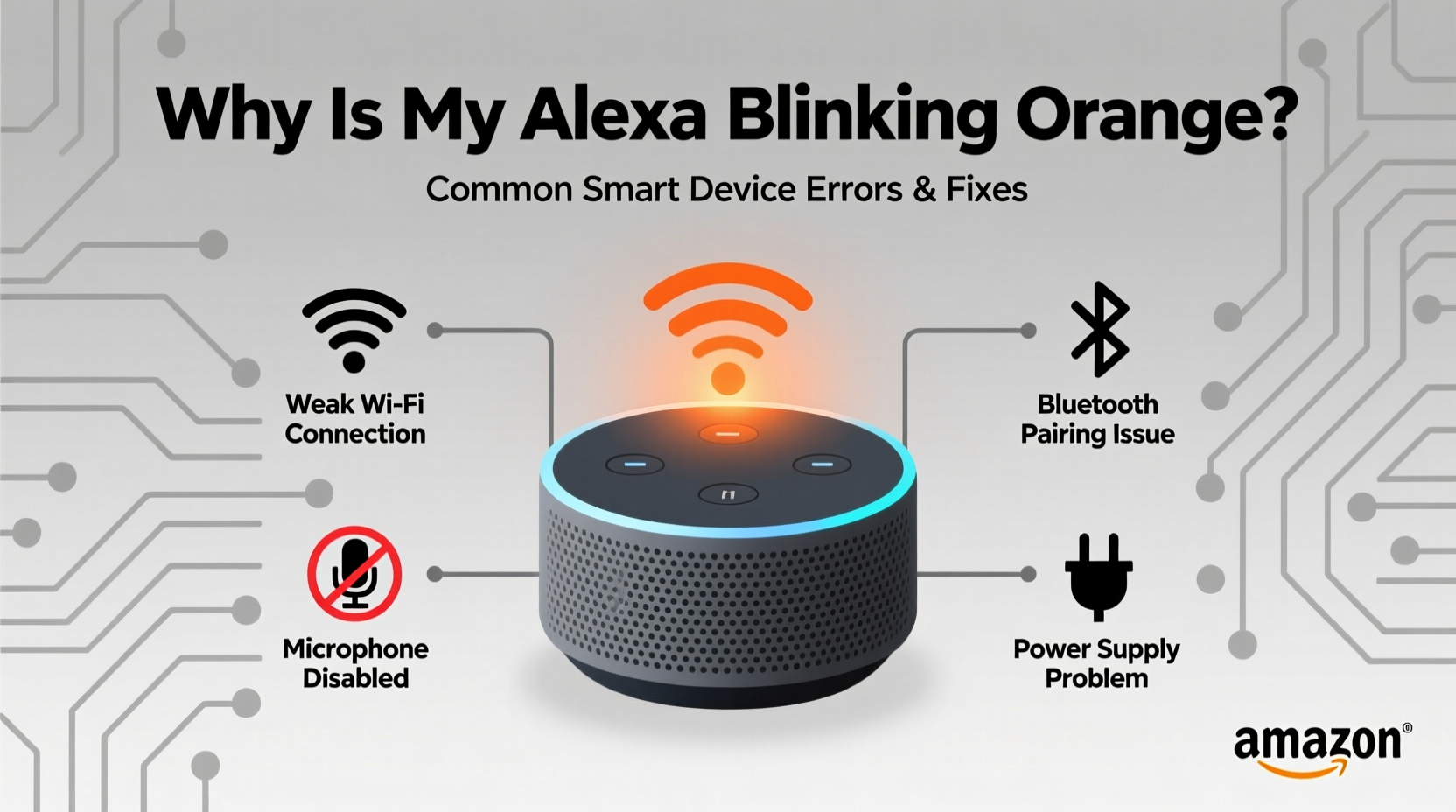
An Alexa device blinking orange typically indicates that it’s in setup mode or experiencing connectivity issues. This status light behavior is part of Amazon’s visual feedback system, designed to communicate the device’s state without requiring voice prompts or app checks.
Specifically, a slow, pulsing orange light usually means:
- The device is starting up or rebooting.
- It’s attempting to connect to Wi-Fi but hasn’t succeeded.
- It’s in pairing or setup mode after a factory reset.
- Firmware update failure during boot.
If the orange blinking persists beyond a few minutes, especially after power-up or network changes, it signals that Alexa cannot establish a stable connection to your home network—blocking access to voice services, smart home integrations, and cloud features.
“Persistent orange blinking is rarely a hardware defect. In over 90% of cases, it's tied to network configuration or authentication problems.” — David Lin, Senior Support Engineer at SmartHome Diagnostics Inc.
Step-by-Step Guide: Fixing the Orange Blink Issue
Follow this structured troubleshooting process to identify and resolve the root cause of the orange blinking light. Each step builds on the previous one, ensuring no potential fix is overlooked.
- Power Cycle Your Alexa Device
Unplug the device from power for at least 30 seconds. This clears temporary memory glitches and forces a clean restart. Plug it back in and observe the light pattern. A solid orange pulse followed by a transition to blue or off-white suggests successful reconnection. - Check Your Wi-Fi Network Status
Ensure your router is online and other devices can connect. Test internet access on a phone or laptop using the same network. If Wi-Fi is unstable, restart your router and wait five minutes before testing again. - Verify Network Credentials in the Alexa App
Open the Alexa app, go to Devices > Echo & Alexa > [Your Device] > Edit > Connect to Wi-Fi. Confirm the correct network name (SSID) and password are entered. Hidden networks must be manually selected. - Move Alexa Closer to the Router
Physical obstructions like walls, metal appliances, or large electronics interfere with Wi-Fi signals. Temporarily place the device within 10 feet of the router during setup or recovery. - Forget and Reconnect to Wi-Fi
In the Alexa app, select “Forget Network” under Wi-Fi settings, then reconnect as if setting up anew. This refreshes the authentication handshake between Alexa and your router. - Factory Reset the Device
If all else fails, perform a hard reset. Press and hold the Action button (usually a microphone off button) for about 25 seconds until the light turns orange, then releases to a slow yellow pulse. Release the button—the device will now be fully reset and ready for reconfiguration.
Troubleshooting Table: Common Causes and Fixes
| Light Pattern | Possible Cause | Solution |
|---|---|---|
| Slow pulsing orange | In setup mode or connecting to Wi-Fi | Complete setup via Alexa app; ensure correct password |
| Fast flashing orange | Failed update or corrupted firmware | Factory reset; retry connection |
| Orange then off | Power interruption or boot error | Use original power adapter; check outlet stability |
| Orange with no response to touch/buttons | Hardware fault or severe software crash | Contact Amazon support; consider replacement |
| Alternating orange and red | Mic disabled + connection issue | Enable mic first, then troubleshoot network |
Common Mistakes That Worsen the Problem
While trying to fix the orange blink, users often make well-intentioned errors that delay resolution. Avoid these pitfalls:
- Using third-party power adapters: Non-certified chargers may not deliver consistent voltage, causing boot failures.
- Entering incorrect Wi-Fi passwords repeatedly: Multiple failed attempts can temporarily lock the device from reconnecting.
- Ignoring 2.4 GHz vs. 5 GHz band compatibility: Most Alexa models only support 2.4 GHz networks. Connecting to a 5 GHz-only SSID leads to persistent orange blinking.
- Skipping router firmware updates: Outdated router software can cause handshake failures with newer Alexa firmware versions.
“Over half the support tickets we receive for 'broken' Alexas turn out to be simple band-mismatch issues. Always verify your router broadcasts a compatible 2.4 GHz signal.” — Tech Support Team, Amazon Customer Service Internal Memo
Real Example: How Sarah Fixed Her Blinking Echo Dot
Sarah noticed her second-generation Echo Dot blinking orange one morning after a brief power outage. She tried speaking to it, but there was no response. Assuming it had died, she unplugged it and waited several minutes before plugging it back in—only to see the orange pulse return.
She opened the Alexa app and found the device listed as “Offline.” Instead of immediately resetting it, she checked her Wi-Fi. Her phone showed full signal strength, but upon closer inspection, she realized her dual-band router had split the networks into “Home-2G” and “Home-5G.” The Echo Dot was previously connected to “Home,” which used to broadcast both bands together.
After updating her router settings to enable co-channel broadcasting on 2.4 GHz and restarting both devices, she performed a factory reset on the Echo Dot. Within 90 seconds of initiating setup in the app, the orange light turned to a soft blue swirl—indicating successful connection.
Sarah’s experience highlights how subtle network changes—especially after outages or updates—can silently disrupt smart devices even when other gadgets appear unaffected.
Checklist: How to Resolve Alexa Orange Blinking
Use this concise checklist to methodically address the issue:
- ✅ Unplug Alexa for 30+ seconds and restart
- ✅ Confirm Wi-Fi is active and accessible on other devices
- ✅ Ensure you’re using the 2.4 GHz network band
- ✅ Double-check Wi-Fi password accuracy in the Alexa app
- ✅ Move Alexa closer to the router temporarily
- ✅ Restart your router and modem
- ✅ Forget network and reconnect via app
- ✅ Perform a factory reset if necessary
- ✅ Try a different power cable or outlet
- ✅ Contact Amazon Support if blinking continues post-reset
Frequently Asked Questions
Can I use Alexa without Wi-Fi?
No. Alexa requires an active internet connection for core functionality, including voice recognition, smart home control, and updates. While some basic alarms or timers may work offline once set, initial setup and daily use depend entirely on Wi-Fi. An orange blink during setup confirms the absence of a usable network.
Why does my Alexa keep disconnecting and showing orange even after setup?
This often occurs due to weak signal strength or IP conflicts. Consider placing your router centrally, reducing interference from microwaves or cordless phones, or assigning a static IP address to your Alexa through router settings. Also, ensure your network isn’t hitting device limits—some routers cap connections at 25 devices.
Does a blinking orange light mean my Alexa is broken?
Not necessarily. Persistent orange blinking is almost always a software or network issue rather than hardware failure. Only if the device shows no signs of life after multiple resets, uses original accessories, and tests on known-good networks should permanent damage be suspected.
When to Seek Professional Help
If you’ve completed all troubleshooting steps—including a factory reset, verified network compatibility, used the correct power supply, and attempted setup on a secondary network—and the orange blinking continues, it may indicate deeper firmware corruption or internal component failure.
In such cases, contact Amazon customer support directly. Provide them with your device model, serial number, and a summary of actions taken. Depending on warranty status, they may offer a free replacement or advanced diagnostics.
Note: Devices purchased from unauthorized resellers or used markets may have limited or no support eligibility. Always register your device through the official Alexa app upon purchase.
Conclusion: Stay Calm and Troubleshoot Logically
An Alexa blinking orange doesn’t mean your device is lost. It’s a signal—an invitation to inspect your network health and device readiness. By approaching the problem systematically, avoiding common missteps, and leveraging built-in tools like the Alexa app and factory reset function, most issues resolve within minutes.
Smart home technology thrives on consistency and communication. When one link falters, like a disrupted Wi-Fi handshake, the system responds with cues like colored lights to guide recovery. Understanding these signals transforms frustration into empowerment.




 浙公网安备
33010002000092号
浙公网安备
33010002000092号 浙B2-20120091-4
Comments
No comments yet. Why don't you start the discussion?