
Seeing a yellow light on your Alexa-enabled device can be confusing, especially if it wasn’t there before. Unlike the familiar blue ring that appears during setup or voice interaction, a blinking yellow light signals something specific: you have an unread notification. While this feature is designed to keep you informed, persistent blinking or failure to clear notifications can become frustrating. Understanding what triggers the yellow light—and how to manage or resolve related issues—is essential for maintaining a seamless smart home experience.
Alexa uses colored lights to communicate different statuses. A steady or pulsing yellow ring means someone has sent you a message, reminder, or delivery update—most commonly through Amazon’s messaging system or the Alexa app. However, when the light continues blinking despite checking messages, or when no notifications appear in the app, users often suspect a malfunction. In most cases, the issue isn't hardware failure but rather a sync problem, connectivity hiccup, or misconfigured setting. This guide breaks down everything you need to know about the yellow blink, including how to respond, troubleshoot, and prevent future notification problems.
What Does a Yellow Light on Alexa Mean?
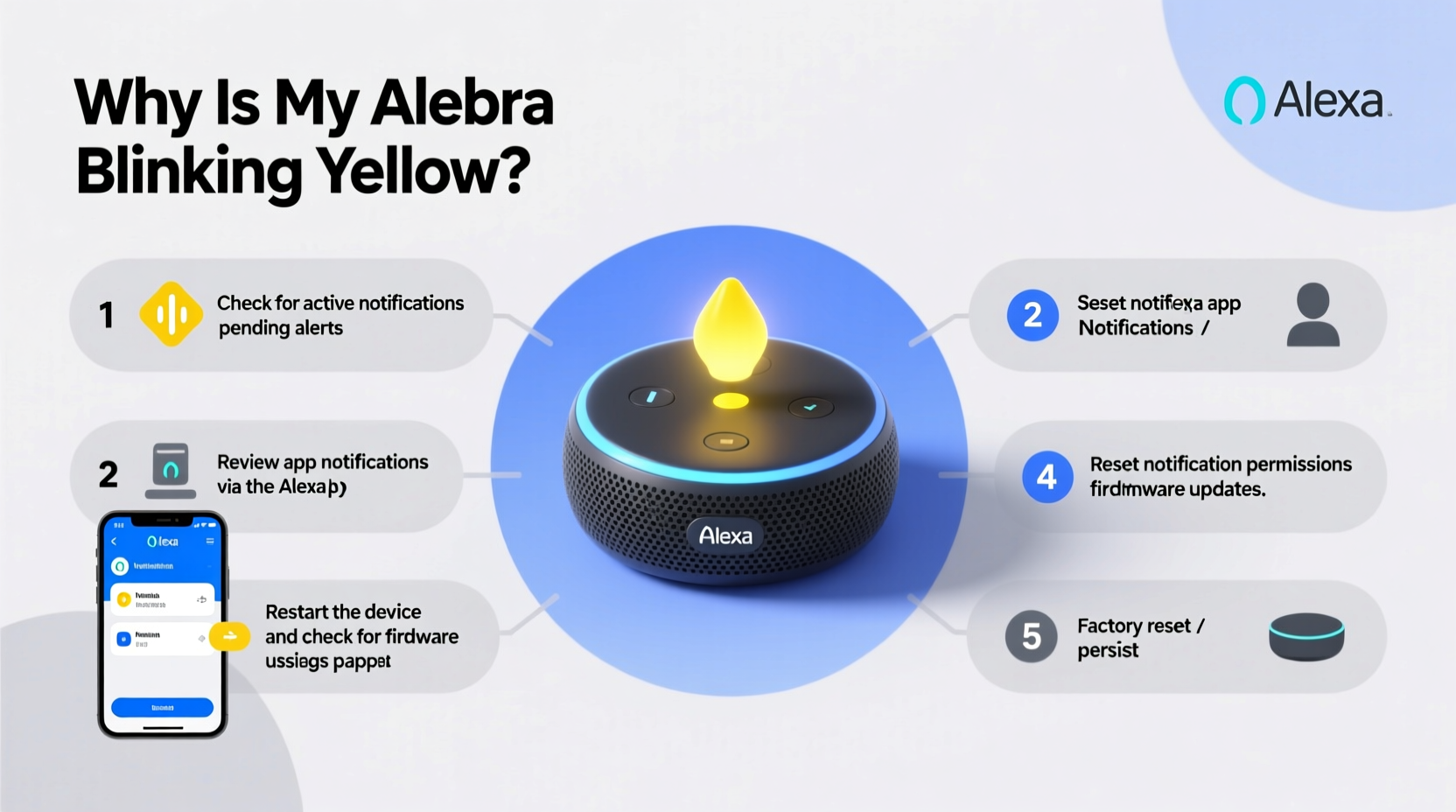
The yellow light ring (or amber glow on certain models like the Echo Dot) indicates pending notifications. These alerts fall into three main categories:
- Messages: Voice or text messages sent via the Alexa app from another user.
- Reminders: Personal alerts set by you or shared by others.
- Delivery Updates: Real-time shipping status from Amazon orders, such as “Out for delivery” or “Delivered.”
The device typically pulses slowly in yellow to grab attention without being intrusive. Once you acknowledge the notification by saying, “Play my notifications,” or checking them in the Alexa app, the light should turn off automatically.
“Visual cues like the yellow pulse are part of Alexa’s ambient communication design—meant to inform, not interrupt.” — Sarah Lin, UX Researcher at SmartHome Labs
However, confusion arises when users don’t recall sending or receiving messages, or when the light persists after addressing all visible alerts. This usually points to deeper software or account-level issues rather than a faulty device.
How to Clear the Yellow Blink: Step-by-Step Guide
If your Alexa is blinking yellow, follow these steps to resolve it efficiently:
- Ask Alexa to Play Notifications
Say clearly: “Alexa, play my notifications.” The device will read out any pending messages, reminders, or delivery updates. After playback, the yellow light should stop. - Check the Alexa App
Open the Alexa app on your smartphone or tablet.
Tap the Communicate icon (speech bubble) at the bottom.
Review and listen to any unread messages.
Swipe to delete or mark as read. - Delete Old or Stuck Messages
Sometimes, corrupted or failed messages get stuck in the queue.
In the Communicate tab, long-press on any grayed-out or unplayable message and select Delete. - Clear All Notifications Manually
In the app, go to Settings > Notifications.
You can disable non-essential alerts temporarily to reduce clutter.
Alternatively, mute delivery notifications if they’re unnecessary. - Restart Your Device
Unplug your Echo device from power for 30 seconds.
Plug it back in and wait for it to reboot (you’ll hear the startup tone).
Test again by asking for notifications.
Common Causes of Persistent Yellow Lights
Even after following standard procedures, some users report recurring or unresponsive yellow blinks. Below are frequent technical causes and their solutions:
Sync Errors Between Devices and Cloud
Alexa relies on real-time synchronization between your physical device, mobile app, and Amazon’s servers. Network instability or brief disconnections can cause notifications to fail to register as read.
Corrupted Message Cache
Like any app-based system, temporary data buildup can interfere with proper function. A stale cache may prevent the device from updating its status light even after message clearance.
Misrouted or Phantom Notifications
If multiple household members share an Amazon account, messages intended for one person might trigger alerts on all devices. Occasionally, deleted messages reappear due to syncing bugs.
Firmware or App Bugs
Amazon rolls out regular updates to the Alexa app and device firmware. Outdated versions may lack fixes for known notification glitches.
Do Not Disturb Mode Conflicts
When Do Not Disturb is enabled, incoming notifications won’t play aloud—but they still activate the yellow light. Users may miss the visual cue and wonder why the blink remains.
Troubleshooting Checklist for Notification Issues
Use this checklist to systematically eliminate possible causes of yellow light problems:
- ✅ Check the Alexa app’s Communicate tab for unread messages
- ✅ Ask Alexa to “play my notifications” verbally
- ✅ Delete any stuck or corrupted messages manually
- ✅ Restart your Echo device and Wi-Fi router
- ✅ Ensure the Alexa app is updated to the latest version
- ✅ Confirm your Echo is connected to the internet (check the app)
- ✅ Disable and re-enable notification permissions in the app settings
- ✅ Sign out and back into your Amazon account within the Alexa app
- ✅ Factory reset your device only as a last resort
When to Factory Reset: Last Resort Solutions
If all else fails, a factory reset can resolve deep-seated software conflicts. Be aware that this erases all settings, Wi-Fi credentials, and personalized preferences.
How to Perform a Factory Reset
- Locate the Action button (usually a circular button with a dot or dash) on your Echo device.
- Press and hold it for about 25 seconds until the light ring turns orange, then white.
- Release the button. The device will restart and enter setup mode.
- Use the Alexa app to reconnect it to Wi-Fi and restore basic functions.
After resetting, monitor whether the yellow light returns without any new notifications. If it does, contact Amazon Support—this could indicate a hardware fault or account-specific bug.
Preventing Future Notification Problems
Proactive management reduces the likelihood of recurring yellow light issues. Consider these best practices:
Customize notification types under Settings > Notifications in the Alexa app. You can choose which alerts generate lights—for example, disabling delivery updates while keeping reminders active.
Additionally, schedule routine maintenance:
- Weekly: Review and clear old messages.
- Monthly: Reboot your Echo devices and router.
- Quarterly: Update all smart home apps and check for firmware upgrades.
Real-World Example: Resolving a Stubborn Yellow Blink
Samantha, a remote worker in Austin, noticed her kitchen Echo Dot kept blinking yellow every morning—even though she had already checked her messages the night before. She asked Alexa to play notifications, but the device responded, “You have no new messages.” Frustrated, she unplugged it several times, only for the yellow pulse to return after a few hours.
She opened the Alexa app and discovered a grayed-out delivery alert from two weeks prior labeled “Unable to play.” Despite appearing read, it hadn’t cleared from the system. Samantha long-pressed the message and selected delete. Then, she restarted the device. The yellow light disappeared and hasn’t returned since.
This case highlights how a single corrupted notification can disrupt normal operation. Regular app checks and manual cleanup prevent such silent glitches from escalating.
Do’s and Don’ts of Managing Alexa Notifications
| Do’s | Don’ts |
|---|---|
| Regularly review messages in the Alexa app | Ignore persistent yellow lights—they rarely resolve on their own |
| Use voice commands to clear notifications hands-free | Delete messages directly on the device—it’s not supported |
| Update the Alexa app and device firmware monthly | Assume the issue is hardware-related without testing software fixes |
| Assign individual profiles in multi-user households | Share primary Amazon accounts across unrelated users |
| Reboot devices periodically to clear cache | Perform factory resets without exhausting other options |
Frequently Asked Questions
Does a yellow light mean I have a message from someone?
Yes, typically. A blinking yellow light indicates a new message, reminder, or Amazon delivery update. It can come from another Alexa user or from Amazon itself. Check the Communicate tab in the Alexa app to see the exact type.
Why is my Alexa blinking yellow with no message in the app?
This usually happens when a notification failed to load properly or became corrupted. Try restarting the device, clearing the app cache, or signing out and back into your account. If a phantom message exists, it may only appear after a refresh or reboot.
Can I turn off the yellow light without reading the notification?
You cannot disable the yellow light selectively per notification, but you can mute entire categories. Go to Settings > Notifications in the Alexa app and toggle off delivery alerts or messages. Alternatively, enable Do Not Disturb mode to suppress both sound and light alerts during certain hours.
Conclusion: Take Control of Your Alexa Experience
The yellow blink on your Alexa is more than just a minor annoyance—it’s a signal that your smart assistant is trying to communicate with you. By understanding what triggers it and how to respond effectively, you regain control over your connected environment. Most notification issues stem from simple oversights or temporary glitches, not permanent defects. With consistent maintenance, proactive app use, and a clear troubleshooting strategy, you can keep your Alexa functioning smoothly and silently—unless you want it to speak.




 浙公网安备
33010002000092号
浙公网安备
33010002000092号 浙B2-20120091-4
Comments
No comments yet. Why don't you start the discussion?