
A blinking yellow light on your Amazon Alexa device can be confusing, especially if you're not sure what it signifies. Unlike a steady blue or green indicator, which typically shows activity or an active call, a pulsing yellow ring is Amazon's way of alerting you to something specific—usually a message or notification. However, if left unattended or misinterpreted, it can lead to frustration or even unnecessary troubleshooting. Understanding why your Alexa blinks yellow, what it means in different contexts, and how to resolve it efficiently can save time and improve your smart home experience.
This guide breaks down every possible reason behind the yellow light, explains how to address each scenario, and offers preventive tips to avoid confusion in the future. Whether you’re new to Alexa or have used one for years, clarity on this visual cue ensures you stay informed without disruption.
What Does a Yellow Light on Alexa Mean?
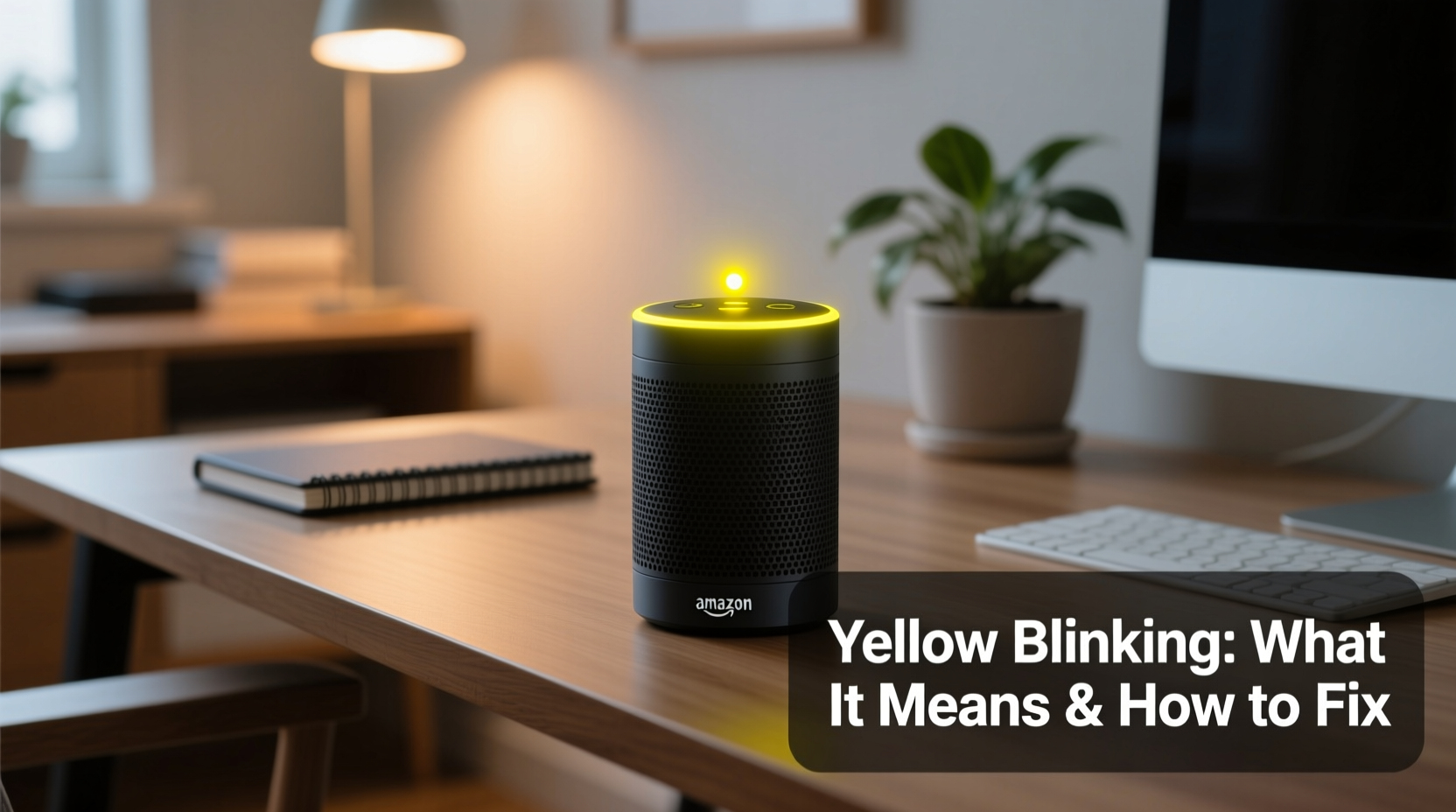
The most common reason for a yellow light ring on your Alexa-enabled device (such as Echo Dot, Echo Show, or Echo Studio) is that you’ve received a message or notification through the Alexa Communication feature. This includes:
- Voice messages from other Alexa users
- Drop In notifications (if enabled)
- Reminders or alerts set via the Alexa app
- Delivery updates from Amazon (e.g., “Your package has arrived”)
The yellow light pulses slowly in a clockwise direction to indicate pending messages. It will continue until you acknowledge or clear the notification. While this design helps ensure you don’t miss important updates, some users mistake it for a connectivity issue or malfunction—especially if they aren’t aware of the messaging system.
“Many Alexa support inquiries about blinking lights stem from unfamiliarity with the color-coded feedback system. Yellow specifically signals user-level notifications, not technical faults.” — James Reed, Senior Support Analyst at Amazon Smart Home Division
How to Check and Clear Yellow Notifications
Clearing the yellow blink is simple once you know where to look. Follow these steps to view and dismiss your notifications:
- Open the Amazon Alexa app on your smartphone or tablet.
- Navigate to the Communications tab at the bottom (speech bubble icon).
- Tap on any highlighted messages or voice drops.
- Listen to voice messages or read text alerts.
- Swipe them away or tap the trash icon to delete.
Alternatively, you can use voice commands:
- Say: “Alexa, play my messages”
- After playback, say: “Alexa, delete my messages”
Once all messages are cleared, the yellow light should stop pulsing within a few seconds. If the device remains lit, try restarting it by unplugging for 10 seconds and plugging it back in.
Common Causes of Persistent Yellow Blinking
While most yellow light issues relate to unread messages, several less obvious factors can cause persistent blinking. Below is a breakdown of potential causes beyond standard notifications:
| Cause | Description | Solution |
|---|---|---|
| Pending Delivery Alerts | Amazon sends shipping updates via Alexa when packages are out for delivery or delayed. | Check \"Notifications\" in the Alexa app under Settings > Notifications > Amazon Services. |
| Unheard Voice Drops | A contact used “Drop In” or sent a quick voice message while you were away. | Go to Communications tab and clear all incoming voice drops. |
| Glitch After Software Update | Sometimes post-update bugs cause false indicators. | Restart the device and ensure firmware is up to date. |
| Shared Household Confusion | Another household member received a message linked to the same account. | Review shared settings and consider setting up individual profiles. |
| Third-Party App Alerts | Skills like weather alerts, news briefings, or smart home warnings may trigger yellow pulses. | Disable unwanted skill notifications in the Alexa app under Skill Permissions. |
Mini Case Study: The Mystery of the Never-Ending Blink
Sarah, a remote worker in Austin, noticed her kitchen Echo Dot had been blinking yellow for two days straight. She thought it was broken and nearly returned it. After checking her Alexa app, she discovered a voice message from her sister sent during a power outage. Because Sarah hadn’t opened the app in over 48 hours, the message remained undelivered visually. Once she played and deleted the message, the light vanished immediately. A simple oversight caused unnecessary concern—highlighting the importance of syncing physical devices with digital apps.
Step-by-Step Guide to Fix a Blinking Yellow Light
If your Alexa keeps blinking yellow despite attempts to clear messages, follow this structured approach:
- Verify Internet Connection
Ensure your Echo device is connected to Wi-Fi. A disconnected device may fail to sync message status. Say: “Alexa, what’s my Wi-Fi?” to confirm. - Open the Alexa App
Launch the app and go to the Communicate section. Look for any unread messages marked with a yellow dot. - Clear All Messages
Delete voice messages, missed Drop Ins, and archived alerts. Don’t skip old ones—they still count. - Check Notification Settings
Go to More > Settings > Notifications. Review which services are allowed to send alerts. Disable non-essential ones like promotional updates. - Reboot Your Device
Unplug the power adapter for 15 seconds, then reconnect. Wait for the startup chime and observe the light ring. - Test with a New Message
Have someone send a test voice message. Confirm it appears in the app and triggers a yellow pulse, then clear it to verify functionality. - Factory Reset (Last Resort)
If the light persists, reset via the app or manually (press and hold the Action button for 25 seconds). Reconnect to Wi-Fi afterward.
Preventing Unwanted Yellow Alerts
To minimize disruptions from unnecessary notifications, customize your Alexa communication preferences:
- Turn off Delivery Notifications if you prefer email or SMS updates.
- Limit Drop In access to trusted contacts only.
- Use Do Not Disturb mode during sleep hours to silence visual and audio alerts.
- Create routines that automatically mute notifications after 8 PM.
Frequently Asked Questions
Does a yellow light mean someone is listening to me?
No. The yellow light indicates a message or alert, not live monitoring. Alexa only activates its microphone when triggered by the wake word or manual button press. A solid red ring would indicate the mic is off, but yellow is purely informational.
Can I turn off the yellow light without deleting messages?
Not permanently. You can temporarily dim the light ring brightness in the Alexa app under Device Settings > Display, but the pulsing will resume until messages are cleared. For privacy or sensitivity reasons, consider disabling voice messaging entirely in Communication settings.
Why does my Alexa blink yellow even when there are no messages in the app?
This could be due to a syncing delay or cached data. First, force-close and reopen the Alexa app. Next, restart your router and Echo device. If unresolved, log out of your Amazon account in the app and log back in to refresh the connection.
Expert Tips for Managing Alexa Notifications
Managing alerts effectively enhances both usability and peace of mind. Consider these advanced strategies:
- Assign Devices to Rooms: Use room labels in the Alexa app to direct messages only to relevant speakers (e.g., bedroom vs. kitchen).
- Use Routines to Silence Alerts: Create a routine like “At bedtime, enable Do Not Disturb on all devices.”
- Separate Personal and Family Accounts: Set up separate Amazon profiles for each adult in the home to avoid cross-notification confusion.
- Monitor Skill Activity: Third-party skills sometimes push frequent alerts. Regularly audit permissions under Skills & Games > Your Skills > Manage Permissions.
“The key to mastering Alexa isn’t just knowing what the lights mean—it’s shaping the experience around your lifestyle. Customize notifications so technology serves you, not distracts you.” — Lena Patel, Smart Home Integration Consultant
Final Checklist: Resolving the Yellow Blink Issue
Checklist: How to Fix a Blinking Yellow Alexa Light
- ✅ Open the Alexa app and check the Communicate tab
- ✅ Play and delete all voice messages
- ✅ Review delivery and service notifications
- ✅ Restart your Echo device
- ✅ Ensure stable Wi-Fi connection
- ✅ Disable unwanted third-party alerts
- ✅ Reset device if issue persists
Conclusion: Take Control of Your Alexa Experience
A blinking yellow light on your Alexa isn’t a flaw—it’s a feature designed to keep you informed. But without proper understanding, it can become a source of confusion or annoyance. By learning what triggers the alert, how to respond appropriately, and how to tailor notification settings to your needs, you reclaim control over your smart home environment.
Don’t let a small light dictate your perception of technology. With the right knowledge, you can transform that pulse of yellow into a useful tool rather than a mystery. Apply these steps today, fine-tune your preferences, and enjoy a smoother, more intuitive Alexa experience.




 浙公网安备
33010002000092号
浙公网安备
33010002000092号 浙B2-20120091-4
Comments
No comments yet. Why don't you start the discussion?