
If you've noticed your Amazon Echo device flashing an orange light, you're not alone. Many Alexa users have been startled by this unexpected visual cue, especially when they’re unsure of its meaning. Unlike the familiar blue ring that signals voice activation or the green pulse indicating a call, the orange flash doesn’t come with immediate context. It can appear during setup, after a firmware update, or even randomly in the middle of the day. Understanding what triggers this indicator—and knowing how to respond—is essential for uninterrupted smart home functionality.
The orange light on your Alexa device isn't a sign of permanent failure, but rather a communication tool from Amazon’s system. In most cases, it reflects a specific status related to connectivity, updates, or device initialization. The key to resolving the issue lies in identifying which phase of operation your device is in and taking appropriate corrective steps. This guide breaks down the causes behind the orange flash, offers verified solutions, and provides real-world examples to help you restore normal function—fast.
What Does an Orange Flash Mean on Alexa?
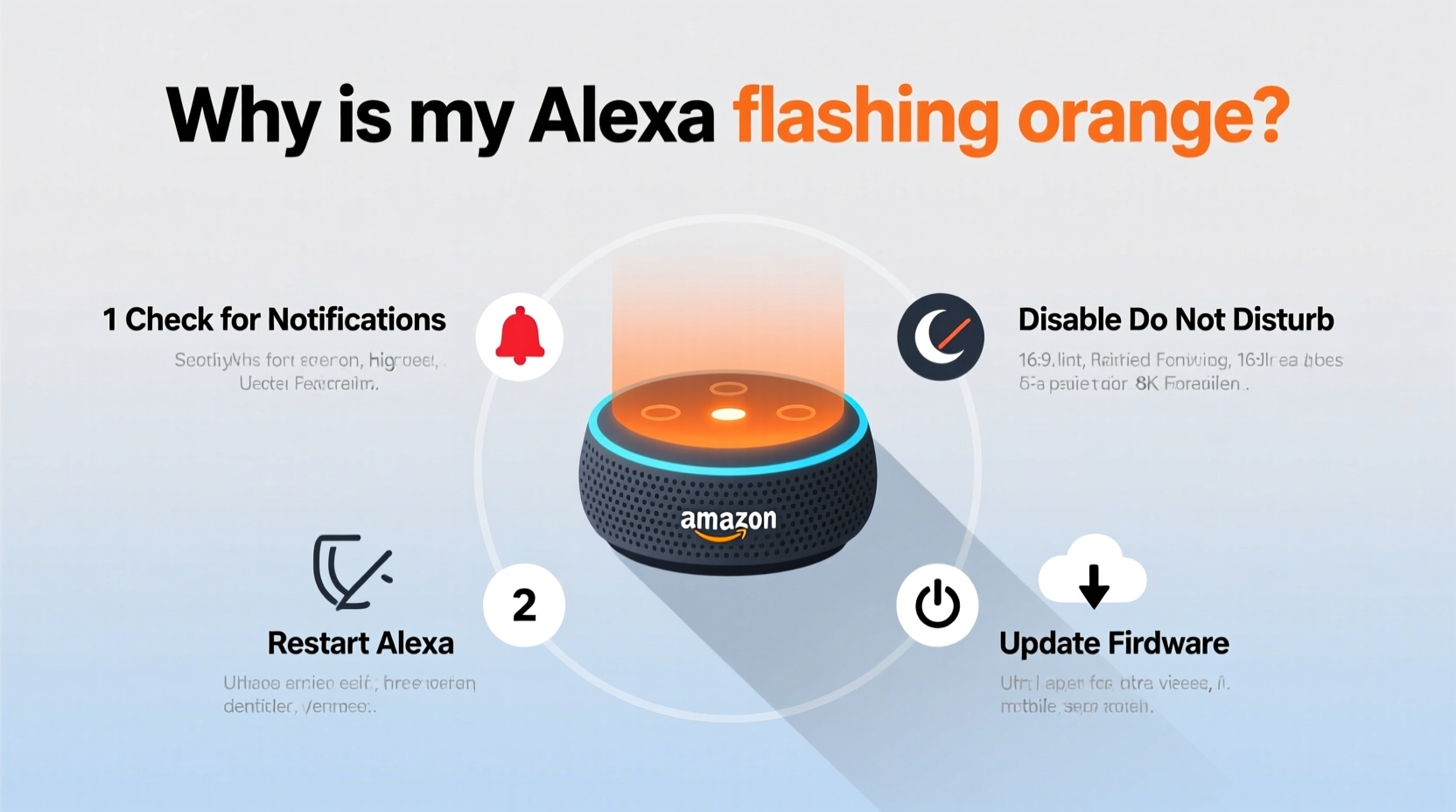
The pulsing or flashing orange light on any Amazon Echo device typically indicates one of two primary states: either the device is in setup mode (booting up or preparing for Wi-Fi configuration), or it is actively installing a software update. These are normal operational processes, but confusion arises when the light persists longer than expected or appears without user initiation.
During initial power-up, the orange flash is completely expected. When you plug in a new Echo or restart an existing one, the device cycles through several LED indicators:
- Orange pulse: Booting or updating
- Blue spiral: Ready for voice input
- Green pulse: Incoming call or drop-in
- Yellow blink: Notifications or reminders
An orange light lasting more than 5–10 minutes, however, may suggest a problem—most commonly, a failed update, network instability, or hardware malfunction. It's important to distinguish between a temporary boot cycle and a stuck state.
Common Causes of Persistent Orange Flashing
While short bursts of orange are part of standard operations, prolonged or recurring flashing usually points to underlying issues. Here are the most frequent culprits:
- Pending Software Update – Alexa devices automatically download and install updates overnight. If interrupted or corrupted, the update process may hang, leaving the device stuck in orange flash mode.
- Wi-Fi Connectivity Problems – A weak signal, incorrect password entry during setup, or router compatibility issues can prevent Alexa from completing its boot sequence.
- Factory Reset Initiated – Holding the microphone button for over 20 seconds forces a factory reset, which triggers orange flashing as the device wipes data and reboots.
- Damaged Firmware – Rarely, a bug in the operating system can corrupt internal files, preventing successful startup.
- Hardware Failure – Physical damage, power surges, or component wear can cause erratic LED behavior, including continuous orange pulses.
Before jumping to conclusions about hardware defects, rule out simpler explanations like internet instability or incomplete setup procedures.
Step-by-Step Guide to Fix Alexa Orange Flashing
Follow this structured troubleshooting flow to identify and resolve the root cause efficiently.
Step 1: Assess Duration and Context
Note how long the orange light has been active:
- Less than 5 minutes? Likely normal booting — wait it out.
- Over 10 minutes? Proceed to diagnostics.
- Appeared after pressing buttons? Could be reset mode.
Step 2: Restart the Device
Unplug the power adapter from the outlet, wait 30 seconds, then reconnect. Observe the LED pattern upon reboot. A fresh start often clears temporary glitches.
Step 3: Check Your Internet Connection
Ensure your router is online and other devices can access the internet. Test Wi-Fi strength near the Echo. Weak signals below -70 dBm can disrupt device handshakes.
Step 4: Reconnect to Wi-Fi via App
- Open the Alexa app on your smartphone.
- Navigate to Devices > Echo & Alexa.
- Select your flashing device.
- Tap Change WiFi Settings and follow prompts to reconnect.
Step 5: Perform a Factory Reset (If Necessary)
If the device remains unresponsive:
- Press and hold the Microphone Off button for 25 seconds.
- Wait for the light to turn orange, then release.
- The device will reset and enter setup mode (orange pulse).
- Use the Alexa app to reconfigure it as if new.
Step 6: Contact Amazon Support
If all else fails and the orange light persists post-reset, contact Amazon Customer Service. Provide your device model and serial number. You may qualify for replacement under warranty.
“Persistent orange flashing beyond 15 minutes usually indicates a failed network handshake or stalled update. A hard reset resolves 80% of such cases.” — Rajiv Mehta, Senior Technical Advisor at Amazon Smart Home Division
Troubleshooting Checklist
- ✅ Wait 10 minutes to confirm if it's part of normal boot-up
- ✅ Unplug and replug the device to force a restart
- ✅ Verify Wi-Fi is working and strong near the Echo
- ✅ Use the Alexa app to reconnect to your network
- ✅ Perform a factory reset using the Microphone Off button
- ✅ Set up the device again from scratch in the app
- ✅ Reach out to Amazon support if unresolved
Do’s and Don’ts When Dealing with Orange Lights
| Do’s | Don’ts |
|---|---|
| Wait patiently during initial boot-up or updates | Don’t unplug repeatedly during orange flashing—it can corrupt firmware |
| Use the official Alexa app to manage connections | Don’t ignore router firmware updates—they affect device compatibility |
| Keep your Echo within range of a stable Wi-Fi signal | Don’t assume the device is broken after first seeing orange |
| Regularly check for silent background updates | Don’t use third-party power adapters; they may not provide stable voltage |
Real Example: Sarah’s Stuck Echo Dot
Sarah purchased a second-generation Echo Dot as a gift. After plugging it in, she saw the orange light begin pulsing. She waited five minutes—no change. Another ten passed. Still orange. Frustrated, she unplugged it multiple times, hoping each restart would bring the expected blue glow.
Eventually, she opened the Alexa app and found the device listed under “Set Up New Device,” despite having attempted setup twice. She realized her phone was connected to cellular data, not Wi-Fi. Once she switched to her home network, the app detected the Echo immediately. Following the guided steps, she re-entered her Wi-Fi password, and within 90 seconds, the orange light cycled off and turned solid blue.
Sarah’s experience highlights a common oversight: the necessity of using the same Wi-Fi network (on your mobile device) as the one you want Alexa to join. Even minor mismatches in network selection can stall the entire process, leaving users confused by persistent orange signals.
Frequently Asked Questions
Is orange flashing on Alexa dangerous?
No, the orange light itself is not dangerous. It’s a status indicator, not a sign of overheating or electrical hazard. However, if the device feels unusually hot or emits strange odors, disconnect it immediately and contact Amazon.
How long should Alexa stay orange during an update?
Software updates typically take 3–10 minutes. The orange light may flicker intermittently during this time. If it lasts longer than 15 minutes without transitioning to blue, consider restarting or resetting the device.
Can I use Alexa while it’s flashing orange?
No. While flashing orange, Alexa is either booting, updating, or resetting. It cannot respond to voice commands until the process completes and the light turns blue.
Preventing Future Issues
To minimize disruptions from unexpected orange lights, adopt these preventive habits:
- Schedule updates wisely: Avoid initiating resets or setups during peak internet usage hours.
- Maintain router health: Reboot your modem monthly and ensure firmware is current.
- Use quality power sources: Always use the original Amazon power adapter to avoid voltage fluctuations.
- Monitor device status: Occasionally check the Alexa app for pending updates or connection alerts.
- Keep devices updated: Enable automatic updates in the app settings to prevent outdated firmware issues.
Proactive maintenance reduces the likelihood of getting stuck in boot loops or failed update cycles. Think of your Echo as a mini-computer—it benefits from occasional care just like your phone or laptop.
Conclusion
An Alexa flashing orange doesn’t mean your device is broken—it’s trying to tell you something. Whether it’s booting up, installing an update, or struggling to connect to Wi-Fi, the solution usually lies in patient observation and methodical troubleshooting. Most issues resolve within minutes using simple steps like restarting the device or reconfiguring network settings. By understanding what the orange light signifies and following the right recovery path, you can get your smart speaker back online quickly and reliably.




 浙公网安备
33010002000092号
浙公网安备
33010002000092号 浙B2-20120091-4
Comments
No comments yet. Why don't you start the discussion?