
If you’ve walked into your living room and noticed your Amazon Echo device pulsing with a yellow light, you’re not alone. That soft amber glow isn’t just decorative—it’s a signal. Specifically, a yellow pulse means you have an unread message or notification waiting in your Alexa app. While this feature is designed to keep you informed, it can become confusing or even annoying if the light stays on without explanation or won’t stop flashing after you’ve checked everything.
Understanding what triggers the yellow flash and how to resolve lingering notification problems is essential for seamless smart home use. Whether it's a missed Drop In request, a family alert, or a glitch in the system, this guide breaks down the causes, fixes, and preventive steps to ensure your Alexa behaves as expected—without the persistent glow.
What Does a Yellow Flash Mean on Alexa?
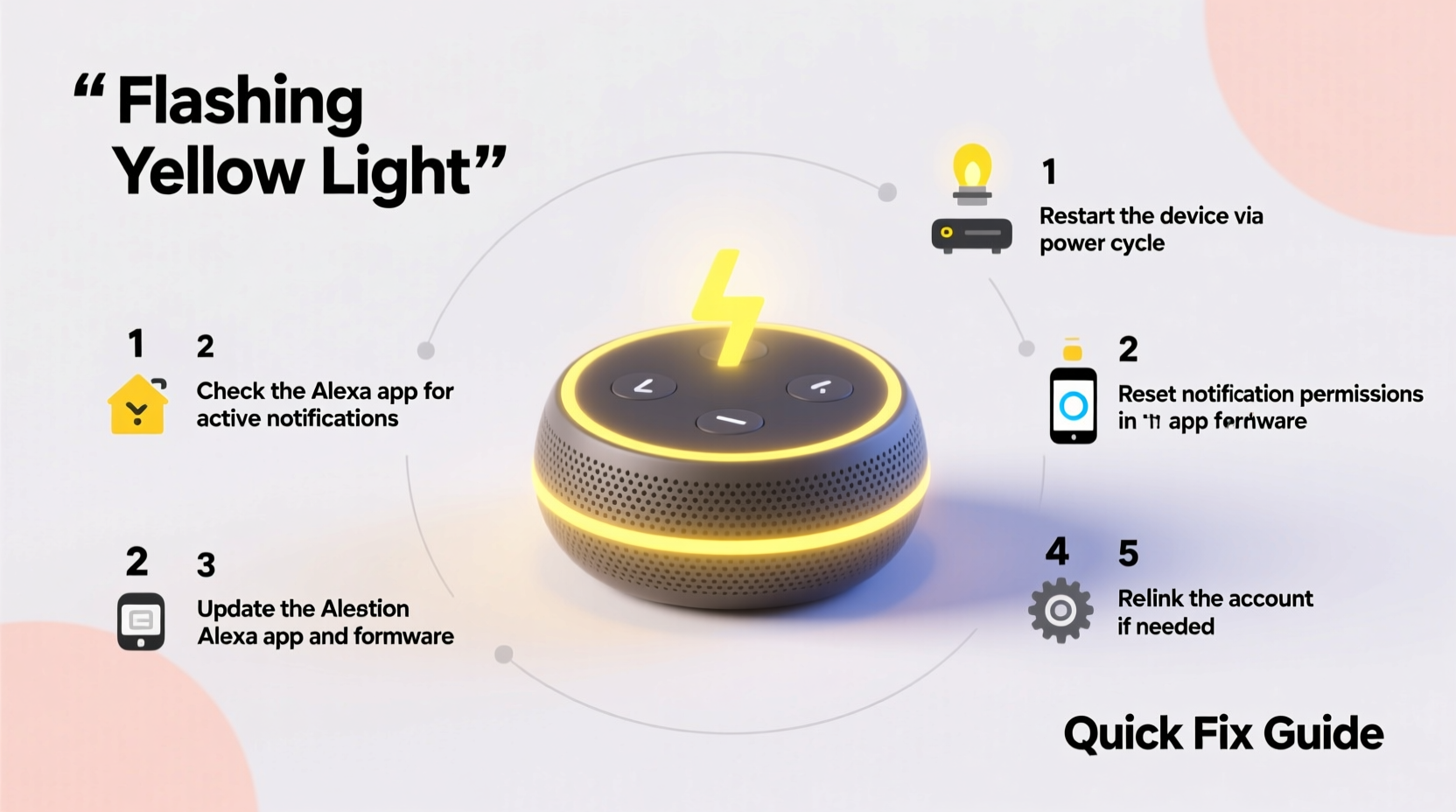
The most common reason for a yellow light ring on your Alexa-enabled device is an incoming message or notification. These alerts typically come from:
- Amazon Household messages (e.g., “Don’t forget to pick up milk!”)
- Drop In or call requests that were missed
- Delivery updates (e.g., “Your package has arrived”)
- Reminders you've set through voice or the app
- Smart home alerts (like motion detection from compatible cameras)
The light pulses slowly in a clockwise direction when there’s new information. Once acknowledged, the light should disappear. However, many users report that the yellow flash persists even after checking their notifications—indicating either a sync issue, miscommunication between devices, or a software bug.
“Persistent notification lights are usually due to connectivity hiccups or unprocessed alerts stuck in the queue.” — Jordan Lee, Smart Home Integration Specialist at TechHaven Labs
Step-by-Step Guide to Fix Yellow Flashing Issues
If your Alexa keeps flashing yellow despite no visible messages, follow this systematic approach to diagnose and resolve the issue.
- Open the Alexa App: Launch the Alexa mobile or desktop app and check the Communication tab (speech bubble icon). Look for any pending messages, especially those marked with a red dot.
- Delete Old Messages: Even read messages can sometimes trigger the light. Swipe to delete old conversations or tap “Clear All” under the History section.
- Check Household Notifications: Go to Devices > Households and review recent alerts sent by other members. Sometimes a deleted message on one device doesn’t sync across all Echos.
- Review Missed Calls or Drop Ins: Under Activity Log (Settings > History), filter for “Call” or “Drop In” events. Decline or acknowledge any pending requests.
- Restart Your Alexa Device: Unplug your Echo for 30 seconds, then plug it back in. This clears temporary memory and forces a fresh connection to Amazon’s servers.
- Reboot Your Router: Network instability can prevent proper syncing. Restart your Wi-Fi to reestablish communication between Alexa and the cloud.
- Update the Alexa App and Firmware: Ensure both the app and your Echo’s software are up to date. Outdated versions may fail to process notifications correctly.
- Sign Out and Back Into the Alexa App: In rare cases, account-level glitches occur. Sign out of your Amazon account within the app, restart the app, and log back in.
Common Causes of Lingering Yellow Lights (and How to Prevent Them)
Even after following standard fixes, some users still experience recurring yellow flashes. Below are frequent culprits and their long-term solutions.
| Cause | Symptoms | Solution |
|---|---|---|
| Pending Drop In Request | Light pulses but no message appears in app | Check Activity Log; manually decline old requests |
| Shared Household Glitch | Message was deleted by sender but still shows on device | Refresh app data or remove/re-add household member temporarily |
| App Sync Delay | Notification cleared on phone but light remains | Pull-to-refresh in Communication tab; restart Echo |
| Firmware Bug | Yellow light appears randomly with no cause | Wait for update or perform factory reset as last resort |
| Duplicate Devices in Account | Old Echo still registered after replacement | Remove obsolete devices via Alexa app settings |
Mini Case Study: Resolving a Stubborn Flash in a Multi-Echo Home
Sarah, a remote worker in Austin, noticed her kitchen Echo kept flashing yellow every morning—even though she hadn’t received any messages. She checked the app repeatedly, restarted the device, and even disabled notifications temporarily. The problem persisted.
After contacting Amazon support, she learned that a former roommate had left a scheduled reminder (“Good luck on your interview!”) set to repeat weekly. Though Sarah had changed her Amazon account password, the reminder remained active because it was tied to the original profile used during setup.
The solution? A full factory reset of the device followed by re-registration under her current account. Afterward, the yellow flash stopped completely. This case highlights how legacy data or shared profiles can create phantom alerts—especially in homes where devices change hands or users move out.
Do’s and Don’ts When Handling Alexa Notifications
To maintain smooth operation and avoid unnecessary alerts, follow these best practices.
| Do | Don't |
|---|---|
| Regularly clean out old messages and reminders | Ignore repeated yellow flashes—they often indicate unresolved issues |
| Use voice commands like “Archive all messages” for quick cleanup | Assume the app and device are always in sync—manual refreshes help |
| Set up notifications per device if using multiple Echos | Allow unknown users to send Drop In requests without approval |
| Enable Delivery Alerts selectively to reduce clutter | Perform factory resets without backing up routines and preferences |
When to Factory Reset Your Alexa Device
If all else fails, a factory reset can eliminate deep-seated software conflicts causing the yellow flash. This should be a last resort, as it erases all custom settings, including Wi-Fi credentials, routines, and smart home integrations.
Here’s how to do it safely:
- Open the Alexa app and note down important routines or connected devices.
- On your Echo, press and hold the Mute and Volume Down buttons simultaneously for about 20 seconds.
- Wait until the light ring turns orange, then white, indicating reset completion.
- Reconnect the device via the Alexa app as if it were new.
- Restore routines and re-pair smart home devices.
After resetting, monitor the device for 24 hours. If the yellow light returns without any new messages, contact Amazon Support—there may be a hardware defect or account-level anomaly requiring intervention.
FAQ: Common Questions About Alexa’s Yellow Light
Does a yellow flash mean someone is listening to me?
No. The yellow light indicates a message or notification, not audio monitoring. Alexa only activates its microphone when the wake word is detected (or when manually triggered via button press). The light serves as a visual cue for incoming digital content, not surveillance.
Can I turn off the yellow light completely?
You cannot disable the yellow notification light entirely, but you can minimize triggers by disabling non-critical alerts. Go to the Alexa app > More > Settings > Notifications and switch off delivery updates, promotions, or social messages. You’ll still receive urgent alerts (like emergency alarms), but casual pings will stop.
Why does my Alexa flash yellow if I don’t use messages?
Even if you don’t actively use messaging, background systems like delivery tracking, routine completions, or smart home events (e.g., doorbell rings) can generate notifications. Additionally, default settings may allow certain alerts automatically. Review your notification preferences to tailor them to your usage.
Proactive Checklist: Keep Alexa Notifications Running Smoothly
Stay ahead of issues with this monthly maintenance checklist:
- ✅ Clear all messages and archived alerts in the Communication tab
- ✅ Review and delete outdated reminders
- ✅ Check for firmware updates in Device Settings
- ✅ Audit household members and remove inactive ones
- ✅ Test Drop In permissions and adjust privacy settings
- ✅ Reboot each Echo device once per month
- ✅ Verify Wi-Fi signal strength near each unit
Sticking to this routine reduces the likelihood of unexpected lights and ensures your devices respond accurately to commands and alerts.
Conclusion: Take Control of Your Alexa Experience
The yellow flash on your Alexa isn’t something to ignore or fear—it’s a tool meant to inform you. But when it malfunctions, it disrupts the very convenience smart speakers promise. By understanding what triggers the alert, systematically troubleshooting sync issues, and maintaining your device ecosystem, you regain control over your home environment.
Don’t let a simple light ring undermine your trust in your technology. Apply these fixes today, fine-tune your notification settings, and enjoy a quieter, more reliable Alexa experience. And if you’ve discovered a unique fix that worked for you, share it with others—your insight might solve someone else’s mystery blink.




 浙公网安备
33010002000092号
浙公网安备
33010002000092号 浙B2-20120091-4
Comments
No comments yet. Why don't you start the discussion?