
If your Amazon Echo device has suddenly gone silent or fails to respond with its usual “Here’s Alexa,” you’re not alone. Millions of users rely on Alexa for daily tasks—from setting alarms to controlling smart home devices—so a non-responsive unit can disrupt routines and raise concerns. While it might seem like a hardware failure, the root cause is often something simpler: a misconfigured setting, network hiccup, or minor software glitch. Before reaching for the power cord or contacting support, there are several key settings and checks you should perform. Addressing these systematically can save time and restore functionality without unnecessary troubleshooting.
Check Your Internet Connection
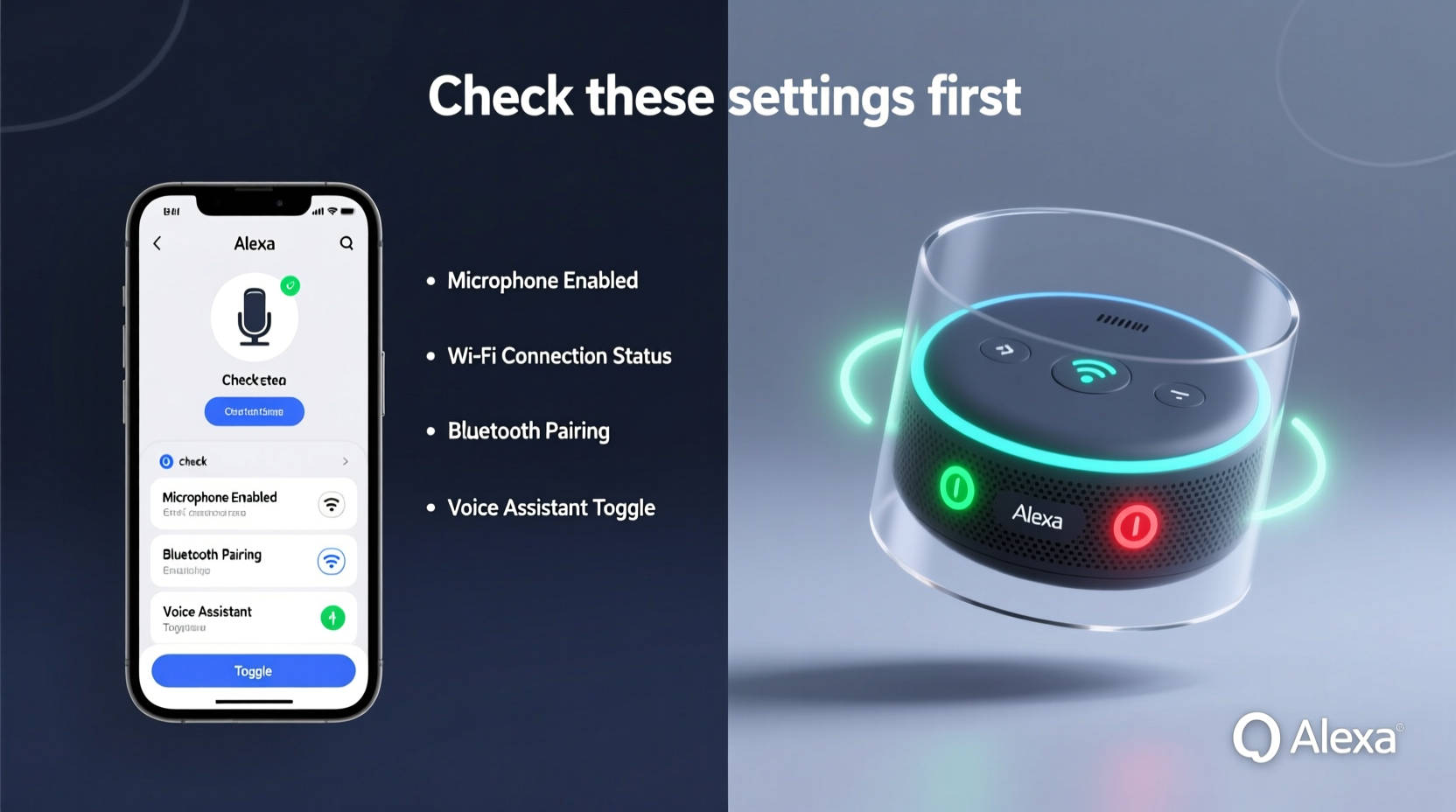
Alexa relies entirely on a stable internet connection to process voice commands and deliver responses. If your Wi-Fi is down or unstable, Alexa won’t be able to reach Amazon’s cloud servers, resulting in delayed or no responses.
Start by verifying that your router is powered on and functioning properly. Look at the status lights—most routers have indicators for power, internet, and Wi-Fi. A solid green or blue light typically means everything is working; red or blinking lights may signal an issue.
Next, test other devices on the same network. Can your phone or laptop browse the web? If not, the problem lies with your internet service rather than Alexa.
If only your Echo device is affected, ensure it's connected to the correct Wi-Fi network. Open the Alexa app, go to Devices > Echo & Alexa > [Your Device] > Network, and confirm the listed network matches your home Wi-Fi. If it shows a different network or \"No Network,\" reconnect manually through the app.
Verify Microphone and Mute Settings
One of the most overlooked reasons Alexa doesn’t respond is that the microphone is disabled. Every Echo device has a physical mute button—usually a red ring or indicator light—that cuts off audio input when activated.
Check the top of your device. If the microphone button is red or illuminated, Alexa cannot hear you. Press the button to unmute. The red light should turn off, and the ring (on supported models) will glow blue when you say “Alexa.”
In the Alexa app, navigate to Devices > Echo & Alexa > [Your Device] > Microphone & Camera Settings. Confirm that the microphone is enabled. Some privacy-conscious users disable this feature intentionally but may forget they did so.
“Over 40% of ‘non-responsive Alexa’ cases we see in support logs are due to accidental muting. It’s the first thing we recommend customers check.” — Jordan Lee, Senior Customer Experience Lead, Amazon Smart Home Support
Review Power and Hardware Status
Before diving into software settings, confirm your device is receiving power. Unplug the power adapter from both the wall outlet and the Echo, wait 10 seconds, and plug it back in. Watch for the startup sequence—usually a brief light animation followed by a tone.
If there’s no sign of life, try a different power cable or outlet. Amazon-certified adapters provide consistent voltage; third-party chargers may underpower the device, leading to erratic behavior.
For battery-powered devices like the Echo Dot with Clock (portable version), ensure the battery isn’t depleted. Plug it in and allow it to charge for at least 15 minutes before testing again.
Also, inspect the device for physical damage. Liquid exposure, drops, or dust buildup in the speaker grille can impair performance. While newer models have some water resistance, they are not waterproof.
Step-by-Step Guide: Reboot and Reconnect Your Echo
Sometimes, a full reboot clears temporary software errors that prevent Alexa from responding. Follow this sequence to reset your device properly:
- Unplug the Echo from power for at least 30 seconds.
- Restart your Wi-Fi router using the same method—unplug, wait 30 seconds, plug back in.
- Wait for your network to fully come back online (about 1–2 minutes).
- Plug the Echo back in and wait for the light ring to cycle through orange or white, ending in a solid blue or cyan tone.
- Say “Alexa, are you there?” to test responsiveness.
- If still unresponsive, open the Alexa app and check if the device appears online under Devices.
- If offline, tap the device and select Reconnect or Set Up Again.
This process resets both the local network environment and the device’s internal state, often resolving transient communication failures between Alexa and Amazon’s servers.
Update Firmware and App Settings
Like any smart device, Echo units require regular firmware updates to maintain performance and security. These updates happen automatically over Wi-Fi, but they can fail if the connection is weak or interrupted.
To check your device’s software version:
- Open the Alexa app.
- Go to Devices > Echo & Alexa > [Your Device] > Device Software.
- If an update is pending, the app will prompt you to install it.
Ensure your Alexa app is also up to date. Outdated apps may not communicate correctly with newer firmware versions. Visit your phone’s app store and check for updates to the Alexa application.
Additionally, review notification settings. Go to Settings > Notifications in the app and make sure system alerts are enabled. This ensures you’ll receive messages if your device disconnects or requires attention.
Common Issues and Solutions Table
| Issue | Possible Cause | Solution |
|---|---|---|
| Alexa doesn’t hear me | Muted microphone | Press microphone button to unmute |
| Blue ring but no response | Poor internet or server delay | Test Wi-Fi, restart router |
| No light at all | Power issue | Try new outlet or cable |
| \"I’m having trouble with that\" | Firmware outdated | Check for software updates |
| Echo appears offline in app | Network configuration error | Reconnect via app setup |
Real-World Example: The Weekend Connectivity Crash
Sarah, a remote worker in Portland, noticed her kitchen Echo stopped responding Friday evening. She tried multiple commands—\"Alexa, set a timer,\" \"What’s the weather?\"—but got no reply. The device had worked perfectly earlier that day.
Instead of resetting immediately, she checked the mute button. It wasn’t red. Then she opened the Alexa app and saw the device marked as “Offline.” Her phone was connected to Wi-Fi, but her husband had installed a new mesh router earlier that afternoon and forgotten to reconnect the Echo.
After selecting the device in the app and choosing “Reconnect,” she re-entered the Wi-Fi password. Within 30 seconds, the Echo lit up and responded normally. The issue wasn’t with Alexa—it was a post-upgrade network mismatch.
This scenario highlights how changes to your home network—even beneficial ones—can temporarily disconnect smart devices if not followed by proper reconfiguration.
Account and Location Settings
Your Alexa experience is tied to your Amazon account and location settings. If these are misconfigured, your device may not function as expected.
First, confirm you’re logged into the correct Amazon account in the Alexa app. Multiple household members sometimes use different accounts, leading to confusion about which devices are accessible where.
Next, verify your device’s location. In the Alexa app:
- Tap More > Settings > Account Settings > Communication Preferences.
- Ensure your country and time zone are correct.
- Go to Devices > [Your Echo] > Device Location and confirm it matches your physical address.
Incorrect location data can affect weather reports, local news, and even voice recognition accuracy, especially for regional accents or dialects.
FAQ: Common Questions About Alexa Responsiveness
Why does Alexa light up but not respond?
This usually means Alexa heard the wake word but couldn’t process the request. Causes include poor internet, server outages, or unclear speech. Try speaking more clearly and closer to the device. Also, check for background noise that might interfere with command clarity.
Can I use Alexa without Wi-Fi?
No. Alexa requires constant internet access to interpret voice commands and retrieve information. While some skills offer limited offline functionality (like pre-downloaded alarms), core features depend on cloud connectivity.
How do I know if Amazon’s servers are down?
Visit AWS Service Health Dashboard or third-party sites like Downdetector. If many users report issues with Alexa or Amazon services around the same time, it may be a widespread outage beyond your control.
Final Checklist: What to Do When Alexa Won’t Respond
- ✅ Check that the microphone isn’t muted (no red light).
- ✅ Ensure the device is plugged in and powered on.
- ✅ Confirm your Wi-Fi is active and the Echo is connected.
- ✅ Restart both the Echo and your router.
- ✅ Open the Alexa app and verify the device is online.
- ✅ Check for firmware and app updates.
- ✅ Reconnect the device to Wi-Fi if needed.
- ✅ Test with a simple command like “Alexa, what time is it?”
Following this checklist resolves the majority of non-responsiveness issues within 10–15 minutes. Most problems are environmental or configuration-based—not hardware defects.
Conclusion: Take Control of Your Smart Home Experience
Alexa is designed to simplify your life, not complicate it. When it stops responding, the solution is often just a few taps or button presses away. By understanding the core dependencies—power, internet, microphone access, and software health—you gain the ability to troubleshoot confidently and independently.
Don’t rush to replace your device at the first sign of silence. Start with the basics: power cycle, unmute, reconnect. These small actions solve most issues. Save deeper diagnostics for persistent problems after ruling out the obvious.




 浙公网安备
33010002000092号
浙公网安备
33010002000092号 浙B2-20120091-4
Comments
No comments yet. Why don't you start the discussion?