
Alexa is designed to simplify life—turning on lights, setting timers, playing music, or answering questions with a simple “Alexa.” But when she stops responding, the silence can be frustrating. Whether your Echo device blinks without action or doesn’t react at all, voice command failures disrupt routines and raise concerns about functionality. The good news: most issues are fixable with systematic troubleshooting. This guide walks through the most common causes of unresponsiveness and provides practical solutions to restore seamless interaction.
Understanding Common Causes of Alexa Not Responding
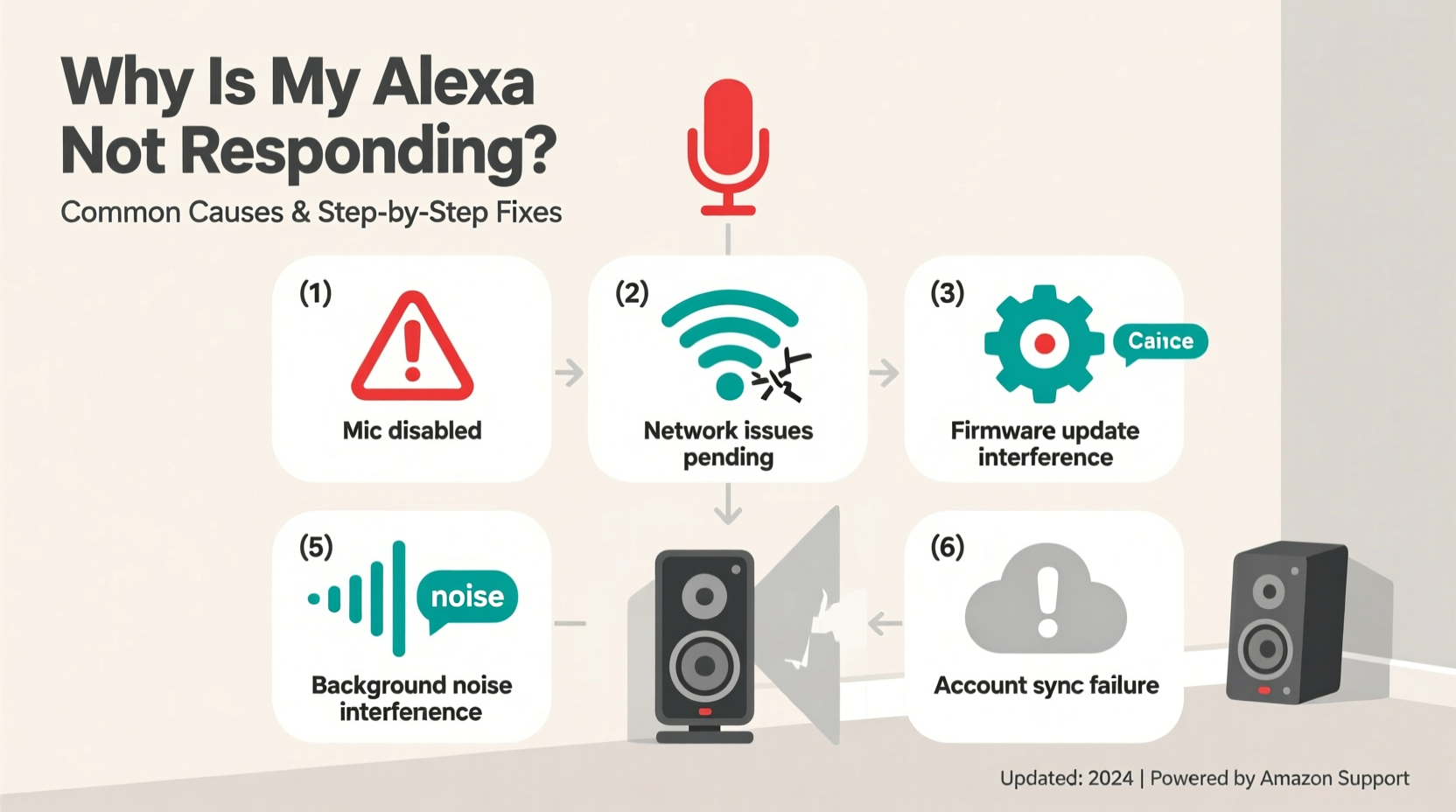
Alexa’s failure to respond isn’t usually due to one single flaw. Instead, it stems from a combination of hardware, software, network, or environmental factors. Identifying the root cause is the first step toward resolution.
- Network connectivity problems: Alexa relies on stable Wi-Fi. A weak or interrupted signal prevents communication with Amazon’s servers.
- Muted microphone: The physical mute button on your Echo device disables voice detection. If red, Alexa cannot hear you.
- Device offline status: If the Alexa app shows your device as “Offline,” it’s disconnected from the network.
- Firmware or software glitches: Outdated software or temporary bugs may impair responsiveness.
- Voice recognition errors: Background noise, accent misinterpretation, or incorrect wake word settings reduce accuracy.
- Hardware malfunctions: Rarely, internal components like microphones or speakers fail.
Step-by-Step Troubleshooting Guide
Follow this structured sequence to diagnose and resolve Alexa’s lack of response. Start with basic checks before moving to advanced steps.
- Verify power and audio output: Ensure your Echo is plugged in and powered. Listen for startup chimes. If no sound plays, test the speaker by asking Alexa to read news or play music after confirming other basics.
- Check the microphone status: Look at the top ring. If it's glowing red, the mic is muted. Press the microphone button to disable mute mode.
- Test Wi-Fi connection: Open the Alexa app, go to Devices > Echo & Alexa > [Your Device] > Settings > Network. Confirm it's connected to the correct Wi-Fi network with strong signal strength.
- Reboot the Echo device: Unplug it for 30 seconds, then plug it back in. Wait two minutes for full restart.
- Restart your router: Power cycle your modem and router. This often resolves intermittent network issues affecting Alexa.
- Ensure Alexa is reachable: In the Alexa app, confirm the device appears online. If not, initiate reconnection via Settings > Wi-Fi > Reconnect Device.
- Update firmware: Firmware updates happen automatically, but restarting can trigger pending ones. Check under Device Settings > About > Software Version.
- Re-register the device: Remove the Echo from your account via the app, then set it up again as new.
When to Reset Your Echo
If standard troubleshooting fails, perform a factory reset. This erases all settings and returns the device to default state. To reset:
- Echo (3rd Gen and later): Press and hold the Action button (dot icon) for 25 seconds until the light ring turns orange, then blue.
- Echo Dot/Button: Hold the Volume Down button for 20–30 seconds.
- Echo Show: Go to Settings > Device Options > Factory Reset, or hold the Microphone Off and Volume Down buttons together.
After resetting, reconnect through the Alexa app using the setup wizard.
Environmental and Usage Factors That Affect Performance
Even a fully functional Echo can struggle in suboptimal conditions. Environmental interference plays a larger role than many users realize.
| Factor | Impact on Alexa | Solution |
|---|---|---|
| Background noise | Overwhelms microphone; commands get lost | Use in quiet spaces or enable Voice Profile for better recognition |
| Distant placement | Reduces voice pickup clarity | Place within 10 feet, avoid corners or behind furniture |
| Obstructions near mic array | Blocks sound input | Keep vents clear; don’t cover with objects or fabric |
| Poor acoustics (echoes, hard surfaces) | Causes distorted voice capture | Add soft furnishings or rugs to dampen reflections |
| Multiple Echos nearby | Competing devices may respond inconsistently | Use Announce or drop volume on secondary units |
“Echo devices use beamforming microphones to focus on your voice—but they still need a clean acoustic environment to function reliably.” — Raj Mehta, Senior Audio Engineer at Amazon (via Wired Interview, 2022)
Optimize Wake Word Sensitivity
Alexa uses machine learning to detect its wake word (“Alexa,” “Echo,” “Computer”), but sensitivity varies based on ambient conditions. You can adjust how aggressively it listens:
- In the Alexa app, go to Devices > Echo & Alexa > [Device] > Settings > Wake Word.
- Select a different wake word temporarily to test responsiveness.
- Enable “Improved Wake Word Detection” if available under Device Settings > Accessibility.
Advanced Fixes: Account, App, and Cloud-Level Issues
Sometimes, the problem lies beyond the device itself—in your Amazon account, app configuration, or backend services.
Reinstall the Alexa App
The mobile app acts as a control hub. Corruption or outdated versions can prevent proper device communication.
- Uninstall the Alexa app from your phone.
- Clear cache data (Android: Settings > Apps > Alexa > Storage > Clear Cache).
- Download the latest version from the App Store or Google Play.
- Log in and re-pair your devices.
Check Amazon Server Status
Alexa depends on cloud infrastructure. During outages, even perfectly configured devices fail.
- Visit AWS Service Health Dashboard or third-party sites like Downdetector.
- Search for “Amazon Alexa” or “Alexa Skills Kit” outages.
- If widespread issues exist, wait for Amazon to resolve them—no local fix will work.
Review Voice Recognition Profiles
If Alexa responds only to certain people, voice profiles may be misconfigured.
- Navigate to Alexa App > More > Settings > Your Profile & Family > Voice ID.
- Train your voice profile by recording sample phrases.
- Enable “Personal Results” so Alexa tailors responses to recognized voices.
Real-World Example: Resolving Persistent Non-Response
Sarah, a teacher in Portland, noticed her kitchen Echo stopped responding each morning. She’d say “Alexa, turn on the coffee maker,” but nothing happened. By midday, it worked fine. Frustrated, she tried rebooting daily—ineffective and time-consuming.
She followed a diagnostic checklist:
- Mic wasn’t muted (blue ring active).
- Wi-Fi signal was strong throughout the house.
- No firmware updates pending.
Then she observed a pattern: interference occurred only during breakfast, when her microwave ran. After testing, she discovered the microwave emitted radio frequency noise disrupting the 2.4 GHz Wi-Fi band her Echo used. She moved the router channel to 1 (less congested), relocated the Echo five feet away from appliances, and enabled Quality of Service (QoS) settings on her router. The issue resolved permanently.
This case illustrates how seemingly unrelated household electronics can impact smart devices—something rarely considered during initial setup.
Preventive Maintenance Checklist
To avoid future disruptions, follow this monthly maintenance routine:
- ✅ Restart your Echo device once per month.
- ✅ Reboot your router every 4–6 weeks.
- ✅ Verify microphone is unmuted after accidental presses.
- ✅ Test voice commands weekly to catch early signs of degradation.
- ✅ Keep the device clean—wipe exterior with dry cloth, avoid moisture.
- ✅ Monitor for software updates in the Alexa app.
- ✅ Audit connected smart home devices that rely on Alexa for stability.
Frequently Asked Questions
Why does Alexa light up but not respond?
This typically means the device heard the wake word but couldn’t process the command. Causes include poor internet connectivity, server-side delays, or unclear speech. Try repeating the command slowly in a quieter room. Also, check if the skill required (e.g., for smart home control) is enabled and functioning.
Can I use Alexa without Wi-Fi?
No. Alexa requires constant internet access to process voice commands via Amazon’s cloud servers. While some limited Bluetooth functions work offline (like playing audio via direct pairing), core features including voice assistance, smart home control, and information queries depend on an active connection.
How do I know if my Echo’s microphone is broken?
If the mic isn’t muted and other troubleshooting steps fail, test it using the Alexa app. Go to Device Settings > Microphone and Speaker Test. If Alexa doesn’t repeat what you say, the mic may be faulty. Alternatively, ask Alexa to record a message and send it to your phone. If no audio is captured, hardware failure is likely. Contact Amazon Support for repair or replacement under warranty.
Conclusion: Restore Reliability and Regain Control
Alexa’s value lies in reliability—responding instantly, accurately, and consistently. When that breaks down, the experience feels broken. But most non-responsiveness issues stem from correctable causes: network instability, muted mics, environmental interference, or outdated software. By methodically addressing each potential factor, you can restore full functionality without replacing hardware.
Start with the simplest checks—power, mute button, Wi-Fi—and progress to deeper diagnostics like resets and app reinstalls. Pay attention to timing patterns and environmental clues. And remember: Amazon continuously improves Alexa’s intelligence, so staying updated ensures you benefit from the latest enhancements.




 浙公网安备
33010002000092号
浙公网安备
33010002000092号 浙B2-20120091-4
Comments
No comments yet. Why don't you start the discussion?