
Alexa is designed to simplify daily life—playing music, setting timers, controlling smart home devices, and answering questions with a simple “Alexa.” But when your device stops responding to voice commands, the convenience quickly turns into frustration. The good news: most voice detection issues are fixable with systematic troubleshooting. Whether your Echo device isn’t hearing you at all or only responds intermittently, this guide walks through the root causes and provides practical solutions to restore reliable performance.
Understanding How Alexa Listens
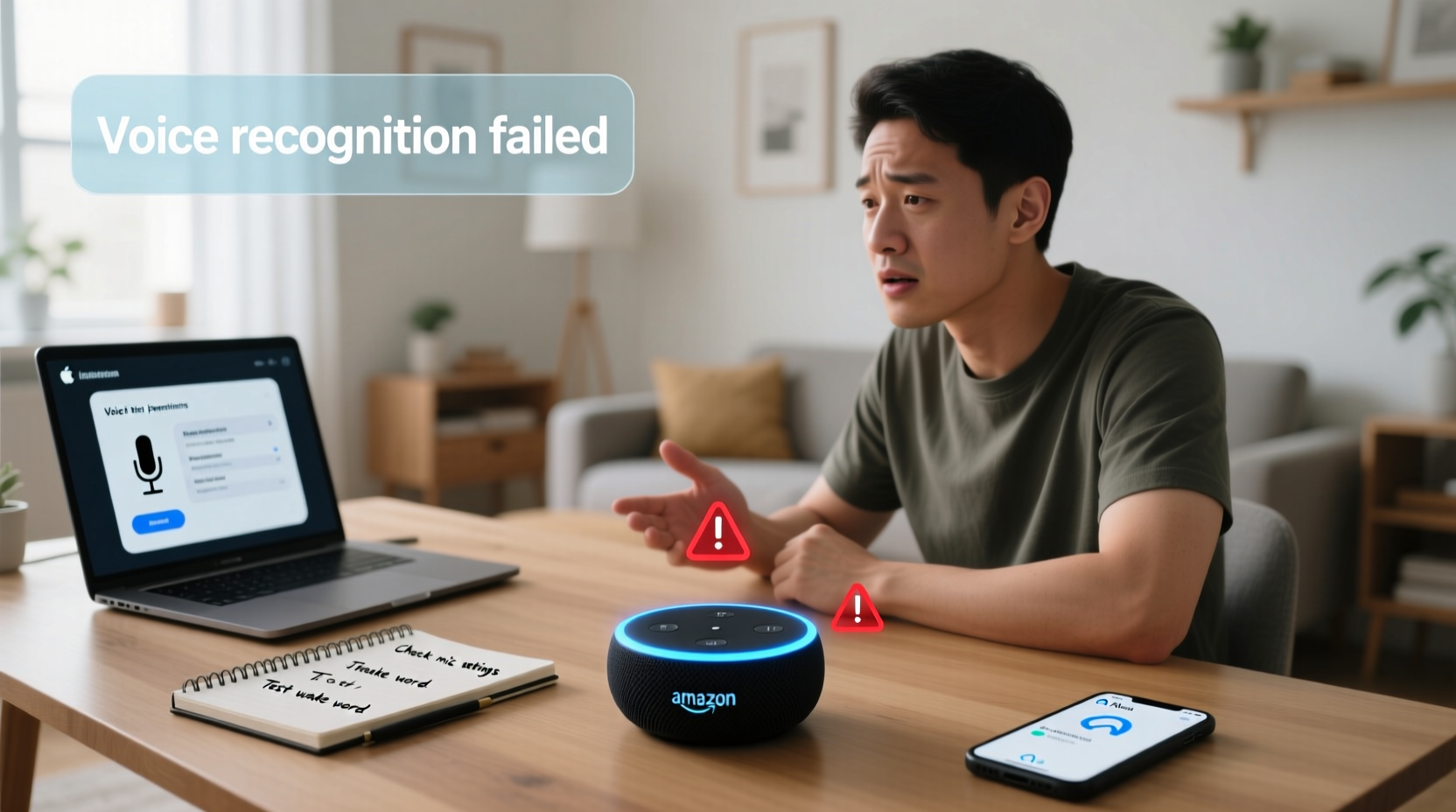
Alexa relies on far-field microphones and cloud-based speech recognition to process voice commands. When you say the wake word (default: “Alexa”), the device activates its microphone array, records your request, and sends it to Amazon’s servers for interpretation. A successful response depends on several factors: microphone functionality, internet connectivity, correct wake word settings, and environmental conditions.
Common signs of voice detection failure include:
- No blue light ring when speaking to the device
- Delayed or partial responses
- “I didn’t catch that” or similar error messages
- Device only responds when spoken to directly and loudly
Before assuming hardware failure, rule out simpler explanations like software glitches, Wi-Fi drops, or physical obstructions.
Step-by-Step Troubleshooting Guide
Follow this structured approach to identify and resolve voice detection issues. Start with basic checks and progress to advanced diagnostics if needed.
- Check the Microphone Mute Button
Look at the top of your Echo device. If the red light or microphone icon is illuminated, the mic is muted. Press the mic button to unmute. This is the most common reason for non-responsiveness. - Verify Internet Connection
Alexa requires stable internet access. Open the Alexa app, go to Devices > Echo & Alexa, select your device, and check connection status. If offline, restart your router or reconnect to Wi-Fi. - Reboot the Device
Unplug the power adapter for 30 seconds, then plug it back in. A reboot clears temporary software errors and resets network connections. Wait up to two minutes for full startup. - Test Wake Word Sensitivity
Stand a few feet away and clearly say “Alexa.” Observe the light ring. If no response, move closer. If it works only at close range, the mic sensitivity may need adjustment. - Update Firmware
Outdated firmware can cause bugs. In the Alexa app, go to Device Settings > About > Software Version. If an update is pending, ensure the device remains powered and connected until complete. - Adjust Wake Word Detection Settings
In the Alexa app, navigate to Settings > Your Device > Wake Word Sensitivity. Choose between High, Medium, or Low based on your environment. High sensitivity works best in quiet spaces; Medium is ideal for average households. - Perform a Factory Reset
If issues persist, reset the device. Press and hold the Action button (usually the dot in the center) for 25 seconds until the light ring cycles through orange. After reset, reconfigure via the Alexa app.
Environmental and Physical Factors Affecting Voice Detection
Your surroundings play a major role in how well Alexa hears you. Even a fully functional device can struggle under certain conditions.
Noise Interference
Background noise from TVs, appliances, or loud conversations can drown out voice commands. Alexa uses beamforming technology to focus on sound sources, but excessive ambient noise reduces accuracy.
Device Placement
Placing Echo units in enclosed cabinets, behind furniture, or near reflective surfaces can block or distort sound. Ideal placement includes:
- On an open surface, at least 1–2 feet from walls
- Away from air vents, fans, or running water
- At ear level for optimal voice capture
Dust and Debris
Over time, dust can clog microphone ports, especially on floor-level devices. Use a dry, soft brush or compressed air to gently clean around the mic openings. Avoid liquids or abrasive tools.
| Factor | Impact on Voice Detection | Solution |
|---|---|---|
| High ambient noise | Commands get filtered as background sound | Lower TV volume, use during quiet times |
| Poor Wi-Fi signal | Delayed or failed command processing | Move closer to router or use Wi-Fi extender |
| Incorrect wake word | Device doesn’t activate | Confirm wake word in app settings |
| Dusty microphone ports | Reduced sound input sensitivity | Clean gently with soft brush |
| Outdated software | Bugs affecting voice recognition | Ensure automatic updates are enabled |
“Microphone performance is highly dependent on both hardware condition and acoustic environment. Most 'unresponsive' reports we see are resolved by optimizing placement and reducing noise.” — David Lin, Senior Audio Engineer at Amazon Smart Home Division
Advanced Fixes and Diagnostic Tools
If standard steps fail, deeper diagnostics can reveal hidden issues.
Use the Alexa App’s Built-in Diagnostics
The Alexa app includes self-tests for microphone and speaker functionality. Navigate to:
- Devices > Echo & Alexa
- Select your device
- Tap Settings > Run Voice Recognition Test
This feature prompts you to speak specific phrases and evaluates whether the device captures them accurately.
Change the Wake Word
If Alexa frequently mishears you or activates accidentally, try switching the wake word. Options include “Echo,” “Amazon,” “Computer,” or “Ziggy.” To change:
- Open Alexa app
- Go to Devices > [Your Device] > Wake Word
- Select a new option and confirm
Some users report better detection with less common words due to reduced false triggers.
Check for Competing Devices
If you have multiple Echo devices, they may interfere with each other. When one detects the wake word, others might mute their mics temporarily. Disable \"Drop In\" or adjust group settings to reduce overlap.
Test with Another User Profile
Voice profiles are personalized. If Alexa responds to one household member but not another, it may be due to voice model training. Recalibrate by saying “Alexa, learn my voice” and following the prompts.
Real-World Example: Resolving Intermittent Response in a Busy Kitchen
Sarah, a homeowner in Austin, noticed her Echo Dot in the kitchen stopped responding reliably. It worked occasionally when she stood right next to it but ignored her otherwise. She followed these steps:
- Checked the mute button—was off.
- Restarted the device—no improvement.
- Used the Alexa app to test Wi-Fi signal—found it was weak (two bars).
- Moved the router closer and repositioned the Echo Dot on the counter, away from the microwave.
- Adjusted wake word sensitivity to “High” in the app.
After these changes, response improved dramatically. The issue was a combination of poor signal strength and electromagnetic interference from the microwave. Sarah also cleaned the mic ports with a small paintbrush, removing accumulated flour dust—a factor she hadn’t considered.
This case illustrates how multiple subtle factors can combine to create a persistent problem, even when the device itself is functional.
Preventive Checklist for Reliable Alexa Performance
To minimize future voice detection issues, follow this routine maintenance checklist:
- ✅ Reboot all Echo devices monthly
- ✅ Clean microphone ports every 3 months
- ✅ Confirm Wi-Fi signal strength is strong (3+ bars)
- ✅ Verify wake word sensitivity matches room acoustics
- ✅ Update voice profiles annually or when new users join
- ✅ Position devices away from loud appliances
- ✅ Monitor for firmware updates automatically
Frequently Asked Questions
Why does Alexa only respond sometimes?
Inconsistent responses are typically caused by weak Wi-Fi, background noise, or suboptimal device placement. Check your internet connection, ensure the mic isn’t muted, and verify the device isn’t buried in clutter. Also, consider recalibrating voice recognition in the app.
Can I test Alexa’s microphone without speaking?
Yes. In the Alexa app, go to Device Settings > Run Microphone Test. This tool analyzes input levels and confirms whether the mic is receiving audio. If no sound registers, the hardware may be faulty.
What if Alexa still won’t respond after a factory reset?
If the device remains unresponsive post-reset, contact Amazon Support. Persistent issues could indicate defective hardware. Registered devices under warranty are eligible for free replacements.
Conclusion: Restore Confidence in Your Smart Assistant
Alexa’s ability to respond promptly and accurately transforms your home into a responsive, intuitive space. When voice detection fails, it disrupts routines and diminishes trust in the technology. However, most problems stem from correctable setup or environmental issues—not permanent defects. By methodically checking connections, adjusting settings, and optimizing placement, you can restore seamless interaction. Regular maintenance prevents recurring issues and extends the lifespan of your devices. Don’t accept a silent Echo as inevitable. With the right approach, your Alexa can return to being the reliable, always-listening assistant you depend on.




 浙公网安备
33010002000092号
浙公网安备
33010002000092号 浙B2-20120091-4
Comments
No comments yet. Why don't you start the discussion?