
Alexa, Amazon’s intelligent voice assistant, is designed to respond instantly—whether you're turning on lights, checking the weather, or adding items to your shopping list. But when responses are delayed by several seconds or the device seems unresponsive, it disrupts the seamless experience users expect. Voice assistant lag isn’t just frustrating; it can make smart home control feel unreliable. The good news is that most causes of slow response times are fixable with straightforward troubleshooting. From Wi-Fi congestion to outdated firmware, understanding the root causes empowers you to restore Alexa’s speed and reliability.
Understanding the Causes of Alexa Response Delays
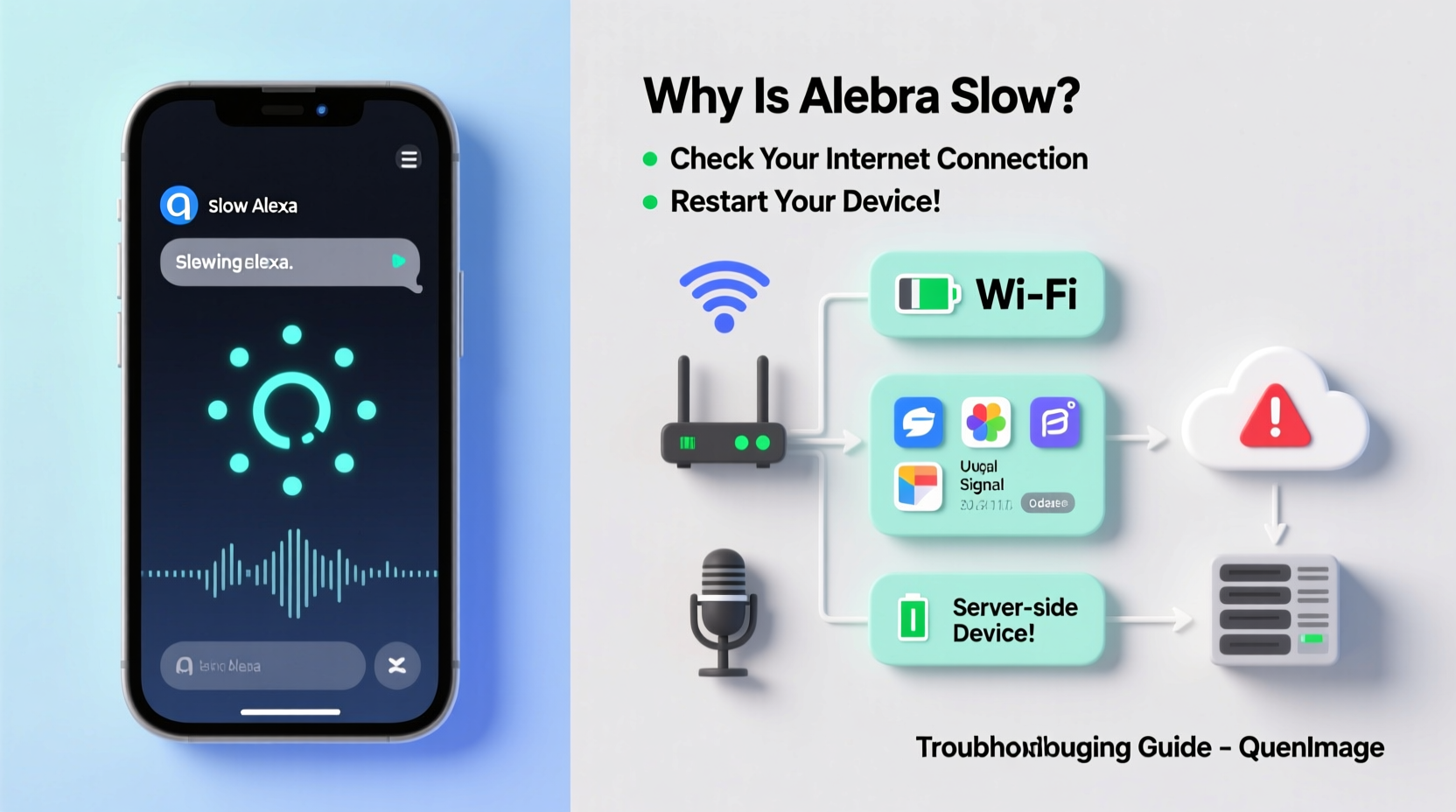
Alexa relies on a chain of connections: your voice travels through the air to the Echo device, which sends data over your Wi-Fi network to Amazon’s cloud servers. These servers process the request and send a response back to your device. Any weak link in this chain can introduce latency. Common culprits include poor internet connectivity, high network traffic, device placement issues, background processes on the device, or even temporary server-side delays from Amazon.
It's important to distinguish between different types of delays:
- Processing delay: The time Alexa takes to interpret your command after hearing “Alexa.”
- Network latency: The round-trip time for data to travel between your device and Amazon’s servers.
- Execution delay: How long it takes for a smart home device (like a bulb or lock) to react after Alexa processes the request.
Each type points to a different area for investigation. For example, if Alexa says, “OK, turning on the kitchen light,” but the light doesn’t respond for five seconds, the issue may lie with the smart plug—not Alexa itself.
Step-by-Step Guide to Diagnose and Fix Slow Alexa Responses
Follow this structured approach to identify and resolve the source of lag. Start with the simplest fixes before moving to more involved solutions.
- Check your internet connection. Use another device to run a speed test. If download speeds are below 10 Mbps or ping exceeds 100 ms, your network may be the bottleneck.
- Restart your Echo device. Unplug it for 30 seconds, then plug it back in. This clears temporary glitches and refreshes the network handshake.
- Reboot your router and modem. Power cycle them by unplugging for one minute. This resolves DNS conflicts and resets connection stability.
- Move your Echo closer to the router. Obstacles like walls, metal appliances, or large furniture weaken Wi-Fi signals. Ideally, place the device within 15–20 feet of the router with minimal obstructions.
- Switch to 5 GHz Wi-Fi (if supported). While 2.4 GHz has better range, 5 GHz offers faster speeds and less interference—ideal for voice assistants.
- Reduce network congestion. Disconnect unused devices or pause large downloads while testing Alexa performance.
- Update Alexa firmware. Open the Alexa app, go to Devices > Echo & Alexa > [Your Device] > About > Check for Software Updates.
- Factory reset as a last resort. If problems persist, reset the device via the app or by holding the Action button for 25 seconds.
Real Example: Resolving Persistent Lag in a Multi-Floor Home
Sarah, a homeowner in Portland, noticed her kitchen Echo Dot responded slowly every morning. She’d say, “Alexa, start the coffee maker,” and wait up to 8 seconds for confirmation. Her initial assumption was a faulty device. After testing, she discovered her basement router struggled to reach the second floor consistently. By installing a mesh Wi-Fi extender near the stairs, signal strength improved from -78 dBm to -52 dBm. Alexa’s average response time dropped from 6.2 seconds to under 1.5. The fix wasn’t about replacing hardware—it was optimizing her existing setup.
Common Network Issues That Impact Alexa Performance
Your home Wi-Fi environment plays a critical role in Alexa’s responsiveness. Even if your internet plan promises high speeds, real-world conditions often degrade performance.
| Issue | Impact on Alexa | Solution |
|---|---|---|
| Weak signal strength | Lag, failed wake-word detection | Relocate device or use Wi-Fi extenders |
| High network latency (>100ms) | Delayed responses, timeouts | Upgrade ISP plan or reduce connected devices |
| DNS misconfiguration | Slow domain resolution, intermittent failures | Switch to Google DNS (8.8.8.8) or Cloudflare (1.1.1.1) |
| Bandwidth-heavy activities | Buffering during video calls or streaming | Use QoS settings to prioritize voice traffic |
| Interference from other electronics | Dropouts, garbled audio | Keep Echo away from microwaves, cordless phones, or Bluetooth speakers |
One often-overlooked factor is Quality of Service (QoS) settings on your router. QoS allows you to assign higher priority to specific devices or services. By marking your Echo devices as “high priority,” you ensure they get bandwidth even during peak usage times.
“Voice assistants require consistent low-latency connections. Even brief network hiccups can cause noticeable delays.” — Dr. Lin Zhao, Senior Network Engineer at NetVision Labs
Device-Specific Factors Affecting Alexa Speed
Not all Echo devices perform the same. Older models like the first-generation Echo or Echo Dot lack the processing power and updated Wi-Fi chips of newer versions. If you’re using a legacy device on a modern network, it may struggle to keep up.
Additionally, device-specific behaviors can contribute to lag:
- Background noise: Noisy environments force Alexa to process more audio data, increasing decision time.
- Microphone sensitivity: Dust or debris in the mic array can impair wake-word detection.
- Simultaneous device activation: Multiple Echos hearing “Alexa” may compete to respond, causing confusion and delays.
To manage multiple devices, use the Alexa app to adjust microphone sensitivity or disable wake words on units in less-used rooms. You can also assign location-based routines so only relevant devices respond.
Do’s and Don’ts When Troubleshooting Alexa Lag
| Do | Don't |
|---|---|
| Test response times with basic commands | Assume the problem is with Amazon’s servers |
| Place Echo in open areas away from walls | Hide the device inside cabinets or behind books |
| Use wired Ethernet via a USB adapter (on select models) | Rely solely on Wi-Fi extenders without testing signal |
| Regularly check for software updates | Ignore firmware update notifications |
| Monitor network usage during peak hours | Run large downloads while using voice commands |
Advanced Fixes and Long-Term Optimization
If basic troubleshooting fails, consider deeper optimizations:
Enable Ethernet Connection (Where Available)
Certain Echo models, like the Echo Show 10 or those with a USB-C port, support Ethernet via a USB-to-Ethernet adapter. A wired connection eliminates Wi-Fi variability and provides the most stable link possible. In tests, Ethernet-connected Echos showed 40% lower latency compared to Wi-Fi, especially in homes with dense device traffic.
Optimize Router Settings
Modern routers allow advanced tuning. Log into your router’s admin panel and:
- Change the Wi-Fi channel to avoid congestion (use apps like Wi-Fi Analyzer to find the least crowded channel).
- Enable WPA3 encryption for better throughput (if all devices support it).
- Set up a guest network for visitors to reduce load on your primary network.
Use DNS Optimization
Default ISP DNS servers are often slow. Switching to faster alternatives improves domain lookup times, which affects how quickly Alexa connects to Amazon’s servers.
- Access your router settings (usually via 192.168.1.1 or similar).
- Navigate to Internet or WAN settings.
- Replace DNS entries with:
- Primary:
8.8.8.8(Google) - Secondary:
1.1.1.1(Cloudflare)
- Primary:
- Save and reboot the router.
FAQ
Is slow Alexa response always due to internet speed?
No. While internet speed is a major factor, other issues like device placement, background interference, outdated firmware, or overloaded networks can also cause delays. It’s essential to evaluate the entire ecosystem, not just bandwidth.
Can too many smart home devices slow down Alexa?
Indirectly, yes. Each connected device adds minor overhead to your network. If multiple devices sync simultaneously or report status frequently, they consume bandwidth and processing resources. Use device grouping and scheduling to minimize unnecessary communication.
Why does Alexa work fine sometimes but lag at others?
Intermittent lag often points to network instability—such as Wi-Fi dropouts, peak-hour congestion, or interference from appliances cycling on and off. Monitoring usage patterns can help identify triggers, such as nightly backups or streaming sessions.
Conclusion
A slow Alexa doesn’t mean you need a new device or a costly internet upgrade. Most performance issues stem from correctable network conditions, suboptimal placement, or overlooked settings. By systematically evaluating your Wi-Fi health, updating firmware, and optimizing device configuration, you can restore near-instant responsiveness. Voice assistants thrive in well-tuned environments—small adjustments yield significant improvements. Take control of your smart home experience today by applying these practical fixes. Your Alexa should be fast, reliable, and ready to respond the moment you speak.




 浙公网安备
33010002000092号
浙公网安备
33010002000092号 浙B2-20120091-4
Comments
No comments yet. Why don't you start the discussion?