
Experiencing uneven sound from your Bluetooth headphones—where one earbud is noticeably quieter than the other—is a frustrating issue that affects both casual listeners and audiophiles alike. It disrupts immersion, makes conversations in calls difficult, and can even cause listening fatigue over time. While it may seem like a hardware defect, many cases stem from software misconfigurations, debris buildup, or incorrect device settings. The good news? Most of these problems are fixable without replacing your headphones.
This guide dives into the root causes of unbalanced audio in Bluetooth headphones and provides practical, step-by-step solutions. Whether you're using wireless earbuds, over-ear models, or in-ear monitors, these troubleshooting methods apply across brands like Apple, Samsung, Sony, Jabra, and others.
Common Causes of One-Sided Low Volume
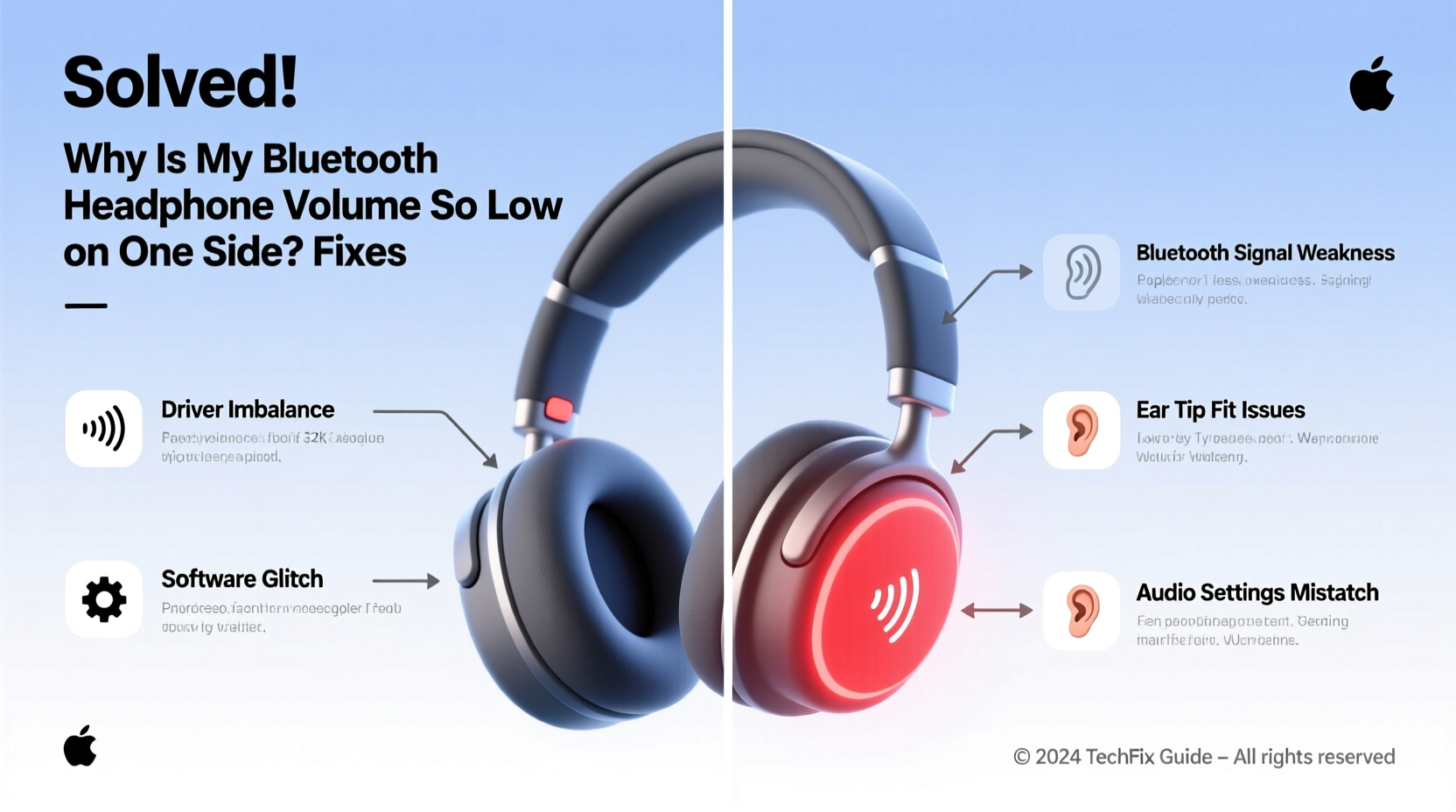
Before attempting fixes, it's essential to understand what might be causing the imbalance. Identifying the source helps eliminate unnecessary steps and prevents further damage.
- Audio balance settings skewed: Your phone or computer may have an audio panning setting that favors one side.
- Earwax or debris blockage: Especially common in in-ear models, wax buildup can muffle sound output.
- Firmware bugs: Outdated or glitchy firmware can lead to inconsistent driver performance.
- Damaged drivers or internal wiring: Physical impact or moisture exposure may degrade speaker components.
- Bluetooth codec mismatches: Incompatibilities between your device and headphones during transmission can distort audio.
- App-specific issues: Some media apps apply their own audio processing, which may affect channel balance.
Step-by-Step Fixes to Restore Balanced Audio
Follow this structured approach to diagnose and resolve the issue efficiently. Start with the simplest solutions and progress to more advanced ones.
1. Check Audio Balance Settings
The most overlooked cause is an unintentionally adjusted audio balance. Modern smartphones allow users to shift volume between left and right channels—often used for accessibility—but this setting can be changed accidentally.
- On iPhone: Go to Settings > Accessibility > Audio/Visual. Ensure the balance slider is centered.
- On Android: Navigate to Settings > Accessibility > Hearing enhancements > Mono audio & audio balance. Center the balance control.
- On Windows: Right-click the speaker icon > Open Sound settings > Device properties > Additional device properties > under Levels, click Balance and verify both sides are equal.
- On macOS: Go to System Settings > Sound > Output, select your headphones, then check if any third-party app has altered channel balance via Audio MIDI Setup (found in Utilities).
2. Clean the Earbuds Thoroughly
Wax, dust, or pocket lint can obstruct sound ports, especially in true wireless earbuds. Use proper cleaning techniques to avoid damaging sensitive components.
- Power off and remove the earbuds from your ears.
- Inspect the speaker mesh on the affected side with a bright light.
- Gently brush away debris using a soft-bristled toothbrush or a dry microfiber cloth.
- For stubborn wax, use a clean, dry toothpick to lightly scrape around the edges—never insert it deeply.
- Use a small piece of sticky putty (like Blu Tack) rolled into a ball to lift particles from crevices.
- Let the earbuds air-dry for 10–15 minutes before testing again.
“Over 60% of ‘faulty’ earbuds returned under warranty are actually just blocked by earwax. Regular cleaning prevents false failures.” — Dr. Lena Torres, Acoustic Engineer at Bose R&D
3. Reset Your Bluetooth Headphones
A reset clears corrupted pairing data and forces the device to re-establish a clean connection.
- Turn off the headphones completely.
- Press and hold the power button (or multifunction button) for 10–15 seconds until the LED flashes red/white or enters pairing mode.
- Release the button and wait for the device to restart.
- Re-pair the headphones with your device as if new.
This process varies slightly by brand. Consult your user manual for model-specific instructions.
4. Update Firmware and Operating System
Manufacturers frequently release firmware updates to fix audio glitches, improve stability, and enhance driver performance.
- For Apple AirPods: Ensure your connected iPhone is updated; firmware updates install automatically when charging.
- For Samsung Galaxy Buds: Open the Galaxy Wearable app and check for updates under Device > About.
- For Sony WF Series: Use the Sony | Headphones Connect app.
- For Jabra, Sennheiser, or Anker models: Download the official companion app (e.g., Jabra Sound+).
Also, keep your smartphone or laptop OS up to date. Older Bluetooth stacks may not handle newer codecs properly.
5. Test Across Devices and Apps
Isolate whether the problem lies with your headphones or the playback device.
- Pair the headphones with another phone, tablet, or laptop.
- Play the same audio file (preferably a stereo test track) on each device.
- Try different apps: Spotify, YouTube, Podcasts, and a built-in voice memo player.
If the imbalance persists across all devices, the issue is likely within the headphones. If it only happens on one device, focus on that system’s settings or Bluetooth stack.
Do’s and Don’ts When Fixing Unbalanced Audio
| Action | Do | Don't |
|---|---|---|
| Cleaning | Use a soft brush or lint-free cloth | Insert sharp objects or wet swabs into speaker grills |
| Testing | Use stereo test tracks with isolated left/right tones | Rely solely on music with mixed instrumentation |
| Software | Update firmware through official apps | Flash third-party firmware or unofficial tools |
| Storage | Keep in a dry case when not in use | Leave exposed to humidity or extreme temperatures |
| Troubleshooting | Reset both headphones and source device | Assume hardware failure immediately |
Mini Case Study: Resolving Asymmetrical Sound in AirPods Pro
Mark, a remote worker using AirPods Pro daily for Zoom meetings, noticed his right earbud was significantly quieter. He initially thought it was failing and considered buying new ones. Instead, he followed a methodical process:
- He checked his iPhone’s audio balance and found it had been shifted 70% to the left after a recent iOS update.
- After centering the slider, volume improved but still felt slightly muffled on the right.
- He cleaned the earbud using a dry toothbrush and removed visible wax from the mesh.
- Finally, he reset the AirPods via the charging case settings and reconnected them.
Result: Full audio balance was restored. Mark saved $249 and extended the life of his earbuds with simple maintenance.
Advanced Troubleshooting: When Basic Fixes Fail
If the above steps don’t resolve the issue, consider deeper technical causes.
Check Bluetooth Codec Compatibility
Different devices transmit audio using various codecs (SBC, AAC, aptX, LDAC). A mismatch can cause unstable connections or uneven decoding.
- On Android, enable Developer Options and view active codec under Bluetooth Audio Codec.
- Switch to a more stable codec like SBC if aptX causes dropouts.
- iOS uses AAC by default; ensure no third-party adapters are interfering.
Disable Audio Enhancements
Some systems apply virtual surround, bass boost, or spatial audio effects that may inadvertently suppress one channel.
- On Windows: Right-click speaker icon > Sound Control Panel > select your headphones > Properties > Enhancements tab > check “Disable all enhancements.”
- On macOS: Disable Spatial Audio in System Settings > Sound > Output.
- On Android: Turn off Equalizer, Dolby Atmos, or DTS:X in device sound settings.
Factory Reset Source Device (Last Resort)
If multiple Bluetooth devices behave oddly with your headphones, the issue may lie in your phone’s Bluetooth cache.
- Back up your phone.
- Go to Settings > System > Reset options > Reset Wi-Fi, mobile & Bluetooth (Android).
- On iPhone: Settings > General > Transfer or Reset iPhone > Reset > Reset Network Settings.
This clears all paired devices and resets radio configurations, often resolving persistent connectivity quirks.
FAQ: Frequently Asked Questions
Can I repair a damaged driver myself?
No. Internal speaker drivers are micro-scale components soldered onto circuit boards. Attempting DIY repairs usually results in permanent damage. Seek professional service or contact the manufacturer for warranty support.
Why does only one side work after updating my phone?
Operating system updates sometimes reset accessibility settings, including audio balance. Also, new Bluetooth policies may alter how audio streams are handled. Recheck balance settings and re-pair your headphones after updates.
Will mono audio mode fix the issue permanently?
Mono audio combines both channels into a single output, making sound appear in both ears. While helpful for accessibility, it doesn’t fix the underlying imbalance—it masks it. Use mono as a temporary workaround, not a solution.
Final Checklist: Diagnose and Fix One-Sided Low Volume
- ✅ Verify audio balance settings on your device (centered).
- ✅ Clean both earbuds, focusing on the quieter side.
- ✅ Test with multiple devices and apps.
- ✅ Reset your Bluetooth headphones.
- ✅ Update firmware and operating system.
- ✅ Disable audio enhancements or spatial effects.
- ✅ Try a different Bluetooth codec (if available).
- ✅ Contact manufacturer support if all else fails.
Conclusion
Uneven volume in Bluetooth headphones is rarely a death sentence for your device. More often than not, it’s a solvable issue rooted in settings, hygiene, or connectivity—not hardware failure. By systematically checking balance controls, cleaning speaker grills, resetting connections, and ensuring software compatibility, you can restore crisp, balanced sound without spending a dime.
Regular maintenance and mindful usage go a long way in preserving audio quality. Don’t rush to replace your headphones at the first sign of trouble. With the right knowledge, most problems are reversible. Take action today—clean, test, and recalibrate. Your ears will thank you.




 浙公网安备
33010002000092号
浙公网安备
33010002000092号 浙B2-20120091-4
Comments
No comments yet. Why don't you start the discussion?